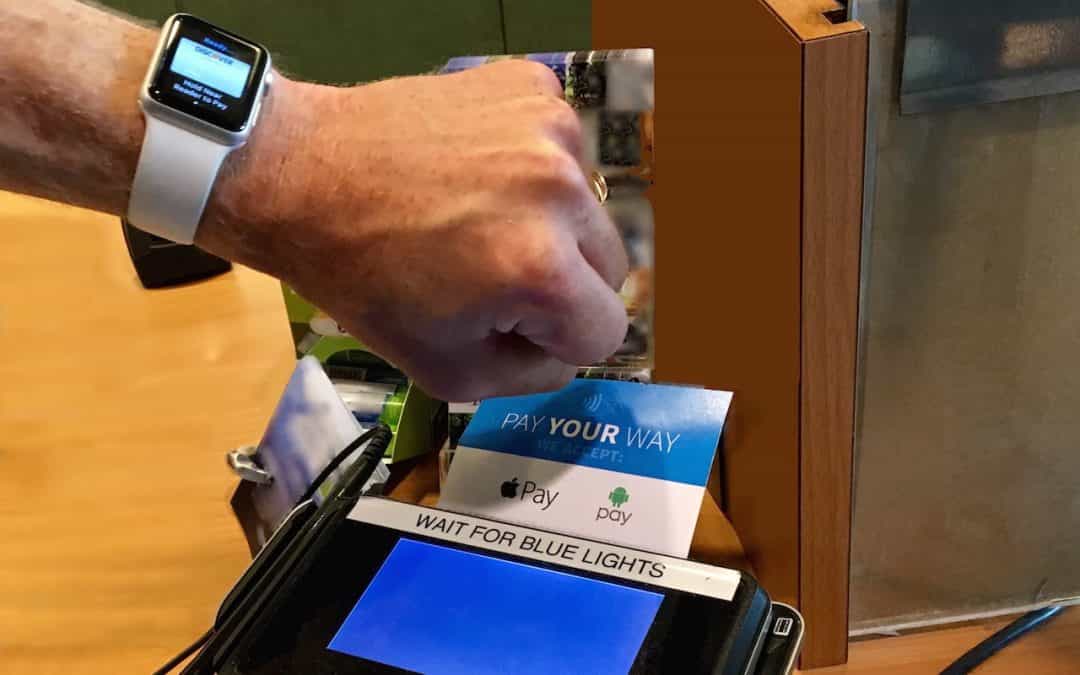

You’ve probably heard of Apple Pay, but have you set it up so you can use it to pay for purchases at checkout? If not, give it a try, since it’s one of those living-in-the future Apple technologies that feels like science fiction every time you use it. Simply put your iPhone, iPad, or Apple Watch within an inch or so of a compatible payment terminal (look for an Apple Pay or contactless payment logo), put your finger on the Home button to use Touch ID (or double-press the iPhone X’s side button and authenticate via Face ID, or double-press the Apple Watch’s side button), and you’re done. The entire transaction takes less time than opening your wallet, although you may still need to sign a receipt.
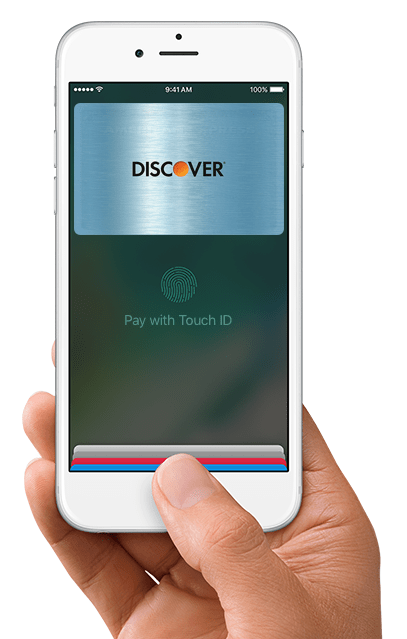
What happens behind the scenes when you use Apple Pay? The good news is that Apple Pay is significantly more secure than a magnetic-strip credit card and has advantages over chip-embedded cards too. First, theft prevention is baked in. A typical thief can’t use Apple Pay from your device because they can’t get past Touch ID or Face ID, or provide your Apple Watch passcode.
Also, the store where you shop gets no data about you—they don’t know who you are, where you live, what your card number is, or anything else unless you showed a rewards card or provided your phone number. Most importantly, you don’t have to worry about your credit card number being jotted down, scanned, or skimmed.
How does this seemingly magical process work? When you set up Apple Pay, the Wallet app sends your encrypted credit card details to Apple, after which they’re passed along to your card’s payment network. What comes back is an encrypted Device Account Number—a long number that’s stored in the Secure Enclave chip on your device. That chip is protected by a digital moat, keeping it isolated from nearly all activity on your device. The Device Account Number is unique to your device and card, so nobody else can use it.
When you pay with Apple Pay, the Secure Enclave chip transmits the Device Account Number, along with a few other details, including a one-time transaction code. Everything is encrypted, so even if an attacker were listening to the traffic, no transaction details would be revealed. The information remains encrypted until it reaches the appropriate party, at which point, if all goes well, your transaction is approved and processed.
Millions of payment terminals in the United States accept Apple Pay, including those found in most major national chains, so you shouldn’t have to look far to find one. You can also use Apple Pay in some iOS apps and some Web-based shopping carts when checking out in Safari.
To set up Apple Pay, on your iPhone or iPad, tap Settings > Wallet & Apple Pay > Add Credit or Debit Card and follow the easy instructions—it’s fine to let the device scan your card so that you don’t have to type your credit card number; the image is discarded immediately after setup.
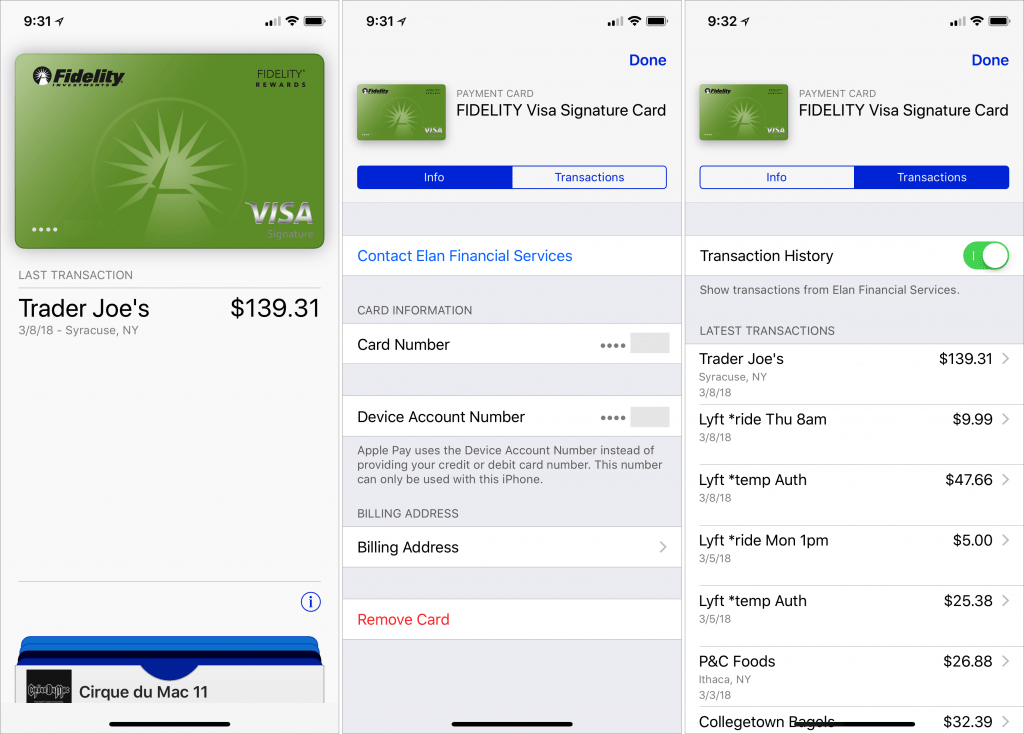
After adding a card, find it in the Wallet app and tap the card’s info button at the lower right to explore the Info and Transactions screens. Notice that four digits from the card’s Digital Account Number appear on the Info screen—if you want to return an Apple Pay purchase, you’ll give these digits to the merchant instead of sharing your credit card number.
Finally, starting in iOS 11.2, Apple introduced Apple Pay Cash, which lets you make person-to-person payments within the Messages app. It’s great for splitting restaurant checks!
The bottom line is that Apple Pay is easy to use, preserves your privacy, and enhances your financial security. And you get to feel like you’re living in the future!
AI Usage Transparency Report
Pre-AI Era · Written before widespread use of generative AI tools
AI Signal Composition
Score: 0.01 · Low AI Influence
Summary
You’ve probably heard of Apple Pay, but have you set it up so you can use it to pay for purchases at checkout? If not, give it a try, since it’s one of those living-in-the-future Apple technologies that feels like science fiction every time you use it. Simply put your iPhone, iPad, or Apple Watch within an inch or so of a compatible payment terminal (look for an Apple Pay or contactless payment logo), put your finger on the Home button to use Touch ID (or double-press the iPhone’s side button).
Related Posts
The CMMC Evidence Collection Guide I Wish I Had Before My Assessment
When I started preparing for a CMMC assessment, I expected to spend most of my time focused on policies, procedures, and the System Security Plan. Those things are certainly important, but what surprised me was how much of the assessment ultimately came down to evidence.
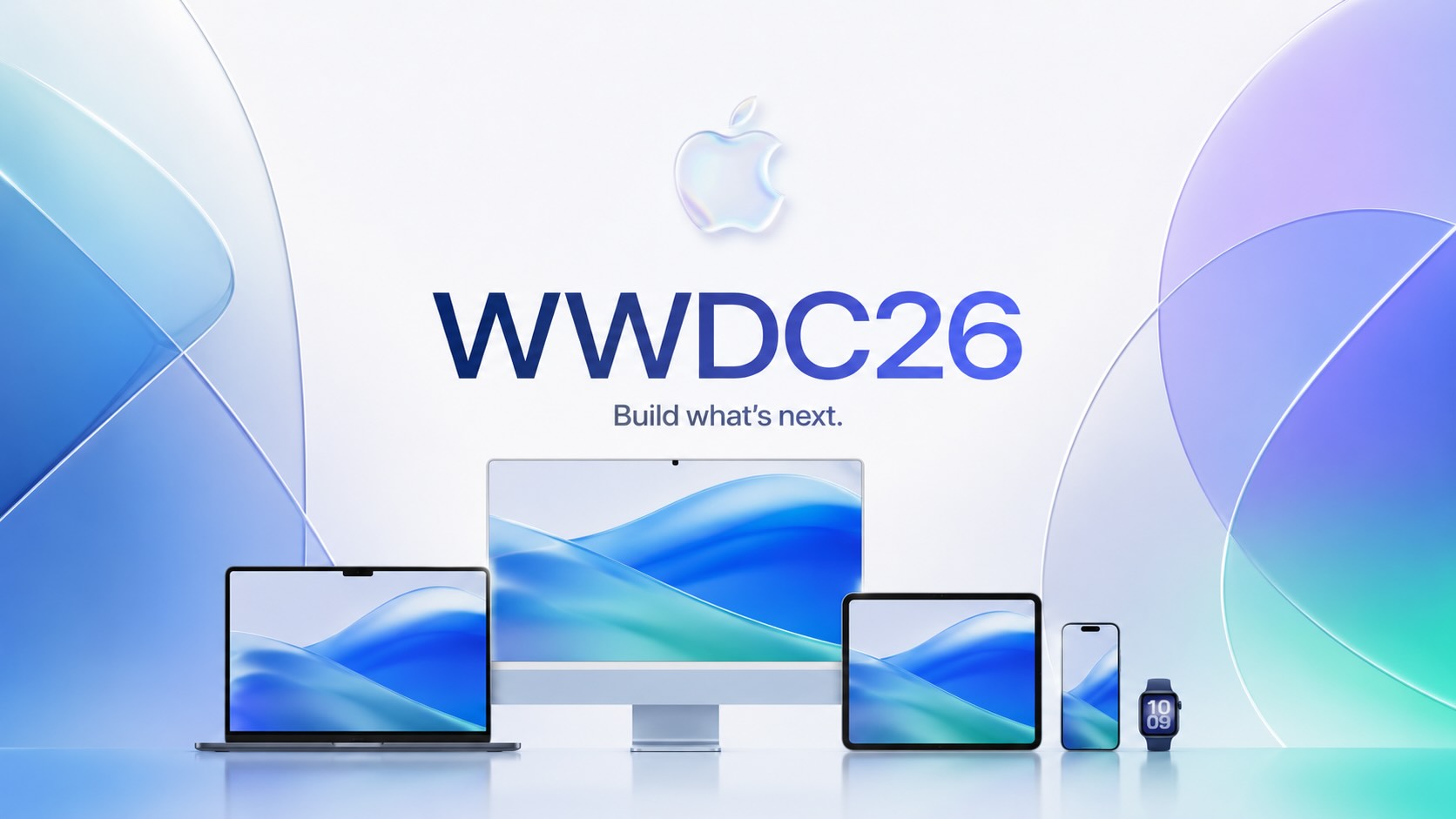
WWDC 2026 Was Bigger Than The Keynote
Most of those conversations eventually landed in the same place. Siri wasn't ready. Liquid Glass was everywhere. There was no new hardware announcement. Depending on who you asked, WWDC 2026 was either disappointing or forgettable.

A New Era for Bravas: Remote Acquisition Marks a Major Milestone
If you’ve followed this blog for a while, you already know that I have been a longstanding fan of Bravas, the technology they were building and the market they were going after. It's official on Friday, April 10th, in the #bravas channel on the Mac Admins Slack: it was announced that Remote.com had fully acquired Bravas.io, marking an exciting new chapter.
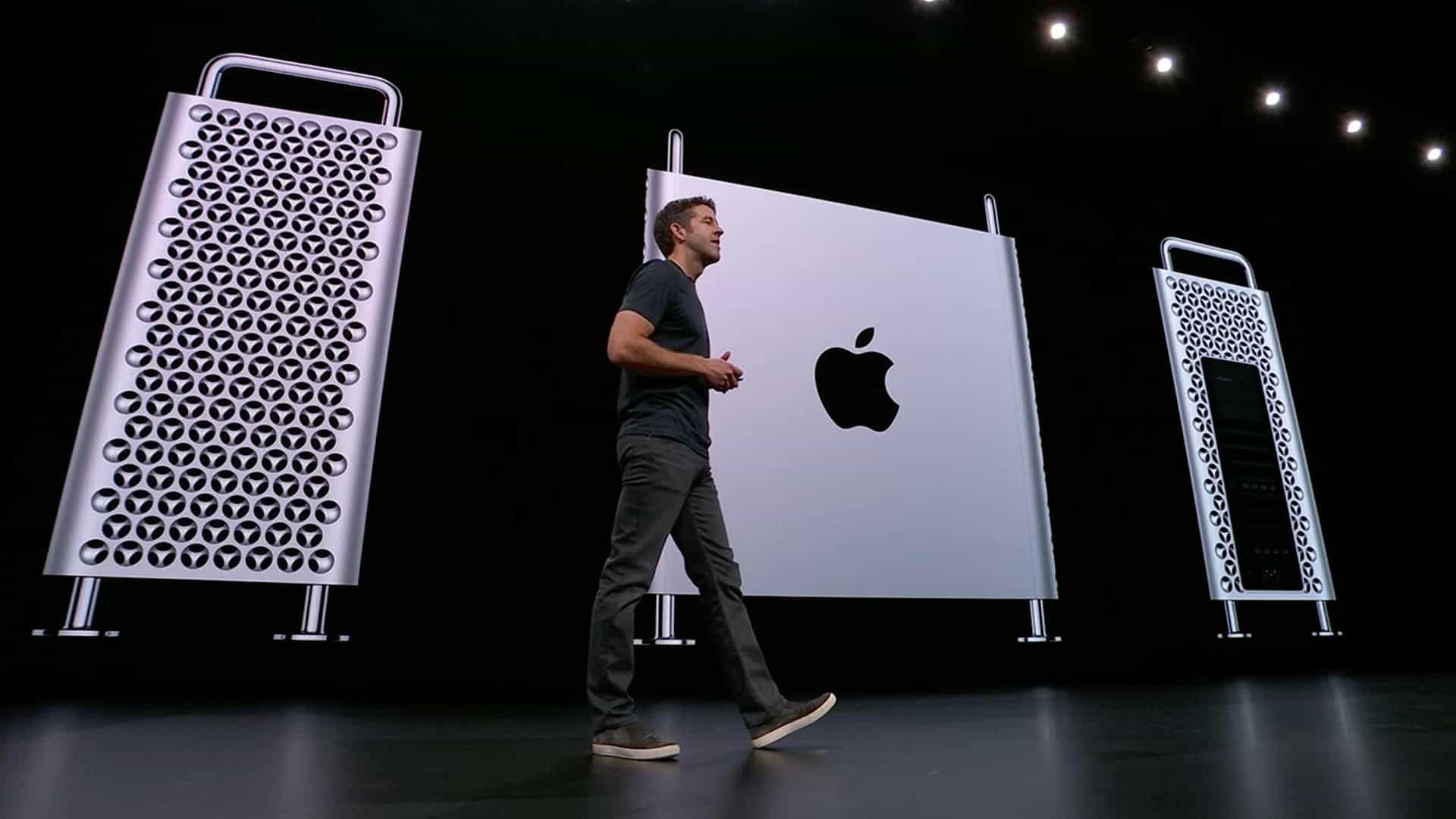
The new Mac Pro Tower: Wheels optional
So happy to see that Apple is going back to its ability to allow users to upgrade and customize their Mac Pro tower experience. There was much much love for the old Cheese Grater style Mac Pro and many are still in use because of their overall upgradeability and customization. Not saying that the Trash Can approach was bad. It was in line with their motto, think different. Coming up with a new and unique approach to power computing.

MacOS 10.15 Catalina Releasing this Fall
Wow things move quickly from year to year. No surprise here. MacOS Catalina brings a whole new level of cool back to the Mac in my honest opinion. I am so happy that Apple has decided to break out iTunes into multiple apps. iTunes back in the day was so awesome, easy to use and simplistic. Now it tends to be a power hungry and semi confusing app to use as its the defacto app for everything. How about that annoying feature that automatically launched iTunes when your phone was...

Thanks to our wonderful clients for a great 2018
--- This year was a year of Growth here at Grove Technologies. Our company changed brand, re-defined its core strategy and competency. During this time of transition we learned a lot about what we want to accomplish moving forward and the new direction that we will be moving in. That said I want to thank all of the passionate and amazing clients that trust us with their technology. We are proud to be able to claim that we are helping further many social justice, climate and advocacy movements as well...
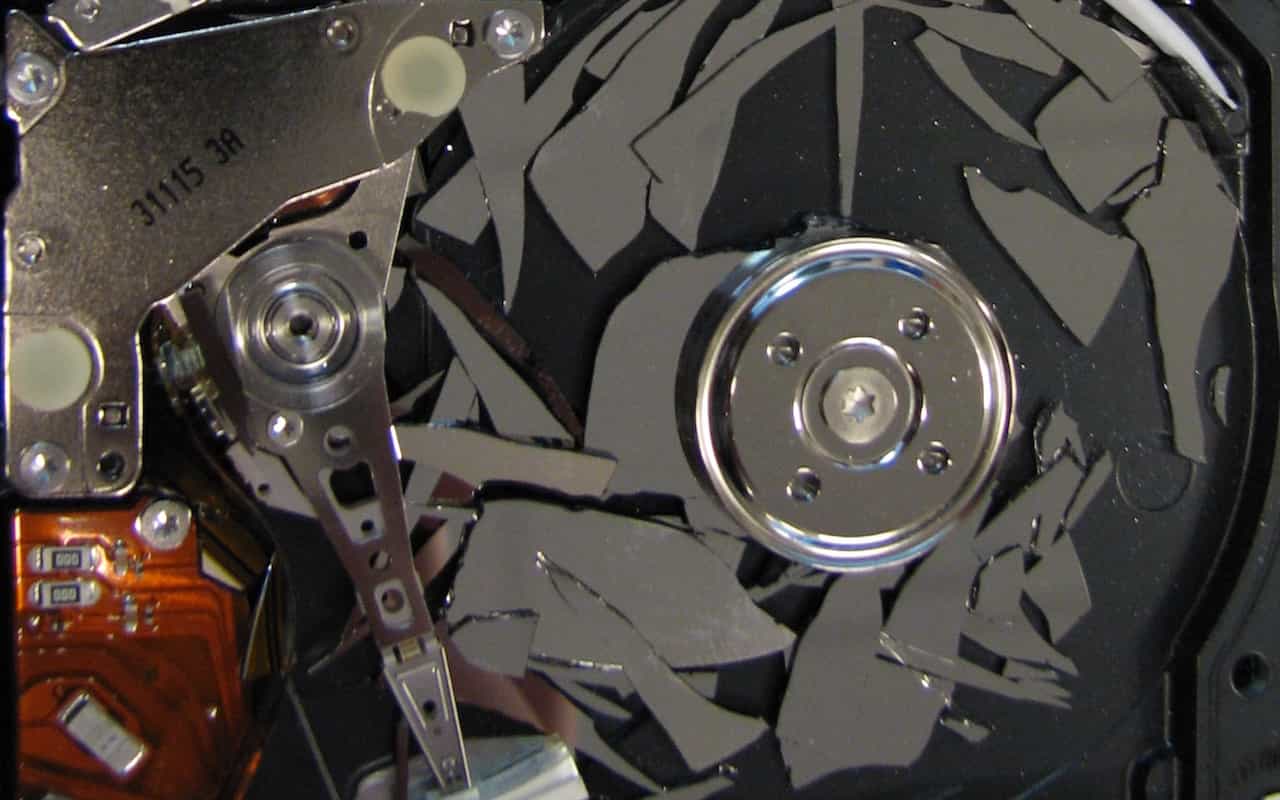
Back Up Before Upgrading to Mojave or iOS 12
Poll a room of Apple experts about the one topic they can't stop talking about and many will launch into frustrated rants about how too few people back up. Backups are always important, since you can never predict when your Mac or iPhone will be lost or stolen, melt in a fire, or just break. But one time when backups are especially important is before you upgrade to a major new operating system. If you're thinking "What could go wrong?" the answer is, "Lots," and wouldn't you like to be...
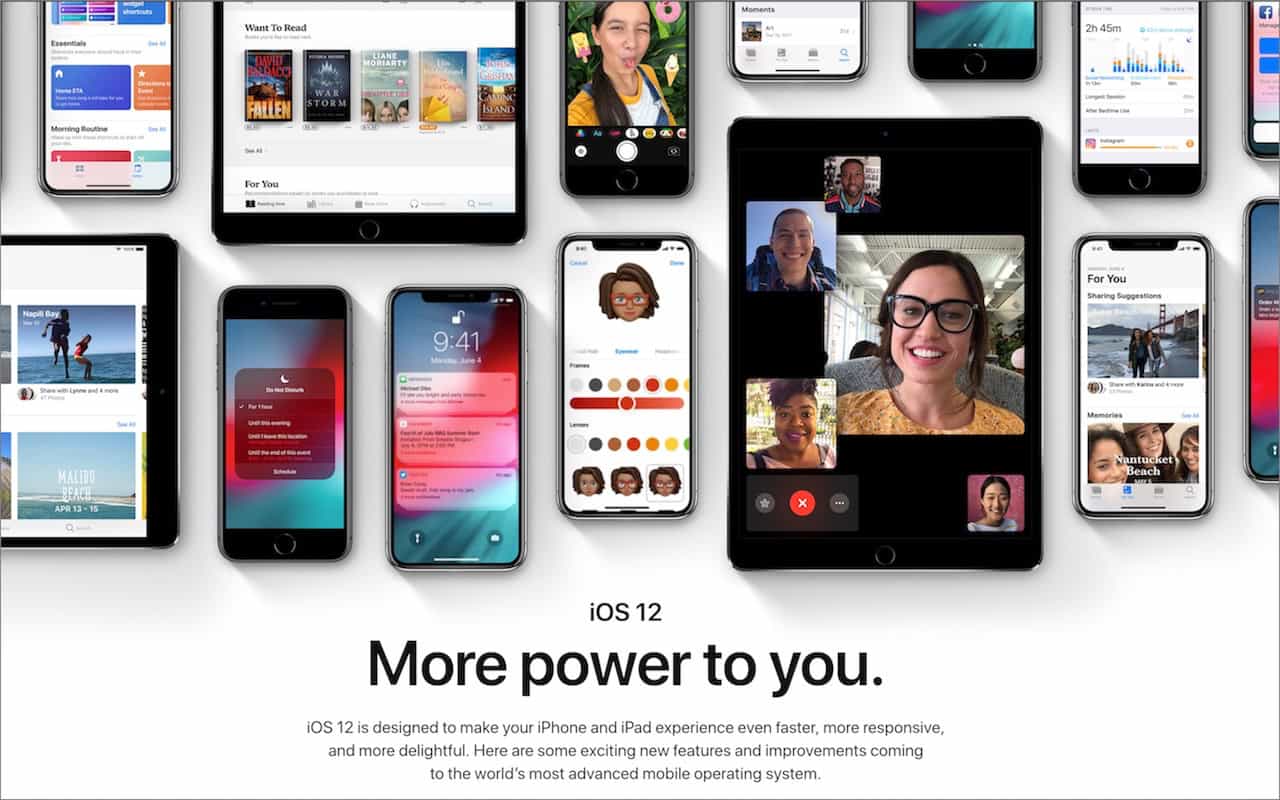
Top Features of iOS 12 to Take Advantage of Right Away
Feeling left behind because you don't have the latest iPhone or iPad? Don't worry, because Apple has a present for you in the form of iOS 12. The new operating system promises to increase performance, particularly for older devices as far back as the iPhone 5s and iPad Air. This means that your device will be able to run more smoothly and efficiently, making it feel like a newer model again.

Seriously Cool Features of macOS 10.14 Mojave You Won’t Want to Miss
With last year's macOS 10.13 High Sierra, Apple made no sweeping changes, instead focusing on refinements and bug fixes. In keeping with the company's alternating cycle of releases, this year's macOS 10.14 Mojave boasts a range of new features that build upon the previous version. As expected, these additions are incremental rather than revolutionary, allowing users to gradually adapt to the updated functionality without feeling overwhelmed by drastic changes.

When Should You Upgrade to macOS 10.14 Mojave, iOS 12, watchOS 5, and tvOS 12
When Should You Upgrade to macOS 10.14 Mojave, iOS 12, watchOS 5, and tvOS 12? --- It's that time of year again, when an Apple user's thoughts drift to new versions of macOS, iOS, watchOS, and tvOS. Apple announced the new versions in June, and public betas have been available since. But once Apple makes macOS 10.14 Mojave, iOS 12, watchOS 5, and tvOS 12 available for free download, you'll need to decide when to install each.
