
The Problem
For those who have worked with macOS for a while the struggle of managing secure tokens on macOS is a very real one. Lets start off with the basics. What is a secure token?
On a Mac, a secure token is an account attribute that allows users to carry out essential macOS functions, such as activating FileVault, authorizing system and kernel extensions, and managing software updates.
The secure token is typically granted to the first account created on a workstation, so many administrators struggle with managing computers that were not originally under management. Consider these scenerios.
You have an MDM, the MDM creates an account and gets a secure token. That account is used to provision new users. The original MDM account can grant secure tokens to new users. This workflow is ideal.
However how about a situation where the first account created was the actual users account and there is no other administrative account? In this case any accounts created need the end user to transfer the token.
Or what if there is an administrator account on the system, and it has the secure token and the password is known but the user on the computer with a different account does not have the token.
In these situations how do we grant the token without having to go to the users workstation and work with them directly?
Scenerio #1: One user account, with secure token. Second administrator account no secure token.
Using JAMF Pro we can create a script that would allow us to grant a secure token to a secondary account. We can do this using the fdesetup command which allows us to grant secure tokens. We can prompt the user for their password and we can pass that as a variable to the fdesetup command.
We can use expect to automate and allow us to continue through the prompts that come up. If you missed my talk about expect at the Mac Admins PSU then check it out here!
#!/bin/sh

// The variable $4 is the first JAMF Variable in the script area you can name this Users Username
// The variable $5 is the second JAMF Variable in the script area you can name this Users Password
userName="$4"
userPass="$5"

// These variables prompt the user to enter their admin with secure token username and password.

adminName=`osascript -e 'Tell application "System Events" to display dialog "Enter your username: Your username is the first inital and last name all lowercase no spaces" default answer ""' -e 'text returned of result'`
adminPass=`osascript -e 'Tell application "System Events" to display dialog "Enter your password:" with hidden answer default answer ""' -e 'text returned of result'`

// Using expect we pass the variables through to the appropriate prompts.
expect -c "
spawn sudo fdesetup add -usertoadd $userName
expect \"Enter the user name:\"
send ${adminName}\r
expect \"Enter the password for user '$adminName':\"
send ${adminPass}\r
expect \"Enter the password for the added user '$userName':\"
send ${userPass}\r
expect eof
"
This script uses JAMF Pro variables that you uca use to pass the username and password of the second admin account on the users workstation to complete the fdesetup secure token process.
I won’t go into detail here about where to add in the variables, since it should be pretty obvious if you are familiar with using JAMF Pro. However if you need help here just comment below and we can work together. Essentially once you create the script in JAMF Pro, you assign the script in the policy and in the policy leverage the variables to pass the information needed in the script.
Make sure to scope this to the individual workstation in question, and make sure to set this to “Ongoing” and available in Self Service. Doing this allows the user to keep trying to use the script and, its only available in an on-demand setting.
This script is in my Github Repo feel free to comment, contribute and post issues with it there.
Scenerio #2: Two user accounts, one with secure token. Second administrator account no secure token. Both passwords are known.
In this scenerio, we do not need to prompt the user for their password because we know the usernames and passwords of both accounts so we can use a recurring checkin, policy in JAMF Pro where we run only once on each workstation to target computers to automatically authorize additional users with secure tokens.
#!/bin/sh

// The variable $4 is the first JAMF Variable in the script area you can name this Users Username
// The variable $5 is the second JAMF Variable in the script area you can name this Users Password
userName="$4"
userPass="$5"

// The variable $5 is the third JAMF Variable in the script area you can name this Admin Username
// The variable $6 is the fourth JAMF Variable in the script area you can name this Admin Password
adminName="$6"
adminPass="$7"

expect -c "
spawn sudo fdesetup add -usertoadd $userName
expect \"Enter the user name:\"
send ${adminName}\r
expect \"Enter the password for user '$adminName':\"
send ${adminPass}\r
expect \"Enter the password for the added user '$userName':\"
send ${userPass}\r
expect eof
"
Again using expect here to use the fdesetup except we are not passing a prompt to the user since we know all the variables. We can add those variables in the policy where the script is assigned and scope it as outlined above.
This script is in my Github Repo feel free to comment, contribute and post issues with it there.
Automating Secure Token Deployment: Balancing Security and Practicality
When it comes to scripting, I’m usually the first to say never pass passwords directly—whether in scripts or variables. It’s a basic security principle. But sometimes, unique challenges demand creative solutions. Automating the deployment of secure tokens is one such challenge.
In this specific scenario, fdesetup requires the user to input a password, making automation tricky. To address this, we used tools to handle the password prompt while implementing guardrails to mitigate risks. Here’s how we approached this balancing act between automation and security:
Key Considerations for Secure Token Automation
1. Secure Your Environment
Before diving into scripting, it’s crucial to lock down your environment. For us, this included:
- Using a secure JSS or JAMF Cloud instance.
- Enforcing least privilege principles and requiring NDAs for access.
- Enabling SSO for JAMF accounts to bolster authentication security.
2. Script Security
We chose to use variables to handle sensitive information rather than embedding passwords directly into scripts. While not flawless, this approach reduces the risk of exposing sensitive data.
adminPass=`osascript -e 'Tell application "System Events" to display dialog "Enter your password:" with hidden answer default answer ""' -e 'text returned of result'`Additionally, the accounts needing secure tokens were equipped with LAPS (Local Administrator Password Solution). LAPS rotates account passwords automatically, ensuring any exposed credentials are short-lived.
3. Handling Temporary Passwords
For LAPS-enabled accounts, we retrieved the temporary password and executed the script within the one-hour window before the password rotated. During this process, staff were instructed to use Self Service, where they’d be prompted to enter their secure token password securely.
Why LAPS Was a Game-Changer
Our situation was especially complex due to a migration from Addigy to JAMF, which left some accounts with secure tokens and others without. By standardizing usernames and enabling LAPS, we could ensure password rotation for accounts while automating token assignments.
Additional Security Layers
We also integrated JAMF Connect with Azure AD, applying password rotation policies tied to organizational standards. While our current policy enforces 90-day password changes, we’re exploring modern best practices aligned with NIST recommendations, which question the efficacy of frequent password changes without cause.
Managing Non-LAPS Accounts
In scenarios where two accounts are involved (one with a token, one without), enabling LAPS on at least one account is highly beneficial. For accounts that cannot leverage LAPS, I’ve successfully applied this password rotation method to maintain secure operations.
Acceptable Risk vs. Automation
There’s no such thing as a perfectly secure method, but automation can save significant time and effort when implemented thoughtfully. Every organization must assess the risks versus rewards based on their unique needs.
For us, automating secure token assignments under these safeguards provided a practical solution. By securing the environment, leveraging
Conclusion
I hope you enjoyed this approach to the problems that we face with secure tokens. This approach has worked out well for organizations where they need to standardize around secure tokens without interfacing with users directly.
If you found this post useful, Follow me and comment with questions, or feedback. As always here are the sources I referenced throughout this blog post.
Sources
AI Usage Transparency Report
AI Era · Written during widespread use of AI tools
AI Signal Composition
Score: 0.3 · Moderate AI Influence
Summary
Automating secure token deployment on macOS using JAMF Pro and scripting.
Related Posts

Scoring AI Influence in Jekyll Posts with Local LLMs
There’s a moment that kind of sneaks up on you when you’ve been writing for a while, especially if you’ve started using AI tools regularly. You stop asking whether AI was used at all, and instead start wondering how much it actually shaped what you’re reading. That shift is subtle, but once you notice it, you can’t really unsee it.

Automating JAMF Pro Email Notifications with SendGrid (Smart Group Driven Workflows)
Modern device management isn't just about enforcing policies—it's about communicating effectively with users at the right time. In JAMF Pro, Smart Groups give you powerful visibility into device state, but they don't natively solve the problem of proactive, automated user communication. Whether you're trying to prompt users to restart their machines, complete updates, or take action on compliance issues, bridging that gap requires a flexible and scalable notification system.
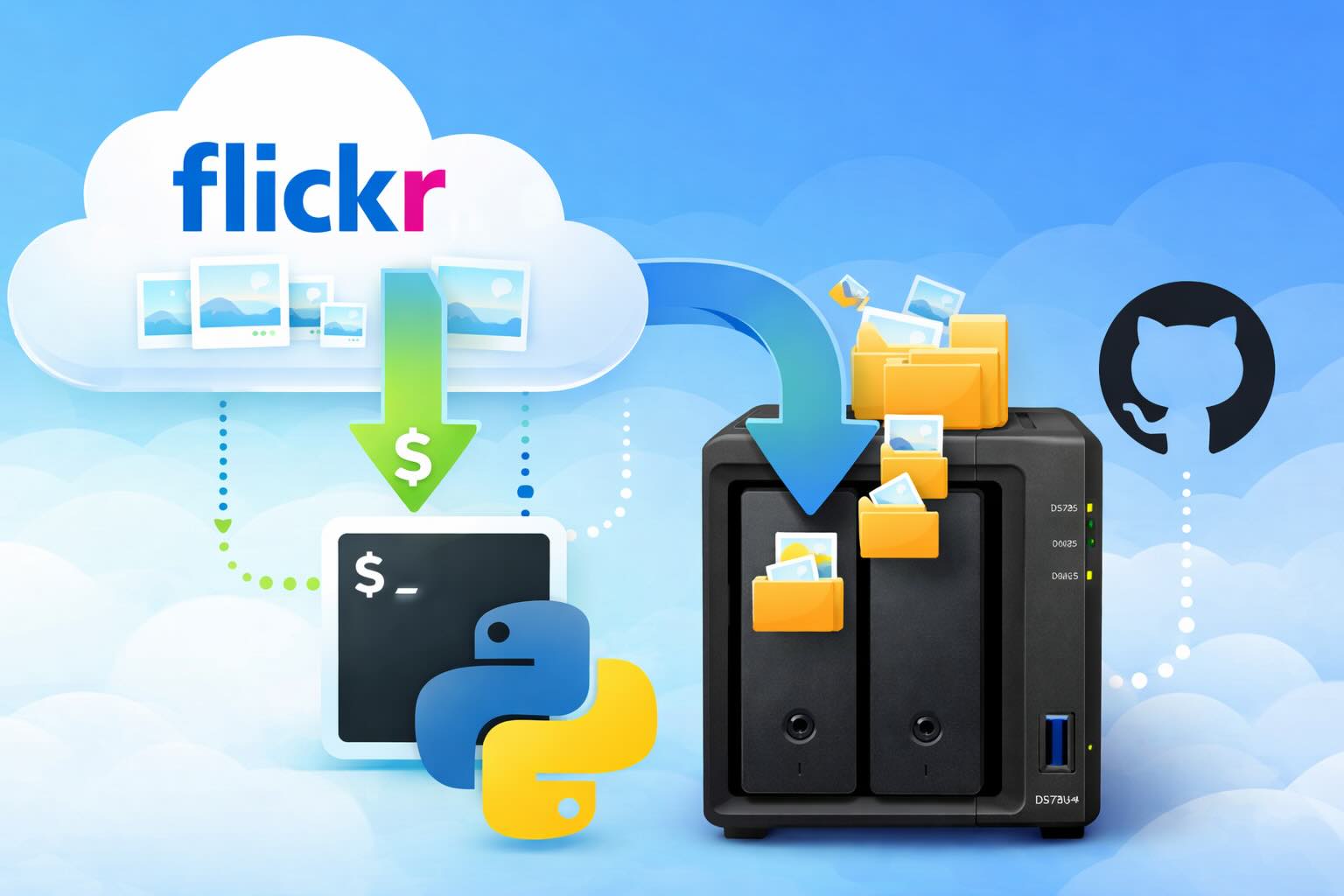
Leaving Flickr: Migrating 20,000+ Photos to Synology and Taking Back Control
There’s a certain kind of friction you start to notice when you’ve been using a service for a long time. Not enough to make you leave immediately, but enough to make you pause. Flickr had been that kind of service for me. It quietly held years of photos, uploads from old phones, albums I hadn’t looked at in ages, and a massive "Auto Upload" collection that had grown into something I didn’t fully understand anymore.
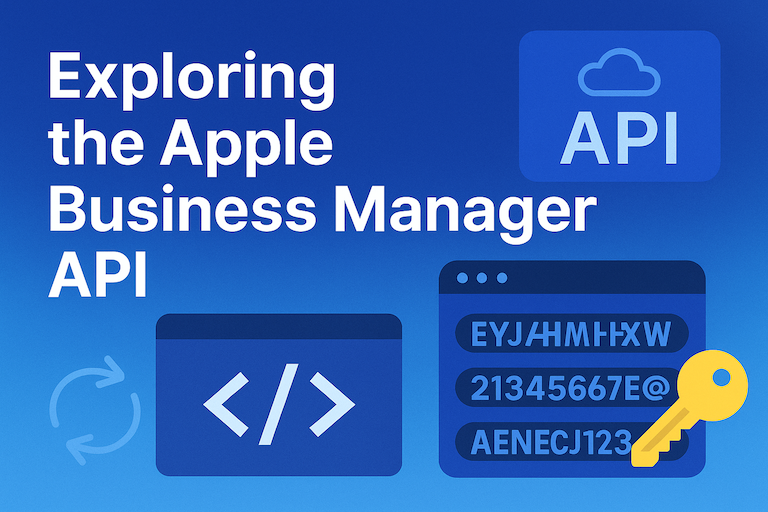
Exploring the Apple Business Manager API: A Hands-On Playground
If you’ve ever tried to talk directly to the **Apple Business Manager (ABM) API**, you already know the process can feel like deciphering a secret code. Between private keys, encrypted certificates, ES256 signatures, and OAuth2 flows... there’s a lot going on under the hood. This complexity is what makes direct communication with ABM so challenging, requiring a deep understanding of its intricacies to navigate successfully.

Updating Safari on macOS with Jamf Pro: Three Practical Strategies
Keeping Safari updated is one of the simplest ways to harden a macOS fleet. Apple ships security fixes for Safari frequently, and those patches often land before a full macOS point release. This means that by keeping Safari up-to-date, you can ensure your users have access to the latest security protections without having to wait for a major operating system update. If Safari is lagging behind, your users are browsing the web with a larger attack surface than necessary.

Hunting Down Jamf Profile Payloads with Python
If you've spent enough time living inside Jamf Pro, you eventually run into the same problem: someone set a configuration somewhere, sometime, and nobody remembers where. It might be something obscure – a certificate payload, a conditional SSO predicate, or that one security preference quietly misbehaving on three machines in accounting. And when you have dozens of configuration profiles, each with multiple payloads, nested keys, and XML-wrapped values, finding that setting can feel like forensic archaeology.
Keeping Jamf Security Cloud Current for Microsoft 365: Updated Routing Policies
When I first wrote about troubleshooting Standard Routing Policies in Jamf Security Cloud, the goal was simple: help admins keep Microsoft Teams and Microsoft 365 traffic flowing smoothly through Jamf Trust + App-Based VPN. This straightforward objective remains unchanged, as the complexities of network configurations can often lead to frustrating issues that hinder productivity.
Ensuring Jamf Trust VPN Stays Connected with Jamf Pro
Keeping your organization's VPN always connected is crucial—especially with Zero Trust Network Access (ZTNA) frameworks like **Jamf Trust**. One of the challenges with **Jamf Trust** is that it does *not* automatically open or reconnect on startup or login by default. However, with a combination of Jamf Pro policies, a custom script, and an extension attribute, you can ensure your users stay securely connected at all times, even when their devices are restarted or logged out. This setup helps maintain continuous access to network resources while adhering to the security standards...
Troubleshooting Standard Routing Policies in JAMF Security Cloud
As a fairly new administrator of JAMF Security Cloud, it was the ease of which its administration that admittedly drew me in. Quite an elegant solution for securing the various apps on business workstations with premade app-based VPN routing rules built right in, I was hooked. The concept is simple: turn on the policies, create your enrollment, and deploy – and you're done. This straightforward approach has made it easy to integrate into our existing workflow, allowing us to focus on more critical tasks.
Enrolling M1-M4 Devices into Automox with JAMF with secure tokens
Managing Secure Tokens on macOS has long been a challenge for administrators using JAMF and Automox. In my previous post, Managing the macOS Secure Token with JAMF Pro, I discussed a script-based approach to grant Secure Tokens to additional users. However, this method required administrators to manually pass usernames and passwords into the JAMF configuration—an approach that, while effective, was not ideal from a security or usability perspective. This manual process introduced unnecessary risks and added complexity to the overall management of Secure Tokens.
