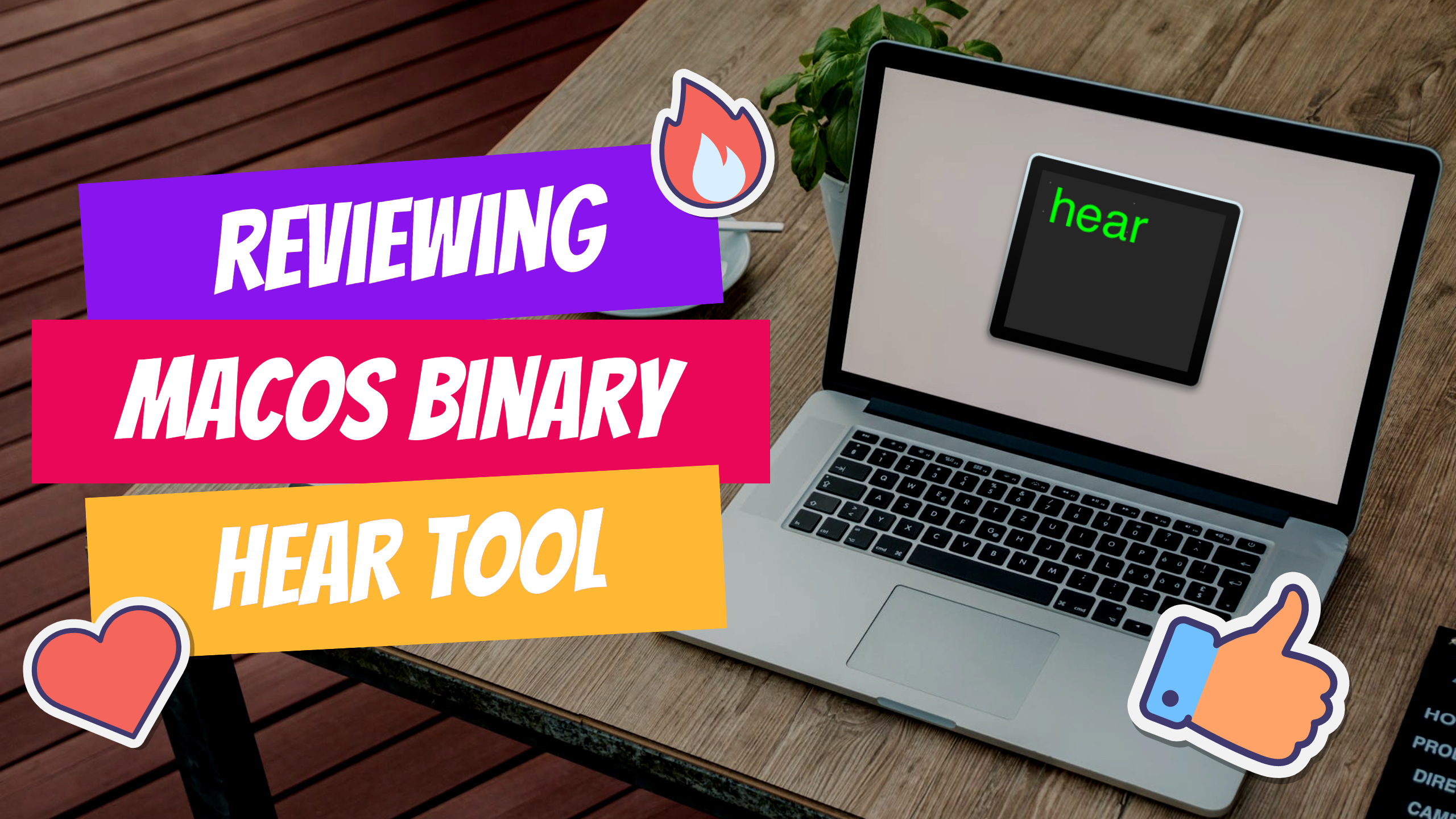

Hey everybody! In today’s video, I’m excited to introduce you to one of my favorite Apple binary applications - Hear. Hear is an incredible program that allows you to transcribe text using the dictation feature directly from Terminal or convert audio and movie files into text. It utilizes the built-in dictation feature of Mac OS, making transcription tasks easier than ever before.
🔧 How to Use Hear:
Enable Dictation: Before you install Hear, ensure that dictation is enabled on your Mac. Check your system settings under keyboard preferences to turn on dictation.
Installation Steps:
- Visit the GitHub repository (link below) and download the latest release (version 0.4 as of now). https://github.com/sveinbjornt/hear
- Follow the installation instructions in Terminal using the provided command. If you encounter a permission denied error, use ‘sudo’ before the command and enter your password to install successfully.
Transcription Options:
- Live Transcription: Type ‘hear’ in Terminal to transcribe audio live from your microphone.
- File Transcription: Use the command ‘hear –d –i’ to transcribe audio or movie files directly in Terminal. Specify the input file and designate the output location.
💡 Why Hear is Awesome:
Hear is a well-maintained program that ensures accurate transcription without compromising your data privacy. It’s an invaluable tool for content creators, making it essential for creating quality videos and text content.
🌟 Connect with Me:
I’ve been using Hear in my daily workflow and would love to share more insights with you! Feel free to connect with me on LinkedIn
🔔 Stay Updated:
If you enjoyed this video and want to see more content like this, please subscribe to our YouTube channel, hit the bell button for notifications, and leave your thoughts in the comments below.
🔗 Helpful Links:
- Hear GitHub Repository: https://github.com/sveinbjornt/hear
AI Usage Transparency Report
AI Era · Written during widespread use of AI tools
AI Signal Composition
Score: 0.27 · Moderate AI Influence
Summary
A video about the Apple binary application Hear, which allows transcription of text using dictation feature in Terminal or conversion of audio and movie files into text.
Related Posts
AppleCare One Just Became a Better AppleCare Deal
AppleCare One looks more valuable after AppleCare+ price increases for Macs and iPads, especially for people with several Apple devices and older eligible hardware.
WWDC 2026 Was Bigger Than The Keynote
Most of those conversations eventually landed in the same place. Siri wasn't ready. Liquid Glass was everywhere. There was no new hardware announcement. Depending on who you asked, WWDC 2026 was either disappointing or forgettable.
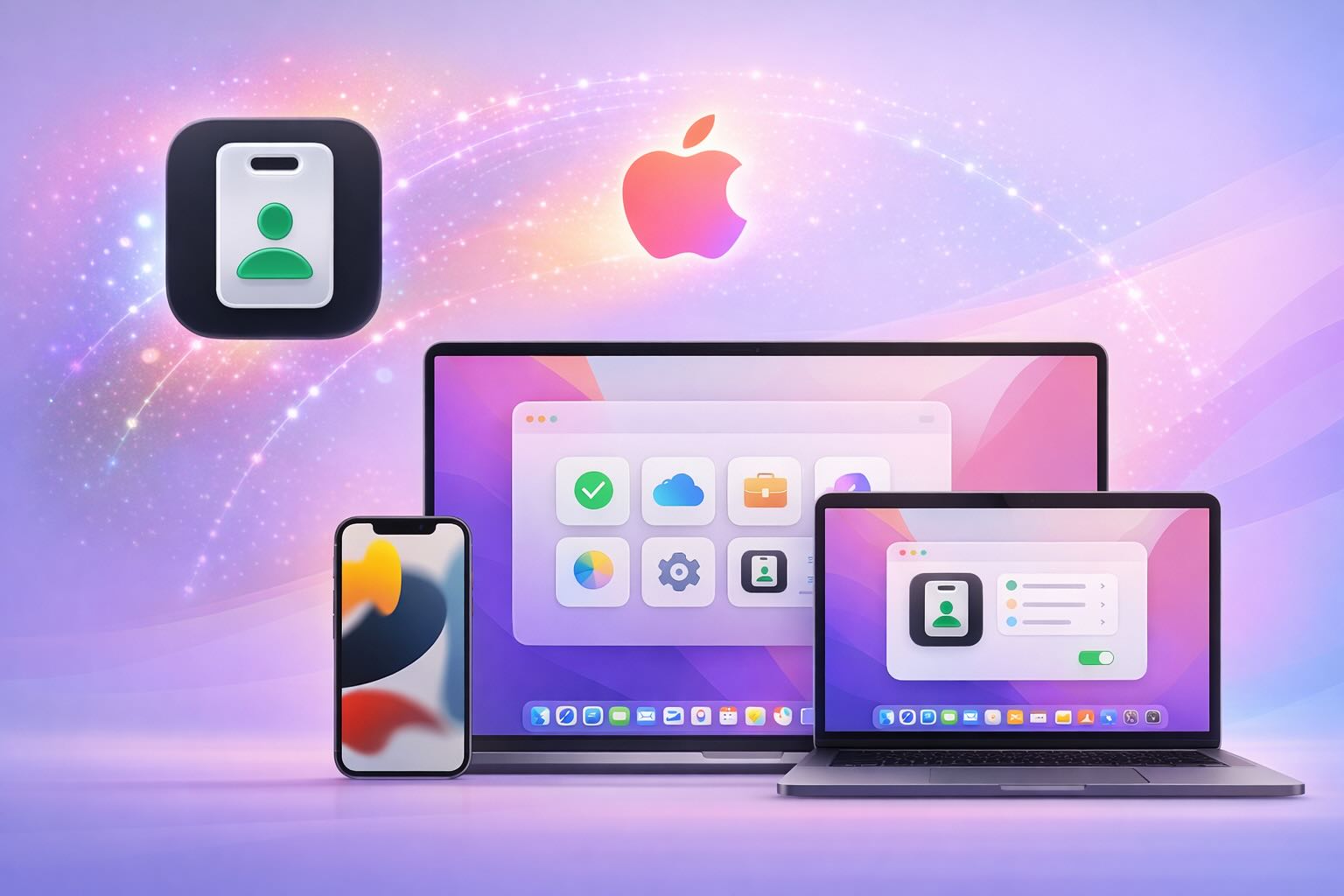
The New Apple Business Manager Feels Like More Than Device Management
Apple has quietly turned Apple Business Manager into something much broader than the device enrollment portal many of us have known for years. The new experience feels cleaner, more organized, and much more intentional. After spending time with the latest Apple Business documentation, my first reaction is that Apple is building a more complete business platform — one that brings identity, services, communications, support, storage, and payments closer together under a single administrative surface.
Low Profile Walkthrough and Review
Today I’m walking through Low Profile, a utility from Nindi Gill that I use when I want to inspect profiles already installed on a Mac and figure out whether those profiles contain issues I need to clean up. The value is that Low Profile gives me a straightforward way to inspect profiles installed on any Mac. This simplicity makes it easy for me to identify and address potential problems, which is especially useful when working with multiple machines or troubleshooting complex profile configurations.
ABM Warranty 0.4.1 Walkthrough: Multiple Credentials
In this part of the ABM Warranty 0.4.1 walkthrough series, I’m focusing on multiple credentials. In the first video, I showed the basic setup and how to add a single credential. Now, I want to explore what happens when I remove a credential, what changes occur when I add more than one, and how the app behaves once there are multiple contexts in play. This will help clarify any potential issues or inconsistencies that may arise with multiple credentials.
QuickPKG Walkthrough and Review
I use QuickPKG when I need to turn an application, DMG, or ZIP file into a package quickly without wasting time in a heavier packaging workflow. This post follows the same path as my video: what QuickPKG is, where to get it, how I run it, what a simple packaging example looks like, and where I think admins need to be careful about potential pitfalls that can arise from using this tool.
Amphetamine: The Ultimate Mac Utility to Keep Your Computer Awake
In today's fast-paced digital world, keeping your computer awake during important tasks is crucial. Enter **Amphetamine**, a powerful utility designed specifically for Mac users. This app ensures that your system remains active, preventing it from going to sleep or activating the screensaver when you need it most. In this article, we will explore the features of Amphetamine, how to use it effectively, and why it’s a must-have for Mac admins and everyday users alike.
Mactracker Walkthrough and Review
In the world of Mac administration, having the right tools at your disposal is crucial. One of the standout applications that every Mac admin should consider is **Mac Tracker**. This powerful app serves as a comprehensive database of all historical Mac OS versions and Apple accessories, making it an invaluable resource for both seasoned professionals and newcomers alike. In this article, we will explore the features of Mac Tracker, how it can enhance your workflow, and why it deserves a spot in your toolkit.
Reviewing Bravas.io - Roll your own Cloud MSP like Electric.ai
When inquiring about a demo or starting a 30-day trial, please mention the code JONBROWN to receive an additional 5% discount on your first year of annual service. This offer is exclusive to new customers and can be applied at the time of sign-up. The discount will be automatically reflected in your account upon activation of the annual plan.
Reviewing Bravas.io - Enrolling using a Zero Touch Workflow!
When inquiring about a demo or starting a 30-day trial, please mention the code JONBROWN to receive an additional 5% discount on your first year of annual service. This offer is exclusive to new customers and can be applied at the time of sign-up. The discount will be automatically reflected in your account upon activation of the annual plan.
