

Seriously Cool Features of macOS 10.14 Mojave You Won’t Want to Miss
With last year’s macOS 10.13 High Sierra, Apple made no sweeping changes, instead focusing on refinements and bug fixes. In keeping with the company’s alternating cycle of releases, this year’s macOS 10.14 Mojave boasts plenty of new features.
Dark Mode and Dynamic Desktop
In a major visual change, Mojave features a new Dark mode that reverses the standard black-on-white look with light gray text on a dark background throughout the interface—change it in System Preferences > General. If your eyes find white window backgrounds too bright, Dark mode will be a boon. Or, if the current bright approach doesn’t bother you, Dark mode may seem muddy and hard to read because of its reduced contrast.
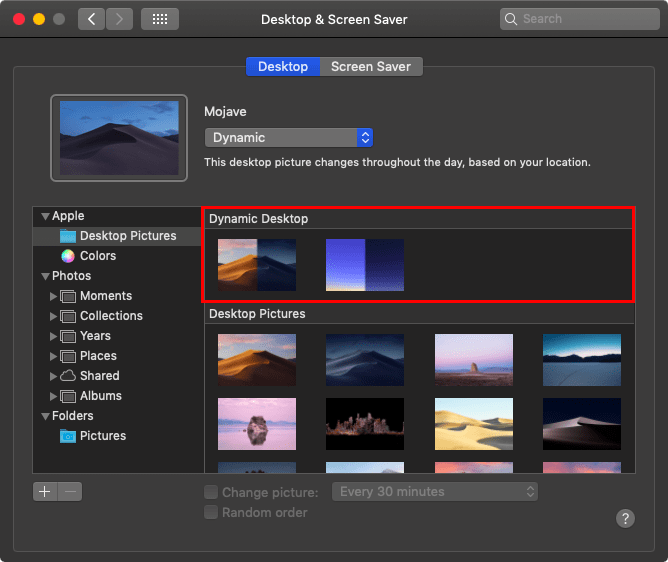
Dark mode may be useful, but Dynamic Desktop is just eye candy. Select either Mojave or Solar Gradients in System Preferences > Desktop & Screen Saver > Desktop, and your wallpaper will change throughout the day.
Finder Stacks and Groups
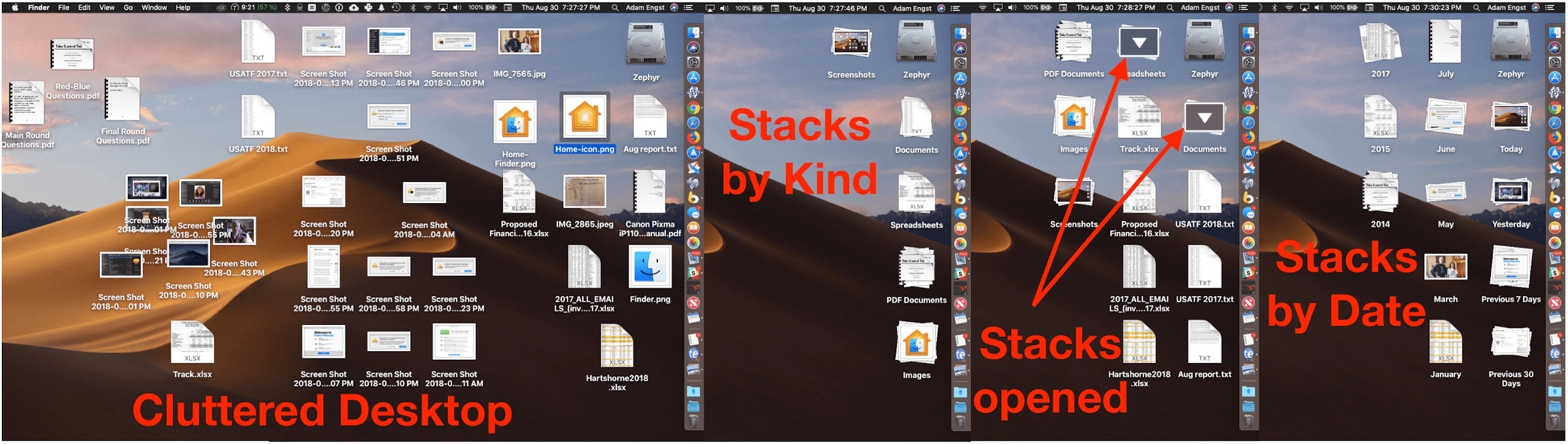
Turning to more practical changes, Mojave’s Finder boasts a few new features to help you better navigate a cluttered Desktop and overflowing folders. Control-click the Desktop and choose Use Stacks, and the Finder will combine all the related icons on your Desktop into stacks. It collects them by kind by default, but you can instead have it group them by various dates or even by tags. Click a stack to see what’s inside.
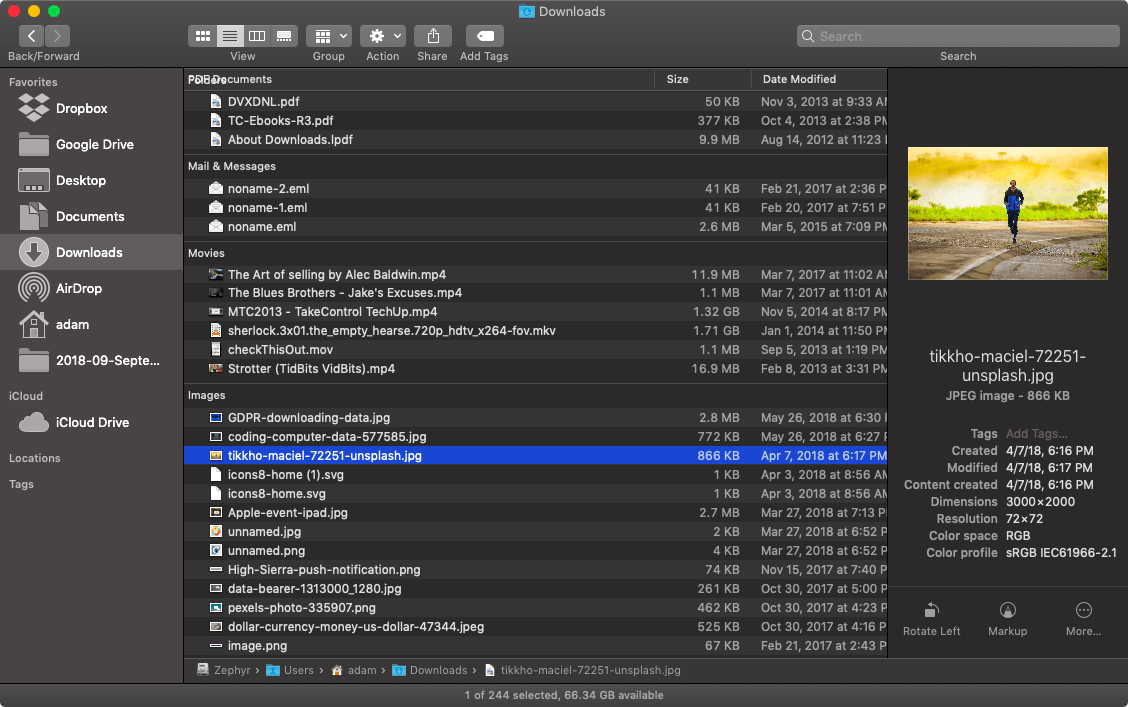
Groups are like Stacks, but within a Finder window. With a Finder window open, choose View > Use Groups, and note that you can use the View > Group By submenu to change the grouping from kind to application, date, size, and tag.
Quick Actions in the Finder and Quick Look
The Finder’s new tricks go even further, with Quick Actions. Controlled in System Preferences > Extensions > Finder, these quick actions let you rotate or mark up a document within the Finder’s preview pane or a Quick Look window (select a file and press the Space bar). Other quick actions let you create PDFs and trim video.
Most useful of these is the Markup quick action, which gives you most of Preview’s editing tools—cropping, annotating, and more—right in a Finder or Quick Look window.

Still and Video Screen Captures, with Editing
Markup also features prominently in Mojave’s new screen capture interface. You’ve long been able to press Command-Shift-3 for a screenshot of the entire screen and Command-Shift-4 for a portion of the screen. Now, press Command-Shift-5 for an interface to those capabilities, plus video screen recording, which was also possible before with QuickTime Player.
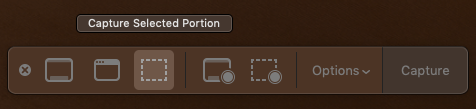
These capabilities may not be new, but they’re a lot easier to use in Mojave, and there are a few new options, such as being able to keep the same size selection across multiple screen captures and include the pointer in screenshots.
Continuity Camera with iPhone!
Have you ever wanted to insert a photo or scanned page into an email message or document? Mojave makes this easier with Continuity Camera, a feature that lets you use your iPhone within a Mac app. In Mail, for instance, start a new message, and then choose File > Insert from iPhone > Take Photo/Scan Documents. Either way, your iPhone immediately switches to the appropriate photo or scanning mode, and the resulting photo or scan lands in your message.
iOS Apps: News, Stocks, Voice Memos, Home
Apple has been emphatic that it is not planning to retire macOS in favor of iOS. However, the company does want to make it easier for developers to write apps that run in both operating systems. As the first phase of that strategy, Apple has ported four iOS apps to the Mac: News, Stocks, Voice Memos, and Home.

They look a little different from their iOS cousins, as they should, but they work similarly, and you can sync their settings and data between your devices via iCloud (look in System Preferences > iCloud on the Mac and in Settings > Your Name > iCloud in iOS).
There are a variety of other small changes throughout Mojave and in Apple’s standard apps, and we’ll share more of those in future posts, so stay tuned!
AI Usage Transparency Report
Pre-AI Era · Written before widespread use of generative AI tools
AI Signal Composition
Score: 0.05 · Low AI Influence
Summary
macOS 10.14 Mojave features a new Dark mode, Dynamic Desktop, Finder Stacks and Groups, Quick Actions in the Finder and Quick Look, Still and Video Screen Captures with editing, Continuity Camera with iPhone, and iOS apps: News, Stocks, Voice Memos, Home.
Related Posts
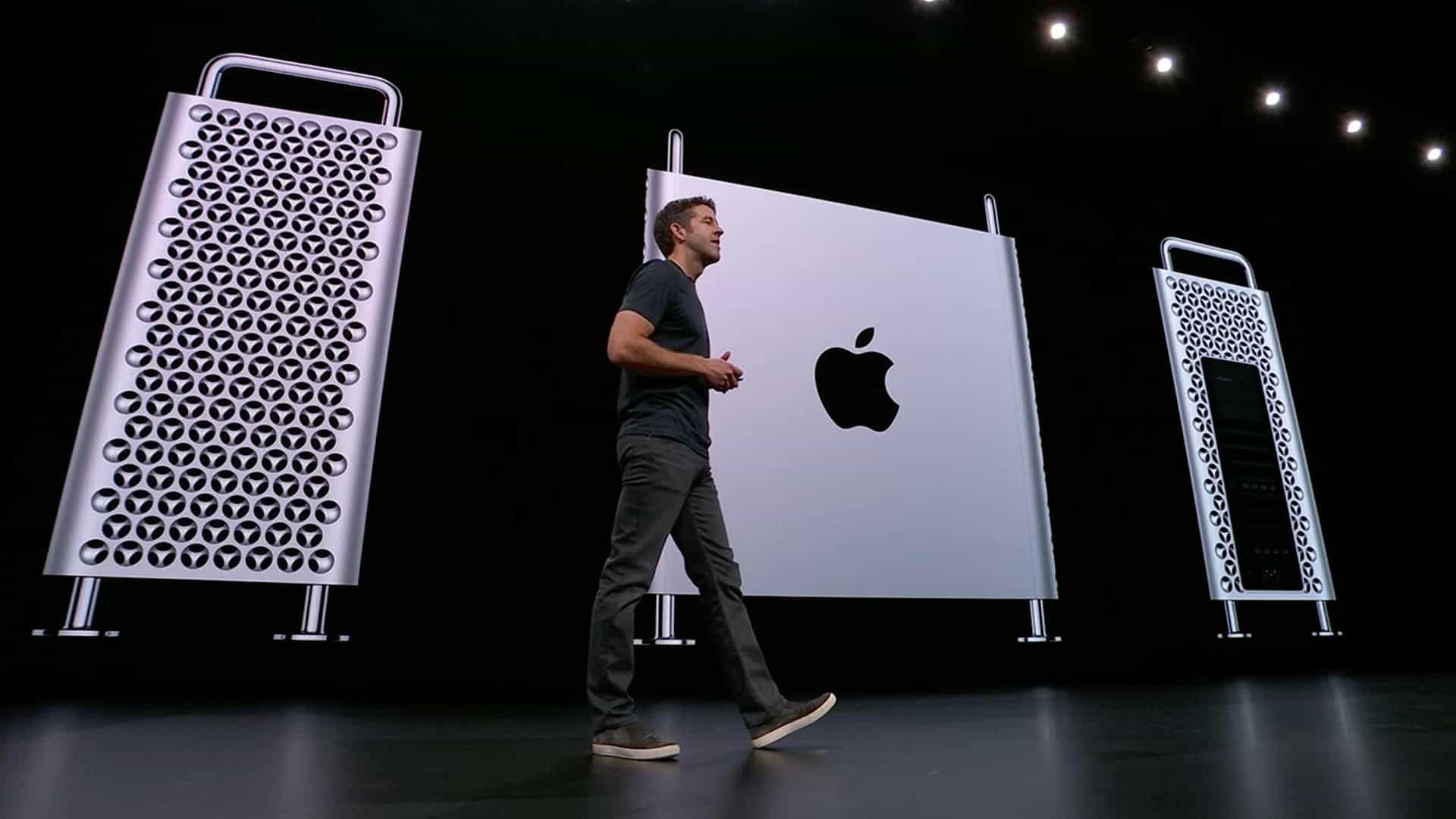
The new Mac Pro Tower: Wheels optional
So happy to see that Apple is going back to its ability to allow users to upgrade and customize their Mac Pro tower experience. There was much much love for the old Cheese Grater style Mac Pro and many are still in use because of their overall upgradeability and customization. Not saying that the Trash Can approach was bad. It was in line with their motto, think different. Coming up with a new and unique approach to power computing.

MacOS 10.15 Catalina Releasing this Fall
Wow things move quickly from year to year. No surprise here. MacOS Catalina brings a whole new level of cool back to the Mac in my honest opinion. I am so happy that Apple has decided to break out iTunes into multiple apps. iTunes back in the day was so awesome, easy to use and simplistic. Now it tends to be a power hungry and semi confusing app to use as its the defacto app for everything. How about that annoying feature that automatically launched iTunes when your phone was...

Thanks to our wonderful clients for a great 2018
--- This year was a year of Growth here at Grove Technologies. Our company changed brand, re-defined its core strategy and competency. During this time of transition we learned a lot about what we want to accomplish moving forward and the new direction that we will be moving in. That said I want to thank all of the passionate and amazing clients that trust us with their technology. We are proud to be able to claim that we are helping further many social justice, climate and advocacy movements as well...
Back Up Before Upgrading to Mojave or iOS 12
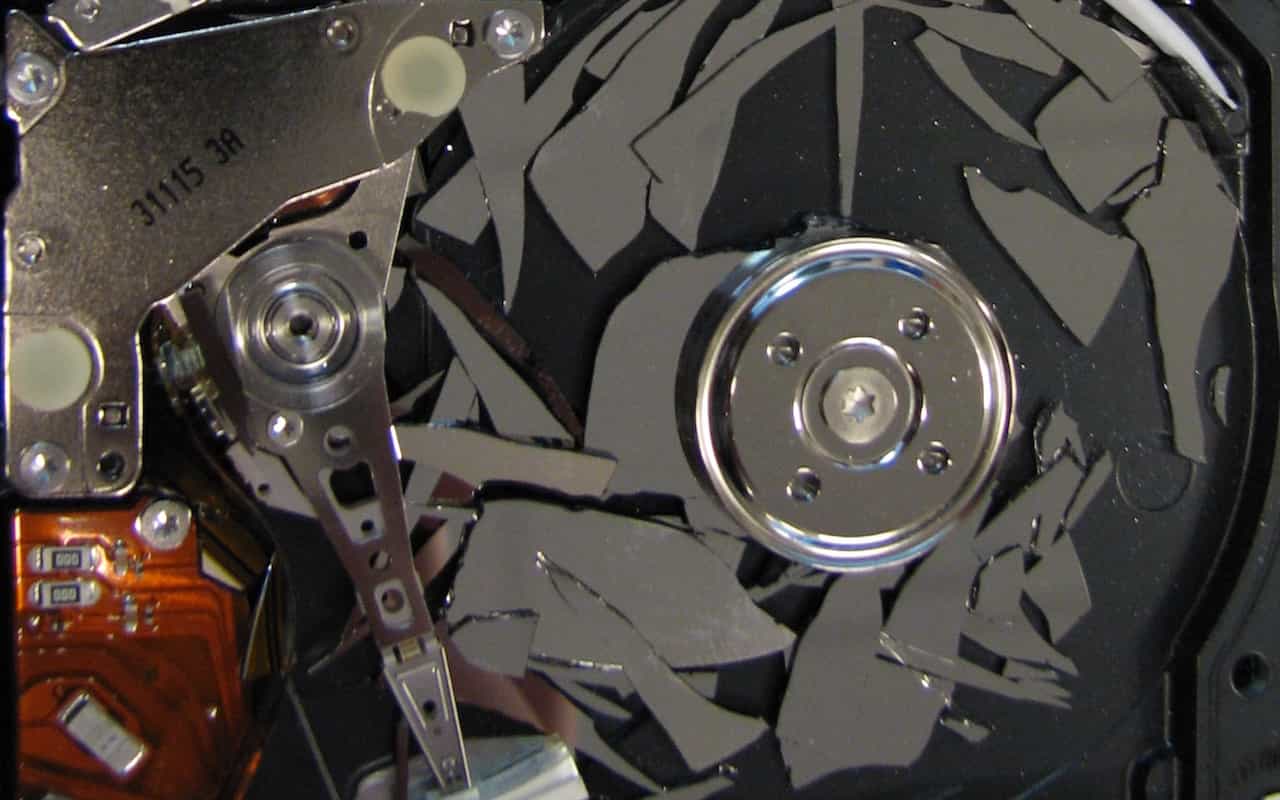
Poll a room of Apple experts about the one topic they can't stop talking about and many will launch into frustrated rants about how too few people back up. Backups are always important, since you can never predict when your Mac or iPhone will be lost or stolen, melt in a fire, or just break. But one time when backups are especially important is before you upgrade to a major new operating system. If you're thinking "What could go wrong?" the answer is, "Lots," and wouldn't you like to be...
Top Features of iOS 12 to Take Advantage of Right Away
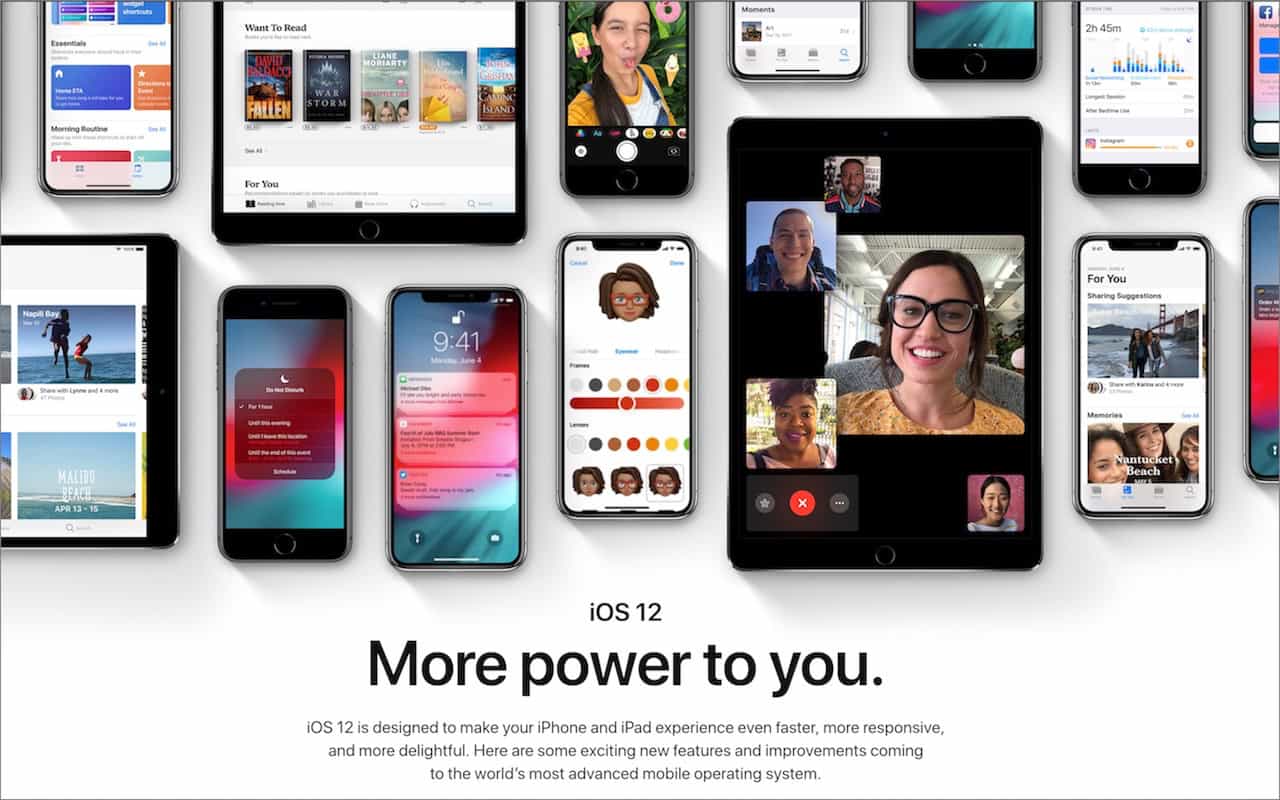
Feeling left behind because you don't have the latest iPhone or iPad? Don't worry, because Apple has a present for you in the form of iOS 12. The new operating system promises to increase performance, particularly for older devices as far back as the iPhone 5s and iPad Air. This means that your device will be able to run more smoothly and efficiently, making it feel like a newer model again.

When Should You Upgrade to macOS 10.14 Mojave, iOS 12, watchOS 5, and tvOS 12
When Should You Upgrade to macOS 10.14 Mojave, iOS 12, watchOS 5, and tvOS 12? --- It's that time of year again, when an Apple user's thoughts drift to new versions of macOS, iOS, watchOS, and tvOS. Apple announced the new versions in June, and public betas have been available since. But once Apple makes macOS 10.14 Mojave, iOS 12, watchOS 5, and tvOS 12 available for free download, you'll need to decide when to install each.

How to Deal with macOS Server Losing Many of Its Services
For many years, Apple has sold macOS Server (previously called OS X Server) for those who wanted to run various Unix-based Internet services on a Mac. Server became popular because it put an easy-to-use graphical interface on top of the Unix apps, allowing Mac users to avoid complicated configuration files and reducing the need to work at the command line. This made it accessible to a wider range of users, including those without extensive technical knowledge, who still wanted to manage their own servers.

Sneak Preview of What’s Coming from Apple This Fall
At Apple’s Worldwide Developer Conference keynote on June 4th, the company unveiled the first developer versions of all four of its operating systems: macOS 10.14 Mojave, iOS 12, watchOS 5, and tvOS 12. They won’t be available until this fall, likely in September or October, but here is a glimpse of what you can expect from these upcoming updates. The new features and improvements will be detailed further at the conference, giving developers a head start on preparing their apps for the new operating systems.
Apple Pay Is Faster, Easier, More Secure, and More Private Than Using Credit Cards
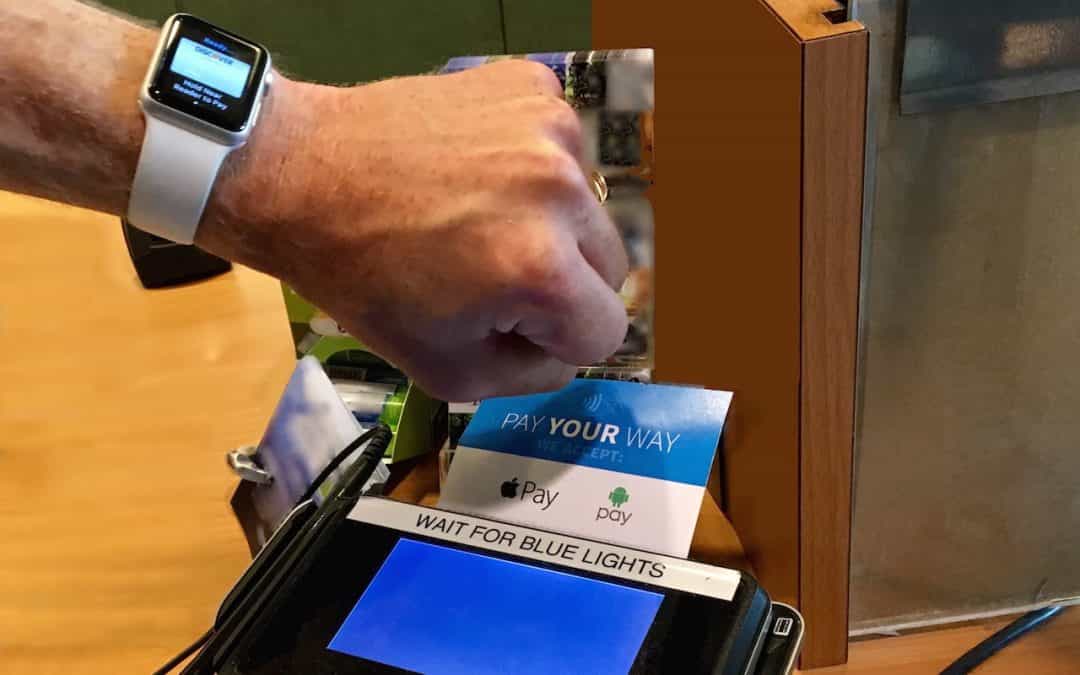
You’ve probably heard of Apple Pay, but have you set it up so you can use it to pay for purchases at checkout? If not, give it a try, since it’s one of those living-in-the-future Apple technologies that feels like science fiction every time you use it. Simply put your iPhone, iPad, or Apple Watch within an inch or so of a compatible payment terminal (look for an Apple Pay or contactless payment logo), put your finger on the Home button to use Touch ID (or double-press the iPhone’s side...
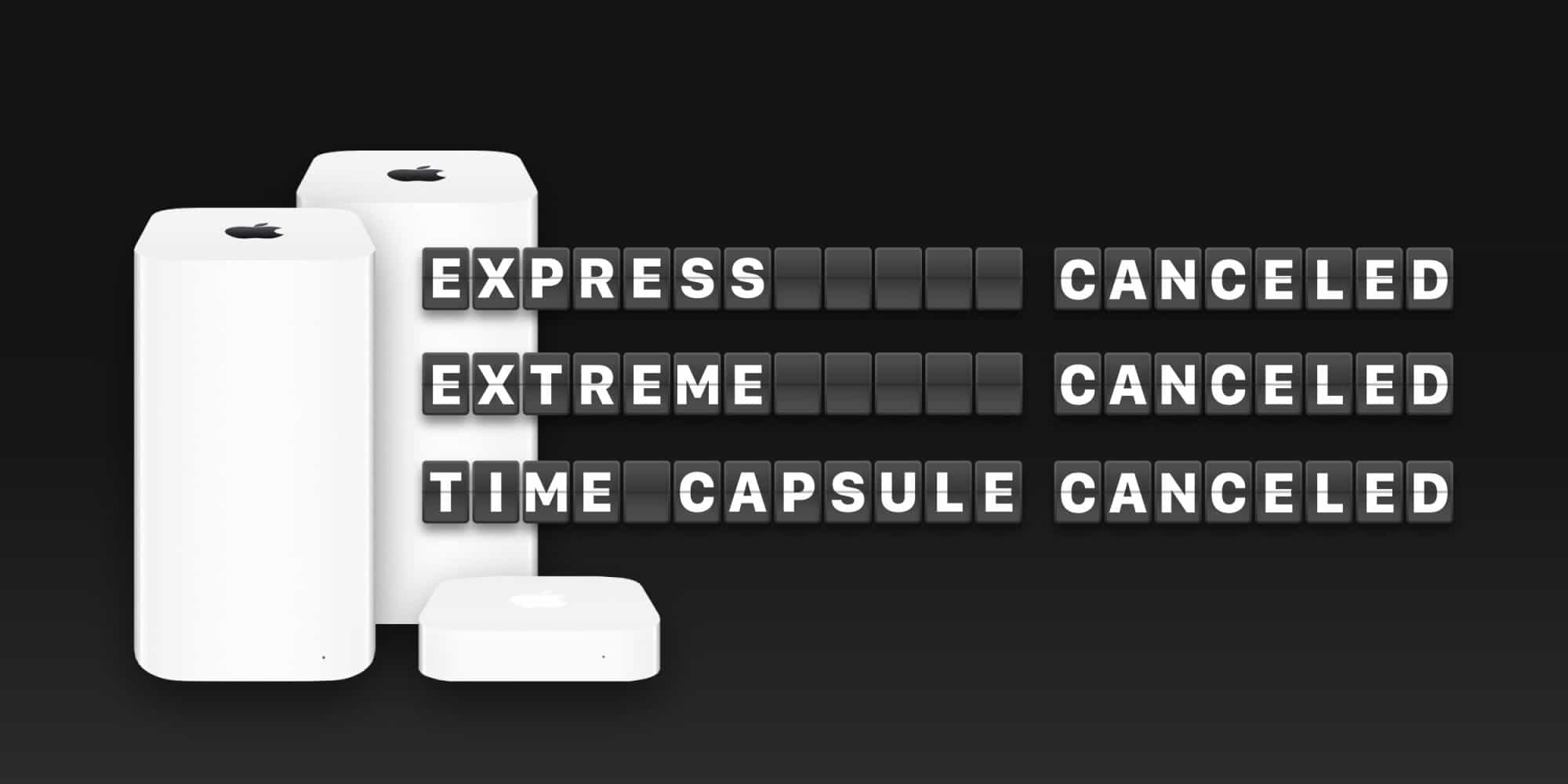
So long AirPort, been nice knowing you
AirPort products have not seen a significant update since 2012, and the Time Capsule has not received an update since 2013. In 2016, news sites began reporting that Apple had reassigned its developers who were working on AirPort to other projects, which some interpreted as a sign that the product line was nearing the end of its life cycle.
