

Keeping Safari updated is one of the simplest ways to harden a macOS fleet. Apple ships security fixes for Safari frequently, and those patches often land before a full macOS point release. If Safari is lagging behind, your users are browsing the web with a larger attack surface than necessary.
In this post I want to walk through three strategies I use to stay ahead of Safari releases with Jamf Pro:
- Using Jamf Pro Patch Management with standalone Safari installers
- Using a script that targets a specific Safari version via Jamf Pro parameters
- Keeping macOS itself current with Blueprints and Declarative Device Management
Each approach solves a slightly different problem. In practice, I use a mix of all three.
Strategy 1: Patch Management With Standalone Safari Installers
Jamf Pro’s Patch Management feature is still one of the cleanest, most reportable ways to keep a single application aligned across the fleet. It gives you dashboards, smart groups, and a nice compliance view. For Safari, there is one catch: Jamf requires that you associate each version with a package, and Apple no longer hands us an obvious standalone Safari installer.
That is where Mr. Macintosh comes in and makes this strategy possible.
There is an excellent Safari installer database here:
https://mrmacintosh.com/macos-safari-full-installer-database-download-directly-from-apple/
The site tracks Safari releases and provides links to full, standalone Safari installers that come directly from Apple’s servers. Once you download the version you care about, you can upload it to Jamf Pro and wire it into Patch Management like any other title.
Walking Through the Patch Workflow
From the Jamf Pro side, I treat Safari just like any other patched application.
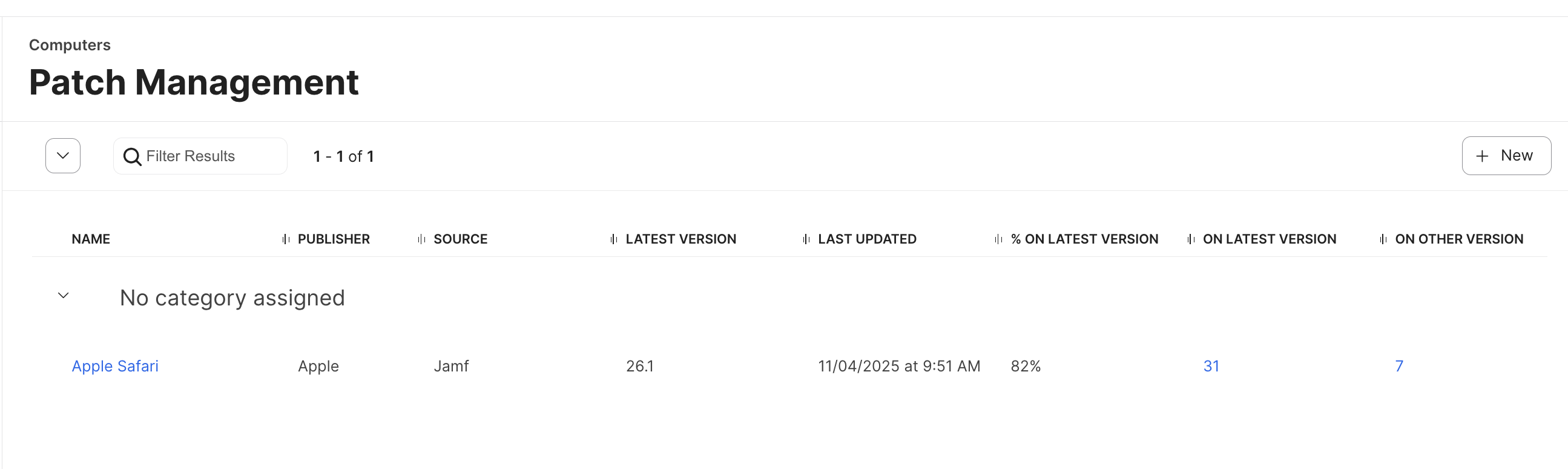
First, I head to the Patch Management section and open the Apple Safari software title. From the high-level Patch Report, I can quickly see how many Macs are already on the latest Safari build and how many are lagging behind.
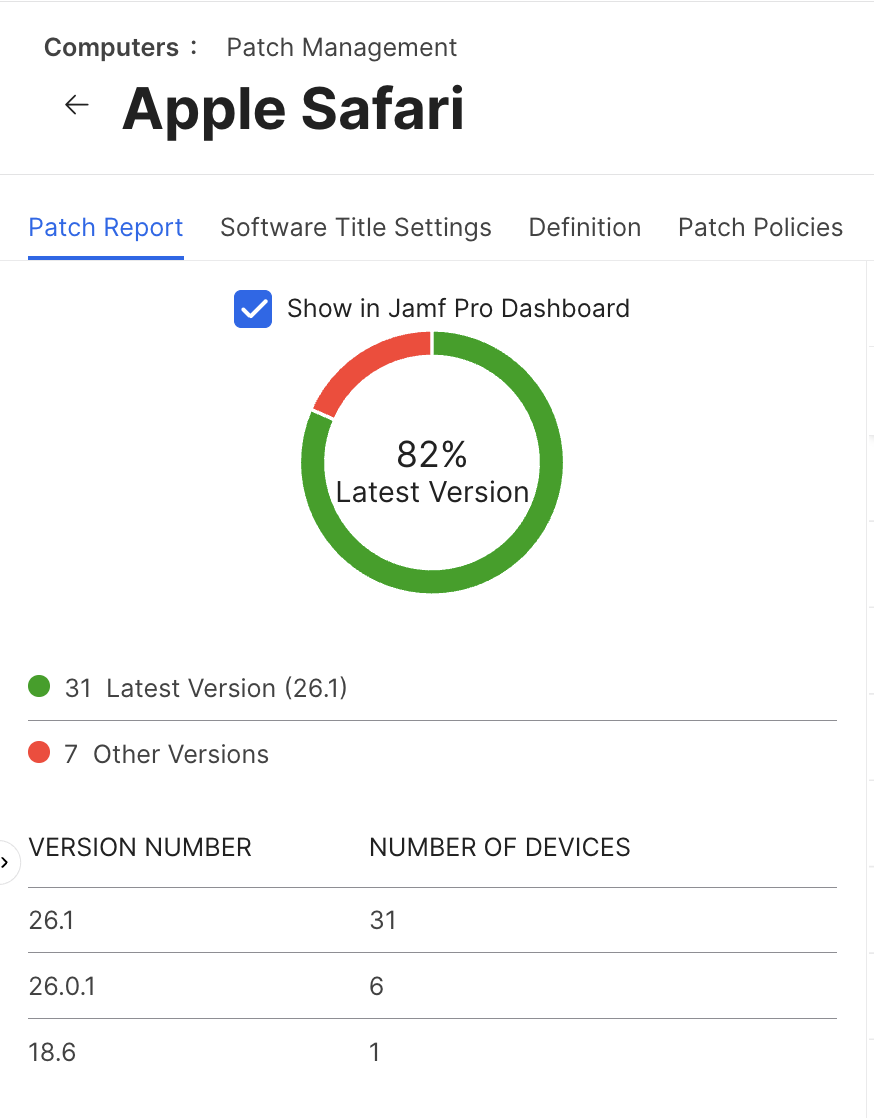
From there I drill into the Patch Report view. This gives me the percentage of devices on the latest version, broken down by version number. It is the easiest way to see whether the new Safari rollout is basically done, or if there are pockets of older versions hanging around that I need to investigate.
Next I move over to the Definition tab. This page is the brain of Patch Management for Safari. It lists every version Jamf has in its definition feed, but only the versions that have an associated package can be selected in a patch policy. When you first open it, you will likely see the newer Safari versions without packages attached.
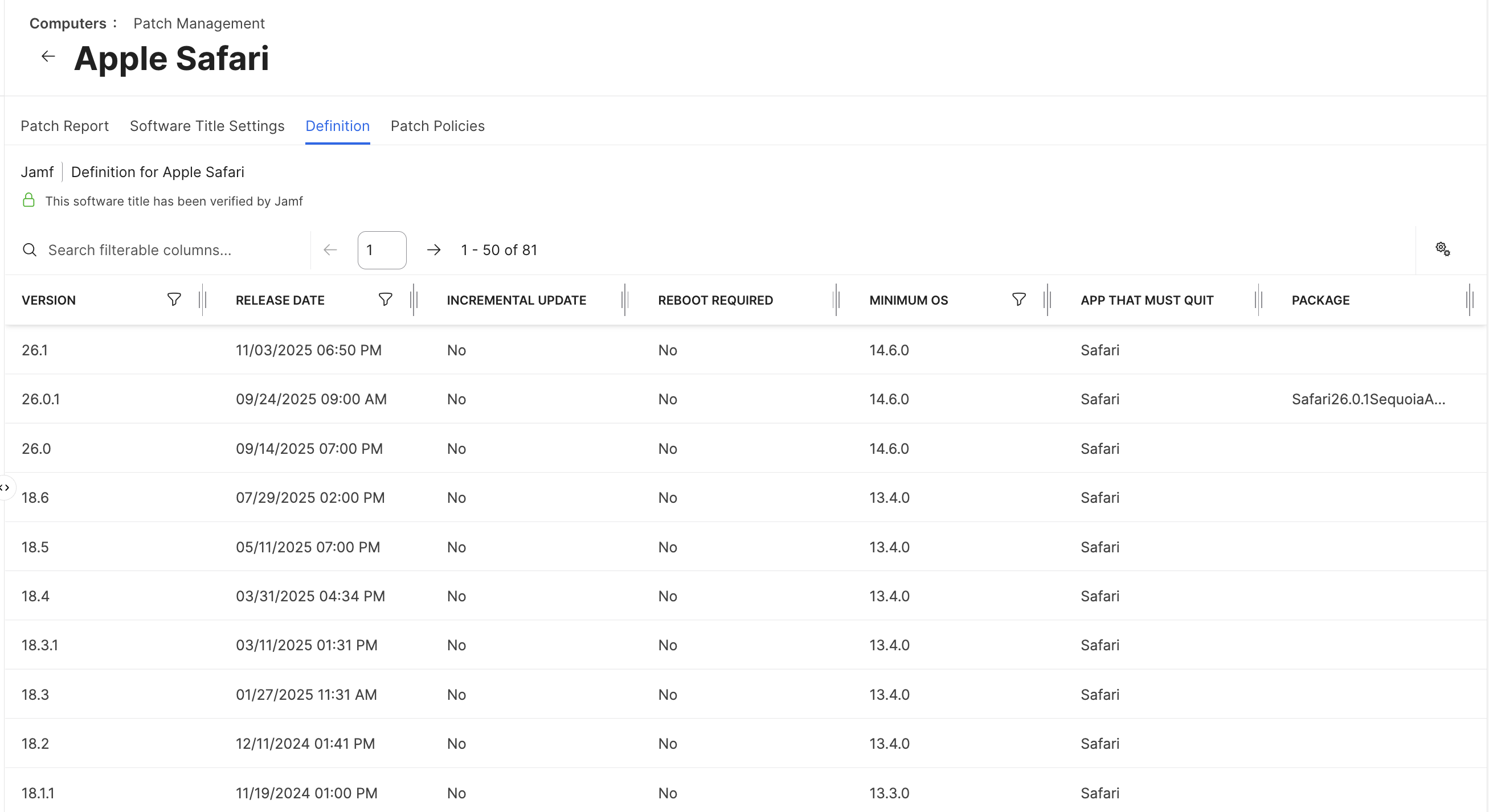
This is where the standalone installers from Mr. Macintosh come into play. I download the correct installer for my macOS baseline, upload that package into Jamf Pro, and then attach it to the matching entry in the Definition table. Once that association exists, Jamf Pro is happy and that Safari version becomes deployable.
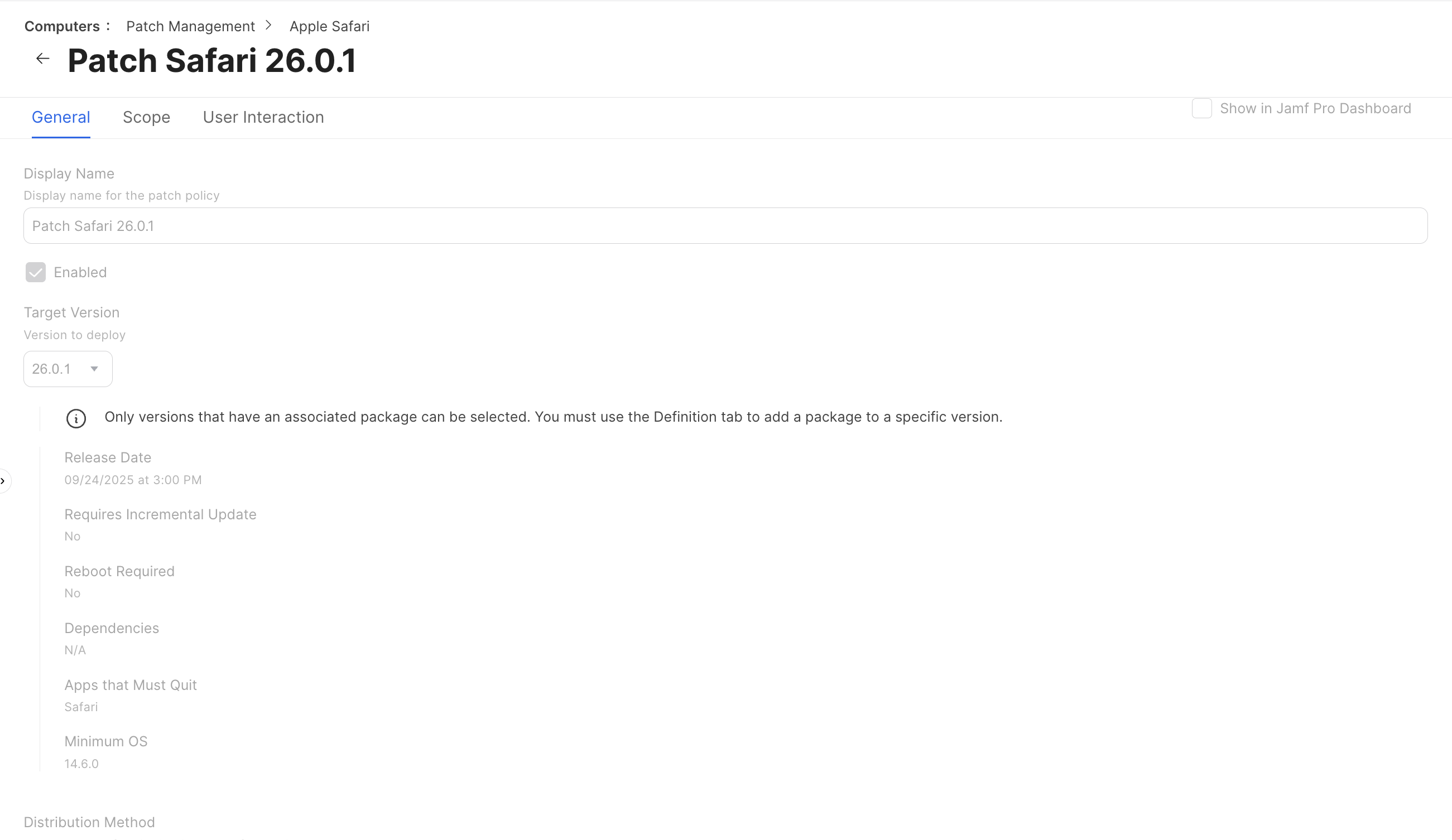
With the package attached, I create or edit a Patch Policy for Safari and target the new version. In the General and Scope tabs I decide who gets the update and when. In User Interaction I decide how noisy I want to be about the update: quiet installation in the background, a gentle prompt, or something a little more insistent with deferrals and deadlines.
Once that policy is enabled, Jamf Pro handles the rest. Clients check in, evaluate whether they meet the minimum OS requirement, download the standalone Safari installer, and move themselves forward. The Patch Report view becomes my source of truth for how far along the rollout is.
The big upside of this strategy is that it is highly visible and automated. You get reliable reporting, a clear picture of compliance, and very little ongoing effort once the policy is in place. The trade-off is that you have to keep feeding Patch Management with fresh Safari packages as Apple releases them, which is exactly why Mr. Macintosh’s database is such a valuable resource.
Strategy 2: Targeted Safari Updates With a Jamf Pro Script
Sometimes I need more control than Patch Management provides, or I want to update a subset of devices without building a full patch policy around it. For that, I like using a simple Jamf Pro script that calls the macOS softwareupdate tool directly.
The script below does a few things:
- Reads the current Safari version from the Safari app bundle
- Compares that version to a target version
- Installs a specific Safari update from the software update catalog, using an identifier passed in as a Jamf Pro parameter
- Verifies that Safari actually landed on the desired version
Here is the script:
#!/bin/zsh

# JAMF Parameters
UPDATE_IDENTIFIER="$4"   # e.g., Safari26.1SequoiaAuto-26.1
TARGET_VERSION="$5"      # e.g., 26.1

# Get current Safari version
CURRENT_VERSION=$(defaults read /Applications/Safari.app/Contents/Info CFBundleShortVersionString 2>/dev/null)

echo "Current Safari version: $CURRENT_VERSION"
echo "Target Safari version: $TARGET_VERSION"
echo "Update identifier: $UPDATE_IDENTIFIER"

if [[ "$CURRENT_VERSION" == "$TARGET_VERSION" ]]; then
    echo "✅ Safari is already at version $TARGET_VERSION. No update needed."
    exit 0
else
    echo "Safari is not at target version. Installing update..."
    if softwareupdate -i "$UPDATE_IDENTIFIER" --verbose; then
        NEW_VERSION=$(defaults read /Applications/Safari.app/Contents/Info CFBundleShortVersionString 2>/dev/null)
        if [[ "$NEW_VERSION" == "$TARGET_VERSION" ]]; then
            echo "✅ Safari updated successfully to version $NEW_VERSION."
            exit 0
        else
            echo "⚠️ Update command completed, but Safari version is still $NEW_VERSION."
            exit 0
        fi
    else
        echo "❌ Safari update failed."
        exit 1
    fi
fi
In Jamf Pro, I assign this script to a policy and make use of parameters 4 and 5:
- Parameter 4 becomes the update identifier. This is the exact product name that softwareupdate exposes. I usually grab it from the Software Updates tab in a computer inventory record, or by running softwareupdate -l on a test Mac and copying the Safari line. It often looks something like Safari26.1SequoiaAuto-26.1.
- Parameter 5 becomes the human-friendly Safari version I want installed, like 26.1. This is what the script compares against the version string in the Safari bundle after installation.
From there, the workflow is straightforward. I build a smart group that finds Macs whose Safari version is less than the target version and whose macOS build meets whatever minimum OS requirement Apple lists for that Safari release. I scope the policy and script to that smart group, pass in the update identifier and target version, and let the clients do the rest.
This approach has a few advantages:
It does not require uploading any packages. It uses the existing macOS software update catalog and simply tells the Mac to install one specific Safari update from that list. That is useful when I want something quick and targeted, especially if I am dealing with a small number of machines or chasing a newly disclosed vulnerability. Because Safari updates are almost always standalone and rarely require a reboot, these installations are usually low-impact for the user.
I also like this method as a troubleshooting tool. When a Patch Policy is behaving strangely, I can run this script manually through Jamf Remote or a temporary policy, confirm that softwareupdate is able to get Safari to the desired version, and then work backwards from there.
Strategy 3: Keeping macOS Current With Jamf Pro Blueprints
The third strategy stretches the scope a bit wider: instead of focusing on Safari directly, I focus on keeping macOS itself up to date. On newer platforms, Safari is tightly coupled with the OS, so a modern macOS build almost always implies a modern Safari build.
Jamf Pro’s Blueprint and Declarative Device Management story is a big step forward here. Rather than firing one-off commands from the server, you declare the state you want the Mac to be in, and the device enforces that state locally. That model maps very nicely onto OS updates.
A typical Blueprint in my environment might say something like this:
- The Mac must be running at least macOS 15.1.
- Software updates should be downloaded automatically in the background.
- Users should be notified when an update is available but can defer it a limited number of times.
- After a certain deadline, the update becomes mandatory and will be installed during a configured window.
Once that Blueprint is associated with a Mac, the system handles a lot of the heavy lifting. The device knows which updates it needs, when the deadline is, and how many deferrals the user has left. Jamf Pro becomes more of a source of truth and a reporting surface than a command-and-control clicker.
From a Safari perspective, this means that as long as I keep my minimum OS version moving forward on a reasonable cadence, Safari simply comes along for the ride. When Apple ships a major Safari security release tied to a macOS point update, I do not need a special Safari workflow at all; the Blueprint-driven OS update process brings both the OS and the bundled Safari build up to date.
This strategy is especially attractive in environments that are all-in on macOS Sequoia and newer hardware. It reduces the number of moving pieces in the patching story: instead of juggling a mix of standalone installers, scripts, and policies, I can treat the OS as the primary object and let Safari track along with it. I still keep the other strategies available for edge cases and older Macs, but my long-term goal is always to make the Blueprint-driven path the default.
Choosing the Right Approach
In practice, I do not pick only one of these strategies. I treat them as a toolbox:
- Patch Management plus Mr. Macintosh gives me a well-lit path with strong reporting when I want a traditional patch flow and I am comfortable maintaining a library of Safari installers.
- The Jamf script approach gives me fast, targeted updates driven directly by the softwareupdate binary and a pair of Jamf parameters. It is ideal for surgical patching and troubleshooting.
- Blueprint-driven macOS updates let me zoom out, keep the operating system itself on a healthy cadence, and trust that Safari will stay in lockstep on supported platforms.
If you are just starting to tame Safari updates, I would start with the script and a couple of smart groups so you can see how softwareupdate behaves in your environment. From there, decide whether your long-term comfort zone is more Patch-Management-centric, or whether you want to invest in Blueprints and OS updates as your primary control plane.
Either way, the goal is the same: a fleet of Macs where the browser is never the weakest link.
Resources
Here are the resources mentioned above in one place:
-
Mr. Macintosh – macOS Safari Full Installer Database standalone Safari packages direct from Apple
-
Jon’s Github JAMF Repo
-
Apple softwareupdate reference Terminal man page and overview
-
Jamf Pro Patch Management documentation and training content
-
Declarative Device Management and update frameworks on Apple platforms
Ready to take your Apple IT skills and consulting career to the next level?
I’m opening up free mentorship slots to help you navigate certifications, real-world challenges, and starting your own independent consulting business.
Let’s connect and grow together — Sign up here
AI Usage Transparency Report
AI Era · Written during widespread use of AI tools
AI Signal Composition
Score: 0.34 · Moderate AI Influence
Summary
Three strategies to stay ahead of Safari releases with Jamf Pro: Patch Management, targeted updates with a script, and keeping macOS current.
Related Posts

Automating JAMF Pro Email Notifications with SendGrid (Smart Group Driven Workflows)
Modern device management isn't just about enforcing policies—it's about communicating effectively with users at the right time. In JAMF Pro, Smart Groups give you powerful visibility into device state, but they don't natively solve the problem of proactive, automated user communication. Whether you're trying to prompt users to restart their machines, complete updates, or take action on compliance issues, bridging that gap requires a flexible and scalable notification system.
The Day I Unmanaged a Mac Into a Corner
There are a few kinds of mistakes you make as a Mac admin. There are the ones that cost you time, the ones that cost you sleep, and then there are the ones that leave you staring at a perfectly good laptop thinking, “How did I possibly make this *less* manageable by touching it?” These mistakes often stem from a lack of understanding or experience with macOS, but they can also be the result of rushing through tasks or not taking the time to properly plan and test.
Hunting Down Jamf Profile Payloads with Python
If you've spent enough time living inside Jamf Pro, you eventually run into the same problem: someone set a configuration somewhere, sometime, and nobody remembers where. It might be something obscure – a certificate payload, a conditional SSO predicate, or that one security preference quietly misbehaving on three machines in accounting. And when you have dozens of configuration profiles, each with multiple payloads, nested keys, and XML-wrapped values, finding that setting can feel like forensic archaeology.
Keeping Jamf Security Cloud Current for Microsoft 365: Updated Routing Policies
When I first wrote about troubleshooting Standard Routing Policies in Jamf Security Cloud, the goal was simple: help admins keep Microsoft Teams and Microsoft 365 traffic flowing smoothly through Jamf Trust + App-Based VPN. This straightforward objective remains unchanged, as the complexities of network configurations can often lead to frustrating issues that hinder productivity.
Cleaning House in Jamf Pro: A Friendly Auditor Script for Real-World Hygiene
There’s a tipping point in every Jamf Pro environment where the policy list begins to feel like a junk drawer. Everyone means well. Nobody deletes anything. And then, months later, you’re trying to answer simple questions like: *Which policies are actually scoped? What’s no longer referenced? Why are there five versions of the same script?* This post covers a small, practical script I wrote to help you **see** what’s stale, **explain** why it’s stale, and (optionally) **park** it safely out of the way—without deleting a thing.
Turn Jamf Compliance Output into Real Audit Evidence
Most teams use Apple’s macOS Security Compliance Project (mSCP) baselines because they scale and they’re repeatable. Jamf’s tooling makes deployment straightforward and the Extension Attribute (EA) output is a convenient place to capture drift. What you don’t automatically get is the artifact an auditor will accept on a specific date—an actual document you can file that shows which endpoints are failing which items, plus a concise roll-up of failure counts you can act on. Smart Groups answer scope; they don’t produce evidence.
The Power of Scripting App Updates Without Deploying Packages
Keeping macOS environments up-to-date in a seamless, efficient, and low-maintenance way has always been a challenge for IT admins. Traditional package deployment workflows can be time-consuming, prone to versioning issues, and require extensive testing and repackaging. This can lead to frustration and wasted resources as IT teams struggle to keep pace with the latest updates and patches. But there's another way—a more elegant, nimble approach: scripting.
Detecting Invalid Characters and Long Paths in OneDrive on macOS
Microsoft OneDrive is widely used for syncing documents across devices, but on macOS, it can silently fail to sync certain files if they violate Windows filesystem rules — like overly long paths or invalid characters. This creates frustrating experiences for end users who don’t know why files aren’t syncing.

Using a script to Enable FileVault via JAMF: A Word of Caution
Enabling FileVault is a critical step in securing macOS devices, particularly in managed environments like schools, enterprises, and remote teams. For administrators using **Jamf Pro**, automating this process can simplify device onboarding and ensure compliance with disk encryption policies. This automation also helps reduce the administrative burden associated with manually configuring each device, allowing IT staff to focus on other tasks while maintaining a secure environment.
