
The Problem: Updated
Managing Secure Tokens on macOS has long been a challenge for administrators using JAMF and Automox. In my previous post, Managing the macOS Secure Token with JAMF Pro, I discussed a script-based approach to grant Secure Tokens to additional users. However, this method required administrators to manually pass usernames and passwords into the JAMF configuration—an approach that, while effective, was not ideal from a security or usability perspective.
Today, I’m sharing an updated script that makes the process more secure and efficient by allowing Secure Token creation to be run as the local logged-in user. This eliminates the need for JAMF administrators to manually input credentials while also incorporating updated bootout and non-deprecated launchctl commands for Apple Silicon (M1/M2) Macs.
What’s New in the Updated Script?
The new script, automox_fix_25.sh, improves upon the previous approach in several key ways:
-
Runs as the Logged-In User: No longer requires JAMF administrators to pass the username or password manually.
-
Security Improvement: Avoids storing credentials in JAMF variables, reducing the risk of exposure.
-
Apple Silicon Compatibility: Uses non-deprecated
launchctlcommands, ensuring compatibility with M1/M2 Macs. -
Refined Bootout Process: Improves reliability when unregistering and re-registering the device with Automox.
These updates make it easier to manage Secure Tokens in an automated, scalable, and secure manner.
How the New Script Works
The script follows a similar logic to the previous approach but incorporates key refinements:
-
Identifies the logged-in user dynamically.
-
Runs the Secure Token creation process as that user, eliminating the need for JAMF admin intervention.
-
Uses updated launchctl commands to prevent compatibility issues on modern macOS versions.
-
Ensures smooth re-registration with Automox after Secure Token changes.
Script Comparison
| Feature | Old Script (Automox_re_register_fix.sh) | New Script (automox_fix_25.sh) |
|---|---|---|
| Requires JAMF Admin to Pass Credentials | ✅ Yes | ❌ No |
| Runs as Logged-In User | ❌ No | ✅ Yes |
| Uses Non-Deprecated Launchctl for M1/M2 | ❌ No | ✅ Yes |
| Improved Bootout Process | ❌ No | ✅ Yes |
Setup the script
Next we need to take the script and we need to add it to the JAMF Pro > Settings > Scripts area of your JAMF Pro instance. Lets review the script.
#!/bin/bash

# Remove the computer from Automox if Automox is already installed
sudo launchctl bootout system /Library/LaunchDaemons/com.automox.agent.plist
sudo /usr/local/bin/amagent --deregister
sudo rm -f /usr/local/bin/amagent
sudo rm -rf "/Library/Application Support/Automox/"
sudo /usr/bin/dscl . -delete /Users/_automoxserviceaccount

# Add current user to Admin Group
dseditgroup -o edit -a "$(who | awk '/console/{ print $1 }')" -t user admin

# Get logged in user
user=$(stat -f %Su /dev/console)

sleep 1

# Download Automox make sure to update the key in variable $4
curl -sS "https://console.automox.com/downloadInstaller?accesskey=$4" | sudo bash

sleep 1

# Setup the Agents service account and the secure token (if logged in user has an active secure token, step requires admin permission for sysadminctl TCC protocol for disk access)
launchctl asuser "$(id -u "$user")" /usr/local/bin/amagent --automox-service-account enable
launchctl asuser "$(id -u "$user")" /usr/local/bin/amagent --automox-user-prompt enable

# Check the secure token of the _automoxserviceaccount
sysadminctl -secureTokenStatus _automoxserviceaccount

# Start Automox
sudo launchctl bootstrap system /Library/LaunchDaemons/com.automox.agent.plist
sudo launchctl kickstart -k system/com.automox.agent
Notice that we need to know some information to pass into the variable fields.
- $4 variable == The Automox Secure Token.
This script is in my Github Repo feel free to comment, contribute and post issues with it there.
Create the Script Policy
Next you will need to create a script policy and add the script. Scope the policy to all computers with an _automoxserviceaccount user that has no secure token. You can do this with a smart group.
Add the script and set the script to run recurring on checkin, and have it run only once per computer.
The script will remove Automox if its installed. Remove the service account. Waits 5 seconds, and the reinstalls Automox. It then authorizes the account to receive the secure token.
BONUS: Create the Automox Smart Group
-
Navigate to Computers > Smart Computer Groups.
-
Click New to create a new Smart Group.
-
Name the group something descriptive, such as:
- “Automox - Secure Token Fix Required”.
Step 3: Define the Criteria
Under the Criteria tab, add the following rules:
| Criteria | Operator | Value |
|---|---|---|
| Username | has | _automoxserviceaccount |
| Secure Token Granted | is | No |
Step 4: Save the Smart Group
-
Click Save to finalize the Smart Group.
-
Confirm that the devices listed in the preview match the expected targets.
Conclusion
This new approach simplifies Secure Token management while enhancing security and compatibility. If you’ve been using the previous script, I highly recommend switching to automox_fix_25.sh to streamline your workflow.
If you found this post useful, Follow me and comment with questions, or feedback. As always here are the sources I referenced throughout this blog post.
Sources
AI Usage Transparency Report
AI Era · Written during widespread use of AI tools
AI Signal Composition
Score: 0.28 · Moderate AI Influence
Summary
Automox Secure Token Management Script Updated
Related Posts

When Chromium Mistakes Your VPN for a Local Network
Turning off Jamf Trust fixed the webinar, which normally would have sent me straight to its routing policies. This time the route was fine: Chromium was treating Jamf's ZTNA broker addresses as a local network, and an Edge and Chrome preference corrected it.
Apple Software Updates Need a Blueprint Before the MDM Commands Fade
Apple software update management is moving away from command-first MDM workflows. Jamf Blueprints and Declarative Device Management give Mac admins a better place to express update intent, scope, enforcement, and visibility.

Jamf Moves Platform SSO Into the Enrollment Gate
Jamf's attended Simplified Setup for Platform SSO changes Mac enrollment by making identity registration part of Setup Assistant before the MDM profile is installed.

Check out this new JAMF Script upload tool
Digambar Ghosalkar's Jamf Script Uploader is useful because it moves Jamf Pro script work out of manual browser copy/paste and into a repeatable API-backed workflow.
Two PPPC Tools I Would Add After the Profile Looks Right
A follow-up on two tools worth adding to a PPPC troubleshooting workflow: PPPC_Analyser for inspecting app privacy requirements and QuickJamfDeploy for forcing the Jamf management framework into place during deployment.

Audit Jamf API Roles Before They Become Forgotten Access
A read-only Jamf Pro API role audit script that reports role privilege reach, write-capable access, review priority, and API client inventory without changing Jamf.

Review the Smart Group Before You Scope the Policy
Review your Smart Group before you ever scope a Jamf policy. Validate inventory, understand your signals, test exclusions, and prove the group works before it reaches production.
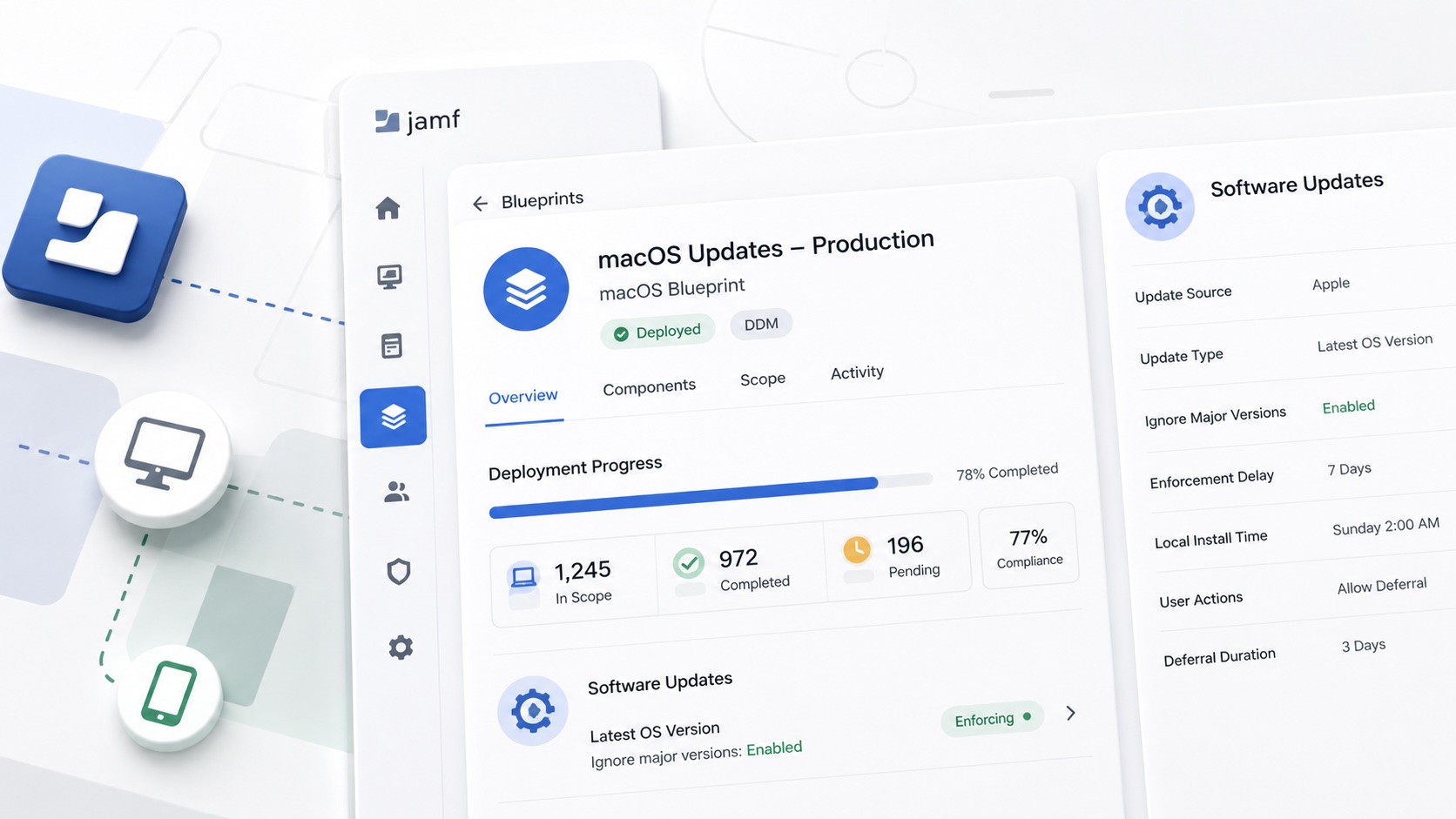
Build Jamf DDM Update Blueprints for macOS and iOS
How I set up Jamf software update blueprints for macOS and iOS using Declarative Device Management, staged scope, clear enforcement timing, and visible deployment progress.

Review the Package Before You Build the Policy
A Jamf-focused package review workflow for checking installer signing, package contents, scope, validation, and rollback before a policy reaches production Macs.

Jamf Was My Mac Evidence Layer for CMMC
How Jamf Compliance helped support the Mac portion of a CMMC assessment, and why I added a small read-only CSV summary script for auditor-ready failed-result evidence.
