
There’s a certain kind of friction you start to notice when you’ve been using a service for a long time. Not enough to make you leave immediately, but enough to make you pause. Flickr had been that kind of service for me. It quietly held years of photos, uploads from old phones, albums I hadn’t looked at in ages, and a massive “Auto Upload” collection that had grown into something I didn’t fully understand anymore.
At some point, though, the cost started to feel out of sync with the value. Not because Flickr stopped working, but because my workflow had changed. I wasn’t using it the way I used to. And like everything else lately, the price had crept up just enough to force the question: why am I still paying for this?
Realizing Flickr Was Just an Archive
When I really thought about it, Flickr had become more of a long-term storage bucket than an active part of my day-to-day life. I wasn’t browsing it, I wasn’t sharing links, and I definitely wasn’t organizing new content there. Everything meaningful had already shifted into Apple Photos without me consciously deciding it would.
Flickr was just… sitting there. Holding onto years of data I hadn’t touched, but didn’t want to lose.
And that’s the trap. It’s easy to keep paying for something when it feels like it’s holding something important hostage.
The Decision to Leave (and What That Actually Means)
Leaving a SaaS platform sounds simple until you actually try to do it. Especially when your data footprint isn’t small.
I wasn’t dealing with a handful of albums. I had tens of thousands of photos, including one auto-upload album alone with over 19,000 images and hundreds of videos mixed in. That’s not something you casually export over a weekend.
Flickr doesn’t really give you a clean, scalable way to extract that kind of data. So like most people in this situation, I ended up relying on the open-source ecosystem.
I ended up using flickr-download, and it turned out to be exactly the right tool for the job once I understood how it was meant to be used. It’s a lightweight Python-based utility, which means it installs cleanly using pip — Python’s package manager. If you’ve never used pip before, it’s essentially the standard way to install and manage Python software. On macOS, you likely already have Python 3 installed, and with that comes pip3. If not, installing Python from python.org or via Homebrew will give you everything you need. Once that’s in place, installing the tool is straightforward and it becomes available as a native command-line utility you can run from anywhere in your terminal.
What makes this tool particularly effective is that it uses Flickr’s official API directly. After generating an API key and secret from Flickr’s developer portal (https://www.flickr.com/services/api/misc.api_keys.html), you can authenticate and begin interacting with your account immediately. The workflow is simple: you can list your photo sets, target specific albums by ID, or download entire libraries. With user authentication enabled, it doesn’t just stop at public content — it can access your full account, including private and restricted albums. Once authenticated, the tool stores a local token so you don’t have to repeat the process, making subsequent runs seamless.
Where it really shines is when you start working with larger libraries. The built-in caching and metadata tracking features are incredibly useful in real-world scenarios. By enabling caching, the tool avoids repeatedly calling the same API endpoints, which speeds things up significantly. The metadata store adds another layer of resilience by keeping track of what’s already been downloaded, allowing the process to safely resume without duplicating work. This makes it practical to run the tool iteratively — whether you’re downloading everything at once or working through albums over time — without worrying about losing progress or starting over.
Setting up a Flickr API Key
The first thing you’ll need is a Flickr API key. Flickr provides this through their developer portal, and it’s a quick process. You can follow their official guide here: Flickr API Key Setup. Once you create an app, you’ll be given two values: an API key and an API secret. These are what allow the tool to authenticate and interact with your account.
Installing Python and PIP
When it comes to installing Python on macOS, I like to use the MacAdmins Python implementation which you can find here. The easiest way to install is to go to the releases page and download the pkg file.
Once installed you can add it to your path like this
nano ~/.zshrcand then add this line
export PATH="/Library/ManagedFrameworks/Python/Python3.framework/Versions/Current/bin:$PATH"then save and reload
source ~/.zshrcNow you can call it natively by using python3 as your binary call.
To ensure that you have Python and PIP installed run this to verify the correct version
jon@Mac-Studio jonbrown.org % pip3 --version
pip 23.3.2 from /Library/Frameworks/Python.framework/Versions/3.11/lib/python3.11/site-packages/pip (python 3.11)
How to use Flickr Download
The tool itself is distributed via Python’s package manager, pip. Installing the tool is as simple as running:
> pip3 install flickr_downloadOnce installed, flickr_download becomes available as a command-line utility. You can run it directly from your terminal without needing to reference Python explicitly, which makes it easy to integrate into scripts or automation workflows.
Out of the box, the tool can access publicly available content using just your API key and secret. That’s enough if you’re downloading public albums or testing things out. But for most real-world migrations, especially if you’ve used Flickr as a personal archive, you’ll want access to everything — including private and restricted photos.
That’s where user authentication comes in.
The tool supports OAuth-based authentication, which lets you authorize it against your Flickr account. The first time you run it with authentication enabled, it will prompt you to visit a URL, log in, and approve access. Once completed, it stores a local token so you don’t have to repeat the process.
flickr_download -k <api key> -s <api secret> -tThis will save ~/.flickr_token containing the authorization. Subsequent calls with -t will use the stored token. For example using
flickr_download -k <api key> -s <api secret> -l <USER>with USER set to your own username, will only fetch your publicly available sets, whereas adding -t
flickr_download -k <api key> -s <api secret> -l <USER> -tFrom that point on, every command you run with authentication enabled has full access to your account, including private albums. This is essential if you’re trying to do a complete export of your library.
Working with Large Photo Libraries
Its worth noting that the app itself has lots of options here is a review of the full flag set.
-h, --help            show this help message and exit
-k API_KEY, --api_key API_KEY
                        Flickr API key
-s API_SECRET, --api_secret API_SECRET
                        Flickr API secret
-t, --user_auth       Enable user authentication
-l USER, --list USER  List photosets for a user
-d SET_ID, --download SET_ID
                        Download the given set
-p USERNAME, --download_user_photos USERNAME
                        Download all photos for a given user
-u USERNAME, --download_user USERNAME
                        Download all sets for a given user
-i PHOTO_ID, --download_photo PHOTO_ID
                        Download one specific photo
-q SIZE_LABEL, --quality SIZE_LABEL
                        Quality of the picture. Examples: Original/Large/Medium/Small. By default the largest available is used.
-n NAMING_MODE, --naming NAMING_MODE
                        Photo naming mode. Use --list_naming to get a list of possible NAMING_MODEs
-m, --list_naming     List naming modes
-o, --skip_download   Skip the actual download of the photo
-j, --save_json       Save photo info like description and tags, one .json file per photo
-c CACHE_FILE, --cache CACHE_FILE
                        Cache results in CACHE_FILE (speed things up on large downloads in particular)
--metadata_store      Store information about downloads in a metadata file (helps with retrying downloads)
-v, --verbose         Turns on verbose logging
--version             Lists the version of the tool
If you’re dealing with a large dataset — and in my case that meant tens of thousands of photos — there are two flags that make a huge difference in both performance and reliability.
The first is caching. By enabling a local cache file, the tool avoids repeatedly calling the same API endpoints. This reduces load on the API and speeds up subsequent runs significantly, especially if you need to retry or resume.
The second is the metadata store. This creates a small database alongside your downloads that tracks which photos have already been processed. Instead of blindly re-downloading everything, the tool can intelligently skip files that already exist, which makes reruns safe and efficient.
Together, these two features turn what would otherwise be a fragile, restart-heavy process into something much more resilient.
The Script
To actually work through my Flickr library, I ended up wrapping flickr_download in a simple queue-based script. Instead of trying to download everything in one massive run, I fed it album IDs one at a time from a text file.
I created the file as such:
flickr_download -k <api key> -s <api secret> -l <USER> -t > sets.txtThat gave me control over the process and made it much easier to manage long-running downloads without babysitting them.
The script handles a few practical things that come up quickly in real-world use. It ensures the external volume is mounted before starting, processes one album at a time, and introduces a delay between runs to avoid hammering the API. More importantly, it captures output and treats already-downloaded files as a successful state, which makes rerunning the script safe. Combined with --cache and --metadata_store, this approach let me chip away at a very large library over time without losing progress or re-downloading the same content repeatedly.
In practice, I would let it run, check progress periodically, and rerun it as needed. Because the underlying tool is idempotent when configured correctly, the script becomes a reliable way to eventually converge on a fully downloaded library, even if the process takes multiple passes to complete.
#!/bin/bash

QUEUE="sets.txt"
SKIP_ID=""
DELAY=300
TARGET_PATH="/Volumes/photo/Flickr"
VOLUME_NAME="photo"

PYTHON_FLICKR="/Library/Frameworks/Python.framework/Versions/3.11/bin/flickr_download"

API_KEY="<YOUR_API_KEY>"
API_SECRET="<YOUR_API_SECRET>"
FLICKR_USER="<YOUR_FLICKR_USERNAME_OR_EMAIL>"

mount_volume() {
  if [ ! -d "$TARGET_PATH" ]; then
    echo "External volume not mounted. Attempting to mount..."

    diskutil mount "$VOLUME_NAME" >/dev/null 2>&1

    for i in {1..10}; do
      if [ -d "$TARGET_PATH" ]; then
        echo "Volume mounted."
        return 0
      fi
      echo "Waiting for volume..."
      sleep 3
    done

    echo "ERROR: Could not mount $VOLUME_NAME"
    exit 1
  fi
}

while true; do

  mount_volume

  id=$(grep -v "^$SKIP_ID$" "$QUEUE" | head -n 1)

  if [ -z "$id" ]; then
    echo "All albums processed. Only $SKIP_ID remains."
    exit 0
  fi

  echo "Processing album: $id"

  output=$("$PYTHON_FLICKR" \
    -k "$API_KEY" \
    -s "$API_SECRET" \
    --user_auth \
    -u "$FLICKR_USER" \
    -d "$id" \
    --cache api_cache \
    --metadata_store \
    -t 2>&1)

  echo "$output"

  if [ $? -eq 0 ] || grep -q "Skipping download of already downloaded photo" <<< "$output"; then
    echo "Album $id completed."
  else
    echo "Download failed for $id. Leaving in queue."
  fi

  echo "Waiting 5 minutes before next album..."
  sleep $DELAY

done
Where Things Started Falling Apart
The first time I ran it against a large album, it worked… until it didn’t.
It would start strong, moving quickly through photos, skipping ones already downloaded, building momentum. Then somewhere deep into the run, it would just stop. Not gracefully, not with a helpful message, just a hard failure buried in a stack trace.
The error it reported didn’t even make sense in context. It claimed the Flickr API wasn’t available. But if I reran the exact same command seconds later, it would work again. That told me right away this wasn’t a real outage. It was something more subtle — transient failures that the tool wasn’t built to handle.
What became clear pretty quickly is that the tool assumes a perfect world. Every API call succeeds. Every photo resolves cleanly. Every request returns exactly what it should.
Understanding What the Tool Was Actually Doing
Once I dug into the code of the installed flickr_download itself, the behavior made more sense. The tool uses a Walker pattern to iterate through Flickr’s paginated API responses. It pulls batches of photos and processes them one by one.
That part is fine.
The problem is what happens inside that loop.
There’s no resilience. No retry logic. No fallback. If a single photo fails to resolve its metadata or size — which happens more often than you’d expect — the exception bubbles up and kills the entire process.
So you end up in this cycle where:
- 3,000 photos download successfully
- one photo throws an API error
- the entire run dies
- you rerun it and hope it gets a little further
Fixing the Real Problem
At first, I tried solving it externally. Wrapping the script. Retrying albums. Sleeping between runs. All of that helped a little, but it didn’t address the core issue.
The breakthrough came when I stopped thinking about the album as the unit of work, and started thinking about the individual photo.
If one photo fails, that shouldn’t matter. The system shouldn’t care.
So instead of trying to resume from a specific page or position, I changed the behavior of the loop itself. The goal became simple: never let a single failure stop the process.
The script itself for me installed to the
cd /Library/Frameworks/Python.framework/Versions/3.11/lib/python3.11/site-packages/flickr_download/directory and from there the flick_download.py script is where the loop logic lived. The original loop was as follows:
for photo in photos:
    do_download_photo(
        dirname,
        pset,
        photo,
        size_label,
        suffix,
        get_filename,
        skip_download,
        save_json,
        metadata_db=conn,
    )

if conn:
    conn.close()
and the loop that worked, and kept retrying and eventually fixed my issue and allowed me to download all my photos was
for photo in photos:
    try:
        do_download_photo(
            dirname,
            pset,
            photo,
            size_label,
            suffix,
            get_filename,
            skip_download,
            save_json,
            metadata_db=conn,
        )
    except Exception as ex:
        logging.warning(
            "Skipping photo due to error: %s (%s)",
            getattr(photo, "id", "unknown"),
            ex,
        )
        continue

if conn:
    conn.close()
The issue wasn’t pagination or even the Flickr API itself — it was how the script handled failure. In the original implementation, any exception thrown while processing a single photo would bubble up and terminate the entire loop, effectively stopping the download for the entire album. With large datasets, where intermittent API errors are common, this made the process unreliable. By wrapping the download call in a try/except block, failures became isolated to individual photos instead of being fatal to the whole run. This allowed the script to continue iterating through the remaining items, making the process resilient and ensuring that one problematic photo no longer prevented the rest of the album from being downloaded.
That change didn’t make the tool perfect, but it made it usable at scale. Suddenly, long-running jobs didn’t collapse halfway through. They just kept moving. Errors became noise instead of blockers.
And once that happened, progress became predictable.
The Cache Problem That Showed Up at the End
Right when things were finally working smoothly, I hit one last issue. After multiple runs, restarts, and retries, the tool started failing immediately with a decoding error when loading its cache.
That turned out to be a corrupted api_cache file. Not surprising, given how many times the process had been interrupted.
The important part was realizing that the cache wasn’t critical. It’s just an optimization layer. Deleting it didn’t lose progress, because the actual state of the download lives on disk and in the metadata database.
Once I removed the cache file, everything resumed normally.
Moving Everything Into Synology Photos
With all the data finally local, the question became where it should live long term.
I already had a Synology NAS running, but I hadn’t seriously considered using it as a photo platform until now. Once I started using Synology Photos, it became obvious I had overlooked something powerful.
It doesn’t try to reinvent the experience. Instead, it mirrors what people already expect from modern photo apps. You get a timeline view, automatic organization, and surprisingly capable indexing. The system quietly processes your library in the background, building structure out of what was previously just a pile of files.
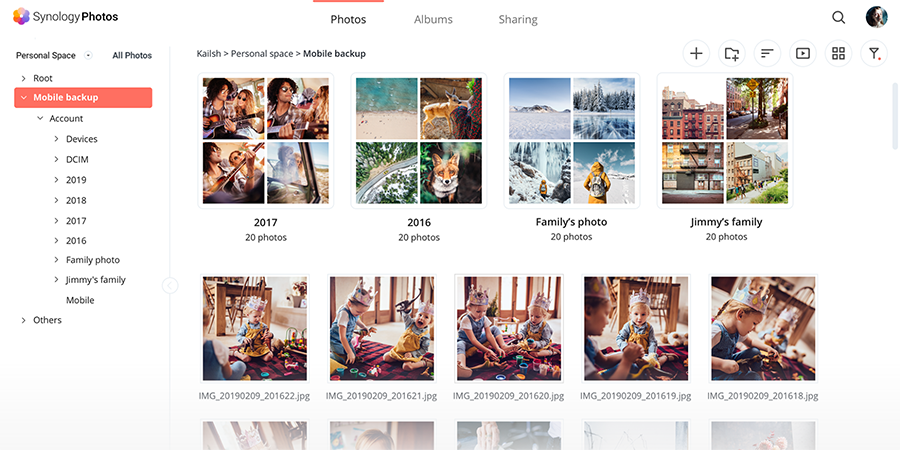
What stood out wasn’t just the feature set, but how it fit into a self-hosted environment. Everything lives on your hardware. Performance depends on your system. Storage is whatever you provision.
There’s no artificial ceiling. No subscription tiers. No “upgrade to unlock more storage.”
It’s just your data, managed by your system.
And once the initial indexing finishes, it’s fast. Much faster than I expected.
Uninstall Once Done
jon@Mac-Studio site-packages % python3 -m pip uninstall flickr_download
Found existing installation: flickr-download 0.3.7
Uninstalling flickr-download-0.3.7:
  Would remove:
    /Library/Frameworks/Python.framework/Versions/3.11/bin/flickr_download
    /Library/Frameworks/Python.framework/Versions/3.11/lib/python3.11/site-packages/flickr_download-0.3.7.dist-info/*
    /Library/Frameworks/Python.framework/Versions/3.11/lib/python3.11/site-packages/flickr_download/*
  Would not remove (might be manually added):
    /Library/Frameworks/Python.framework/Versions/3.11/lib/python3.11/site-packages/flickr_download/flick_download.py.bak
Proceed (Y/n)? y
  Successfully uninstalled flickr-download-0.3.7
Where Apple Still Fits In
Around the same time, Apple introduced the iCloud Shared Photo Library, and we started using it almost immediately. It’s one of those rare features that feels like it disappears into the background in the best possible way. There’s no real onboarding friction, no complicated setup — you define who’s part of the shared library, set a few simple rules, and from that point forward, it just works. Photos taken on either device can automatically flow into the shared space, and everything stays in sync across iPhone, iPad, and Mac without you having to think about it.
What stood out to me was how natural it feels in day-to-day use. There’s no “upload this” or “share that” workflow. You take a photo, and it’s simply there for both of you. Apple leans heavily into automation here — whether it’s based on capture date, location, or manual selection — and it removes the mental overhead of managing a shared collection. It’s not trying to be a file system or a storage solution; it’s focused entirely on the experience of sharing and viewing photos, and it executes that extremely well.
But that seamless experience is built on an important assumption: that iCloud is the source of truth. Your photos live there first, and everything else syncs from it. That works great until you start thinking about ownership, long-term storage, or recovery. If something is deleted, changed, or corrupted in the cloud, that change propagates everywhere. That’s where I started to see the value in having something like Synology Photos alongside it — not as a replacement, but as a second layer of control and durability outside of Apple’s ecosystem.
Why I Didn’t Want to Rely on Just One System
That assumption is where things start to feel a bit risky. Cloud systems are incredibly convenient, but they’re also largely opaque. You don’t have visibility into how data is managed behind the scenes, and more importantly, you don’t control the rules. If something gets deleted, synced incorrectly, or overwritten, that change propagates quickly and often silently across every connected device. Recovery options exist, but they’re bound by retention windows and policies that you don’t define, which introduces a level of uncertainty that’s easy to overlook until you actually need it.
That’s ultimately why Synology became part of the solution — not as a replacement for Apple Photos, but as a complement to it. I didn’t want to give up the seamless, integrated experience that Apple provides, but I also didn’t want my entire photo library to exist in a single system where I had limited control. By introducing Synology Photos into the mix, I gained an independent copy of everything, stored locally on hardware I manage, with backup strategies and retention policies that I define.
The end result is a layered approach that balances convenience with control. Apple Photos and the Shared Library handle the day-to-day experience — capturing, sharing, and organizing memories without friction. Synology runs quietly alongside it, acting as a durable, independent archive. If something goes wrong in one system, it doesn’t cascade everywhere else. Instead of a single point of failure, the library now has resilience built into it, which is exactly what I was looking for.
What This Actually Changed
This shift wasn’t really about Flickr itself — it was about stepping back and reevaluating where my data lives and who ultimately controls it. Flickr served its purpose for years, and it did that job well. It gave me a place to store, organize, and access my photos when I needed a hosted solution. But over time, the value proposition started to change. Not because Flickr broke or failed, but because my needs evolved beyond what it was designed to offer.
At a certain point, it became less about features and more about ownership. I realized I didn’t need another subscription service holding onto my data, especially when I already had the infrastructure to manage it myself. Moving everything local, organizing it in a way that made sense to me, and having direct access without relying on a third-party platform immediately changed how I thought about my photo library. It wasn’t just storage anymore — it was something I actually controlled.
Once everything was in place, the difference was noticeable right away. There’s a level of confidence that comes from knowing your data isn’t tied to a pricing model, a policy change, or a platform decision you have no say in. It’s predictable, it’s accessible, and it’s yours. And after making that transition, I realized pretty quickly that I didn’t miss Flickr at all.
Resources
AI Usage Transparency Report
AI Era · Written during widespread use of AI tools
AI Signal Composition
Score: 0.36 · Moderate AI Influence
Summary
A user's experience with Flickr and their decision to leave the service, including a tool for downloading photos from Flickr using Python.
Related Posts

Migrate Outlook 2016 Profile from one Mac to another Mac
I recently had to help a client move from one Mac to another, during the process one task proved more challenging than originally anticipated. I wanted to share my info in the event that it helps someone out there. In Outlook 2016 for Mac, Microsoft in its infinite wisdom, has changed the default location of the email profile folder. The new location is not well documented, and I stumbled upon it on an obscure forum post, the location is
10.8 to 10.9 Server Upgrade
Setting up OS X Server has never been easier. Neither has upgrading OS X Server. In this article, we'll take a closer look at the process of upgrading a Mac from OS X 10.8 running Server 2 to OS X 10.9 (Mavericks) running Server 3, highlighting any key considerations and steps along the way.
Migrating a Stubborn Wiki Server 10.7 / 10.8
It is true that not all migrations are equal and even truer that issues always arise during a migration that seem to be unique to our server setup that are outside of the general advice put forth by Apple in their knowledgeable articles. Moving the wiki server either to a different operating system or to a different computer is no exception. While I admire Apples attempt at making a Wiki and integrating it with their services, the product itself has been unsupported and buggy from the beginning.
Running Image Generation Locally on macOS with Draw Things (2026)
Local LLMs have rapidly evolved beyond text and are now capable of producing high-quality images directly on-device. For users running Apple Silicon machines—especially M-series Mac Studios and MacBook Pros—this represents a major shift in what’s possible without relying on cloud services. Just a few years ago, image generation required powerful remote GPUs, subscriptions, and long processing times. Today, thanks to optimized models and Apple’s Metal acceleration, you can generate and edit images locally with impressive speed and quality. The result is a workflow that is faster, private, and entirely under...

Cleaning House in Jamf Pro: A Friendly Auditor Script for Real-World Hygiene
There’s a tipping point in every Jamf Pro environment where the policy list begins to feel like a junk drawer. Everyone means well. Nobody deletes anything. And then, months later, you’re trying to answer simple questions like: *Which policies are actually scoped? What’s no longer referenced? Why are there five versions of the same script?* This post covers a small, practical script I wrote to help you **see** what’s stale, **explain** why it’s stale, and (optionally) **park** it safely out of the way—without deleting a thing.

Turn Jamf Compliance Output into Real Audit Evidence
Most teams use Apple’s macOS Security Compliance Project (mSCP) baselines because they scale and they’re repeatable. Jamf’s tooling makes deployment straightforward and the Extension Attribute (EA) output is a convenient place to capture drift. What you don’t automatically get is the artifact an auditor will accept on a specific date—an actual document you can file that shows which endpoints are failing which items, plus a concise roll-up of failure counts you can act on. Smart Groups answer scope; they don’t produce evidence.
10 Things You Didn't Know You Could Do With Apple Configurator (That Save Mac Admins Hours)
Most of us treat Apple Configurator like a fire extinguisher: break glass, DFU, restore, move on. But it can do a lot more, and when you know the edges, you can turn a bricked morning into a ship-it afternoon. Below are ten things I regularly use (or wish I’d used sooner) that demonstrate its capabilities beyond just emergency recovery.
The Power of Scripting App Updates Without Deploying Packages
Keeping macOS environments up-to-date in a seamless, efficient, and low-maintenance way has always been a challenge for IT admins. Traditional package deployment workflows can be time-consuming, prone to versioning issues, and require extensive testing and repackaging. This can lead to frustration and wasted resources as IT teams struggle to keep pace with the latest updates and patches. But there's another way—a more elegant, nimble approach: scripting.
Detecting Invalid Characters and Long Paths in OneDrive on macOS
Microsoft OneDrive is widely used for syncing documents across devices, but on macOS, it can silently fail to sync certain files if they violate Windows filesystem rules — like overly long paths or invalid characters. This creates frustrating experiences for end users who don’t know why files aren’t syncing.
Using a script to Enable FileVault via JAMF: A Word of Caution
Enabling FileVault is a critical step in securing macOS devices, particularly in managed environments like schools, enterprises, and remote teams. For administrators using **Jamf Pro**, automating this process can simplify device onboarding and ensure compliance with disk encryption policies. This automation also helps reduce the administrative burden associated with manually configuring each device, allowing IT staff to focus on other tasks while maintaining a secure environment.
