
I use QuickPKG when I need to turn an application, DMG, or ZIP file into a package quickly without wasting time in a heavier packaging workflow. This post follows the same path as my video: what QuickPKG is, where to get it, how I run it, what a simple packaging example looks like, and where I think admins need to be careful.
If I need a fast packaging path for testing or straightforward deployment prep, this is one of the utilities I reach for.
What Is QuickPKG?
QuickPKG is built to solve a simple problem: I have a piece of software and I need a package quickly. It does not replace every packaging workflow on macOS, and it does not eliminate the need to understand what a package is doing. What it does is remove the extra friction when the task itself is simple.
That is why I like it. A lot of packaging work is straightforward, but the tools can still feel heavier than the job. QuickPKG cuts that down and gets me to a usable package much faster.
Step 1: Get QuickPKG
The first thing I do is go to the GitHub repository and download QuickPKG. That gives me the binary and the documentation I need before I ever touch Terminal.
Resources and sources
As of Feb 15, 2026 QuickPkg is now a binary installer, with no more python dependency. What does this mean? It means that installing it and using it is as simple as going to the repository, downloading the package and installing it onto your computer! Thats it!
- Go here to download QuickPkg 2.0
- Run the installer, thats it!
- Once installed you will see its located in /usr/local/bin/
~ % where quickpkg
/usr/local/bin/quickpkg
From there you can just use it by calling quickpkg from wherever you are in your command path.
OVERVIEW: Build packages quickly from installed applications, disk images, or
zip archives.

Quickly build a package from an installed application, a disk image file,
or zip/xip archive with an enclosed application bundle.

The tool extracts the application name, version, and other metadata from the
application
for the package installer metadata and to name the resulting pkg file.

Example: quickpkg /path/to/installer_item

USAGE: quickpkg [<options>] <item-path>

ARGUMENTS:
  <item-path>             Path to the installer item (.app, .dmg, .zip, or .xip)

OPTIONS:
  --scripts <scripts>     Path to a folder with scripts.
        If combined with --preinstall or --postinstall, scripts will be merged
        when possible.
  --preinstall, --pre <preinstall>
                          Path to the preinstall script
  --postinstall, --post <postinstall>
                          Path to the postinstall script
  --install-location <install-location>
                          Install location (default: /Applications)
  --ownership <ownership> Ownership setting (values: recommended, preserve,
                          preserve-other)
  --compression <compression>
                          Compression type (values: latest, legacy; default:
                          latest)
  -o, --output <output>   Output path for the package.
        Supports {name}, {version}, {identifier} placeholders. (default
        filename: {name}-{version}.pkg)
  --clean/--no-clean      Clean up temp files (default: --clean)
  --relocatable/--no-relocatable
                          Make package relocatable (default: --no-relocatable)
  --component             Build a component package
  --distribution          Build a distribution package using productbuild
                          (default: --distribution)
  --sign <sign>           Signing identity for the package
  --keychain <keychain>   Keychain to search for signing identity
  --cert <cert>           Intermediate certificate to embed
  -v, --verbose           Increase verbosity (-v, -vv, or -vvv)
  --version               Show the version.
  -h, --help              Show help information.
Now, I can just run QuickPKG.
Step 2: Run QuickPKG Against an App
The fastest way to understand QuickPKG is to use it against an existing application bundle. In the video, I use a simple app from the Applications folder because the point is to show the workflow, not to claim that this is the best production deployment path for that specific app.
Example:
quickpkg /Applications/Numbers.app
That command tells QuickPKG to take the app at that path and build a package from it. It then creates a package file with version information in the filename, which gives me something I can test, upload, or distribute.
Step 3: Review the Output
Once the command completes, I have a package file I can work with like any other installer package. This is where QuickPKG lives up to its name. For a simple packaging task, it is fast, repeatable, and easy to understand.
That is exactly why I keep using it. If I am testing deployment, preparing a quick internal package, or validating a packaging path, it saves time without making the workflow harder than it needs to be.
Step 4: Verify the Package You Just Built
After I create the package, I do not stop at the file existing on disk. I want to confirm what was created and make sure I am working with the actual output I expect.
A simple way to do that is to inspect the directory and verify the package name:
ls -lh *.pkg
That gives me a quick sanity check that the package was created and that the output looks right before I move on to deployment or testing.
If I am packaging something for a real workflow, this is also the point where I decide whether I want to test-install it locally, move it into an MDM, or stage it for a larger deployment process.
Where QuickPKG Fits Best
QuickPKG works best when I care about speed and simplicity. If I already know what I am packaging and I just want to get to a usable package quickly, it fits well.
That does not make it the answer to every packaging problem. It fills a practical gap between doing everything manually and reaching for a larger packaging workflow when the task is relatively simple.
For me, that is the real value. The job may be simple, and the right tool is the one that gets the job done cleanly without a lot of unnecessary overhead.
Signing and the Important Caveat
QuickPKG also supports signing options, but this is where I want to be very clear: just because I can create and sign a package does not mean every packaging scenario is a good candidate for that.
If I am dealing with third-party software, the better long-term standard is still for the vendor to provide a properly signed installer. Repackaging and re-signing someone else’s software can create trust, ownership, and support issues that are bigger than the convenience I gain in the moment.
That is the real caution point in this workflow. QuickPKG is useful, but I still need to use judgment and know when the better answer is to push the vendor to distribute software correctly.
Example Command Flow
If you want the fastest possible view of the process, it looks like this:
cd ~/Downloads/quickpkg-main
quickpkg /Applications/Numbers.app
That is the core QuickPKG workflow I am showing in the video. I download the tool, move into the folder, run the binary against the app I want to package, and then verify the output before I use it anywhere else.
Why QuickPKG Is Worth Using
I use QuickPKG because it solves a real operational problem with very little ceremony. It is fast, direct, and practical. When I need a quick package and I do not want the packaging workflow itself to become the project, it gets me where I need to go.
After I make the package, the next step depends on the goal. I can test it locally, I can upload it into an MDM for distribution, or I can use it as part of a larger deployment workflow. That is the real point of the utility: get me to a clean package quickly so I can move on to the part that actually matters, which is testing and deployment.
If you are doing packaging work regularly, QuickPKG is worth using because it saves time without hiding what is happening.
Ready to take your Apple IT skills and consulting career to the next level?
I’m opening up free mentorship slots to help you navigate certifications, real-world challenges, and starting your own independent consulting business.
Let’s connect and grow together — Sign up here
AI Usage Transparency Report
AI Era · Written during widespread use of AI tools
AI Signal Composition
Score: 0.31 · Moderate AI Influence
Summary
QuickPKG is a utility for macOS that simplifies the process of creating packages from installed applications, disk images, or zip archives. It removes extra friction when the task itself is simple and provides a fast packaging path for testing or straightforward deployment prep.
Related Posts
Discovering Mole: A Command Line Utility for Mac Cleaning
Caches pile up, apps leave behind junk, and disk space slowly disappears. While there are plenty of GUI tools out there, most of them either lack transparency or feel overly bloated.
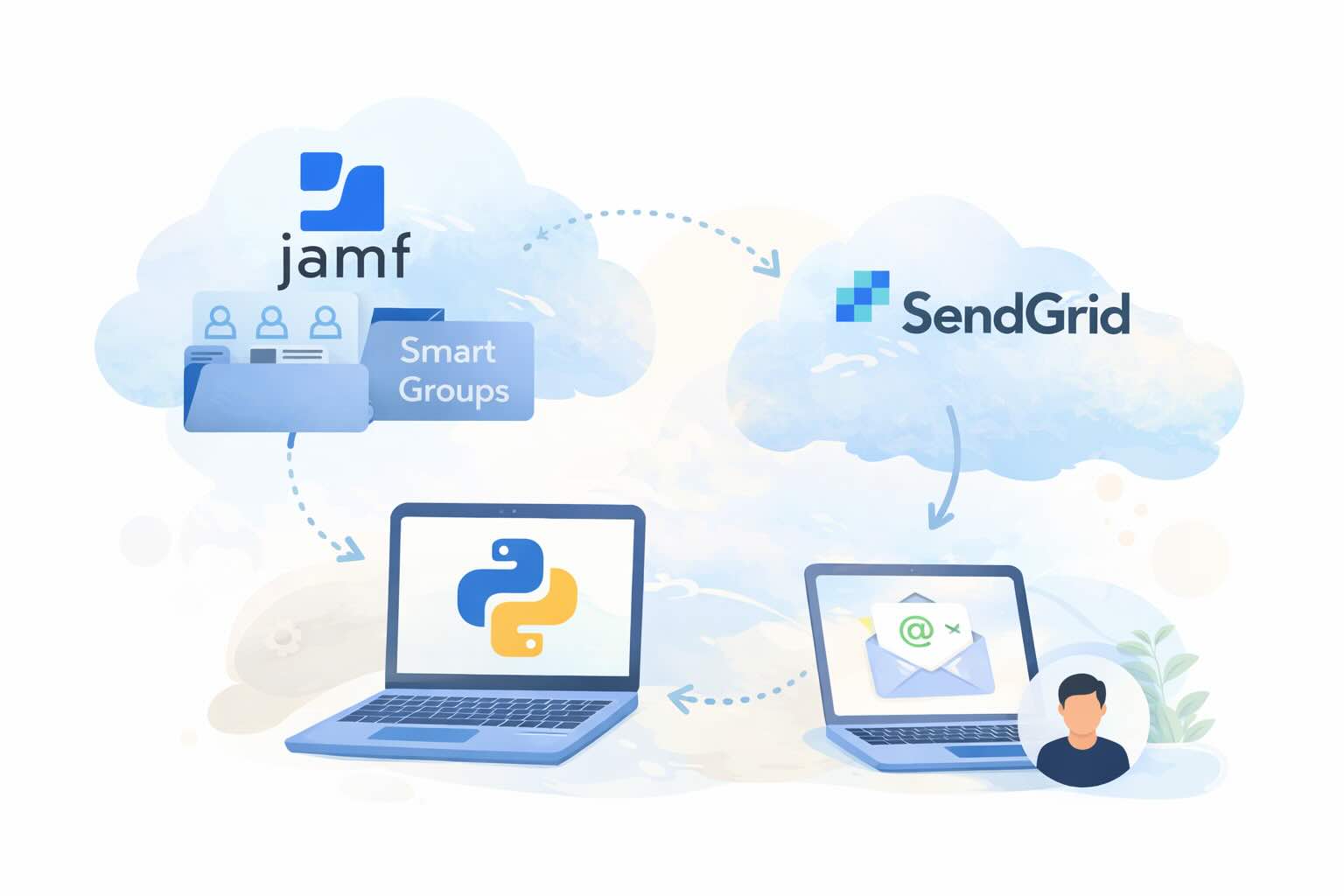
Automating JAMF Pro Email Notifications with SendGrid (Smart Group Driven Workflows)
Modern device management isn't just about enforcing policies—it's about communicating effectively with users at the right time. In JAMF Pro, Smart Groups give you powerful visibility into device state, but they don't natively solve the problem of proactive, automated user communication. Whether you're trying to prompt users to restart their machines, complete updates, or take action on compliance issues, bridging that gap requires a flexible and scalable notification system.
Introducing Pique - The Game-Changing Quick Look Plugin for Mac Admins
As a Mac admin, I'm always on the lookout for tools that make my life easier and more efficient. Recently, I stumbled upon Pique - a brilliant Quick Look plugin created by Henry Stamerjohann that allows you to view file contents in a syntax highlighted way.
ABM Warranty 0.4.1 Walkthrough: Wrap-Up and Beta
In this final ABM Warranty 0.4.1 walkthrough, I’m wrapping up the last features I had not covered directly in the earlier videos and then focusing on support, community, and the beta program. I also want to show where the support resources live inside the app so you know where to go if you need help, documentation, or a way to send useful feedback. Additionally, I'll be covering some of the key features that were updated since the previous version, including any bug fixes or improvements made to existing functionality.
ABM Warranty 0.4.1 Walkthrough: Managed Preferences
In this part of the ABM Warranty 0.4.1 walkthrough series, I'm focusing on managed preferences and the credential packaging workflow. In the last video, I covered multiple credentials inside the app itself. In this one, I'm showing how to package those credentials so they can be deployed securely through MDM. This process is a crucial step in ensuring that your credentials are properly configured and protected within your organization's mobile device management system.
Low Profile Walkthrough and Review
Today I’m walking through Low Profile, a utility from Nindi Gill that I use when I want to inspect profiles already installed on a Mac and figure out whether those profiles contain issues I need to clean up. The value is that Low Profile gives me a straightforward way to inspect profiles installed on any Mac. This simplicity makes it easy for me to identify and address potential problems, which is especially useful when working with multiple machines or troubleshooting complex profile configurations.
ABM Warranty 0.4.1 Walkthrough: Multiple Credentials
In this part of the ABM Warranty 0.4.1 walkthrough series, I’m focusing on multiple credentials. In the first video, I showed the basic setup and how to add a single credential. Now, I want to explore what happens when I remove a credential, what changes occur when I add more than one, and how the app behaves once there are multiple contexts in play. This will help clarify any potential issues or inconsistencies that may arise with multiple credentials.
ABM Warranty 0.4.1 Walkthrough: Introduction
In this first ABM Warranty 0.4.1 walkthrough, I want to show you what the app actually does before I get into the more specific feature videos. This is the broad introduction. I’m walking through the dashboard, how I think about the warranty cards, how released devices are handled, how the filters work, how to add credentials, where the data is stored locally, and what the logging and security model looks like.
ABM Warranty 0.4.1
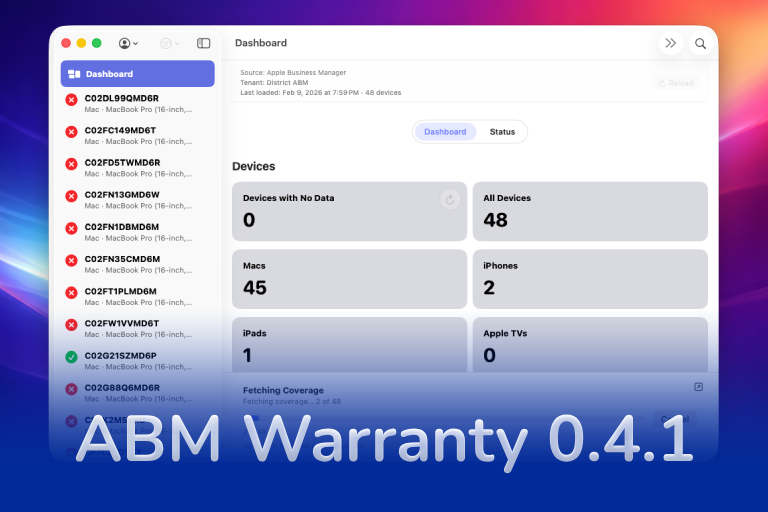
The 0.4.x release series for ABM Warranty is focused on operational scale. The earlier 0.3 releases were about trust, correctness, and stabilizing the foundation. Version 0.4.1 builds directly on that work by making the app more practical for consultants, internal IT teams, and managed service providers who need to support multiple environments without losing isolation, control, or visibility. This includes improvements to user interface and workflow, as well as enhanced reporting capabilities to help these users manage their workflows more efficiently.
