
I use QuickPKG when I need to turn an application, DMG, or ZIP file into a package quickly without wasting time in a heavier packaging workflow. This post follows the same path as my video: what QuickPKG is, where to get it, how I run it, what a simple packaging example looks like, and where I think admins need to be careful.
If I need a fast packaging path for testing or straightforward deployment prep, this is one of the utilities I reach for.
What Is QuickPKG?
QuickPKG is built to solve a simple problem: I have a piece of software and I need a package quickly. It does not replace every packaging workflow on macOS, and it does not eliminate the need to understand what a package is doing. What it does is remove the extra friction when the task itself is simple.
That is why I like it. A lot of packaging work is straightforward, but the tools can still feel heavier than the job. QuickPKG cuts that down and gets me to a usable package much faster.
Step 1: Get QuickPKG
The first thing I do is go to the GitHub repository and download QuickPKG. That gives me the binary and the documentation I need before I ever touch Terminal.
Resources and sources
As of Feb 15, 2026 QuickPkg is now a binary installer, with no more python dependency. What does this mean? It means that installing it and using it is as simple as going to the repository, downloading the package and installing it onto your computer! Thats it!
- Go here to download QuickPkg 2.0
- Run the installer, thats it!
- Once installed you will see its located in /usr/local/bin/
~ % where quickpkg
/usr/local/bin/quickpkg
From there you can just use it by calling quickpkg from wherever you are in your command path.
OVERVIEW: Build packages quickly from installed applications, disk images, or
zip archives.

Quickly build a package from an installed application, a disk image file,
or zip/xip archive with an enclosed application bundle.

The tool extracts the application name, version, and other metadata from the
application
for the package installer metadata and to name the resulting pkg file.

Example: quickpkg /path/to/installer_item

USAGE: quickpkg [<options>] <item-path>

ARGUMENTS:
  <item-path>             Path to the installer item (.app, .dmg, .zip, or .xip)

OPTIONS:
  --scripts <scripts>     Path to a folder with scripts.
        If combined with --preinstall or --postinstall, scripts will be merged
        when possible.
  --preinstall, --pre <preinstall>
                          Path to the preinstall script
  --postinstall, --post <postinstall>
                          Path to the postinstall script
  --install-location <install-location>
                          Install location (default: /Applications)
  --ownership <ownership> Ownership setting (values: recommended, preserve,
                          preserve-other)
  --compression <compression>
                          Compression type (values: latest, legacy; default:
                          latest)
  -o, --output <output>   Output path for the package.
        Supports {name}, {version}, {identifier} placeholders. (default
        filename: {name}-{version}.pkg)
  --clean/--no-clean      Clean up temp files (default: --clean)
  --relocatable/--no-relocatable
                          Make package relocatable (default: --no-relocatable)
  --component             Build a component package
  --distribution          Build a distribution package using productbuild
                          (default: --distribution)
  --sign <sign>           Signing identity for the package
  --keychain <keychain>   Keychain to search for signing identity
  --cert <cert>           Intermediate certificate to embed
  -v, --verbose           Increase verbosity (-v, -vv, or -vvv)
  --version               Show the version.
  -h, --help              Show help information.
Now, I can just run QuickPKG.
Step 2: Run QuickPKG Against an App
The fastest way to understand QuickPKG is to use it against an existing application bundle. In the video, I use a simple app from the Applications folder because the point is to show the workflow, not to claim that this is the best production deployment path for that specific app.
Example:
quickpkg /Applications/Numbers.app
That command tells QuickPKG to take the app at that path and build a package from it. It then creates a package file with version information in the filename, which gives me something I can test, upload, or distribute.
Step 3: Review the Output
Once the command completes, I have a package file I can work with like any other installer package. This is where QuickPKG lives up to its name. For a simple packaging task, it is fast, repeatable, and easy to understand.
That is exactly why I keep using it. If I am testing deployment, preparing a quick internal package, or validating a packaging path, it saves time without making the workflow harder than it needs to be.
Step 4: Verify the Package You Just Built
After I create the package, I do not stop at the file existing on disk. I want to confirm what was created and make sure I am working with the actual output I expect.
A simple way to do that is to inspect the directory and verify the package name:
ls -lh *.pkg
That gives me a quick sanity check that the package was created and that the output looks right before I move on to deployment or testing.
If I am packaging something for a real workflow, this is also the point where I decide whether I want to test-install it locally, move it into an MDM, or stage it for a larger deployment process.
Where QuickPKG Fits Best
QuickPKG works best when I care about speed and simplicity. If I already know what I am packaging and I just want to get to a usable package quickly, it fits well.
That does not make it the answer to every packaging problem. It fills a practical gap between doing everything manually and reaching for a larger packaging workflow when the task is relatively simple.
For me, that is the real value. The job may be simple, and the right tool is the one that gets the job done cleanly without a lot of unnecessary overhead.
Signing and the Important Caveat
QuickPKG also supports signing options, but this is where I want to be very clear: just because I can create and sign a package does not mean every packaging scenario is a good candidate for that.
If I am dealing with third-party software, the better long-term standard is still for the vendor to provide a properly signed installer. Repackaging and re-signing someone else’s software can create trust, ownership, and support issues that are bigger than the convenience I gain in the moment.
That is the real caution point in this workflow. QuickPKG is useful, but I still need to use judgment and know when the better answer is to push the vendor to distribute software correctly.
Example Command Flow
If you want the fastest possible view of the process, it looks like this:
cd ~/Downloads/quickpkg-main
quickpkg /Applications/Numbers.app
That is the core QuickPKG workflow I am showing in the video. I download the tool, move into the folder, run the binary against the app I want to package, and then verify the output before I use it anywhere else.
Why QuickPKG Is Worth Using
I use QuickPKG because it solves a real operational problem with very little ceremony. It is fast, direct, and practical. When I need a quick package and I do not want the packaging workflow itself to become the project, it gets me where I need to go.
After I make the package, the next step depends on the goal. I can test it locally, I can upload it into an MDM for distribution, or I can use it as part of a larger deployment workflow. That is the real point of the utility: get me to a clean package quickly so I can move on to the part that actually matters, which is testing and deployment.
If you are doing packaging work regularly, QuickPKG is worth using because it saves time without hiding what is happening.
Ready to take your Apple IT skills and consulting career to the next level?
I’m opening up free mentorship slots to help you navigate certifications, real-world challenges, and starting your own independent consulting business.
Let’s connect and grow together — Sign up here
AI Usage Transparency Report
AI Era · Written during widespread use of AI tools
AI Signal Composition
Score: 0.31 · Moderate AI Influence
Summary
QuickPKG is a utility for macOS that simplifies the process of creating packages from installed applications, disk images, or zip archives. It removes extra friction when the task itself is simple and provides a fast packaging path for testing or straightforward deployment prep.
Related Posts

When Chromium Mistakes Your VPN for a Local Network
Turning off Jamf Trust fixed the webinar, which normally would have sent me straight to its routing policies. This time the route was fine: Chromium was treating Jamf's ZTNA broker addresses as a local network, and an Edge and Chrome preference corrected it.

Amnesia Stealer Shows the Next Stage of ClickFix on macOS
Amnesia Stealer shows how ClickFix-style social engineering is adapting on macOS, while a public malware sample gives defenders an opportunity to study the behavior behind the campaign.
Apple Software Updates Need a Blueprint Before the MDM Commands Fade
Apple software update management is moving away from command-first MDM workflows. Jamf Blueprints and Declarative Device Management give Mac admins a better place to express update intent, scope, enforcement, and visibility.

Contour Brings Schema Checks to Mac Admin Configuration Work
Contour is a MacAdmins configuration toolkit that brings schema validation, repeatable generation, normalization, and AI-agent-safe command discovery to Apple configuration profiles, DDM declarations, PPPC, Santa, mSCP, Background Task Management, notifications, support app profiles, and osquery schema lookup.
Three Mac Update Helpers That Fit Below a Patch Platform
Latest, Applite, and an all-in-one macOS update script each solve a different part of lightweight Mac maintenance: app update visibility, Homebrew-backed app management, and command-line package updates that can be wrapped carefully for small teams or basic MDM.
Natural Makes the macOS Scroll Direction Toggle Less Buried
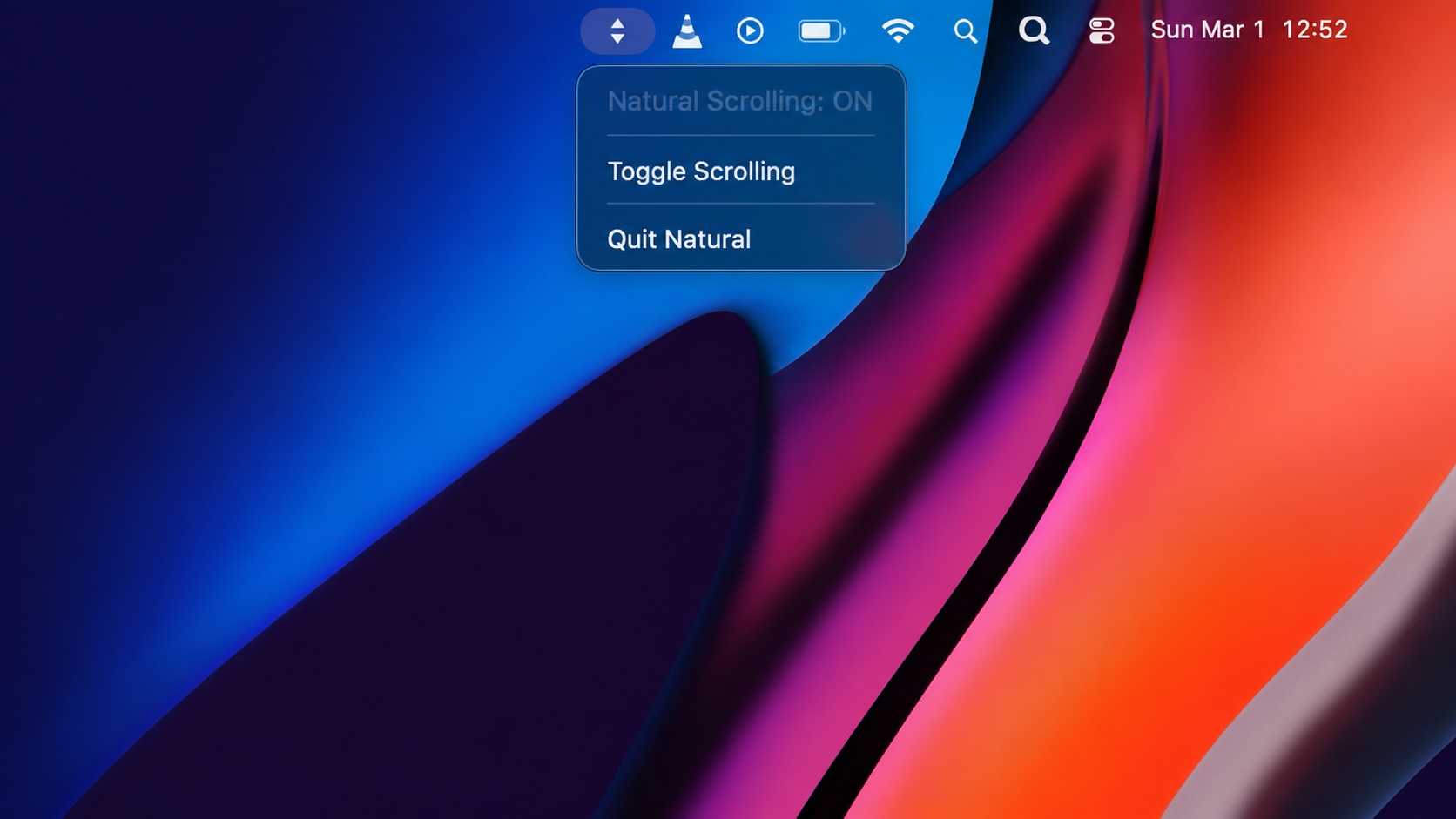
Natural is a small macOS menu bar utility that makes the natural scrolling toggle easy to reach, but building it from source also shows why open-source desktop utilities need clear prerequisite checks before they become recommended tools.

Why Mac Performance Monitor Belongs in the Mac Admin Toolbox
Mac Performance Monitor belongs in the Mac admin toolbox because it records local performance history, helps Help Desk review slow-Mac reports after the moment has passed, and keeps process telemetry on the Mac instead of sending it to a cloud service.

Jamf Moves Platform SSO Into the Enrollment Gate
Jamf's attended Simplified Setup for Platform SSO changes Mac enrollment by making identity registration part of Setup Assistant before the MDM profile is installed.
ClickLock Shows Why Terminal Paste Is a Mac Security Boundary
ClickLock Stealer shows why Mac security teams should watch for Terminal paste lures, fake AppleScript password prompts, command-line Keychain access, LaunchAgent persistence, and Jamf Protect alerts that can route suspected Macs into Jamf Pro response groups.
Deploying DDM OS Reminder 4.0.0 in Jamf
DDM OS Reminder 4.0.0 is deployed as two separate pieces in Jamf: a managed preferences profile and a one-time installer script that creates the reminder script, starter script, and LaunchDaemon heartbeat on the Mac.
