

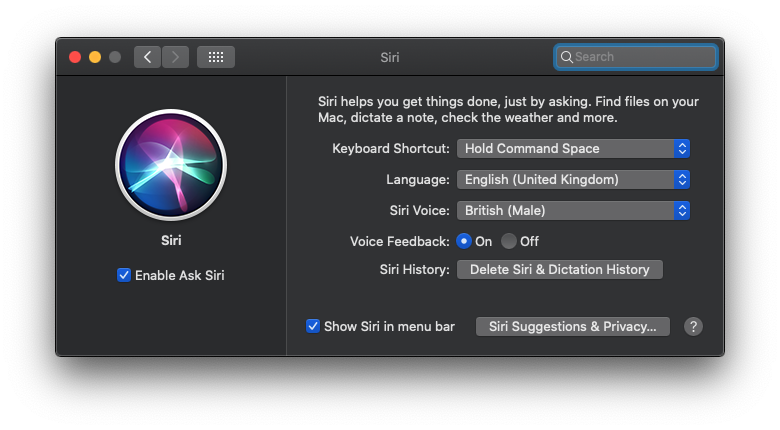
1. Speak to your Mac!
The Mac’s ability to listen and talk is excellent using Dictation. Since Siri’s launch on the Apple line-up this has eclipsed the Dictation feature.
Hold Command-Space for a few seconds, or press Command-Space and type Siri, if you are using a recent Mac (any Mac since 2018 pretty much) say ‘Hey Siri’.
You may need to open System Preferences > Siri and make sure it is enabled.
Siri on the Mac is more powerful in Mojave and Catalina; Siri can even control system functions hold Command-Space and talk to Siri.
2. Show or Hide the Menu bar
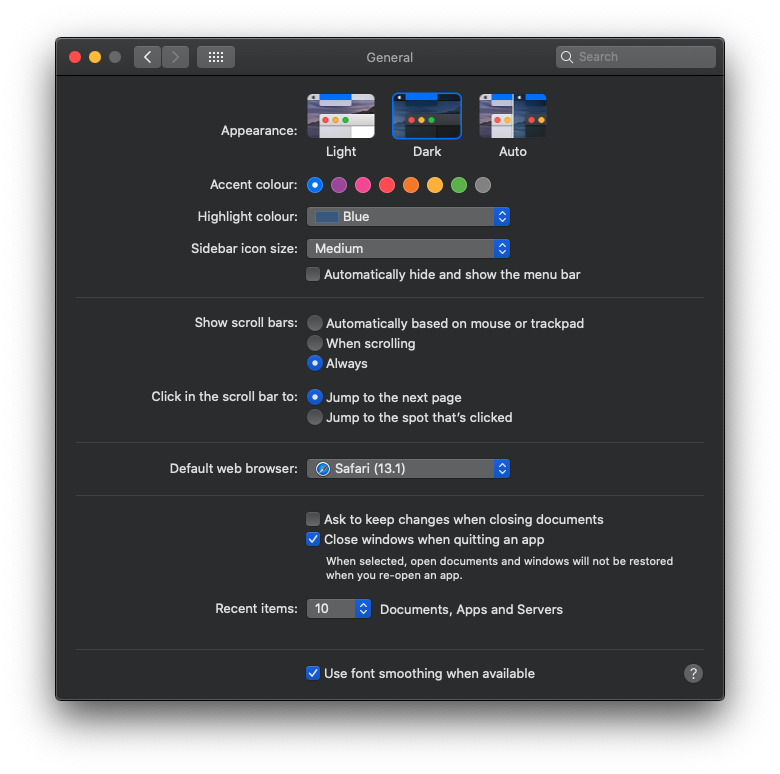
Since the launch of the Macintosh nearly 40 years ago there has been a Menu Bar, from OS X El Capitan & up you can choose to not show the menu bar giving you a little more screen space should you need it.
Go to System Preferences > General & look for “Automatically hide and show the menu bar.”
3. Unit conversion & calculation from Spotlight
Type 1 + 2 into Spotlight (Command Space)
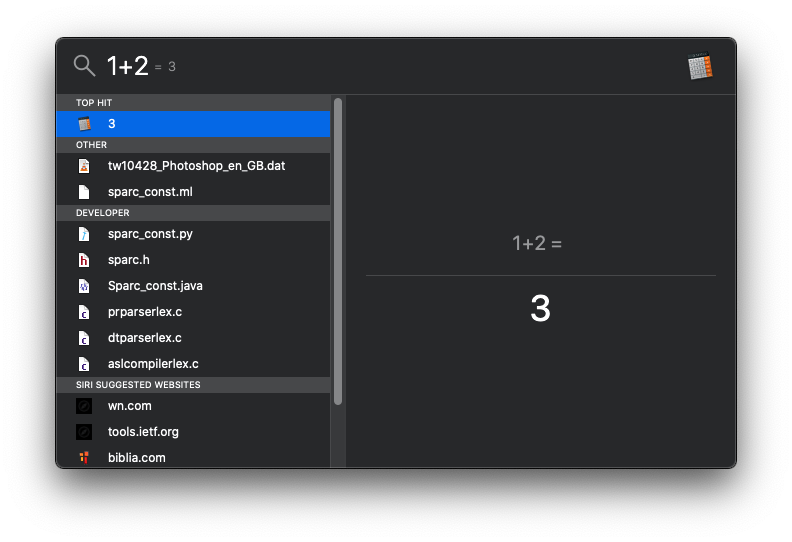
And hey presto it gives you the answer!
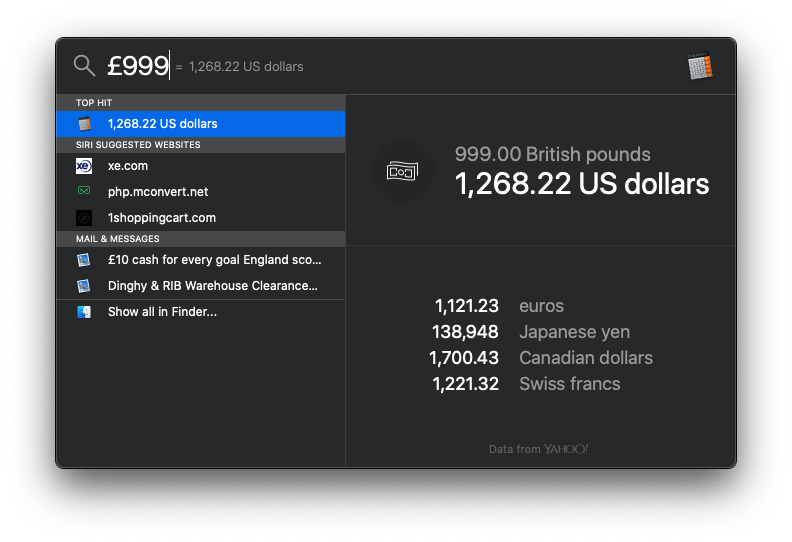
You can also convert currencies, weights etc.
Type £999 which is the pounds sterling symbol and it will give you the USD equivalent.
4. Use Glyphs & Emojis
You may be using some already such as accented e’s é; type Option+E then E again, however there are many more.
Look in the Edit menu of apps and you'll find “Emoji’s & Symbols or Special Characters”.
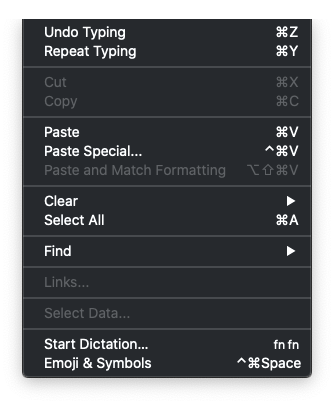
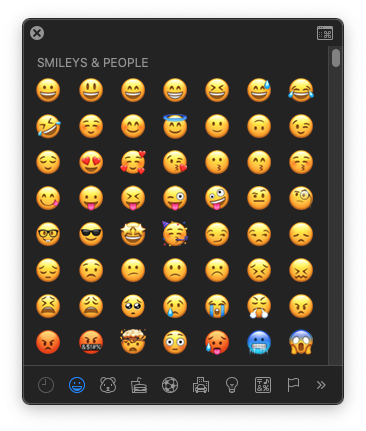
Here you can access a large array of symbols & Emoticons you can use in your documents.
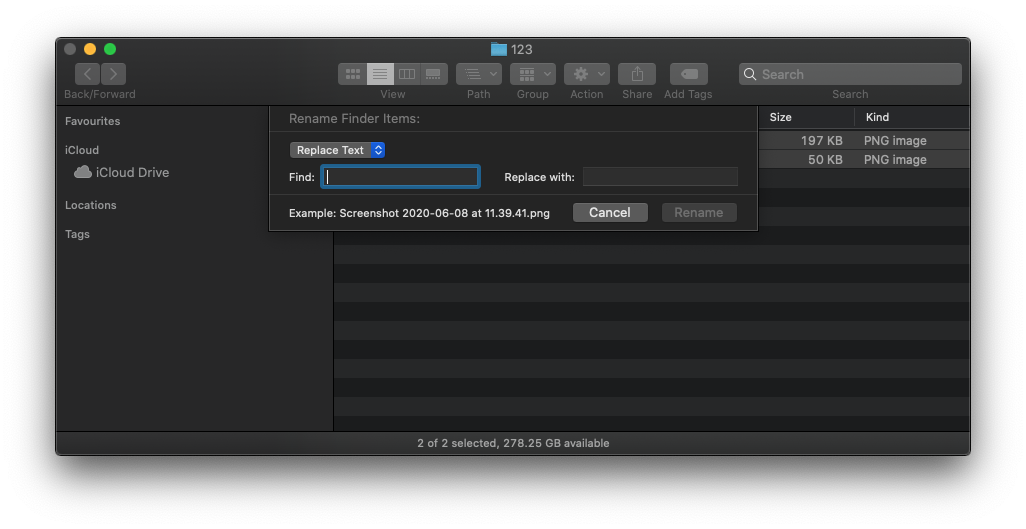
5. Rename multiple files at once
From MacOS Yosemite & above you can select a range of files & then select Rename from the right-click menu or using the drop-down “Action” menu in Finder windows.
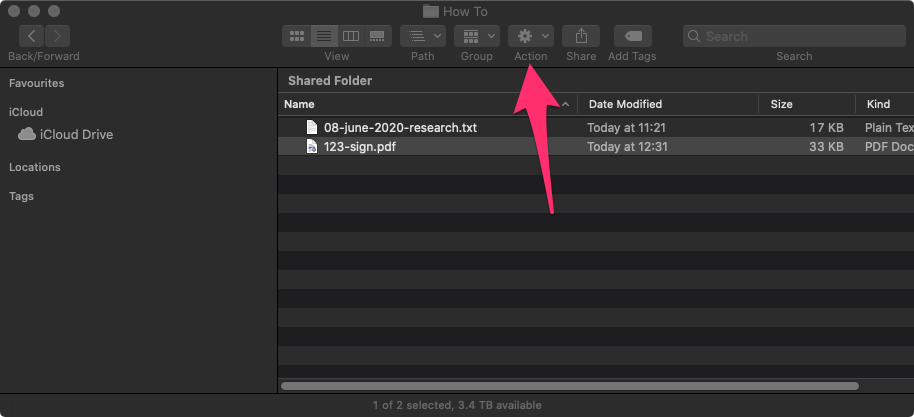
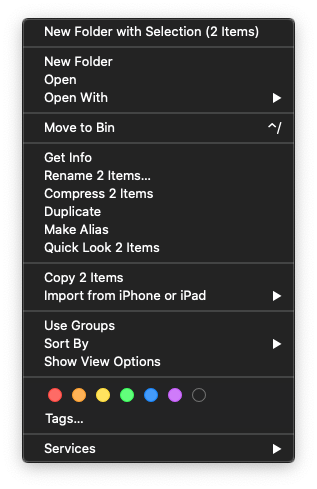
After that you will be presented with the options of replacing text, adding text, or applying a format.
6. Use Mail to sign PDFs
When someone emails a PDF to sign you can sign it using Mail.
Drop an PDF into your email and then when you hover over it at the top right you can see the markup button show.
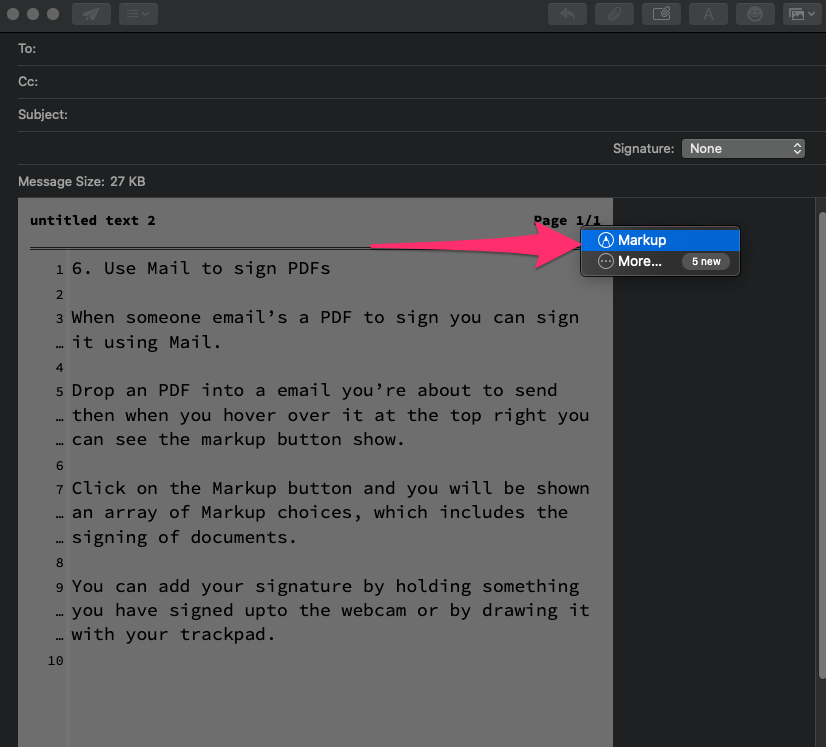
Click on the Markup button and you will be shown an array of Markup choices, which includes the signing of documents.
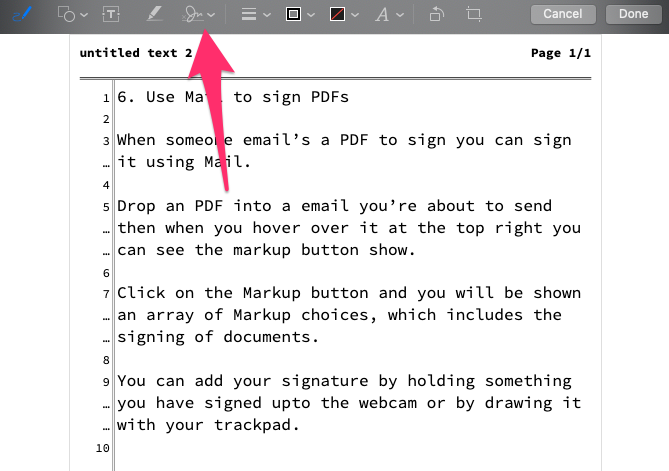
You can add your signature by holding something you have signed up to the webcam or by drawing it with your trackpad.
7. Share things straight from your Mac
All over macOS you will see the share button.

Click the share button and choose the method you would like to share the thing you are currently looking at.
8. Use Image Capture to grab items from your camera / Sd card or
other imaging device.
MacOS has a great built in utility you will find in Applications > Image Capture.
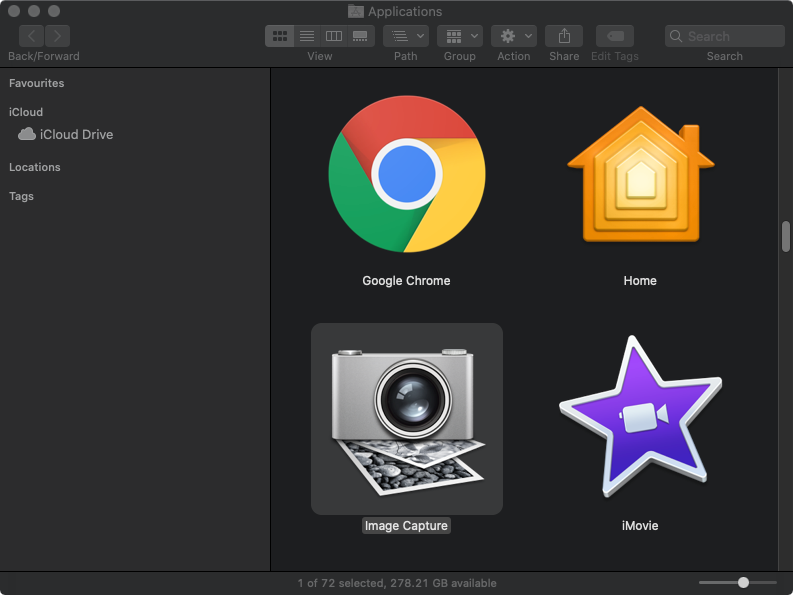
Image capture can pull images and videos from almost any connected camera / scanner or imaging device. It can even import images from networked or “shared” scanners.
9. Split Screen
Since MacOS El Capitan Split Screen view allows you to use Apps side by side very efficiently.
On Mojave and previous versions of MacOS, hold left-click on an app's green maximize button then drag the app to the left or right-hand side of the display.
Using macOS Catalina things have changed slightly; left-click and hold on the green maximum button and this will show a menu in which you can choose how you want that window positioning.
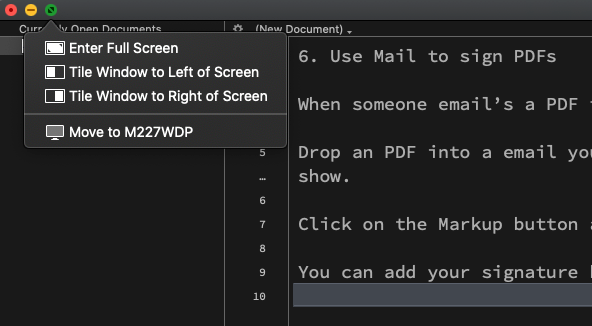
With a secondary monitor attached you can even send that window to the secondary monitor, these are listed at the bottom in this example it shows “Move to M227WDP”.
10. Use preview to markup (annotate) Pdfs and more
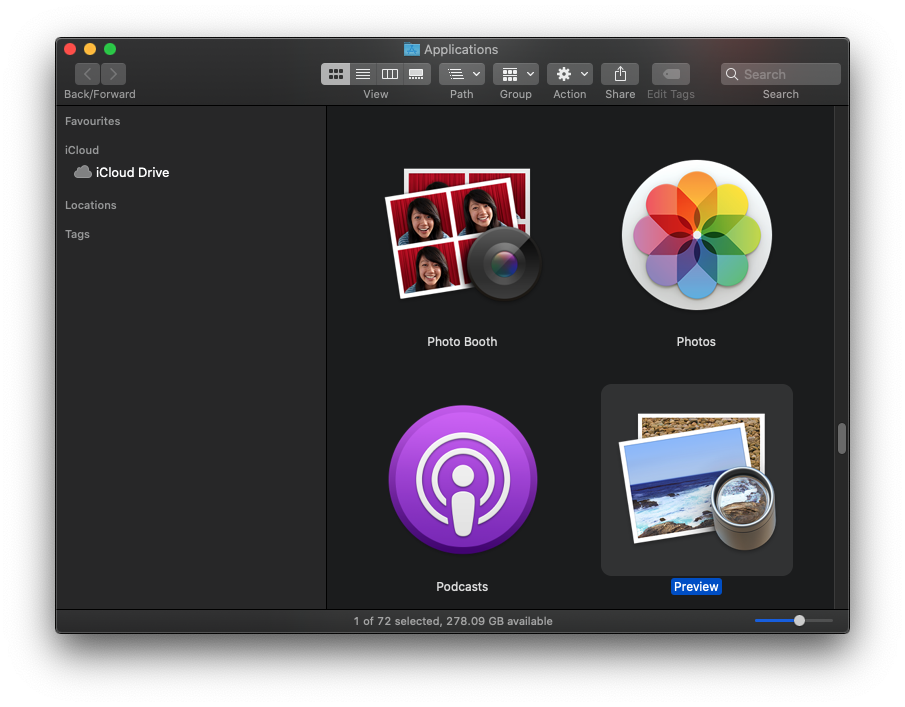
You will find Preview in the Applications folder, Preview is often the default App when you open PDFs and images on your Mac.
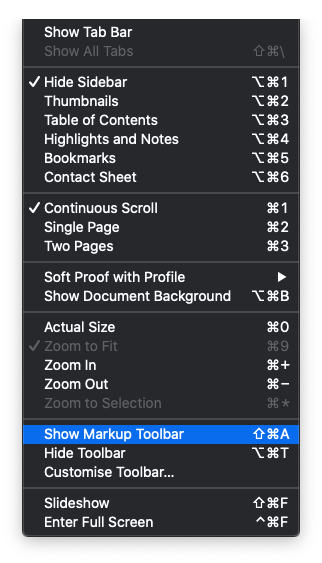
Once you have opened your PDF in preview make sure the Markup bar is showing by selecting “Show Markup toolbar” from the View menu. Shift + Command + A
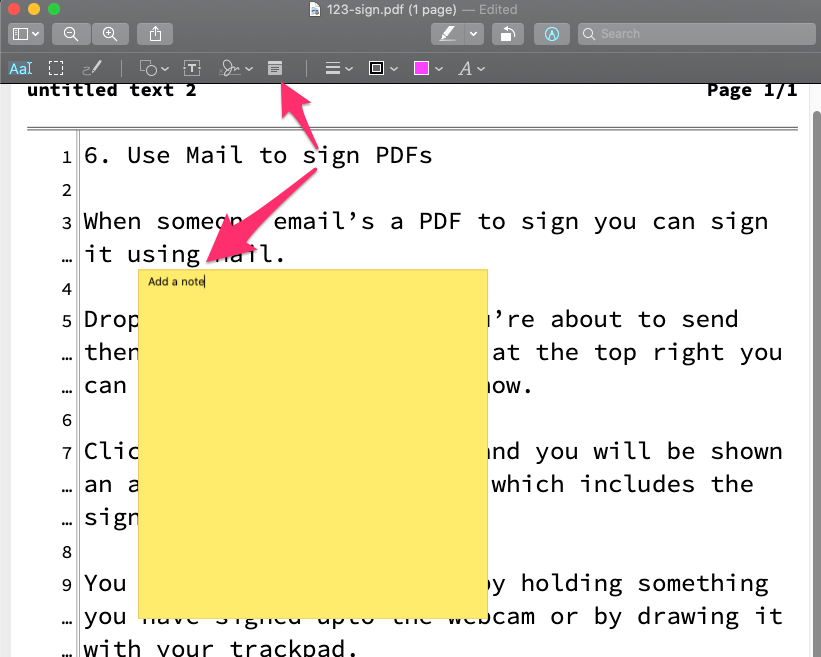
From the Markup toolbar there are many useful tools to add notes, annotations, sign, draw, & highlight text.
AI Usage Transparency Report
Pre-AI Era · Written before widespread use of generative AI tools
AI Signal Composition
Score: 0.07 · Low AI Influence
Summary
This article provides 10 tips for using a Mac, including how to use Dictation, show or hide the menu bar, and share files.
Related Posts
When Chromium Mistakes Your VPN for a Local Network
Turning off Jamf Trust fixed the webinar, which normally would have sent me straight to its routing policies. This time the route was fine: Chromium was treating Jamf's ZTNA broker addresses as a local network, and an Edge and Chrome preference corrected it.
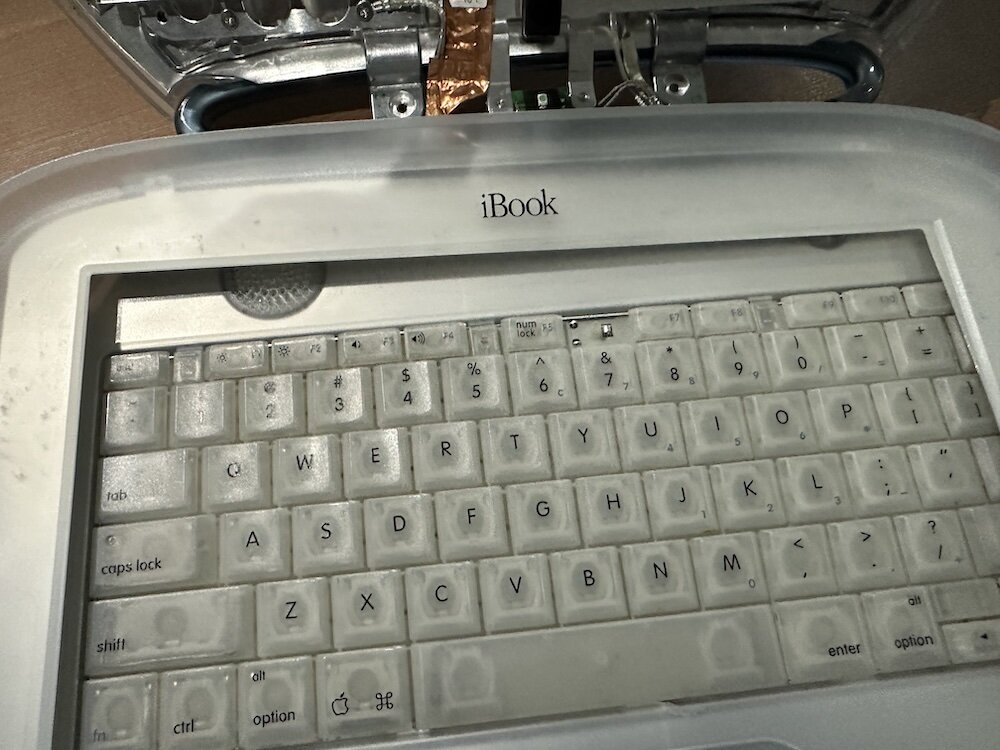
Clamshell iBook G3 Restoration, Part 1: From Broken Screen to Board-Level Repair
Part one of a Clamshell iBook G3 restoration: a broken screen, a charger detour, a blinking system folder, a full teardown, and the backlight connector mistake that paused the project.
Bromure Gives Codex a Room of Its Own
I installed Bromure Agentic Coding, watched it build the Linux VM, authenticated Codex, and followed a real Codex task through the workspace.
Claude Code Auto Mode Changes Approval Flow, Not the Safety Boundary
Claude Code Auto mode changes how approval decisions are handled. It does not expand the boundary of what the coding agent should be allowed to do.

Amnesia Stealer Shows the Next Stage of ClickFix on macOS
Amnesia Stealer shows how ClickFix-style social engineering is adapting on macOS, while a public malware sample gives defenders an opportunity to study the behavior behind the campaign.
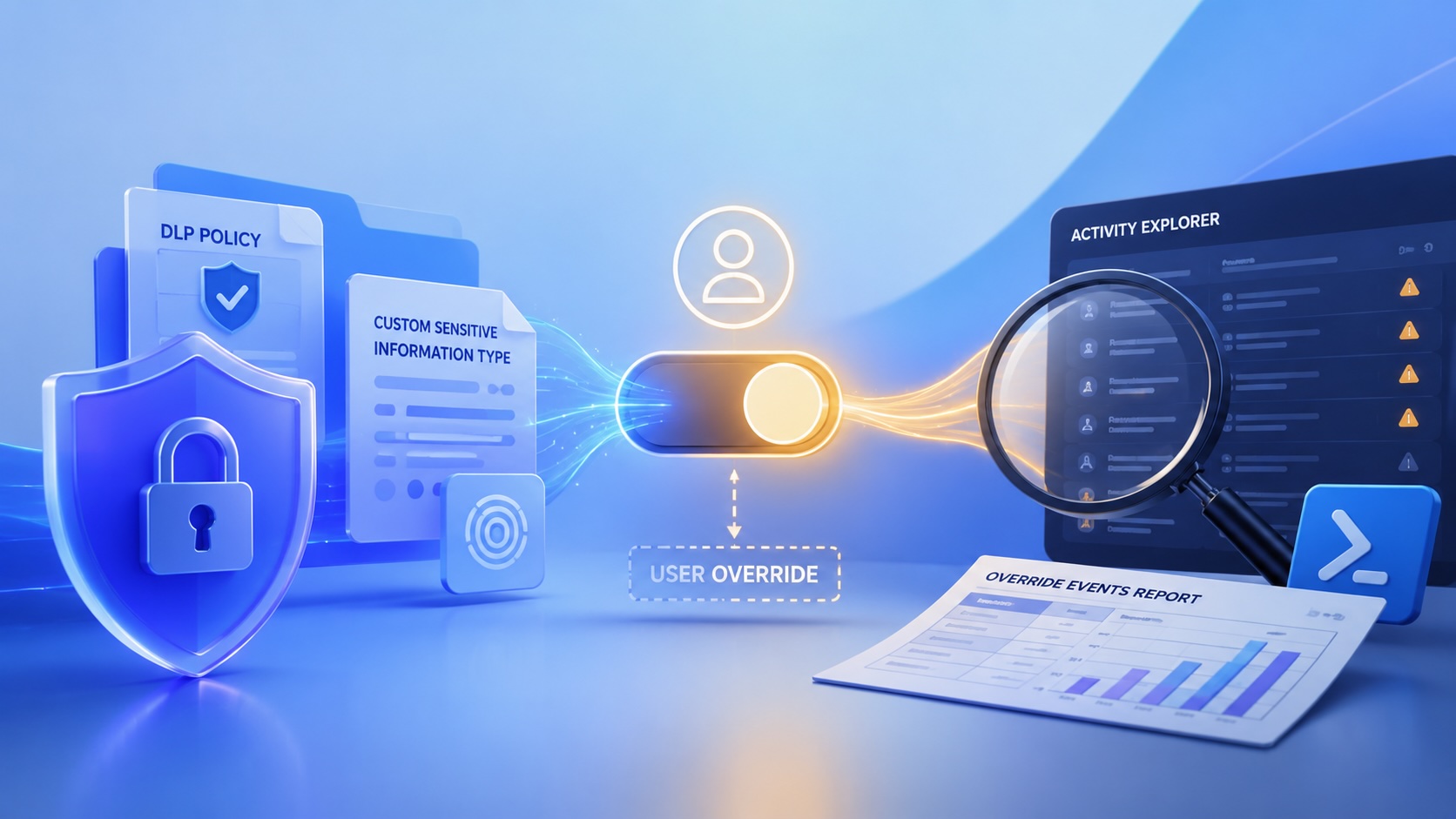
Reporting on Microsoft 365 DLP Overrides with PowerShell
DLP overrides are not automatically bad. They are a business process that needs visibility. This walkthrough covers a Microsoft Purview DLP policy, a custom sensitive information type, user override behavior, and a PowerShell report that exports override events from Activity Explorer.
PowerBook 140 BlueSCSI Install: Cable Fixed, Battery-Bay Power, and Wi-Fi Setup
The PowerBook 140 project moved from preparing a BlueSCSI card in Basilisk II to installing the repaired internal SCSI cable, powering the BlueSCSI Pico externally from the battery bay, booting System 7.1, and fighting through DaynaPORT Wi-Fi setup.

Move Entra Users Off SMS and Voice Before Microsoft Retires Them
Microsoft is retiring Microsoft-provided SMS and voice authentication in Entra ID. The migration is not passkeys for everyone; it is removing weak telecom MFA and choosing supported replacement methods such as Microsoft Authenticator, FIDO2 keys, certificate-based authentication, OATH hardware tokens, or customer-managed telecom.
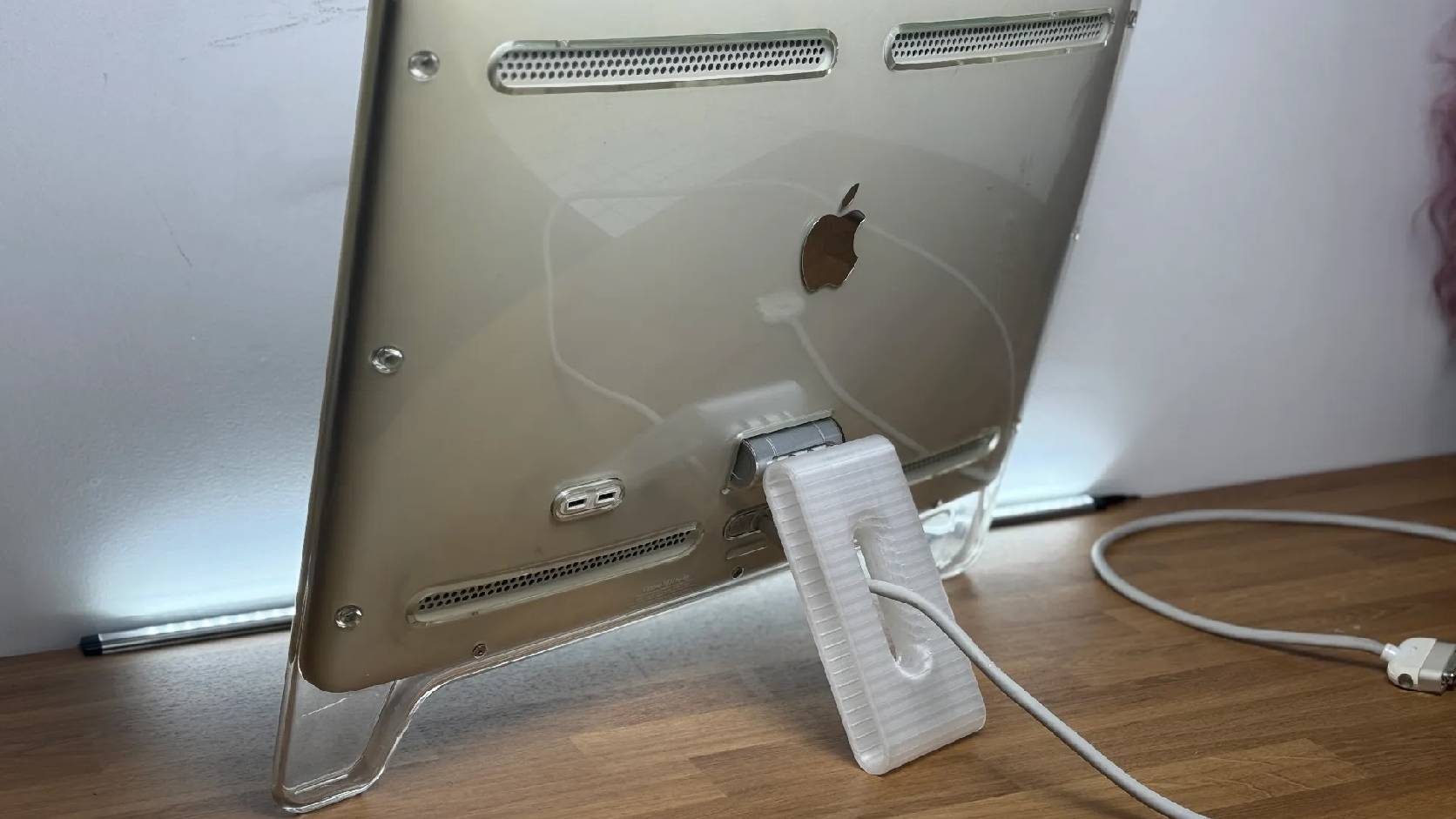
Fixing a Broken Apple Cinema Display Stand with a 3D Printed Leg
A 22-inch Apple Cinema Display arrived with a broken acrylic easel stand, so I used a 3D printed replacement leg instead of sending the monitor back.

macOS Tahoe 26.6.1 Fixes a High-Severity Screen Sharing Authentication Bypass
macOS Tahoe 26.6.1 fixes CVE-2026-65400, a high-severity Screen Sharing authentication issue where an attacker on the network may be able to authenticate without valid credentials.
