
In this part of the ABM Warranty 0.4.1 walkthrough series, I’m focusing on multiple credentials. In the first video, I showed the basic setup and how to add a single credential. In this one, I want to show what happens when I remove a credential, what changes when I add more than one, and how the app behaves once there are multiple contexts in play.
This matters because the interface changes in important ways once I stop working in a single-credential setup. The storage changes, the switching behavior changes, and some convenience options have to behave differently because the app can no longer assume there is only one active context.
Start by Removing a Credential
The first thing I walk through in this video is deleting an existing credential. I wanted to make that part visible because deleting a credential should do more than just remove a label from the settings screen.
When I remove a credential in ABM Warranty, the app removes the database tied to that credential and clears the associated key from Keychain. That is the behavior I expect, because the credential is what ties the local data, key material, and context together. Once that credential is gone, the related local pieces should be cleaned up with it.
That is also why the app window clears out when there are no credentials left. Without a configured credential, there is no live ABM or ASM context for the app to operate against.
Adding More Than One Credential
After removing the original credential, I add credentials back in, but this time I add two instead of one. This is the point where the app moves from a single-context setup into a multi-credential setup.
That is the real purpose of this walkthrough. I wanted to show exactly how the interface changes when there is more than one ABM context available. The app still fetches data for the active credential, but it also has to stop assuming that one default context should control everything.
This is where the multiple-credentials workflow becomes useful. Instead of treating the app like it only has one source of truth, I can maintain separate credential contexts and move between them directly.
Why Reload on Startup Is Disabled
One of the first visible changes in a multi-credential setup is that the “reload data on startup” option becomes disabled. That is intentional.
When there is only one credential, the app can safely assume which context to load when it starts. Once there are multiple credentials, that assumption breaks. If I let the app automatically reload on startup without a clear context selected, it would create confusion and would increase the chance of failures or loading the wrong dataset unexpectedly.
So in a multi-credential state, I disable that option and force the context selection to be explicit. That makes the startup behavior more predictable and avoids pretending the app can guess which dataset I meant to load.
How the Interface Changes
Once multiple credentials exist, the interface gains a new context-switching control in the menu area. That is where I can move between the credential sets I added.
The names shown there come directly from the friendly names I assigned in settings. That way, I am not guessing which environment I am about to load. I can switch intentionally between one credential and the other, and the app updates the visible data based on the selected context.
This is one of the most important parts of the feature. Multiple credentials are only useful if the boundaries between them are clear. I do not want the app blending data together or hiding which context I am currently viewing.
Separate Databases, Separate Keys, Separate Contexts
Under the hood, the app treats each credential as its own context. That means I end up with separate database files, separate key material, and separate Keychain entries tied to each credential.
That separation is not just a technical detail. It is the reason the feature is useful. If I am switching between two ABM contexts, I need those datasets and credential records to stay independent of each other. I do not want one context overwriting the other or causing ambiguity about what I am looking at.
This is also why switching credentials changes more than what I see in the main dashboard. The selected context affects the database in use, the visible device data, and even what gets exported.
Exporting in the Correct Context
One of the easiest ways to see the value of this design is through export behavior. When I export to CSV, the app should not combine data from every credential set unless I explicitly build it that way. It should export the data for the active context I am looking at right now.
That is how ABM Warranty behaves. If I switch to one credential and export, I get that credential’s data. If I switch to the other and export again, I get the other dataset. That keeps the workflow predictable and makes the feature useful in practice instead of just interesting in theory.
The same principle applies when I want to reload data. I switch to the context I actually want to refresh, and then I run the reload for that context only.
Reload Boundaries Still Matter
Even in a multi-credential setup, the app still respects the same API guardrails I built into the single-credential workflow. If I just ran a sync, the app still enforces the wait period before another full reload can happen.
That does not change just because there are multiple credentials. The API discipline still matters, and the app still needs to keep those boundaries in place to avoid unnecessary load and bad operational habits.
Deleting One Credential Does Not Delete Everything
The other behavior I wanted to make obvious in this walkthrough is that deleting a credential only deletes that credential’s context. If I remove one credential from a multi-credential setup, the app should remove only that database, only that key, and only that related Keychain entry.
That scoped behavior is what makes the feature safe to use. I can manage one context without wiping out every other context I have configured.
Why This Feature Matters
Multiple credentials are important because they let me work with separate ABM or ASM contexts without collapsing everything into one shared state. That makes the app far more practical in environments where I need clean separation between datasets.
For me, this is one of the most important 0.4.1 workflow improvements because it changes the app from a single-context utility into something that can handle more realistic operational scenarios without losing clarity.

Support Indie Development
These apps are built in my free time.
I build and maintain these tools as an indie developer outside of client work and day-to-day responsibilities. If you find these apps useful and want to help fund continued development, updates, support, and new releases, you can sponsor the work directly.
Monthly support helps me keep shipping improvements, maintain compatibility, and invest more time into building practical software for the Apple admin and consultant community.
AI Usage Transparency Report
AI Era · Written during widespread use of AI tools
AI Signal Composition
Score: 0.24 · Moderate AI Influence
Summary
ABM Warranty walkthrough series, focusing on multiple credentials
Related Posts

Automating JAMF Pro Email Notifications with SendGrid (Smart Group Driven Workflows)
Modern device management isn't just about enforcing policies—it's about communicating effectively with users at the right time. In JAMF Pro, Smart Groups give you powerful visibility into device state, but they don't natively solve the problem of proactive, automated user communication. Whether you're trying to prompt users to restart their machines, complete updates, or take action on compliance issues, bridging that gap requires a flexible and scalable notification system.

Introducing Pique - The Game-Changing Quick Look Plugin for Mac Admins
As a Mac admin, I'm always on the lookout for tools that make my life easier and more efficient. Recently, I stumbled upon Pique - a brilliant Quick Look plugin created by Henry Stamerjohann that allows you to view file contents in a syntax highlighted way.

ABM Warranty 0.4.1 Walkthrough: Wrap-Up and Beta
In this final ABM Warranty 0.4.1 walkthrough, I’m wrapping up the last features I had not covered directly in the earlier videos and then focusing on support, community, and the beta program. I also want to show where the support resources live inside the app so you know where to go if you need help, documentation, or a way to send useful feedback. Additionally, I'll be covering some of the key features that were updated since the previous version, including any bug fixes or improvements made to existing functionality.
ABM Warranty 0.4.1 Walkthrough: Managed Preferences
In this part of the ABM Warranty 0.4.1 walkthrough series, I'm focusing on managed preferences and the credential packaging workflow. In the last video, I covered multiple credentials inside the app itself. In this one, I'm showing how to package those credentials so they can be deployed securely through MDM. This process is a crucial step in ensuring that your credentials are properly configured and protected within your organization's mobile device management system.

Low Profile Walkthrough and Review
Today I’m walking through Low Profile, a utility from Nindi Gill that I use when I want to inspect profiles already installed on a Mac and figure out whether those profiles contain issues I need to clean up. The value is that Low Profile gives me a straightforward way to inspect profiles installed on any Mac. This simplicity makes it easy for me to identify and address potential problems, which is especially useful when working with multiple machines or troubleshooting complex profile configurations.

QuickPKG Walkthrough and Review
I use QuickPKG when I need to turn an application, DMG, or ZIP file into a package quickly without wasting time in a heavier packaging workflow. This post follows the same path as my video: what QuickPKG is, where to get it, how I run it, what a simple packaging example looks like, and where I think admins need to be careful about potential pitfalls that can arise from using this tool.

ABM Warranty 0.4.1 Walkthrough: Introduction
In this first ABM Warranty 0.4.1 walkthrough, I want to show you what the app actually does before I get into the more specific feature videos. This is the broad introduction. I’m walking through the dashboard, how I think about the warranty cards, how released devices are handled, how the filters work, how to add credentials, where the data is stored locally, and what the logging and security model looks like.
ABM Warranty 0.4.1
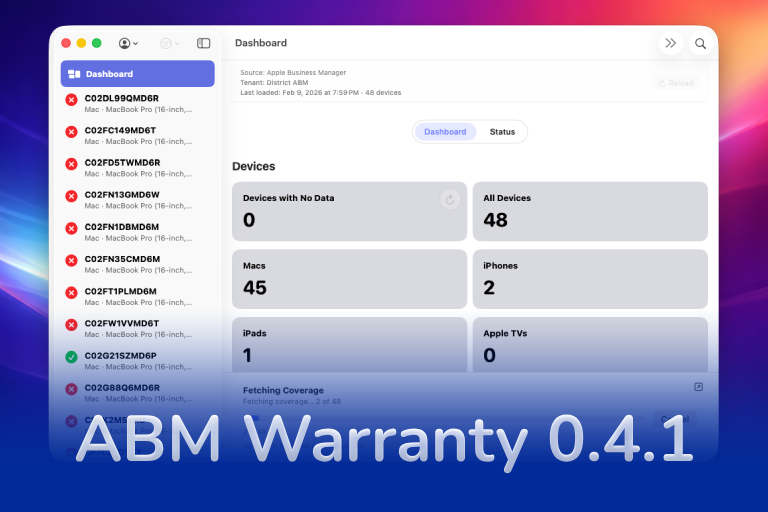
The 0.4.x release series for ABM Warranty is focused on operational scale. The earlier 0.3 releases were about trust, correctness, and stabilizing the foundation. Version 0.4.1 builds directly on that work by making the app more practical for consultants, internal IT teams, and managed service providers who need to support multiple environments without losing isolation, control, or visibility. This includes improvements to user interface and workflow, as well as enhanced reporting capabilities to help these users manage their workflows more efficiently.
The warranty dashboard Apple doesn’t provide… yet
Download ABM Warranty

Why Apple Fleet Risk Isn’t a Security Problem—Until It Is
Security and risk are often treated as interchangeable concepts in modern IT environments, but they are not the same discipline. Security focuses on controls, enforcement, and prevention. Risk management, by contrast, is concerned with likelihood, impact, and consequence across operational, financial, and organizational domains. Frameworks such as those published by NIST make this distinction explicit: risk assessment is not a technical exercise, but a business one. Technology informs risk decisions, but it does not define them.
