
In cybercriminal circles, ransomware is all the rage. Once it has infected a computer, it encrypts all the files and then presents a ransom demand—pay up to get the decryption software necessary to recover the data.
Ransomware has been in the news all year, with the Colonial Pipeline attack in particular spending weeks in the headlines. Attacks rose 485% in 2020 and show no signs of abating. The amounts demanded by the attackers are increasing, too, with PC manufacturer Acer and Apple supplier Quanta both hit with $50 million demands. Worse, some ransomware attackers are adding an extortion component where they threaten to reveal confidential data if the victim doesn’t pay. It’s scary, we know.
First, the good news. Although there are several examples of ransomware that target the Mac, none of them have been particularly well done or (as far as we know) successful. Right now, the chances of Macs falling prey to ransomware are very low, and there’s no reason to panic.
However, complacency is dangerous. There’s a trend toward “ransomware as a service” (RaaS). The RaaS operators maintain the ransomware malware, offer a payment portal for victims, and provide “customer service” for victims who don’t know how to pay with Bitcoin or other cryptocurrencies. Affiliates spread the ransomware and split the revenues with the operators. It’s a tidy little cybercriminal enterprise, and separating the malware development and network penetration tasks has made it significantly easier for more criminals to leverage ransomware. It’s only a matter of time before they turn their attention to Macs.
For the most part, protecting your Macs from ransomware is no different than protecting against any number of other security problems. Follow this core advice:
-
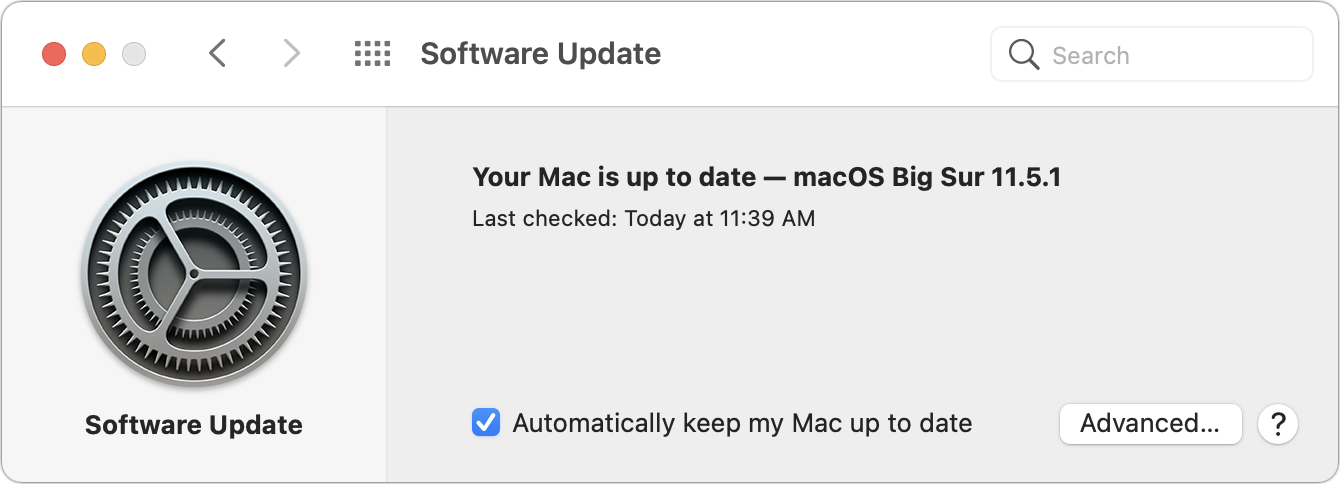
Keep Macs and apps up to date: Always install macOS and security updates, and keep other apps up to date. With every update, Apple addresses numerous security vulnerabilities, fixing the vast majority of them before attackers can exploit them with malware. Every so often, however, Apple’s security notes include this sentence: “Apple is aware of a report that this issue may have been actively exploited.” That means there may be malware that targets that vulnerability; install such updates immediately!
-
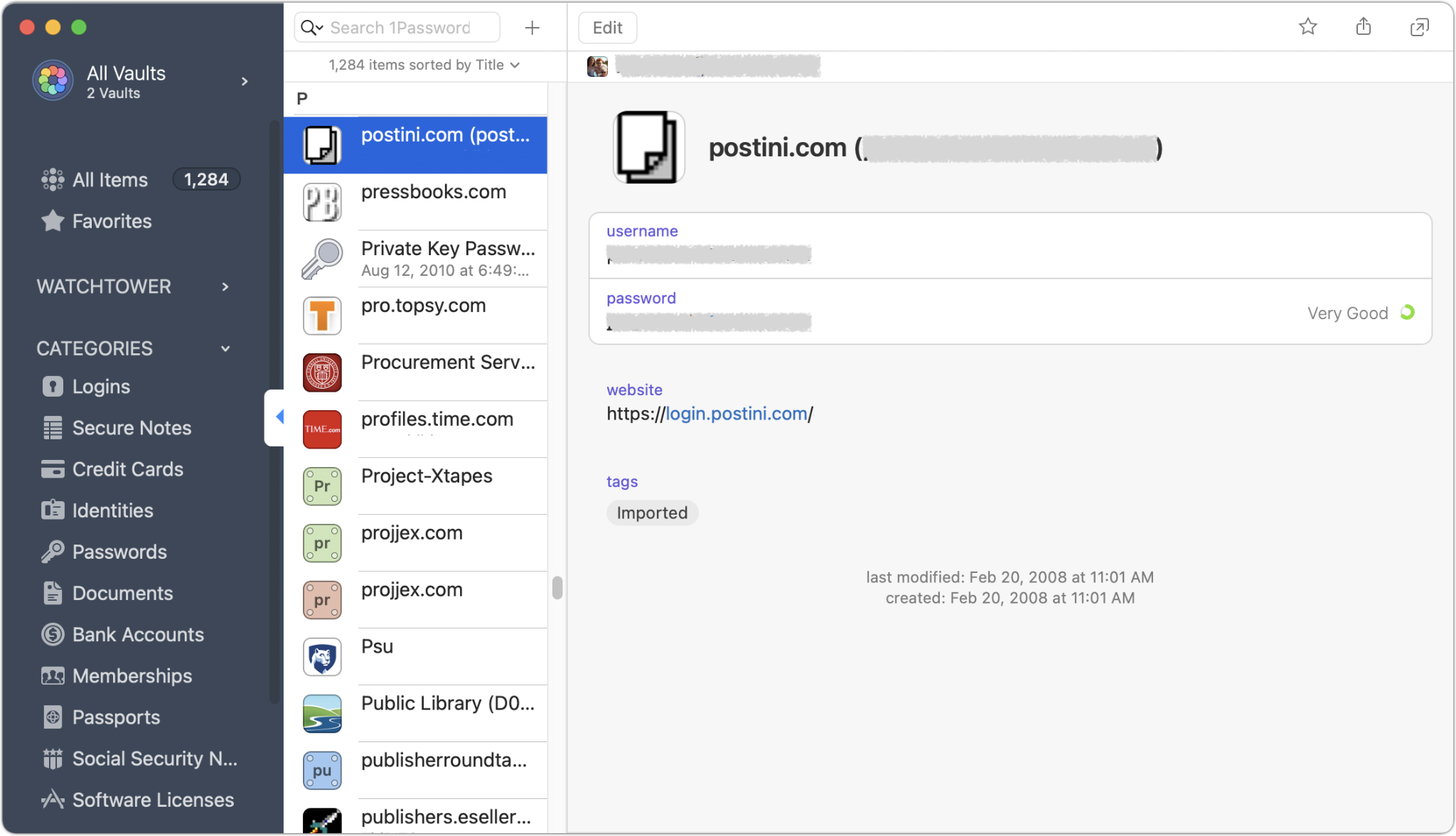
Use strong passwords with a password manager: You’ve heard it from us before, and you’ll hear it again, but it’s essential that everyone in your organization use strong, unique passwords through a password manager like 1Password, LastPass, or even Apple’s iCloud Keychain. Just one weak password could allow attackers to infiltrate a computer or server and install ransomware.
-
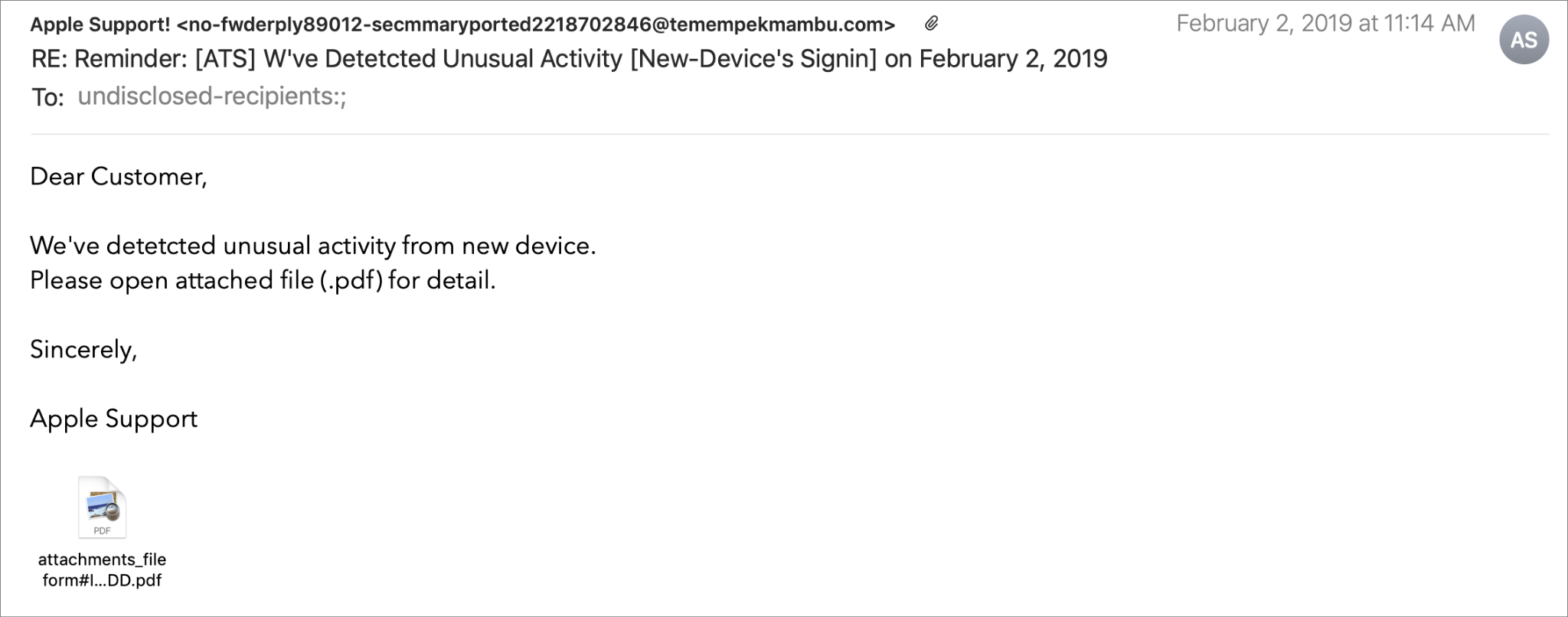
Be suspicious of links and attachments: Ensure that everyone in your organization is careful about opening attachments or clicking links in email messages from unknown people or that seem off in some way. Phishing attacks are one of the primary ways of distributing malware. (If your group needs training in phishing awareness, contact us.)
-
Never download pirated software! Even aside from the fact that it’s ethically problematic, the most recent piece of Mac ransomware—ThiefQuest—was initially found in a malicious installer purporting to be for the LittleSnitch network security utility (ironic, eh?). Get apps only from the developers’ official sites or the Mac App Store.
-
Make frequent backups: Backups are essential so, even if you do fall prey to ransomware, you can restore data from before the infection point. The caveat is that some of your backups must be isolated from the Macs in question—some ransomware intentionally tries to encrypt or delete connected backups.
-
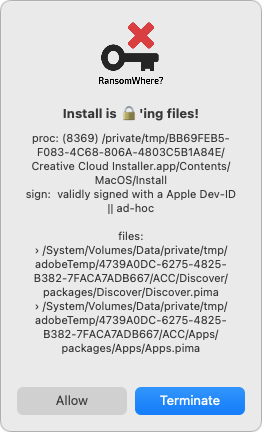
Monitor for ransomware: Although ransomware usually tries to stay below the radar while it’s encrypting files, the free RansomWhere utility can identify processes that quickly create encrypted files. It will likely incorrectly flag some legitimate behavior too (like in the screenshot below), but it’s still a helpful tool.
-
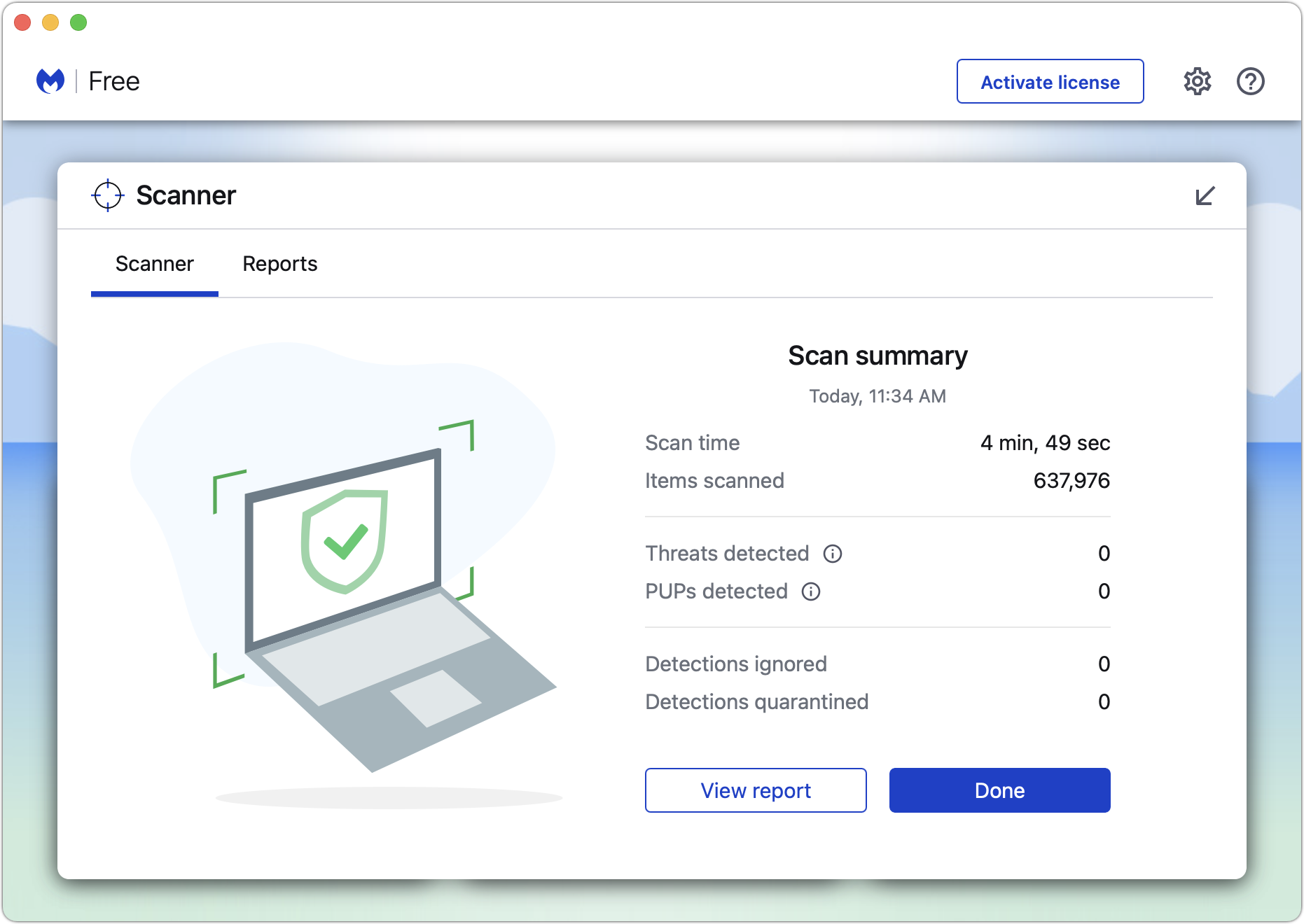
Have anti-malware software: For the most part, if you’re careful about following the advice above, you’ll be fine. But it’s a good idea to have a current anti-malware app around and run it occasionally—if you don’t already have one, try the free version of Malwarebytes. If you—or your users—aren’t good about the basic precautions, you might want to run anti-malware software all the time or set up broader network protections.
-
Have a disaster management plan: Every business should think about how it would react to a fire, flood, earthquake, or other disaster. When building a disaster management plan, be sure to include ransomware. How would you shut down infected systems, rebuild them from scratch, and restore uninfected files?
Setting up a backup strategy that protects against ransomware requires a little more thought. As noted, ransomware often tries to render backups useless in one way or another. You need to have versioned backups that allow you to restore from before the ransomware infection, and those backups need to be isolated from the computers and network being backed up. Techniques that help include:
-
Isolate backup drives: Rotate multiple Time Machine drives, with at least one that’s always disconnected. However, this strategy assumes you’ll detect a ransomware infection before you’ve rotated all the drives. Ransomware could lie undetected for weeks or months before activating. Manually run current anti-malware software before connecting any backup drive.
-
Use Internet backup: Set up an Internet backup system that will maintain versions of backed-up files, such as Backblaze with its Extended Version History feature. Retrospect 18 also supports object locking on cloud storage systems, which provides immutable storage. It ensures that no one—even someone who acquires root credentials—can delete the backups during the retention period.
-
Consider tape backups: Long ago, tape backups were the go-to solution for network backups, but as the price-per-gigabyte of hard drives dropped precipitously and Internet backups became feasible, tape has largely fallen by the wayside. But tape backups are still an option. They can hold a lot of data and are easily kept offline in a separate location. Plus, some tape drives can even operate in a write-once, read-many (WORM) mode that guarantees data can’t be erased or overwritten. Tape requires more human interaction than other backup methods, but it’s still a cost-effective way to protect hundreds of terabytes of data against ransomware.
Again, there’s no reason to panic about ransomware, but if it could significantly damage your business, you should take steps to reduce the chance of getting hit and ensure that you could restore your data if your computers were to get infected. There is no single approach that’s ideal for everyone, but we can help you think about what’s involved and develop a strategy that balances protection, cost, and effort.
AI Usage Transparency Report
Pre-AI Era · Written before widespread use of generative AI tools
AI Signal Composition
Score: 0.05 · Low AI Influence
Summary
Ransomware is a growing threat, but Macs are currently less vulnerable than PCs. To protect your Macs from ransomware, keep them and apps up to date, use strong passwords with a password manager, be suspicious of links and attachments, never download pirated software, make frequent backups, monitor for ransomware, have anti-malware software, and have a disaster management plan.
Related Posts
Leaving Flickr: Migrating 20,000+ Photos to Synology and Taking Back Control
There’s a certain kind of friction you start to notice when you’ve been using a service for a long time. Not enough to make you leave immediately, but enough to make you pause. Flickr had been that kind of service for me. It quietly held years of photos, uploads from old phones, albums I hadn’t looked at in ages, and a massive "Auto Upload" collection that had grown into something I didn’t fully understand anymore.

How I Finally Passed the PMP Exam (After 12 Years of Waiting)
Back in 2013, I registered for a PMI membership with every intention of pursuing my PMP certification. I downloaded the handbook, bookmarked the eligibility requirements, and even told a few friends that I was going to do it "soon." At the time, I thought getting certified would be a straightforward process, but little did I know what lay ahead in terms of studying and preparation.

10 Things You Didn't Know You Could Do With Apple Configurator (That Save Mac Admins Hours)
Most of us treat Apple Configurator like a fire extinguisher: break glass, DFU, restore, move on. But it can do a lot more, and when you know the edges, you can turn a bricked morning into a ship-it afternoon. Below are ten things I regularly use (or wish I’d used sooner) that demonstrate its capabilities beyond just emergency recovery.
The Evolution of Apple Certification: A Journey Through Versions, Challenges & Growth
When I recently passed the Apple Certified Support Professional (ACSP) exam again, I paused to reflect — not just on this milestone, but on the long path I’ve walked through Apple’s certification landscape. My first certification dates back to macOS 10.5, and over the years, I’ve earned credentials across nearly every version since. In that time, the exams — and Apple itself — have transformed significantly.

Secure Software, Secure Career: How I Passed the CSSLP
After passing the CISSP earlier this year, I decided to follow it up with the **Certified Secure Software Lifecycle Professional (CSSLP)** certification. For those unfamiliar, CSSLP is an ISC2 certification that focuses specifically on secure software development practices across the full SDLC—from requirements and design to coding, testing, deployment, and maintenance. My goal in pursuing this certification was to further develop my skills in ensuring the security of software throughout its entire lifecycle.

Managing Bring Your Own Device (BYOD) for Android with Microsoft Intune
Alright, so today we're going to be talking about the management of bring your own device BYOD for Android devices. There's a lot of information out there for the management of iOS devices and you can do that with pretty much any Apple MDM on the market. We just happen to use Jamf where I work, but you could use anything from Braavos to SimpleMDM to Kanji or JumpCloud. Mosyle is also a great option.

BYO with me in 2025: iOS with User Enrollment in JAMF Pro
It really depends on your company's needs. For example, many companies need to hire 1099 contractors and in such a case they come with their own devices but not the correct security settings or enforcements. Remember BYOD is a security construct. The idea here is that you should be securing the company's sensitive data in all forms. This may involve implementing policies for contractor-owned devices, ensuring that all devices accessing company data meet minimum security standards, and regularly reviewing and updating these standards to stay ahead of emerging threats.

Securing BYOD Email Access: Exploring Strategies in Microsoft 365
In today’s mobile-first world, organizations increasingly rely on Bring Your Own Device (BYOD) programs to empower employees while optimizing costs. However, this flexibility introduces unique challenges, particularly around securing email access. To mitigate risks, we are implementing a comprehensive strategy to block email access on non-company devices by default and ensure only sanctioned apps can access organizational email accounts. This approach will help prevent unauthorized access and data breaches, aligning with our commitment to maintaining the security and integrity of company communications.
How I Conquered the CISSP Exam: 9 Months, Top Resources, and Proven Strategies
Passing the CISSP (Certified Information Systems Security Professional) exam is no small feat. It’s known for its breadth, depth, and ability to test not just your knowledge but your practical understanding of cybersecurity. After nine months of intense preparation, I’m thrilled to say I’ve joined the ranks of CISSP-certified professionals! Here's a detailed account of my experience, including the resources I used, some tips that helped me along the way, and what I learned from the process itself.

Get more out of scripting than you may expect
Expect is an extension to the Tcl scripting language written by Don Libes. The program automates interactions with programs that expose a text terminal interface. Expect, originally written in 1990 for the Unix platform, has since become available for Microsoft Windows and other systems. Its functionality allows users to interact with these programs through scripted commands, eliminating the need for manual input.
