Securing BYOD Email Access: Exploring Strategies in Microsoft 365
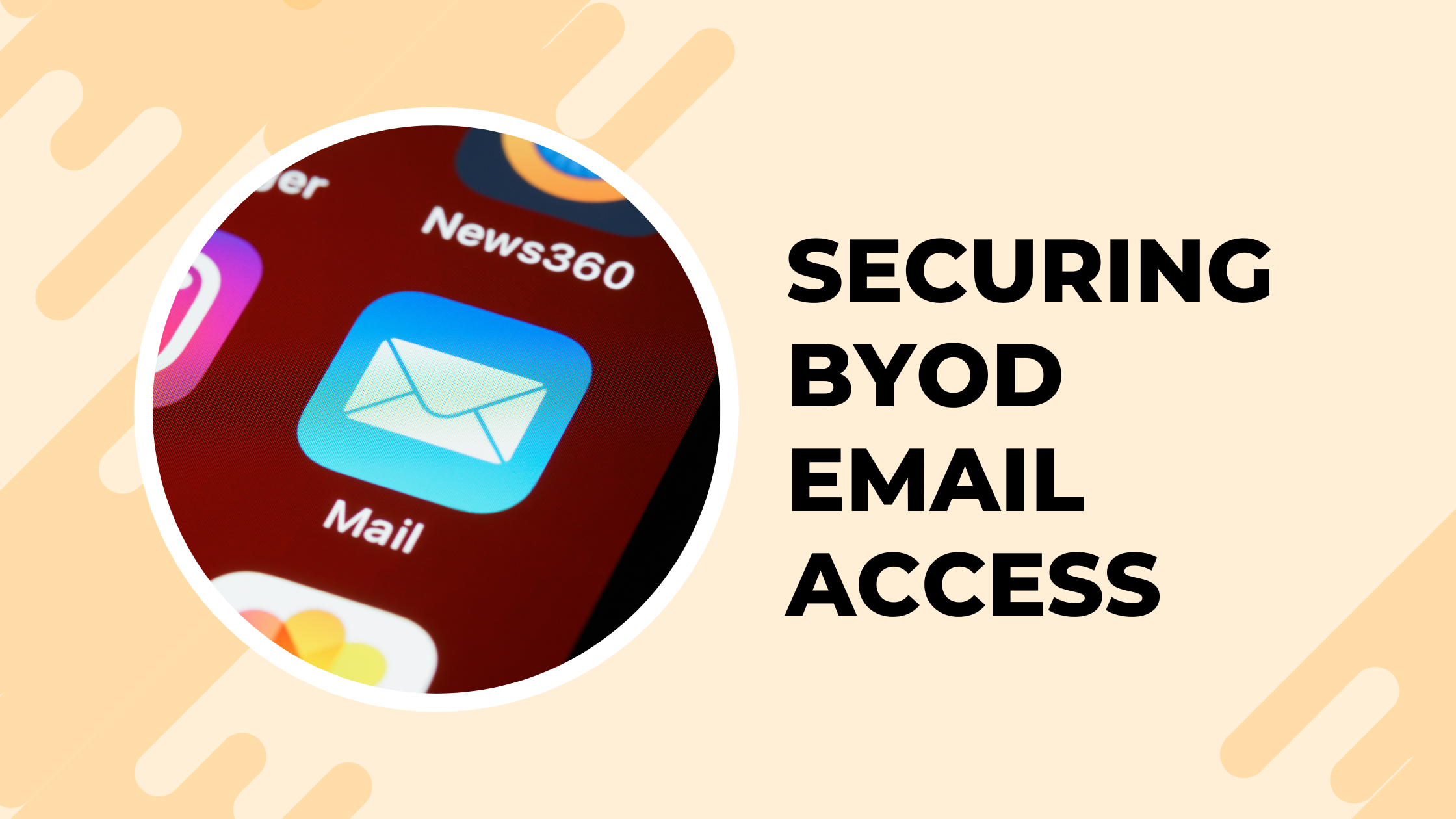

Strengthening Your BYOD Program with Secure Email Policies
In today’s mobile-first world, organizations increasingly rely on Bring Your Own Device (BYOD) programs to empower employees while optimizing costs. However, this flexibility introduces unique challenges, particularly around securing email access. To mitigate risks, we are implementing a comprehensive strategy to block email access on non-company devices by default and ensure only sanctioned apps can access organizational email accounts.
Here’s how we’re tackling this challenge using Microsoft Exchange Online’s robust security features and policies.
Why Secure Email Access is Essential
Email remains one of the most common vectors for security breaches. Unauthorized access to corporate email via non-sanctioned apps or devices can lead to data leakage, compliance violations, and increased vulnerability to phishing or malware attacks. By enforcing strict controls on email access, we’re not just protecting our organization—we’re fostering trust with our clients and stakeholders by prioritizing data security.
Three Approaches to Securing Email Access
1. Global Approach: Block All Email Apps Except Outlook for iOS and Android
This approach ensures that email access is only available through Microsoft Outlook for iOS and Android, providing a consistent, secure experience for all users.
- Why Outlook? Microsoft Outlook offers superior integration with Microsoft 365 services, along with advanced security features such as app protection policies.
- Implementation Steps:
- Configure Exchange Online mailbox policies to block all other email clients. Create the default block rule:
Set-ActiveSyncOrganizationSettings -DefaultAccessLevel Block- Allow only Outlook for iOS and Android for email access. Create an allow rule for Outlook for iOS and Android:
New-ActiveSyncDeviceAccessRule -Characteristic DeviceModel -QueryString "Outlook for iOS and Android" -AccessLevel AllowThis method is ideal for organizations looking to simplify enforcement by designating a single, secure app for email access.
2. Enforce Conditional Access Policies
Conditional Access (CA) in Microsoft Entra ID (formerly Azure AD) allows you to define policies to control access based on conditions like the device type, app being used, or the user’s location. Here’s how to set up a policy to ensure only Outlook for iOS and Android can access your email:
Steps to Configure Conditional Access:
-
Sign in to Microsoft Entra Admin Center
Navigate to Microsoft Entra Admin Center. - Create a New Conditional Access Policy
- Go to Security > Conditional Access > Policies.
- Select + New policy.
- Assign Users or Groups
- In the Assignments section, choose Users or workload identities.
- Select specific users, groups, or roles you want the policy to apply to. For example:
- Include:
All Users - Exclude: Service accounts or admins if needed.
- Include:
- Set App Restrictions
- Under Cloud apps or actions, select Microsoft Exchange Online.
- Under Conditions > Client apps, choose Mobile apps and desktop clients.
- Specify Require approved client apps.
- Grant Access Control
- Under Grant, select Require app protection policy or Require device to be marked as compliant.
- Save the policy.
- Test and Deploy
- Before rolling out, test the policy with a smaller group to confirm expected behavior.
- Roll out organization-wide and monitor access logs for anomalies.
Script Example for PowerShell Enforcement
You can manage Conditional Access policies programmatically using the Microsoft Graph PowerShell SDK:
# Connect to Microsoft Graph
Connect-MgGraph -Scopes "Policy.ReadWrite.ConditionalAccess"

# Create a Conditional Access Policy
New-MgConditionalAccessPolicy -DisplayName "Allow Outlook Only" `
    -Conditions @{
        Applications = @{
            IncludeApplications = @("00000002-0000-0ff1-ce00-000000000000") # Exchange Online App ID
        }
        ClientAppTypes = @("MobileAppsAndDesktopClients")
    } `
    -GrantControls @{
        BuiltInControls = @("appProtectionPolicy") # Require App Protection Policy
    } `
    -State "Enabled"
3. Block Native Exchange ActiveSync Apps on Android and iOS Devices
Native email apps like iOS Mail or Gmail can be less secure for corporate email due to limited management capabilities. Here’s how to block these apps:
Steps to Block Native Apps:
- Log in to Exchange Admin Center (EAC)
- Go to Microsoft 365 Admin Center.
- Navigate to Admin Centers > Exchange.
- Configure Mobile Device Access Rules
- In the EAC, go to Mobile > Mobile device access.
- Select Edit mobile device access settings.
- Create a New Device Access Rule
- Click New device access rule.
- Under Device or model rule, enter:
- Device family:
iPhoneorAndroid. - Device model: Leave blank for all models or specify one.
- Device family:
- Set Rule Action
- Choose Block Access.
- Save and apply the rule.
- Disable ActiveSync for Specific Users (Optional)
To disable ActiveSync for specific users, use PowerShell:
Connect-ExchangeOnline -UserPrincipalName admin@yourdomain.com

# Disable ActiveSync for a single user
Set-CASMailbox -Identity user@yourdomain.com -ActiveSyncEnabled $false

# Bulk disable ActiveSync for all users
Get-Mailbox -RecipientTypeDetails UserMailbox | Set-CASMailbox -ActiveSyncEnabled $false- Test Access
Verify that the native email apps are blocked. Users attempting to connect via Mail or Gmail should receive a message indicating the account cannot be added.
By implementing these secure email policies, we’re taking a significant step toward fortifying our BYOD ecosystem. Our goal is to balance security and usability, ensuring employees can work effectively while safeguarding organizational data.
Sources
- Secure Outlook for iOS and Android - Microsoft Learn
- Configure Conditional Access Policies in Microsoft Entra
- Exchange ActiveSync Policies in Microsoft Exchange Online
AI Usage Transparency Report
AI Era · Written during widespread use of AI tools
AI Signal Composition
Score: 0.39 · Moderate AI Influence
Summary
Implementing secure email policies to block access on non-company devices and ensure only sanctioned apps can access organizational email accounts.
Related Posts
Bromure Gives Codex a Room of Its Own
I installed Bromure Agentic Coding, watched it build the Linux VM, authenticated Codex, and followed a real Codex task through the workspace.

Amnesia Stealer Shows the Next Stage of ClickFix on macOS
Amnesia Stealer shows how ClickFix-style social engineering is adapting on macOS, while a public malware sample gives defenders an opportunity to study the behavior behind the campaign.
Reporting on Microsoft 365 DLP Overrides with PowerShell
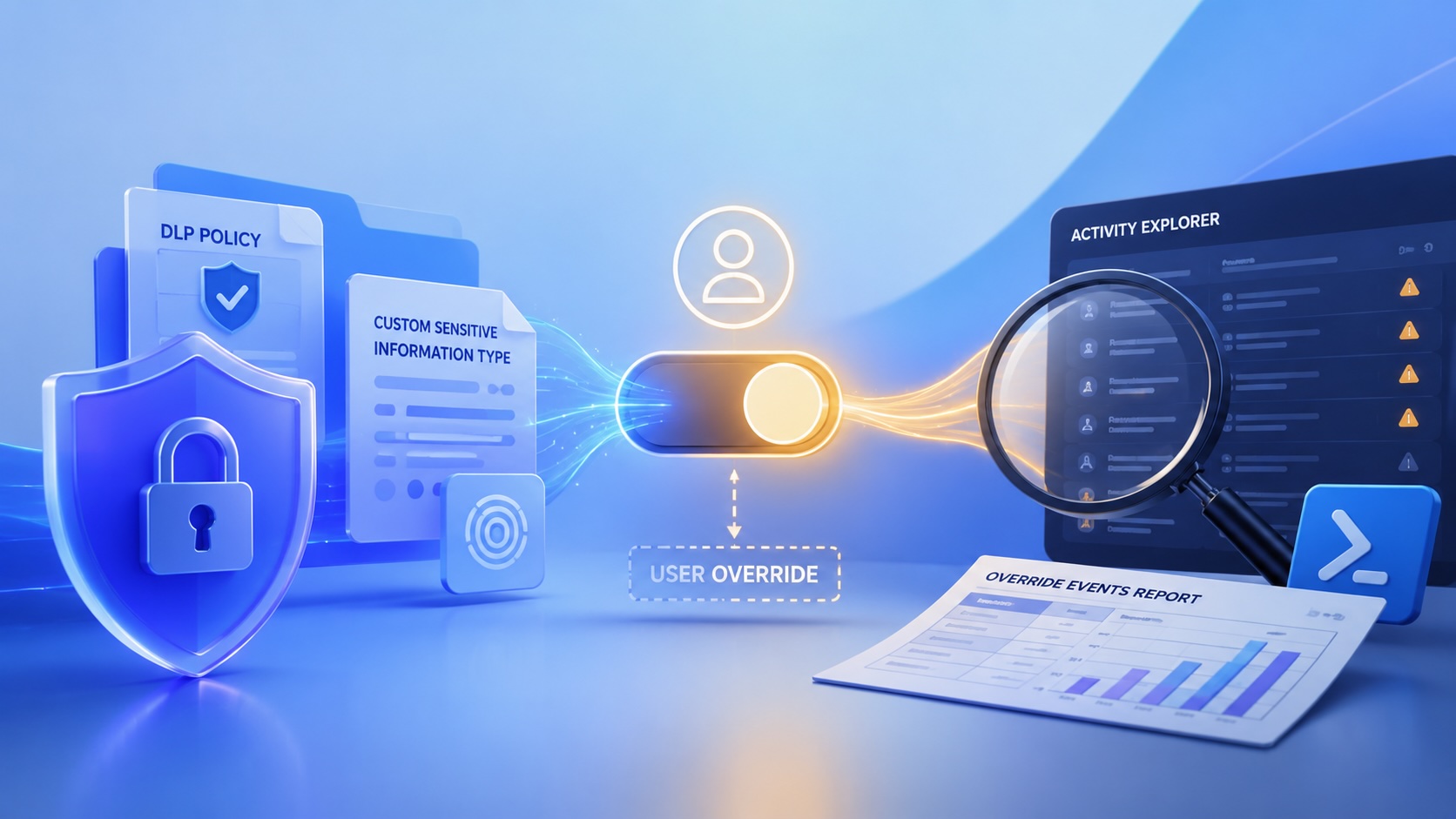
DLP overrides are not automatically bad. They are a business process that needs visibility. This walkthrough covers a Microsoft Purview DLP policy, a custom sensitive information type, user override behavior, and a PowerShell report that exports override events from Activity Explorer.

Move Entra Users Off SMS and Voice Before Microsoft Retires Them
Microsoft is retiring Microsoft-provided SMS and voice authentication in Entra ID. The migration is not passkeys for everyone; it is removing weak telecom MFA and choosing supported replacement methods such as Microsoft Authenticator, FIDO2 keys, certificate-based authentication, OATH hardware tokens, or customer-managed telecom.

macOS Tahoe 26.6.1 Fixes a High-Severity Screen Sharing Authentication Bypass
macOS Tahoe 26.6.1 fixes CVE-2026-65400, a high-severity Screen Sharing authentication issue where an attacker on the network may be able to authenticate without valid credentials.

ClickLock Shows Why Terminal Paste Is a Mac Security Boundary
ClickLock Stealer shows why Mac security teams should watch for Terminal paste lures, fake AppleScript password prompts, command-line Keychain access, LaunchAgent persistence, and Jamf Protect alerts that can route suspected Macs into Jamf Pro response groups.

CrashStealer Shows the Gap Between Notarization and Detection
CrashStealer shows the security gap between Apple's Developer ID notarization path and App Store review, and why Jamf's behavioral detection mattered.

The CMMC Pause Does Not Make a Level 2 Audit Worthless
The July 2026 CMMC Phase II pause changes the timing of third-party assessment requirements, but it does not erase DFARS, NIST SP 800-171, SPRS, or the value of a completed Level 2 audit.

How We Structured and Hashed CMMC Evidence for Auditor Review
How folder naming, control-level artifact names, spreadsheet hyperlinks, and evidence hashing made a CMMC evidence package easier for the auditor to validate.

Opening the Ollama Black Box: Understanding the Trust Boundary Behind Local AI
Installing Ollama is easy. Understanding the trust boundary behind a local AI service is what determines whether it belongs in an automation workflow.