
In a break from Apple’s pattern of alternating cycle of releases, macOS 10.15 Catalina is not a refinement of 10.14 Mojave like 10.13 High Sierra was for 10.12 Sierra. Instead, Catalina boasts significant changes, both obvious things like new apps and less-obvious things like under-the-hood improvements. Here are some of our favorites.
iTunes Is Dead! Long Live Music, TV, and Podcasts
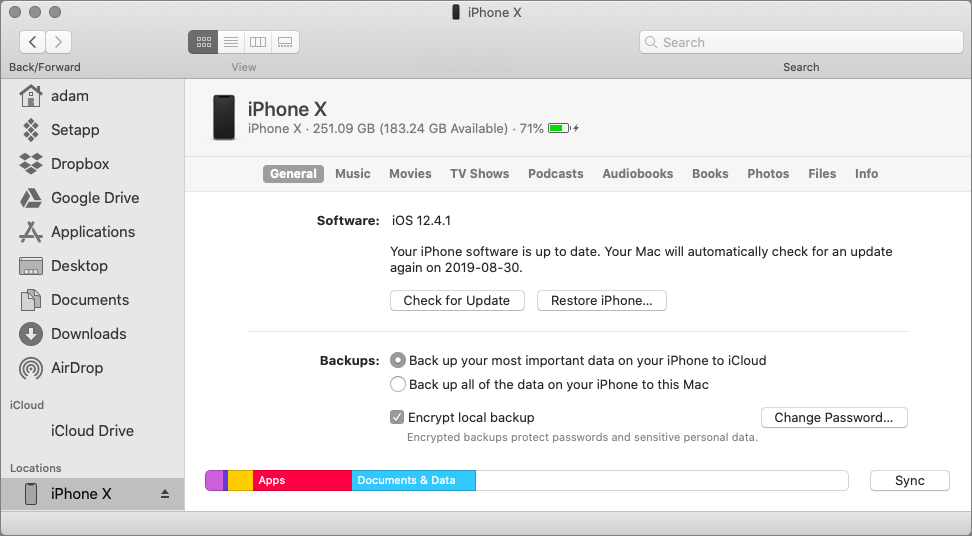
After 18 years of being a fixture on the Mac, the increasingly bloated iTunes has been replaced with a trio of independent apps: Music, TV, and Podcasts. Note that the iOS device syncing features of iTunes have moved to the sidebar in Finder windows.
Major App Updates: Reminders, Notes, and Photos
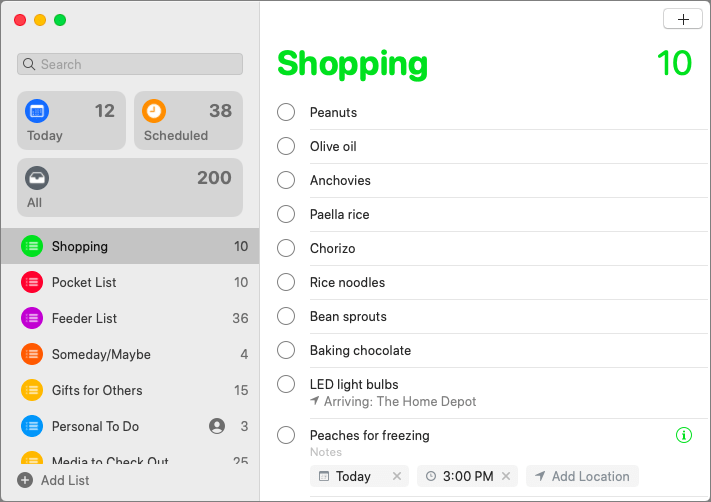
The ease of telling Siri “Remind me to touch base with Javier tomorrow at 10 AM” has long made Reminders useful, but the Reminders app itself was weak. Apple has overhauled it in Catalina, giving it a completely new interface that lets you create smart lists that collect tasks from multiple lists, add attachments to tasks, and click buttons to add dates, times, locations, and flags to reminders instantly. Best of all, lists finally have their own sort orders! Note that to see some of the new features, you must upgrade your Reminders database on all your devices and those of anyone with whom you share lists, so you may need to wait until everything and everyone is up to date.
Notes gains a new gallery view that provides thumbnail instead of a scrolling list. More practically, you can now share entire folders as well as notes, and for both, you can limit collaborators to read-only mode. If you use lists in Notes, you’ll like the new checklist features for reordering list items, moving checked items to the bottom, and easily unchecking all items to reuse the list.
With Photos, Apple redesigned how the main Photos view displays your pictures. Previously, it started with Years, zoomed in to Collections, and zoomed in again to Moments. Now Photos uses a more sensible Years, Months, Days hierarchy, with Years and Months using a large, easily viewed grid, and Days showing selected thumbnails of different sizes to focus attention on the best images. All Photos still shows everything in a grid. Apple also enhanced the machine-learning aspects of Photos so it can better understand who is in each shot and what’s happening—this helps Photos to highlight important moments and create better Memories. And you can now edit Memory movies on the Mac as well as iOS.
Screen Time Replaces Parental Controls
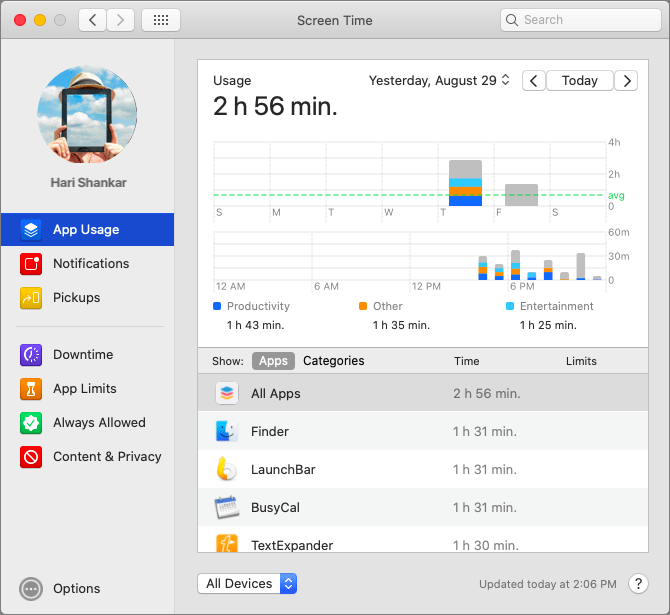
Last year, iOS 12 introduced Screen Time, which helps you monitor app usage and how often you’re distracted by pickups or notifications. Plus, it lets you set limits on particular categories of apps and make sure you don’t use your device when you should be sleeping. Even better, it enables you to manage what your kids can do on their iOS devices, when they can do it, and for how long.
All that goodness has now migrated to the Mac in Catalina, replacing the old parental controls, so if your middle-schooler needs help avoiding games when homework is due, or in putting the Mac to sleep when it’s bedtime, the new Screen Time pane of System Preferences has the controls you need. It also provides a wide variety of content and privacy controls.
Voice Control Your Mac
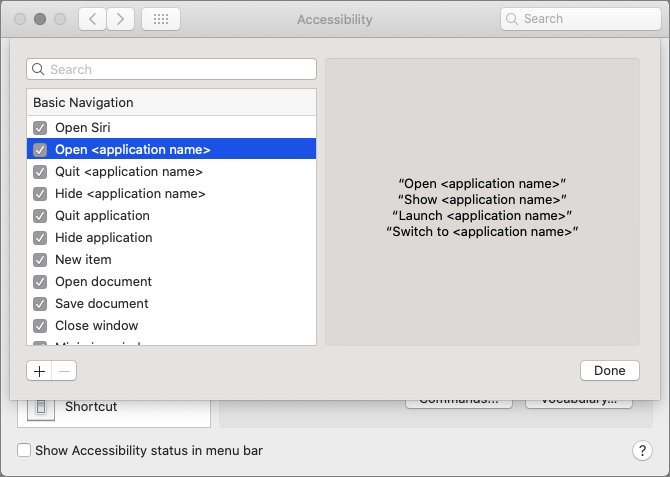
Although Apple has buried the new Voice Control settings in System Preferences > Accessibility > Voice Control, if you’ve ever wanted to control your Mac with your voice, give it a try. It’s astonishing, and you really can run through a set of commands and dictation like this:
Open TextEdit. Click New Document. ‘Four score and seven years ago our fathers brought forth on this continent comma a new nation comma conceived in liberty comma and dedicated to the proposition that all men are created equal period’ Click File menu. Click Save. ‘Gettysburg address.’ Click Save button.
You can even use your voice to edit the text you dictate! Make sure to scan through the full set of commands to see what’s possible, and remember that you can add your own commands.
Enhanced Security and Privacy
Apple continues to improve macOS’s security and privacy controls in a variety of ways:
-
In Catalina, the operating system runs in a dedicated read-only system volume that prevents anything from overwriting or subverting critical files.
-
Kernel extensions, which are often required for hardware peripherals, now run separately from macOS, preventing them from causing crashes or security vulnerabilities.
-
All new apps, whether from the App Store or directly from developers, must now be “notarized,” which means Apple has checked them for known security issues.
-
Macs with Apple’s T2 security chip now support Activation Lock in Catalina, so if they’re stolen, there’s no way to erase and reactivate them.
-
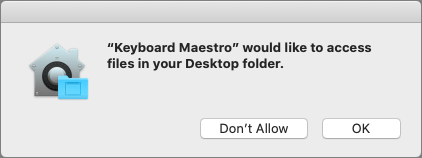
Catalina now plays a mean game of “Mother, May I?,” so apps will have to ask permission to access data in your main folders, before they can perform keylogging, and if they want to capture still or video recordings of your screen, among other things. Apps even have to ask to be allowed to put up notifications. Be prepared for an awful lot of access-request dialogs.
Attach an iPad Sidecar to Your Mac
Our final favorite feature in Catalina is Sidecar, which enables you to connect an iPad to your Mac and use it as a secondary screen, either extending your Desktop or mirroring what’s on the main display. It does require a relatively recent Mac and an iPad running iOS 13, but it works either wired or wireless.
On the iPad, you can keep using Multi-Touch gestures, and Sidecar even supports the Apple Pencil so you can use the iPad like a graphics tablet. Apps that have Touch Bar support will display their controls on the bottom of the iPad screen, even on Macs without a Touch Bar.
More Smaller Features
Those are our favorite big features, but Catalina boasts plenty of smaller ones too:
-
A new Find My app combines Find My iPhone and Find My Friends into one.
-
Find My can locate offline devices using crowd-sourced locations.
-
Apple Watch users can authenticate anywhere on the Mac by double-clicking the side button. (Oh, thank you, Apple!)
-
Mail can block email from specified senders and move their messages directly to the trash.
-
You can mute specific Mail threads to stop notifications from chatty email conversations.
Enough! We’ll keep covering new Catalina features, but once you upgrade, spend some time exploring, since there are so many neat new things you can do. And remember, we recommend caution when upgrading your Mac—see our earlier article on that topic.
AI Usage Transparency Report
Pre-AI Era · Written before widespread use of generative AI tools
AI Signal Composition
Score: 0.06 · Low AI Influence
Summary
macOS Catalina review: new features, improvements, and changes
Related Posts
Leaving Flickr: Migrating 20,000+ Photos to Synology and Taking Back Control
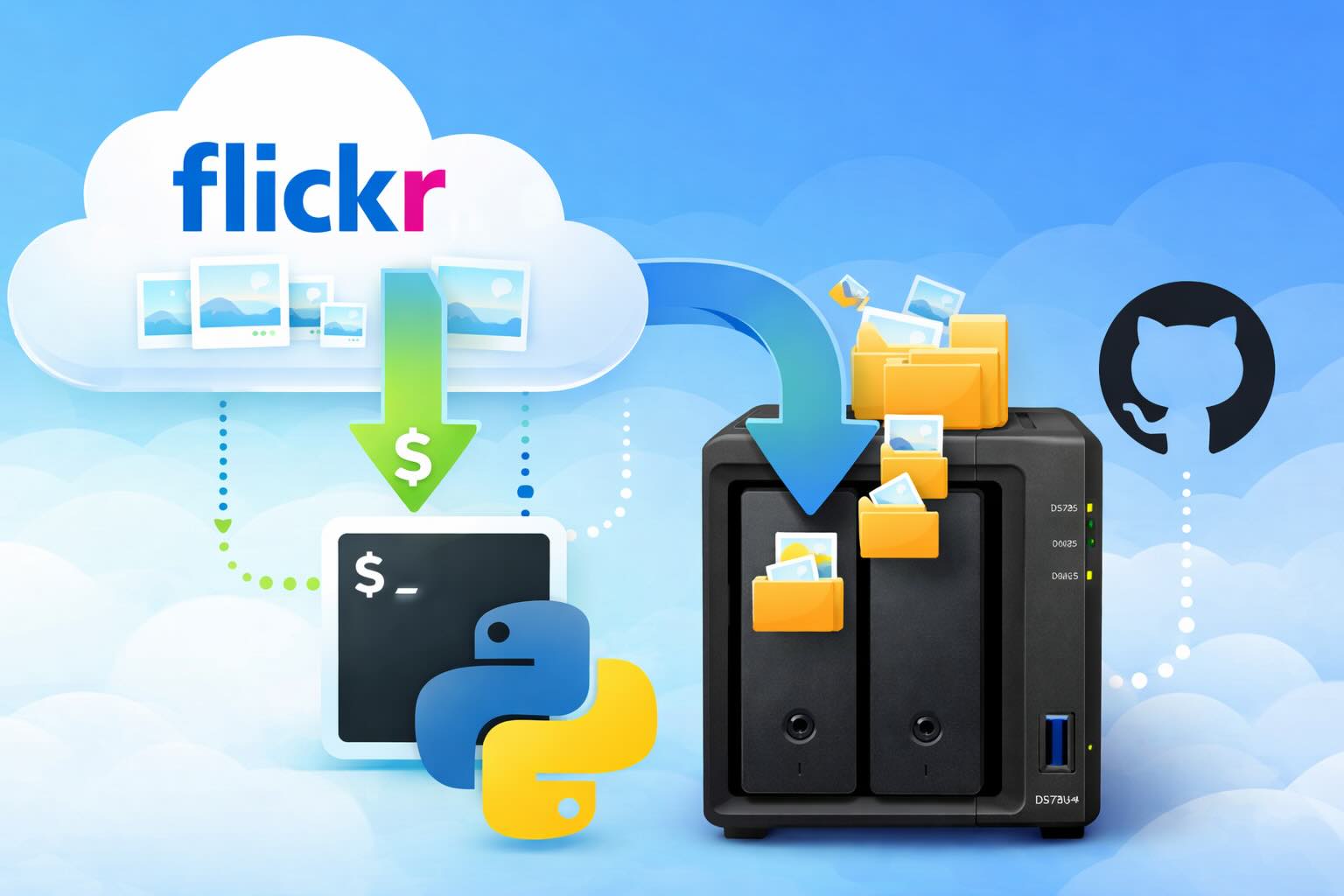
There’s a certain kind of friction you start to notice when you’ve been using a service for a long time. Not enough to make you leave immediately, but enough to make you pause. Flickr had been that kind of service for me. It quietly held years of photos, uploads from old phones, albums I hadn’t looked at in ages, and a massive "Auto Upload" collection that had grown into something I didn’t fully understand anymore.

How I Finally Passed the PMP Exam (After 12 Years of Waiting)
Back in 2013, I registered for a PMI membership with every intention of pursuing my PMP certification. I downloaded the handbook, bookmarked the eligibility requirements, and even told a few friends that I was going to do it "soon." At the time, I thought getting certified would be a straightforward process, but little did I know what lay ahead in terms of studying and preparation.

10 Things You Didn't Know You Could Do With Apple Configurator (That Save Mac Admins Hours)
Most of us treat Apple Configurator like a fire extinguisher: break glass, DFU, restore, move on. But it can do a lot more, and when you know the edges, you can turn a bricked morning into a ship-it afternoon. Below are ten things I regularly use (or wish I’d used sooner) that demonstrate its capabilities beyond just emergency recovery.
The Evolution of Apple Certification: A Journey Through Versions, Challenges & Growth
When I recently passed the Apple Certified Support Professional (ACSP) exam again, I paused to reflect — not just on this milestone, but on the long path I’ve walked through Apple’s certification landscape. My first certification dates back to macOS 10.5, and over the years, I’ve earned credentials across nearly every version since. In that time, the exams — and Apple itself — have transformed significantly.
Secure Software, Secure Career: How I Passed the CSSLP
After passing the CISSP earlier this year, I decided to follow it up with the **Certified Secure Software Lifecycle Professional (CSSLP)** certification. For those unfamiliar, CSSLP is an ISC2 certification that focuses specifically on secure software development practices across the full SDLC—from requirements and design to coding, testing, deployment, and maintenance. My goal in pursuing this certification was to further develop my skills in ensuring the security of software throughout its entire lifecycle.
Managing Bring Your Own Device (BYOD) for Android with Microsoft Intune
Alright, so today we're going to be talking about the management of bring your own device BYOD for Android devices. There's a lot of information out there for the management of iOS devices and you can do that with pretty much any Apple MDM on the market. We just happen to use Jamf where I work, but you could use anything from Braavos to SimpleMDM to Kanji or JumpCloud. Mosyle is also a great option.

BYO with me in 2025: iOS with User Enrollment in JAMF Pro
It really depends on your company's needs. For example, many companies need to hire 1099 contractors and in such a case they come with their own devices but not the correct security settings or enforcements. Remember BYOD is a security construct. The idea here is that you should be securing the company's sensitive data in all forms. This may involve implementing policies for contractor-owned devices, ensuring that all devices accessing company data meet minimum security standards, and regularly reviewing and updating these standards to stay ahead of emerging threats.
Securing BYOD Email Access: Exploring Strategies in Microsoft 365
In today’s mobile-first world, organizations increasingly rely on Bring Your Own Device (BYOD) programs to empower employees while optimizing costs. However, this flexibility introduces unique challenges, particularly around securing email access. To mitigate risks, we are implementing a comprehensive strategy to block email access on non-company devices by default and ensure only sanctioned apps can access organizational email accounts. This approach will help prevent unauthorized access and data breaches, aligning with our commitment to maintaining the security and integrity of company communications.
How I Conquered the CISSP Exam: 9 Months, Top Resources, and Proven Strategies
Passing the CISSP (Certified Information Systems Security Professional) exam is no small feat. It’s known for its breadth, depth, and ability to test not just your knowledge but your practical understanding of cybersecurity. After nine months of intense preparation, I’m thrilled to say I’ve joined the ranks of CISSP-certified professionals! Here's a detailed account of my experience, including the resources I used, some tips that helped me along the way, and what I learned from the process itself.

Get more out of scripting than you may expect
Expect is an extension to the Tcl scripting language written by Don Libes. The program automates interactions with programs that expose a text terminal interface. Expect, originally written in 1990 for the Unix platform, has since become available for Microsoft Windows and other systems. Its functionality allows users to interact with these programs through scripted commands, eliminating the need for manual input.
