

I have more than 40,000 photos and videos in Apple Photos, and thousands of them aren’t in albums. I make albums for trips and events, usually named YYYY - NAME, but I never catch up with the pictures I import between those occasions. My Smart Album called “Not in Album” shows me the backlog. Filing those pictures one by one would take more time than I have.
I wanted help with that sorting, but I didn’t want to hand an assistant a giant export and hope for the best. I wanted it to look at the albums I already had, compare dates and locations, inspect a thumbnail when the metadata wasn’t enough, and come back with a small group of suggestions I could check. I’d already been experimenting with local AI and Photos. Then I found a Model Context Protocol (MCP) server for the library on GitHub: Apple Photos MCP.
What connects Codex to Photos
Apple Photos MCP relies on osxphotos, an open-source Python toolkit for Apple Photos. It searches the library database for pictures and their metadata: filenames, dates, locations, album membership, people, keywords, and more. It can also export originals or edited pictures. The MCP uses its Python library for these reads.
When I ask Codex to look through my Photos library, Codex calls a tool on the Apple Photos MCP server. That server runs in Node/TypeScript on my Mac. It passes the request to a Python helper running osxphotos and sends the results back to Codex. The helper stays open between searches, which saves it from loading my large library each time. The project’s architecture notes describe this setup.
In my case, Codex first used doctor to check access and library-info to confirm which library it had opened. It used list-albums and list-folders to see my existing organization. Then query returned photo summaries with dates, locations, unique IDs, and album membership. For a closer look, get-photos pulled more metadata by ID, and get-thumbnail showed the image without exporting the original. The MCP also has tools for people, keywords, duplicate detection, exports, and photos selected in the app. Its tool reference has the full list. Those album-membership results became important when my Smart Album didn’t show up in the search.
The server starts read-only. For the album changes I approved later, I enabled its write tools. create-album and add-to-album use PhotoScript, a Python wrapper around AppleScript, to make those changes in the open Photos app. I told Codex to show me its proposed changes and wait before calling either tool. The MCP’s write-backend notes explain that separate route into Photos.
Install Photos MCP in Codex
The project’s Codex setup instructions gave me two commands:
codex plugin marketplace add sweetrb/apple-photos-mcp
codex plugin add apple-photos@apple-photos-mcp
The first command adds the project’s marketplace; the second installs its Codex plugin and Apple Photos skill. When Codex first uses a Photos tool, the plugin runs the published apple-photos-mcp package through npx. That first call also creates a local Python environment and installs osxphotos. It can take about a minute and needs network access for the setup.
The requirements are macOS, Node.js 20 or newer, Python 3.11 or newer with pip, and a Photos library. If you use the Codex desktop app, give Codex Full Disk Access in System Settings → Privacy & Security → Full Disk Access. If you run the codex command in Terminal, give Terminal that access instead; use iTerm if that’s where you run it. macOS checks the app that launches the MCP server because osxphotos reads the protected Photos database. Quit and reopen that app after changing the permission, then ask Codex to run the MCP’s doctor check. I check the reported library path and photo count before asking it to search; a working connection to the wrong library is no help. The project’s Full Disk Access guide covers permission errors.
By default, Codex can search and inspect my library through the MCP, but the MCP refuses requests to change it. Turning on writes allows its tools to create albums, add or remove pictures from albums, edit photo details such as titles and keywords, change dates, and import pictures. It still has no tool to delete photos. For this batch, I needed only create-album and add-to-album. I enabled the write tools with this one-line command in Terminal, which adds the setting to the MCP’s config file and keeps any other settings already there:
python3 -c 'import json; from pathlib import Path; p=Path.home()/"Library/Application Support/apple-photos-mcp/config.json"; p.parent.mkdir(parents=True, exist_ok=True); d=json.loads(p.read_text()) if p.exists() else {}; d["APPLE_PHOTOS_MCP_ENABLE_WRITES"]="1"; p.write_text(json.dumps(d, indent=2)+"\n")'I quit and reopened Codex so it would start the MCP with the new setting. Then I asked it to run doctor; the result showed writes enabled. That setting permits changes, so I still told Codex to wait until I approved its recommendations before changing an album.
macOS may ask for Automation permission on the first write. Those writes go to whichever library Photos has open, so I checked that before approving any album changes.
My Smart Album came up empty
I began by asking Codex to inspect my albums and count the pictures in my “Not in Album” Smart Album. My first prompt also asked for date, location, people, keyword, and thumbnail checks before it recommended any filing. The cards below follow that conversation. I’ve shortened the long prompt and tool output, changed personal album names, and hidden two photo UUIDs. The counts and tool actions are unchanged.
Use the installed Apple Photos MCP to analyze and help organize my existing Apple Photos library.
I have more than 5,000 existing albums. My naming convention is YYYY - NAME. I have an album named “Not in Album” containing photographs that need organization.
Phase 1 — Understand My Organization: Run the doctor diagnostic. List my existing albums and folders. Examine the “Not in Album” album. Determine the number of photographs requiring organization.
Do not modify anything. Begin by analyzing my album structure and the “Not in Album” collection. Tell me how many albums I have and how many photographs are in “Not in Album.” Wait for my approval before making any changes.
Codex ran doctor, library-info, list-folders, list-albums, and query. It found 436 regular albums and 15 Shared Album entries. Of the regular albums, 403 followed my year-and-name pattern. Then it came back with zero matches for “Not in Album.” I had made that as a Smart Album, and the MCP’s album query only understands regular albums.
list-folders: No folders.
list-albums: 436 regular albums and 15 Shared Album entries.
query album “Not in Album”: No photos matched.
The catalog does not match the expected size: the MCP reports 436 regular albums and lists 15 shared-album entries, for 451 entries total. It does not list an album named “Not in Album,” and a query by that name found no photos. I’m checking whether this is a Photos smart view the connector cannot query, or whether it opened a different library.
I told Codex “Not in Album” was a Smart Album. It tried to inspect the Photos window, which I hadn’t asked it to do, so I sent it back to the MCP.
Your clarification explains the missing “Not in Album” result: it is a smart album, and this MCP does not list or query smart albums. I therefore cannot give a reliable count of its photographs through the MCP, or classify its members yet.
I asked if the MCP could find unfiled pictures without opening the Smart Album.
The underlying osxphotos package does have a not_in_album filter; this MCP simply does not expose it.
Codex was ready to stop there. I had seen album lists in individual photo records, so I gave it a filename and asked how many albums that photo was in.
Four photos shared the name IMG_1369.HEIC. One was in an album I’ve called 2018 - Farm Visit here; the other three had no regular-album membership in the MCP results. Codex had to use UUIDs to tell them apart. Its first library-wide query produced too much output, so it split the search into date ranges. It counted 17,583 photos and 815 videos with empty album lists out of 43,857 items. That gave us 18,398 candidates, though I still couldn’t compare that number with my Smart Album’s exact rules.
I didn’t need Codex to open the Smart Album after all. I needed it to notice the album list attached to each photo. It took my filename question to get there.
A hundred photos was enough to start
I dropped the album audit and asked for 100 pictures. This is the prompt that worked for me. Change the album naming convention if yours is different; keep the instruction to wait before making changes.
Compare their dates, locations, and other available metadata against my existing albums.
Identify photos that likely belong in existing albums and suggest new albums where appropriate.
My album naming convention is YYYY - NAME.
Start with 100 unorganized photos. Show me your recommendations, grouped by destination album, and explain why they belong there.
Retrieve and examine thumbnails when needed. Don’t ask me to manually provide photos.
Do not change anything until I approve.
Codex pulled candidate UUIDs, checked nearby albums, and opened thumbnails when the metadata was thin. The 100 pictures ran from October 29 back to March 16, 2026, by their recorded capture dates. New pictures arrived in the library while it worked. Codex kept the original set of 100 UUIDs so the batch wouldn’t shift under it.
The easy ones were 11 theme-park pictures taken on the same day as photos in my 2026 - Theme Park Day album. Some timestamps were minutes apart. Two dinner photos matched the people, restaurant, and date in 2026 - Anniversary Dinner. Codex also suggested three new albums: 2026 - City Visit for nine photos, 2026 - Theater Night for three, and 2026 - Outlet Stop for two. One theater photo showed the program. The two-photo outlet stop got medium confidence because I might prefer to keep it with a larger day out.
Existing album: 2026 - Anniversary Dinner — 2 photos, high confidence; same people, restaurant, and time span.
New album: 2026 - City Visit — 9 photos.
New album: 2026 - Theater Night — 3 photos, with the program visible.
New album: 2026 - Outlet Stop — 2 photos, medium confidence.
Leave 71 photos unassigned for now.
I was glad Codex left 71 alone. Sixty-one JPEGs with numeric filenames shared a March 2026 date but looked like older travel pictures. They had little GPS or camera EXIF. Codex suggested checking older travel albums before giving them a destination. The March date may have come from an import, and I didn’t want a tidy new album built on a bad timestamp.
Codex missed the graduation
Codex suggested 2026 - School Visit for two pictures outside my son’s school. I knew they were from his fifth-grade graduation. I sent their UUIDs, approved the other groups, and asked for a graduation album for those two.
[photo UUID 2] are graduation photos, 5th grade graduation should have its own album. The rest make sense and are fully approved.
Codex found an existing graduation album with 64 photos and asked if the two belonged there or in a new fifth-grade album. I hadn’t answered by the end of the captured conversation, so it left them alone. I liked that it checked before making another album. A school building is easy to recognize; why we were there was my call.
For the other groups, Codex used add-to-album on the 11 theme-park and two anniversary pictures. It created the city, theater, and outlet albums, then added nine, three, and two photos to them. A final get-photos check showed each of the 27 pictures in its destination. The 71 uncertain ones and my son’s two graduation pictures stayed where they were.
add-to-album: 2026 - Anniversary Dinner — Added 2.
create-album: City Visit, Theater Night, Outlet Stop.
add-to-album: 9 + 3 + 2.
I verified all 27 completed album memberships through the MCP.
For another batch, I’d use the same 100-photo limit. I want to see where each photo would go and why, correct the events Codex can’t know from the image, and have it check membership after it writes. Filenames repeat and import dates can fool you. A UUID and a fresh album lookup tell me which picture actually got filed.
I tried Siri on two Bali trips
Codex had filed 27 pictures after my review, left 71 alone, and waited for my answer on the two graduation photos. I wondered how Siri would handle photo organization with Apple’s own access to Photos. I gave it a separate job: sort pictures from Bali trips in 2005 and 2023. It wasn’t the same 100-photo batch, but it showed me how the two workflows felt to use.
Siri did a good job with the 2023 trip. It found an existing album and offered to add the matching pictures. Its first message counted 39 photos and videos; the approval sheet offered 38, and the final message reported 38 added. I would have liked to know why one item dropped out, but Siri got the group into the right album through Photos itself.
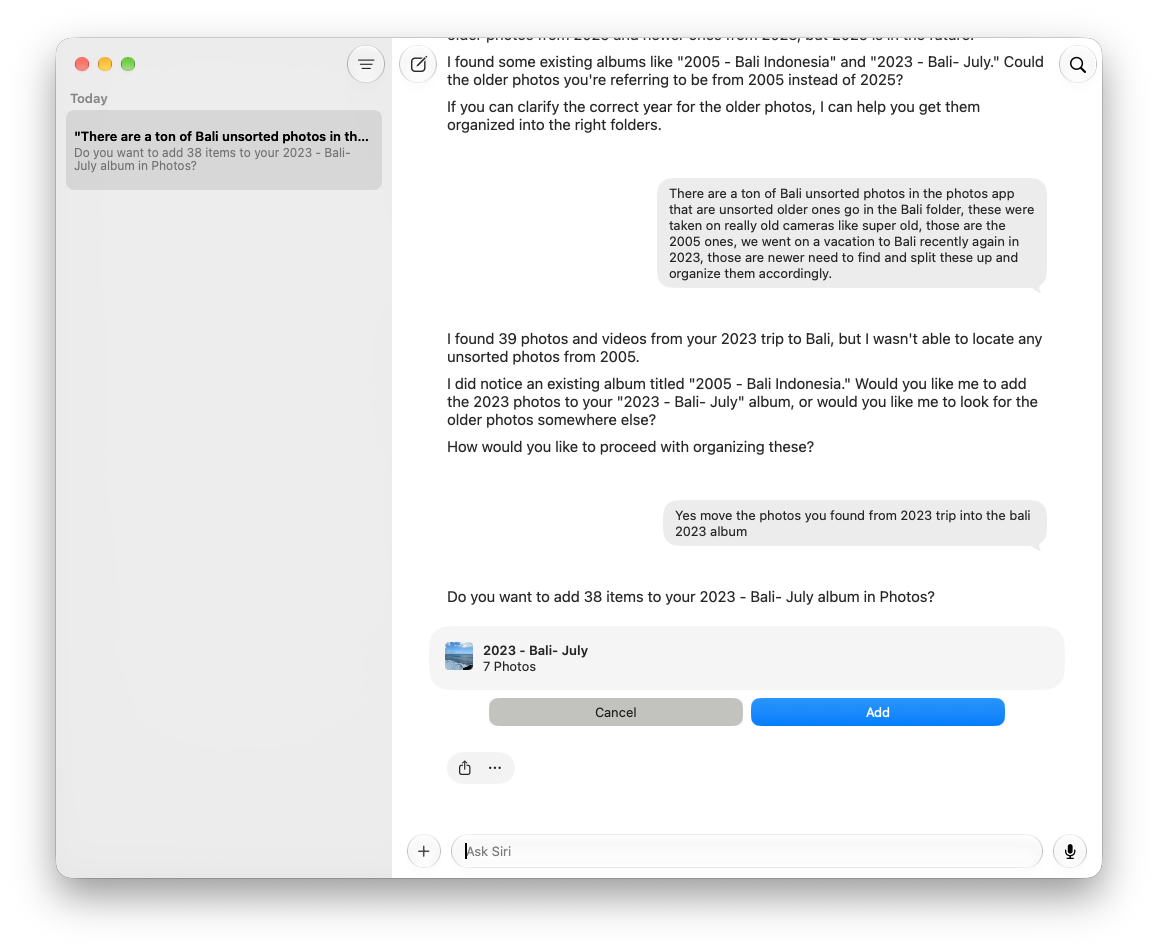
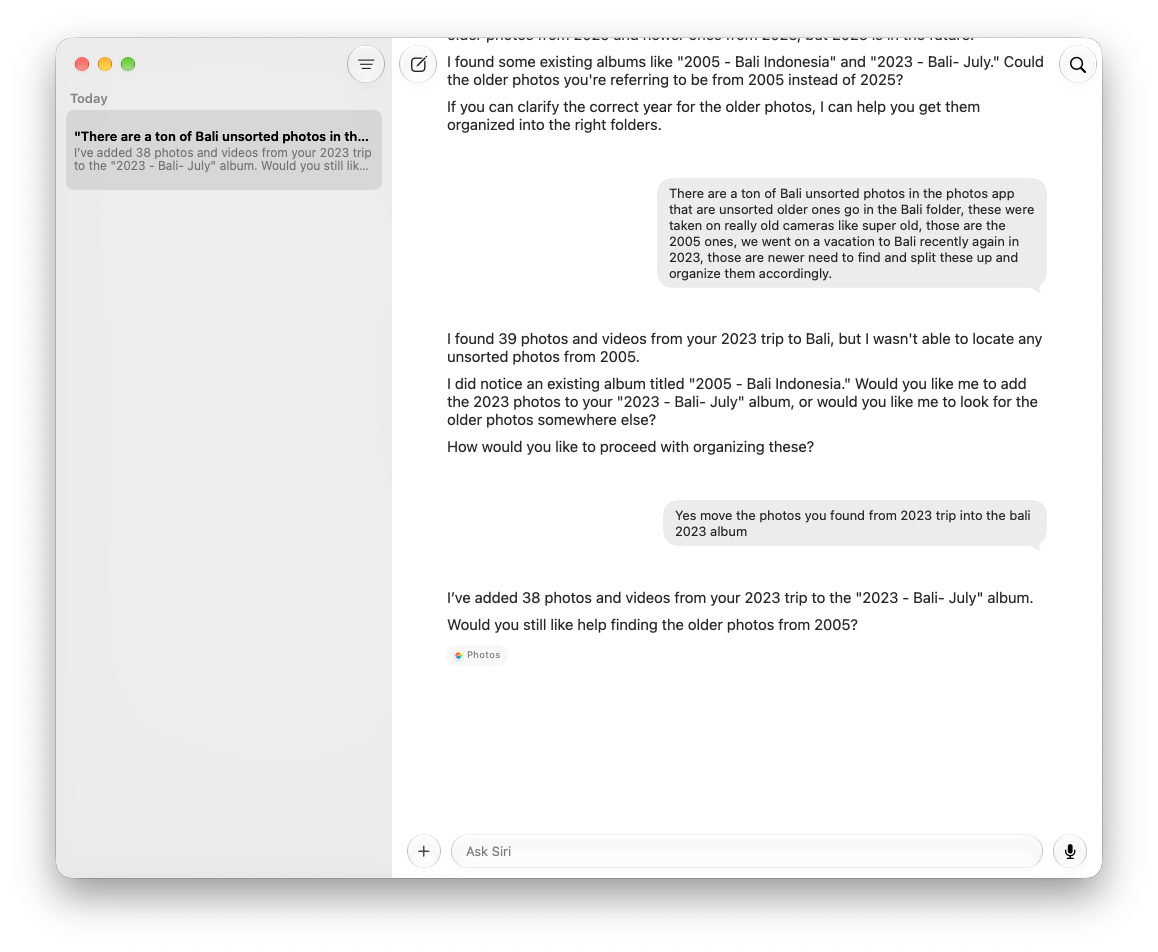
The 2005 pictures were harder. Siri found 40 photos from that year, but none had a Bali tag or a specific Indonesian location. It offered to open Photos so I could select them myself. During the broader conversation it also asked me to approve steps I had already authorized, then stopped when it reached its token limit. The first approval before changing an album made sense; repeating that question and ending the chat made it difficult to keep working through the library.
Codex handled the longer job better for me. Through the local MCP, it searched 43,857 library items, found 18,398 with no album membership in its results, and stayed with a fixed batch of 100 while I challenged its first answer and corrected the graduation photos. Siri had a smoother path into the Photos app for the 2023 album action. I hope Apple gives its AI enough room and better app integration to stay with jobs like organizing a large photo library, building playlists in Music, or working across its other apps without losing the thread halfway through.
Sources
- Apple Photos MCP project, setup, and write tools
- OpenAI: Codex plugin marketplaces
- Apple Photos MCP Full Disk Access setup
- Apple Photos MCP write backend
- Apple Photos MCP query guide
- Apple Photos MCP limitations
- Apple: Create Smart Albums on Mac
- Apple: iCloud Shared Photo Library
- Apple: Shared Albums
AI Usage Transparency Report
AI Era · Written during widespread use of AI tools
AI Signal Composition
Score: 0.27 · Moderate AI Influence
Summary
The user had issues with their Smart Album not being recognized by the Apple Photos MCP, but was able to use the MCP's query summaries to identify photos without albums. They were able to use the filename to identify multiple photos, and used UUIDs to distinguish between them. The MCP was able to provide a count of photos without albums, but the user still had to use their Smart Album's exact rules to determine the final count.
Related Posts
Bromure Gives Codex a Room of Its Own
I installed Bromure Agentic Coding, watched it build the Linux VM, authenticated Codex, and followed a real Codex task through the workspace.

Claude Code Auto Mode Changes Approval Flow, Not the Safety Boundary
Claude Code Auto mode changes how approval decisions are handled. It does not expand the boundary of what the coding agent should be allowed to do.

Opening the Ollama Black Box: Understanding the Trust Boundary Behind Local AI
Installing Ollama is easy. Understanding the trust boundary behind a local AI service is what determines whether it belongs in an automation workflow.

When AI Agents Trust the Wrong Tool Description
Microsoft's MCP tool-poisoning research shows why AI agent security has to treat tool descriptions, schemas, and metadata as part of the control plane instead of harmless documentation.

When a Local AI Tool Belongs in My Workflow and When It Stays in the Lab
Running AI locally on a Mac has become a real part of my workflow, but only once I stopped treating local models like general-purpose answers and started treating them like constrained components inside a system I can still inspect.

Scoring AI Influence in Jekyll Posts with Local LLMs
There’s a moment that kind of sneaks up on you when you’ve been writing for a while, especially if you’ve started using AI tools regularly. You stop asking whether AI was used at all, and instead start wondering how much it actually shaped what you’re reading. That shift is subtle, but once you notice it, you can’t really unsee it.
Running Image Generation Locally on macOS with Draw Things (2026)
Local LLMs have rapidly evolved beyond text and are now capable of producing high-quality images directly on-device. For users running Apple Silicon machines—especially M-series Mac Studios and MacBook Pros—this represents a major shift in what’s possible without relying on cloud services. Just a few years ago, image generation required powerful remote GPUs, subscriptions, and long processing times. Today, thanks to optimized models and Apple’s Metal acceleration, you can generate and edit images locally with impressive speed and quality. The result is a workflow that is faster, private, and entirely under...

Setting up Ollama on macOS
Recently, after some bad experiences with OpenAI's ChatGPT and CODEX, I decided to look into and learn more about running local AI models. On its face it was intimidating, but I had seen a lot of people in the MacAdmins community posting examples of macOS setups, which really helped lower the bar for me both in terms of approachability and just making me more aware of the local AI community that exists out there today.

AI Agent Constraints and Security
I really feel like in this era of AI it's essential to write about and share experiences for others who are leveraging AI, especially now that AI usage seems almost ubiquitous. Specifically, when it comes to AI in development and the rapid growth of AI-driven automations in the IT landscape, I believe there's a need for open discussion and exploration.

Vibe Coding with Codex: From Fun to Frustration
So there I was, a typically day, a typical weekend. As a ChatGPT customer, I had heard good things about Codex and had not yet tried the platform. To date my experience with agentic coding was simply snippit based support with ChatGPT and Gemeni where I would ask questions, get explanations and support with squashing bugs in a few apps that I work on, for fun, on the side. There were a few core features in one of the apps I built that I wanted to try implementing but the...
