
ChatGPT Classic will retire on January 30, 2027, according to the notice in the Mac app. The replacement is called ChatGPT. You can install it now, sign in with your existing account, and check that your conversations and projects are there before removing Classic.

Install the new app
Click the notice in Classic or download the installer from OpenAI’s desktop page. Open the new app and sign in with the same account and workspace you used in Classic. Check the app name if both icons are in your Dock: ChatGPT is the new app, and ChatGPT Classic is the one being retired. OpenAI says they can remain installed side by side, so keep Classic until you have found the chats you need in the new app.
Find your conversations
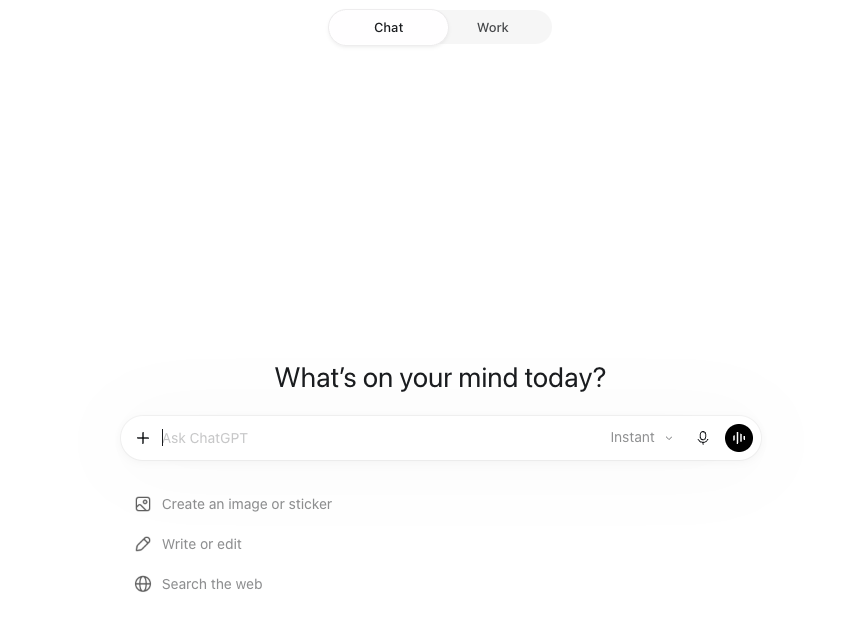
The new app has two choices at the top left: ChatGPT and Codex. Choose ChatGPT. Inside that view, choose Chat in the switch near the top. Now open Recents in the sidebar and pick a conversation you recognize. Your existing projects are under Projects. Open one and check its chats before you delete Classic. OpenAI’s migration guide places Chat and Work conversations together in Recents and keeps Codex history in its own view.
With Chat selected, the main window gives you a prompt box much like Classic. Open the sidebar for Recents and Projects; the image shows the conversation area and its Chat / Work switch.
If Recents looks empty, confirm the account and workspace you signed into, clear any Chat or Work filter in Recents, and check Projects. A conversation in a project may be easier to find inside that project than in the general list. Open two or three old conversations before removing Classic; the retirement notice promises that history comes with you, and this check confirms you are looking at the right account.
Chat, Work, Projects, and Codex
Chat is where a Classic user will feel at home: ask a question, search, or continue a conversation. Work is for a task that needs several steps or a finished result, such as researching a topic and producing a report. You choose between them with the switch shown above. They share the ChatGPT side of the app, so both kinds of conversations appear in Recents. OpenAI describes the difference between Chat and Work.
Projects organize related conversations, files, and instructions. Suppose you keep notes and source documents for a report in one project. You can open that project in Chat to ask about a note, or choose Work there to draft the report using the same project context. You do not need to rebuild the project to use Work. OpenAI’s Projects guide explains what a project keeps.
Work can run in the cloud, and those conversations sync across the web, phone, and desktop. On your Mac, Work can also use local files or apps after you grant permission. If a request in Chat calls for that kind of work, the app may offer to switch you to Work. OpenAI explains the cloud and local options, including the fact that a local task can still store messages and task context in the cloud.
Codex is the other choice in the top-left menu. It is for software development: opening a code repository, editing files, running tests, and reviewing changes. If the menu reads Codex as it does here, choose ChatGPT above it to return to your ordinary conversations. Codex keeps its own history, which is why a Classic conversation will not appear in the Codex list.

What changes with usage
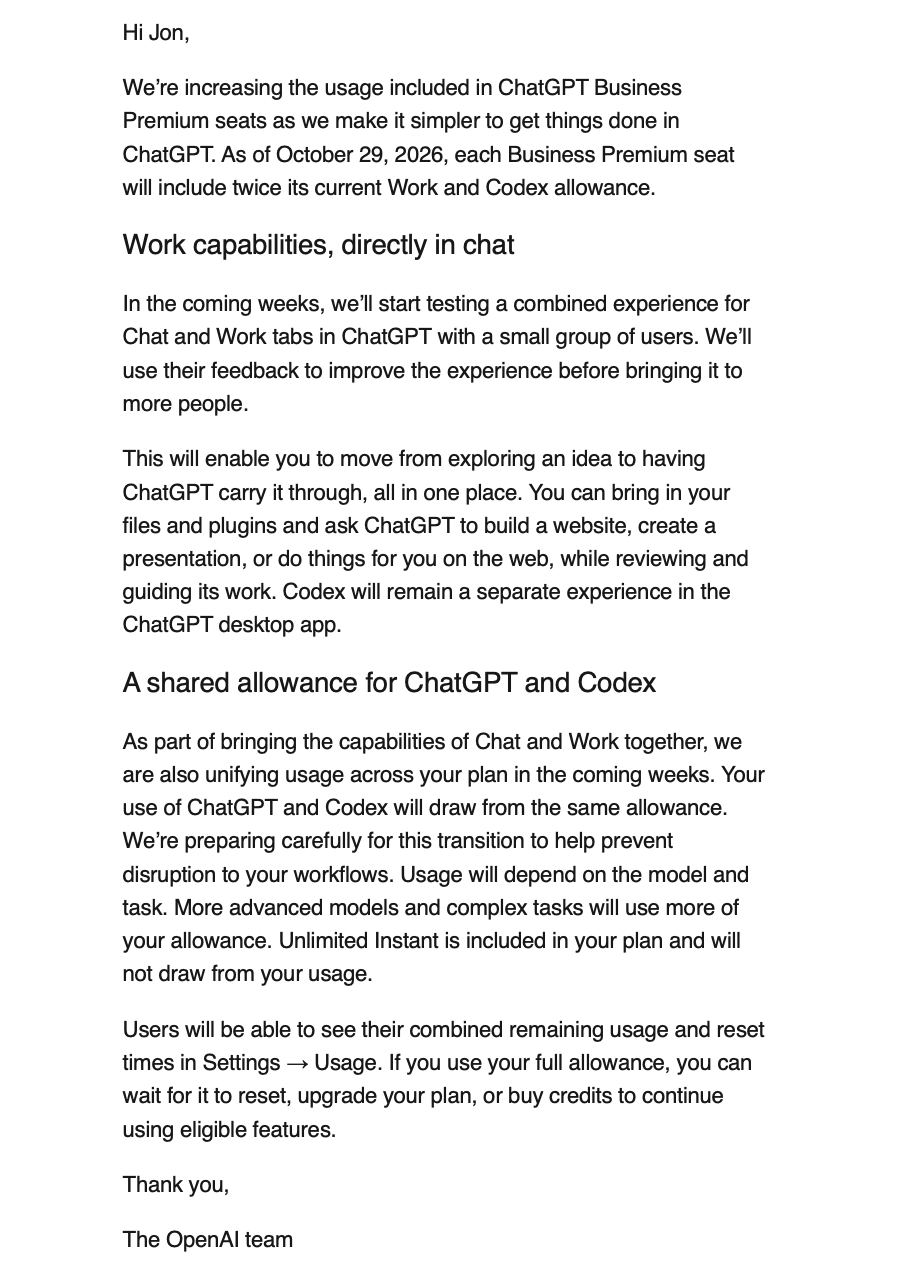
The October 29 email says each ChatGPT Business Premium seat now includes twice its previous Work and Codex allowance. It does not name a new token count. A long task or a more advanced model can use more of that allowance than a short task, so twice the allowance does not mean twice the number of jobs. OpenAI explains how it measures usage.
The same email describes a coming shared allowance for ChatGPT and Codex. OpenAI’s usage guidance dates that change to December for Plus, Pro, and Business plans. A Work report and a Codex coding task will draw from that shared pool. Instant chat will not. The email calls Instant unlimited for the Business Premium seat addressed here; check your own plan and Settings > Usage for your remaining allowance and reset time.
OpenAI also says it is testing Work capabilities directly in Chat with a small group. The Chat / Work switch shown above is the current interface, not a promise that the switch will stay in that spot.
Sources
Related Posts

Adobe Adds Chinese Models to Firefly
Runway and Kling bring acclaimed AI video tools into Adobe Firefly. Adobe's email, security diagram, and FAQ show why a Chinese-developed model can be trusted for approved work, and where client data still goes.

How I Hand Codex's Test Runs to Local Qwen
How I hand Codex's validation work to local Qwen, bound its test choices, and wake the same Codex chat with evidence.


I Tried Apple Photos MCP on 100 Unfiled Photos
I tried Apple Photos MCP on 100 pictures missing from my albums. Here's how I installed it, where Codex got stuck, and what it actually filed.
Bromure Gives Codex a Room of Its Own
I installed Bromure Agentic Coding, watched it build the Linux VM, authenticated Codex, and followed a real Codex task through the workspace.

Claude Code Auto Mode Changes Approval Flow, Not the Safety Boundary
Claude Code Auto mode changes how approval decisions are handled. It does not expand the boundary of what the coding agent should be allowed to do.

Opening the Ollama Black Box: Understanding the Trust Boundary Behind Local AI
Installing Ollama is easy. Understanding the trust boundary behind a local AI service is what determines whether it belongs in an automation workflow.
When AI Agents Trust the Wrong Tool Description
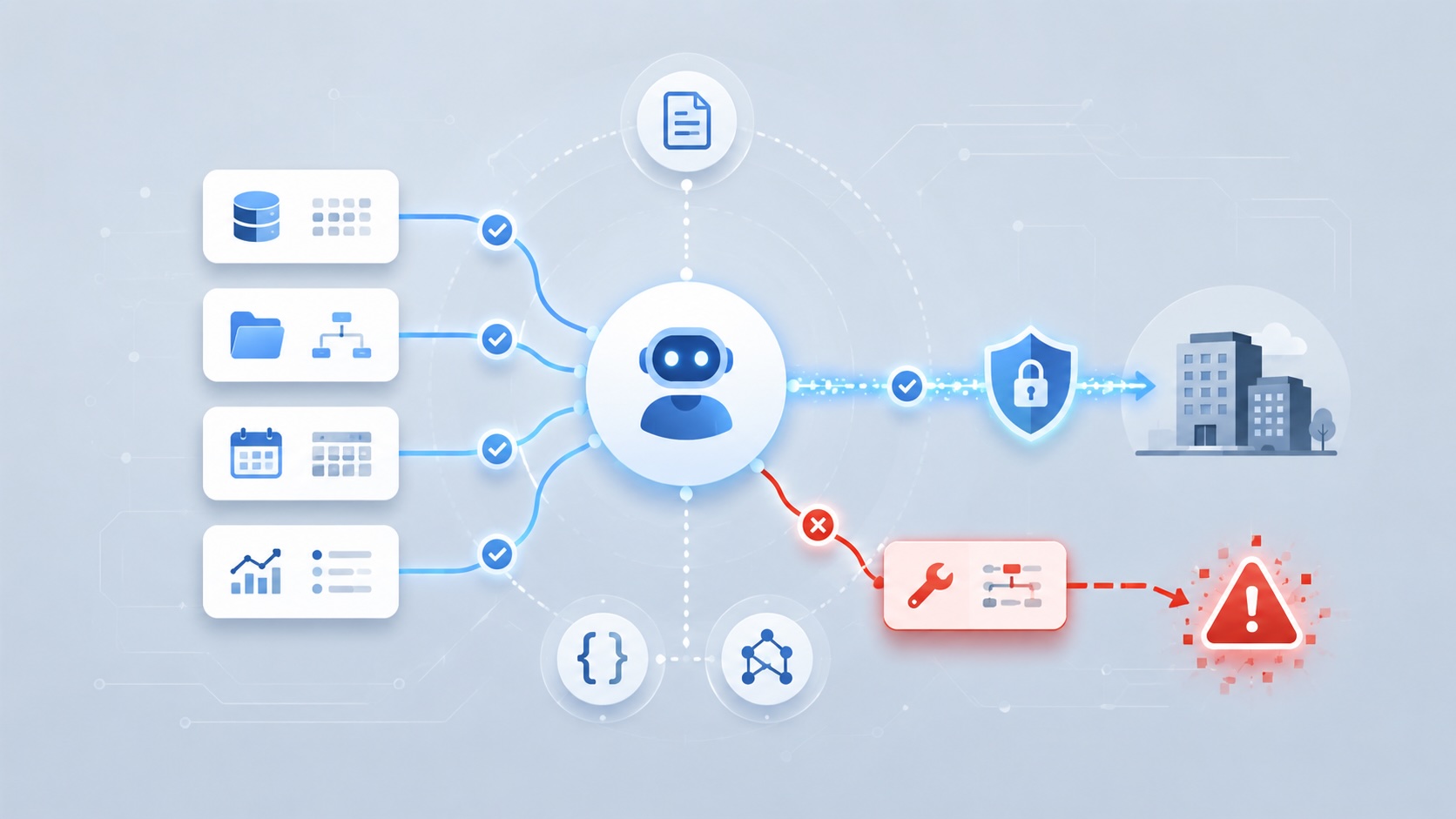
Microsoft's MCP tool-poisoning research shows why AI agent security has to treat tool descriptions, schemas, and metadata as part of the control plane instead of harmless documentation.

When a Local AI Tool Belongs in My Workflow and When It Stays in the Lab
Running AI locally on a Mac has become a real part of my workflow, but only once I stopped treating local models like general-purpose answers and started treating them like constrained components inside a system I can still inspect.

Scoring AI Influence in Jekyll Posts with Local LLMs
There’s a moment that kind of sneaks up on you when you’ve been writing for a while, especially if you’ve started using AI tools regularly. You stop asking whether AI was used at all, and instead start wondering how much it actually shaped what you’re reading. That shift is subtle, but once you notice it, you can’t really unsee it.
