Adobe in Jamf: To Package or Not to Package

Adobe is one of those deployments where the packaging question is never just about packaging.
It is not a small utility where I download a .pkg, upload it, scope it, and forget about it. Adobe brings the Admin Console, license tier questions, package options, Package Downloader, install and uninstall packages, updater choices, product entitlement, and all the normal Jamf questions around Self Service, policy logs, inventory, and user expectation.
The first question is not whether I can package Adobe.
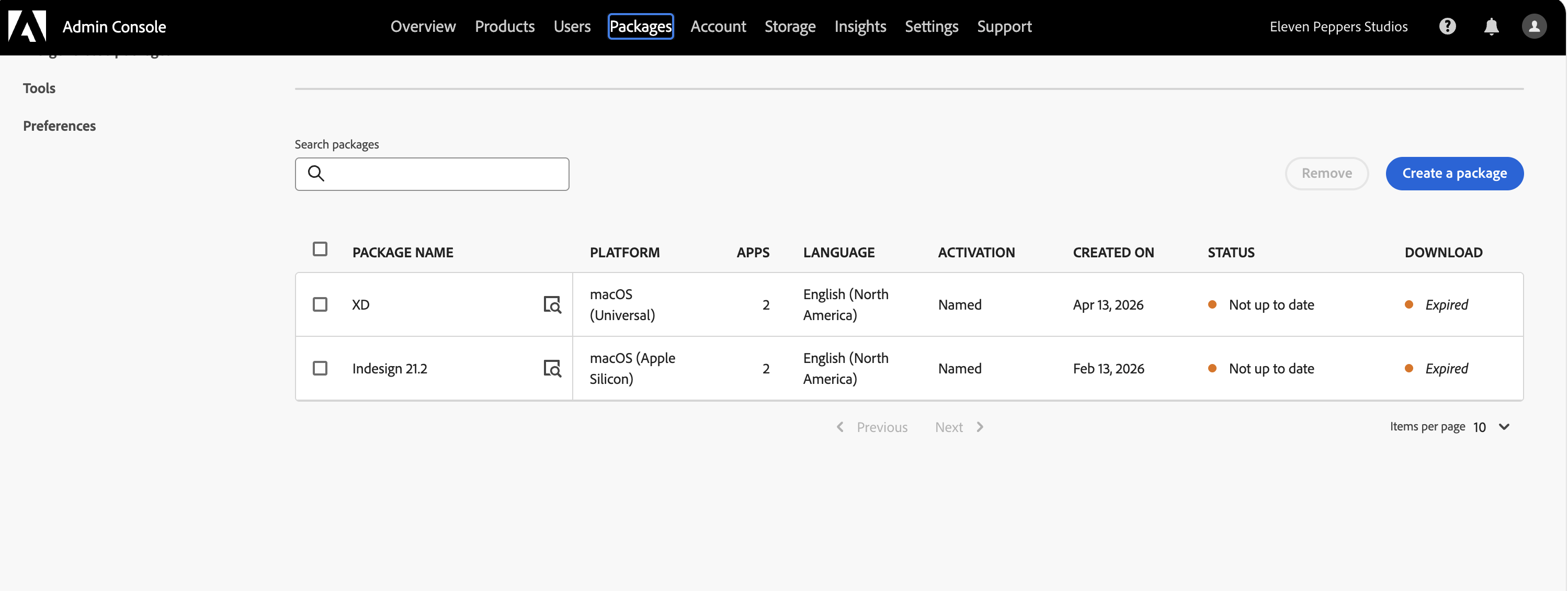
The first question is whether I am even in the part of Adobe licensing where packaging is available. Adobe’s packaging documentation is under its Enterprise & Teams administration guide and applies to Enterprise and Teams customers. The package workflow lives in the Adobe Admin Console, under Packages, and Adobe describes it as the place where administrators create packages for the Adobe apps and services they want to distribute. If someone is managing a normal individual Creative Cloud subscription, I would not assume this packaging path exists for them. The tier and admin role matter before the Jamf work even starts. Adobe: Packaging apps via the Admin Console
Once that is true, the real question becomes: should I own the Adobe package lifecycle, or should I use Jamf’s App Catalog path when the Adobe title is available there?
Manual Adobe packaging starts in the Admin Console
The manual Adobe path starts at Adobe Admin Console, not in Jamf.
The path I would document looks like this:
- Sign in to Adobe Admin Console with an account that has the right administrative permissions.
- Go to
Packages. - Check whether the package workflow is available for the organization. If the tenant is not on the right Adobe plan, this is where the workflow stops.
- Open
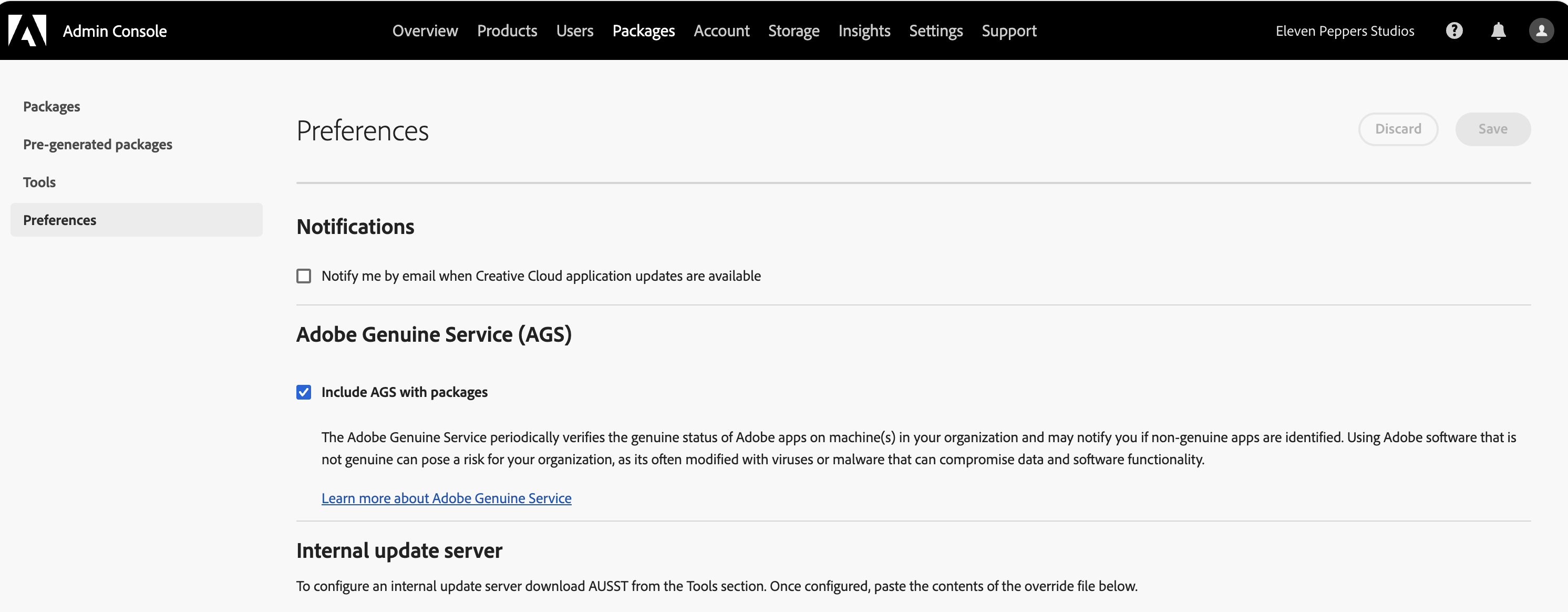
Preferencesbefore creating the package. - Decide whether to enable package notifications, whether older app versions should be visible, whether Adobe Genuine Service should be included, whether an internal update server should be used, and whether a custom install directory is needed.
- Go back to
Packages. - Choose the package creation path that matches the deployment model: Named User Licensing for assigned users, or Shared Device Licensing for education/shared-device scenarios where that applies.
- Select the Adobe apps to include.
- Decide whether the package should include tools such as Remote Update Manager.
- Build the package.
- Download it before Adobe’s availability window expires.
Adobe’s documentation calls out several details that matter in practice. Creative Cloud Packager is no longer the path for current Creative Cloud apps; Adobe recommends using the Admin Console package workflows. Adobe also says admins can use the Packages area to download tools such as Remote Update Manager and Adobe Update Server Setup Tool, and it notes that older app versions may have limited support compared with current or LTS versions. Adobe: Packaging apps via the Admin Console
Already this is more than downloading Photoshop and uploading it to Jamf. It is a packaging decision, a licensing decision, an update decision, and a support decision.
Downloading the package is its own step
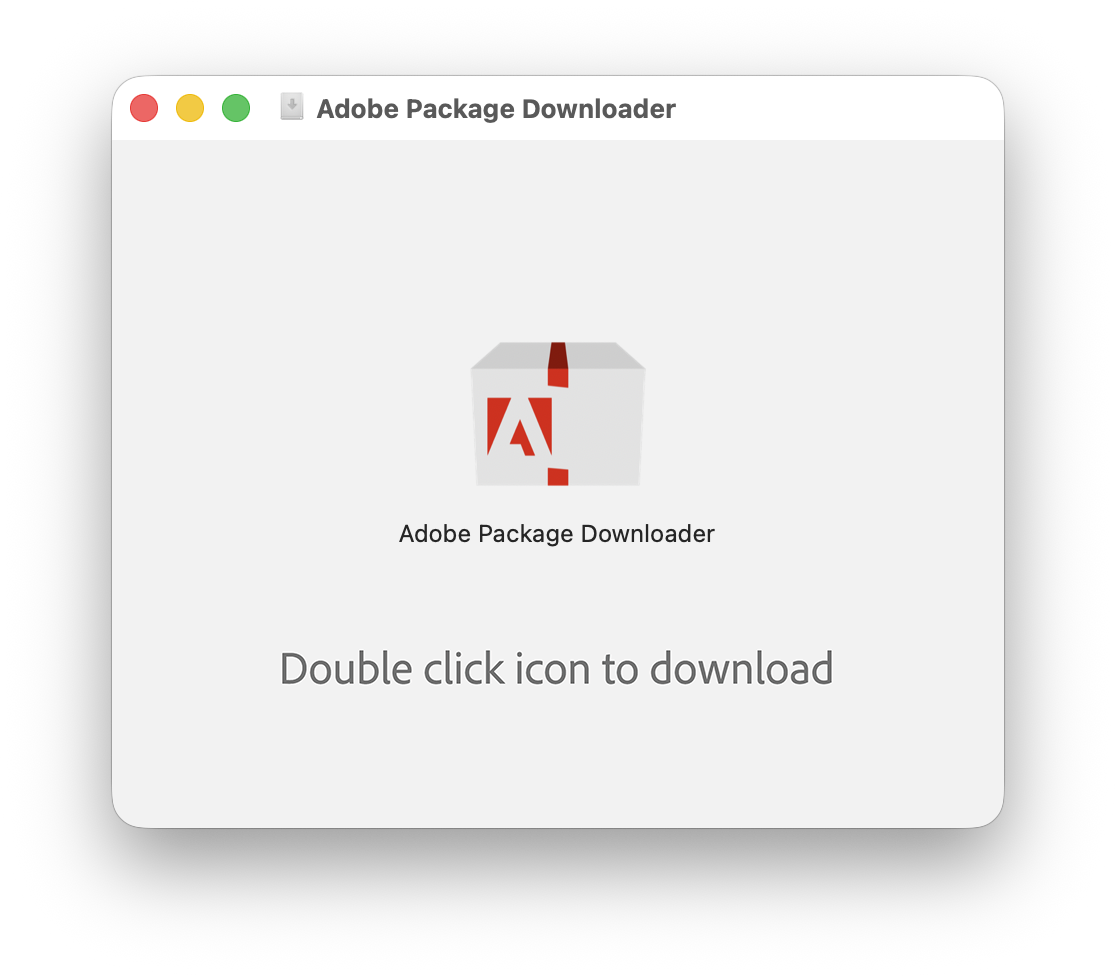
For macOS, Adobe Package Downloader is part of the workflow after package creation. Adobe says the package is available in the Admin Console for a maximum of three days after creation. If that window expires, the downloader will fail and the package has to be recreated or regenerated through the Admin Console workflow. Adobe Package Downloader
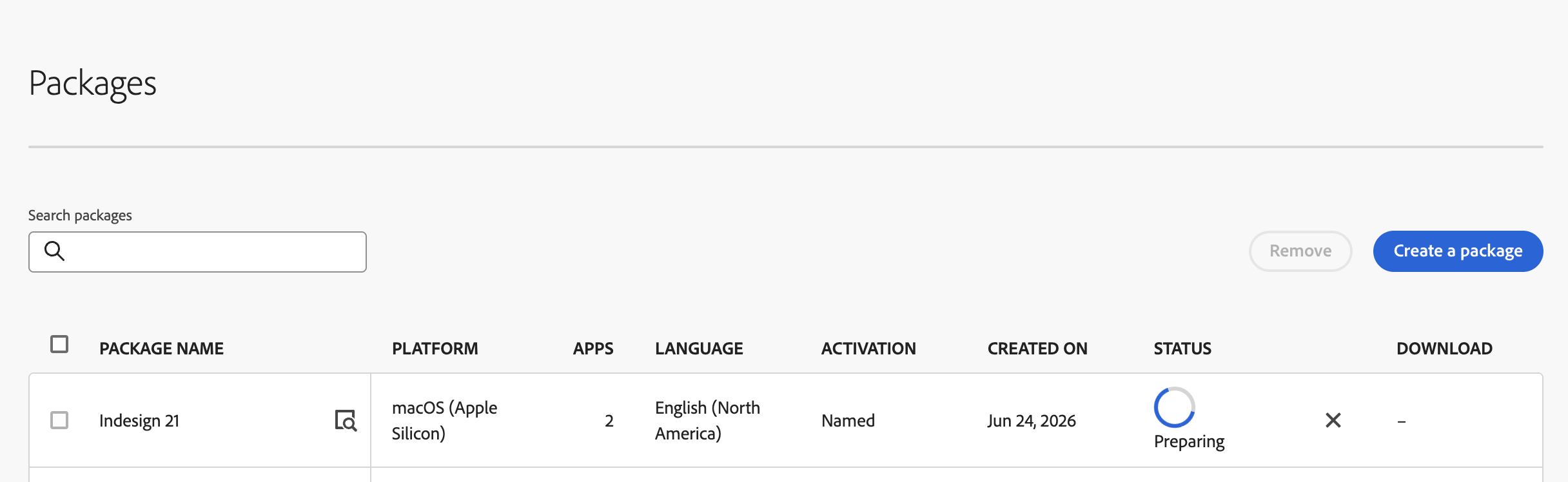
Once Adobe has prepared the package, the downloaded Package Downloader app becomes the handoff between the browser workflow and the actual installer package.
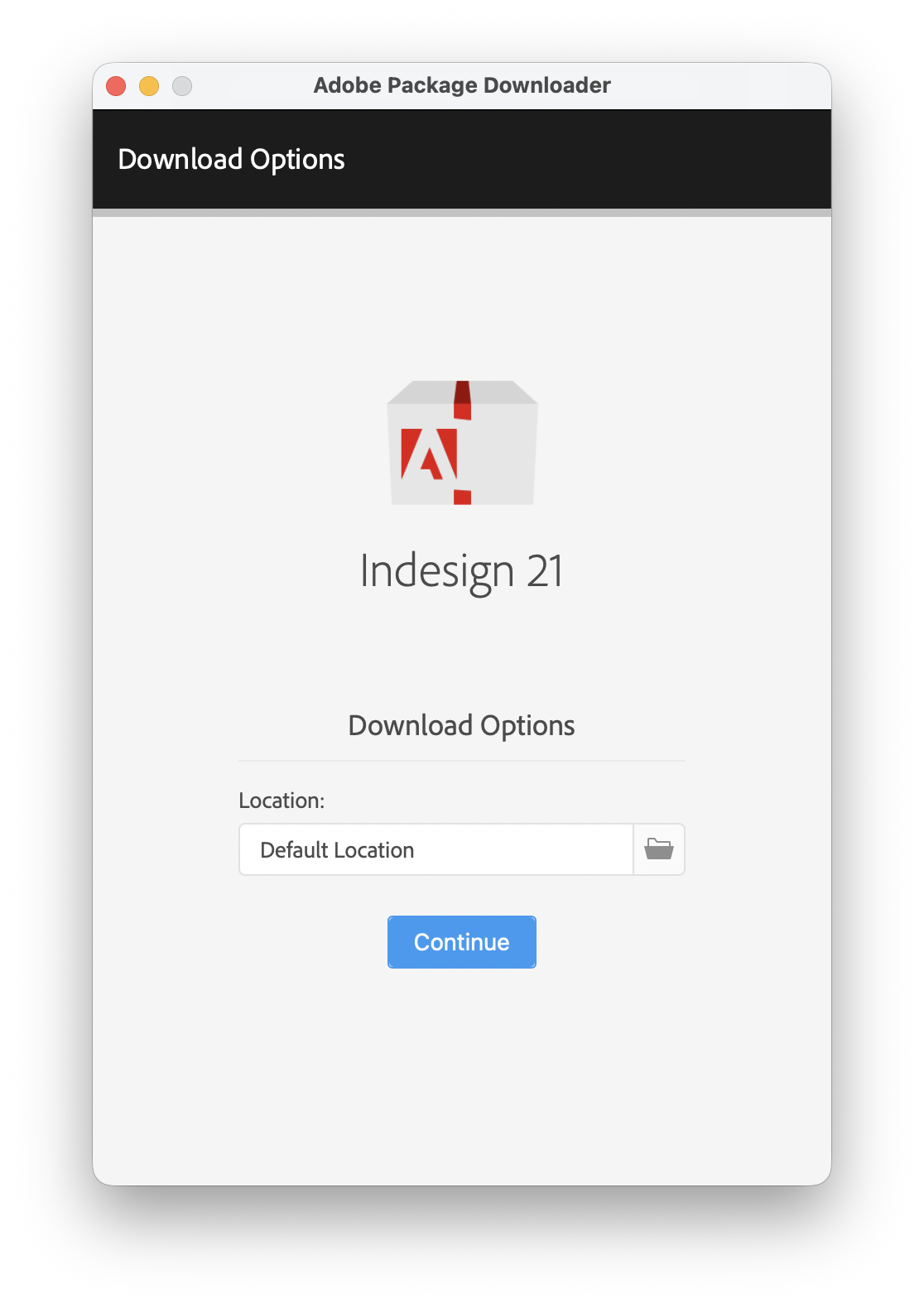
The downloader asks where to save the package before it starts pulling the payload down.
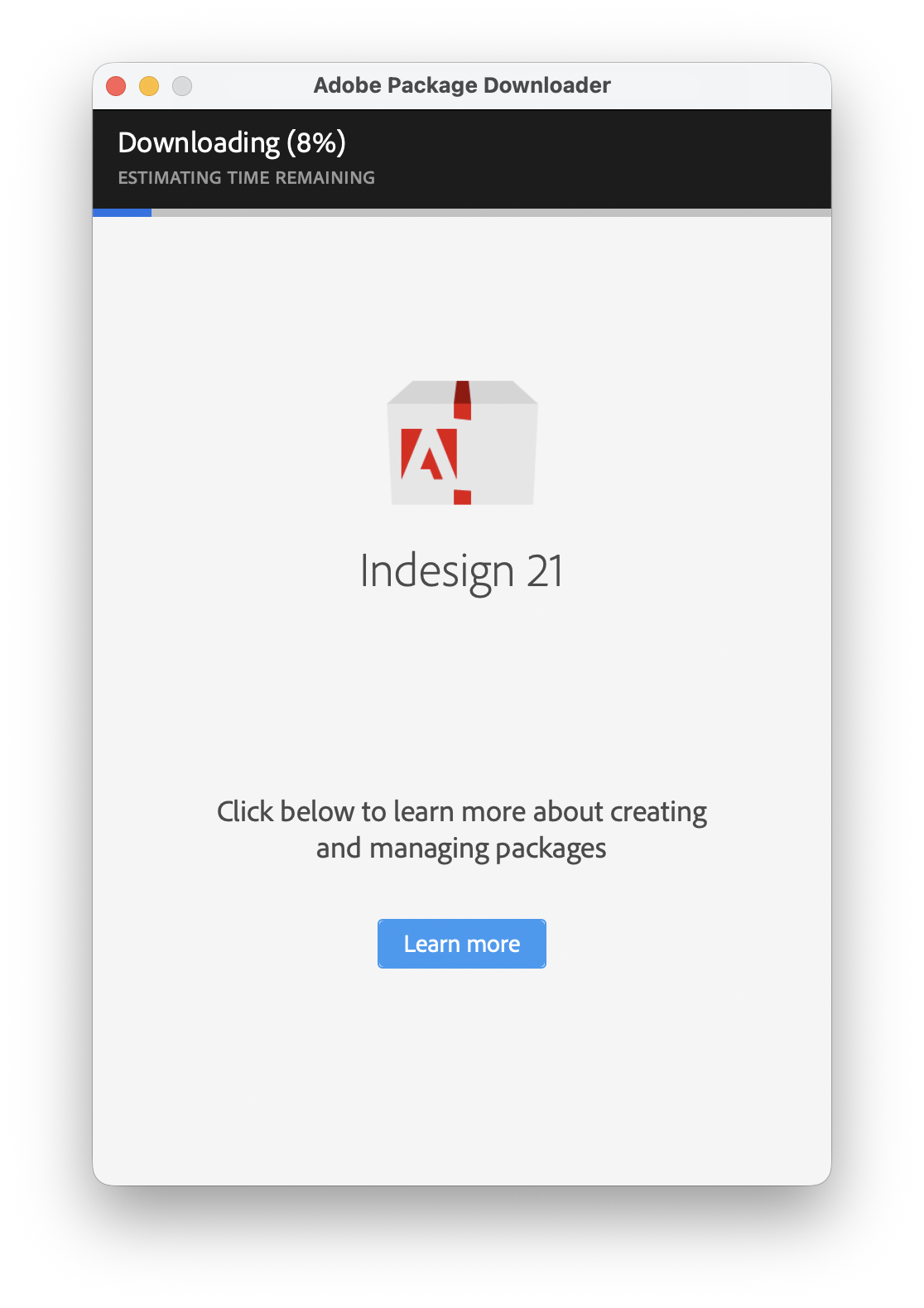
This is one of the operational annoyances with the manual path: the packaging work continues outside the Admin Console, and the downloader has its own progress state.
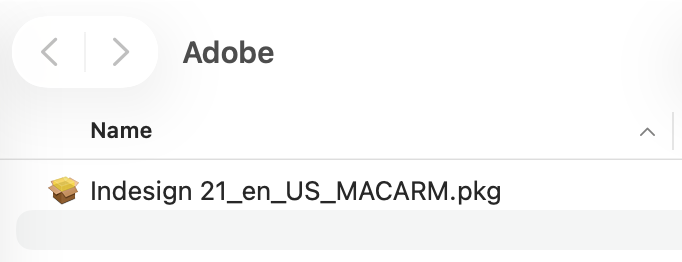
After download and extraction, Adobe documents that the package contents include install and uninstall packages:
PackageName_Install.pkg
PackageName_Uninstall.pkg
Adobe’s install command is the normal macOS installer path:
sudo installer -pkg /path/to/Package/Build/PackageName_Install.pkg -target /
For uninstall, the shape is similar:
sudo installer -pkg /path/to/PackageName_Uninstall.pkg -target /
I would test both on a non-production Mac before I put anything in Self Service. The install package proves the deployment path. The uninstall package tells me whether I have a realistic rollback option if a lab, shared workstation, or user-assigned Mac gets the wrong Adobe payload.
Turning that Adobe package into a Jamf policy
Once the Adobe package exists, Jamf becomes the delivery tool.
In this tenant, there is already a history of Adobe packages in Jamf. That is useful context. It shows why I do not want to add another manual Adobe package unless the App Catalog path does not fit the need.
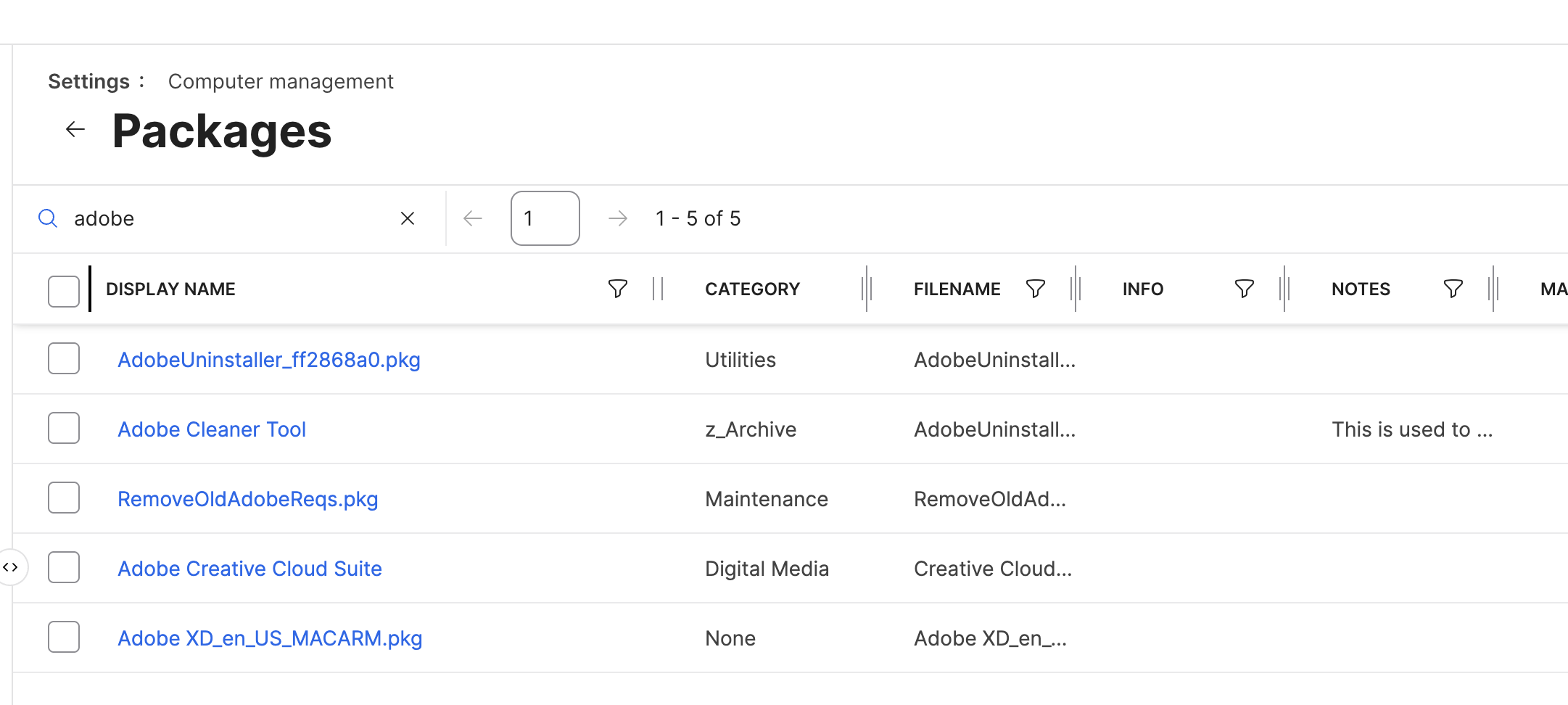
In Jamf Pro, my manual package path would look like this:
- Go to
Settings. - Open
Computer Management. - Open
Packages. - Upload
PackageName_Install.pkg. - Upload
PackageName_Uninstall.pkgas a separate package if I plan to offer or automate removal. - Go to
Computers. - Open
Policies. - Create a new policy named something boring and searchable, such as
Install Adobe Photoshop. - Add the Adobe install package to the policy.
- Choose the trigger:
Self Servicefor user-initiated installs,Recurring Check-infor enforced installs, or a custom trigger for staged workflows. - Set frequency to
Once per computerunless the policy is intentionally designed to rerun. - Scope it to a Smart Computer Group, not
All Managed Clients. - Add exclusions for pilot holdbacks, incompatible Macs, lab exceptions, or machines already under support.
- Add a Self Service icon and description if users will run it themselves.
- Test on a pilot Mac.
- Run inventory after install and confirm the Adobe app appears with the expected version.
- Test the uninstall package separately.
The policy object I want to see before production looks like this:
Package:
Adobe_Photoshop_Install.pkg

Policy:
Install Adobe Photoshop

Trigger:
Self Service for user-assigned Macs, or recurring check-in for assigned lab Macs

Frequency:
Once per computer

Scope:
Smart Computer Group - Adobe Photoshop Required

Exclusions:
Adobe Pilot Holdback
Adobe Known Plugin Dependency
Do Not Touch During Support Case

Validation:
Application Title is Adobe Photoshop.app
Application Version is expected version or greater

Uninstall:
Adobe_Photoshop_Uninstall.pkg, tested as a separate policy

Update plan:
Remote Update Manager, AUSST, update-only packages, or replacement package workflow
Adobe lists Jamf Pro as one of the third-party tools admins can use to deploy packaged Adobe apps and services. Jamf’s package and policy documentation covers the Jamf side: packages are added to Jamf Pro and distribution points, and policies distribute software, run tasks, define triggers, set execution frequency, and scope the work to computers. Adobe: Deploy packages Jamf Pro Documentation: Packages Jamf Pro Documentation: Policies
This path gives me control. It also gives me all the maintenance.
Building the same idea with Jamf App Installers
If the Adobe title is available in the Jamf App Catalog, I would test that path before building the Adobe package myself.
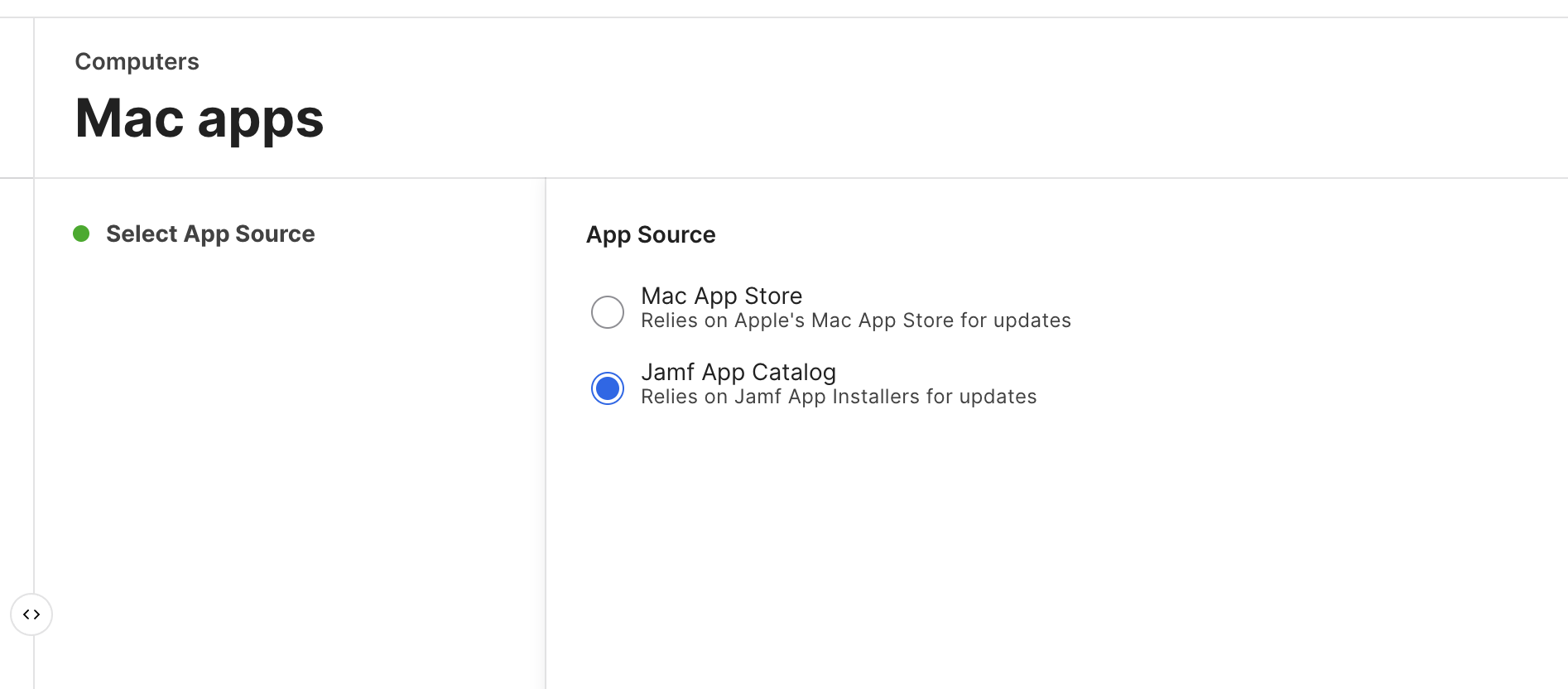
In Jamf Pro, the App Installer path is closer to this:
- Go to
Computers. - Open
Mac Apps. - Create a new Mac app.
- Choose the Jamf App Catalog / App Installer source.
- Search for the Adobe title, such as Creative Cloud Desktop, Acrobat Reader, or another available Adobe app.
- Select the title.
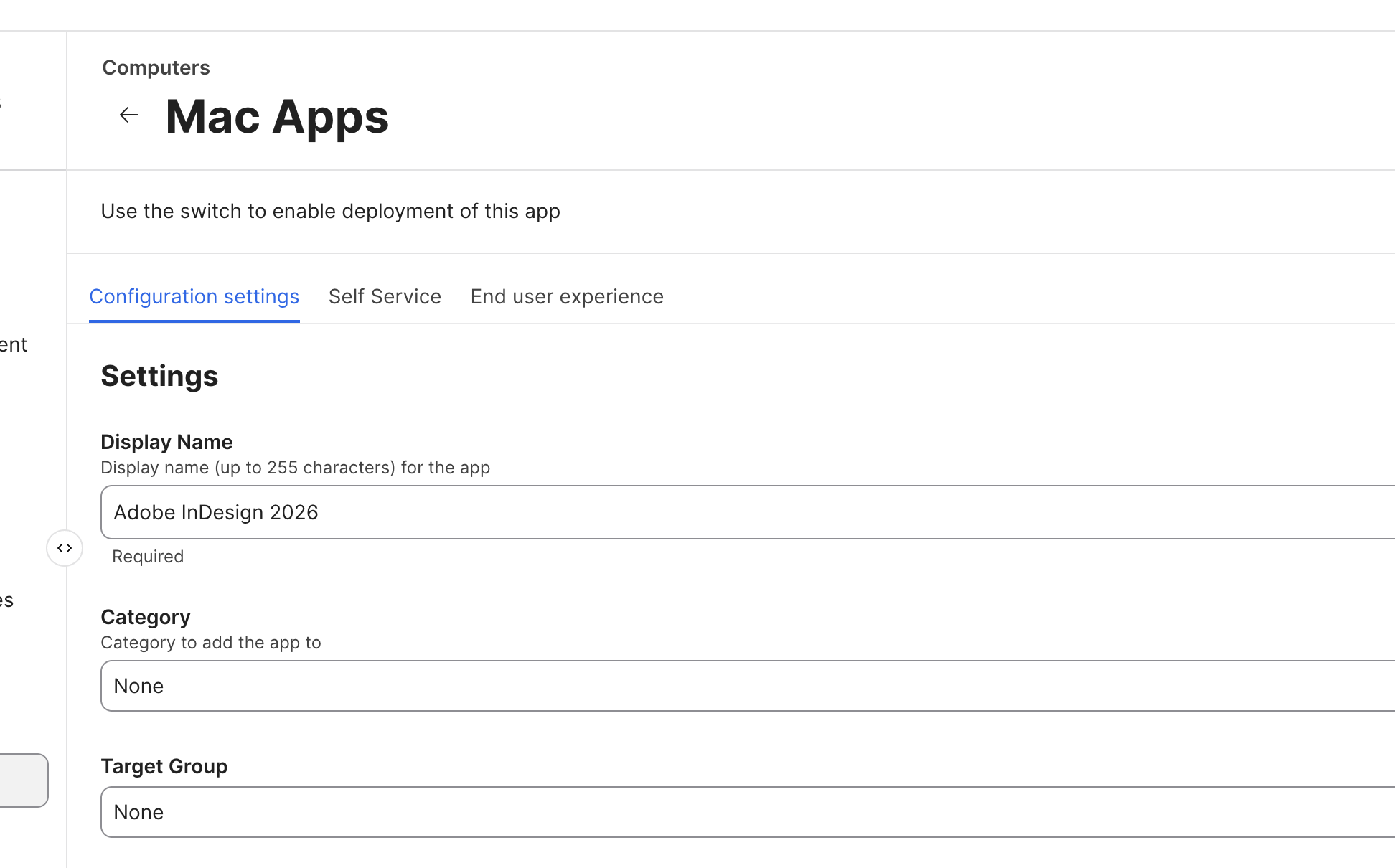
- Choose whether it installs automatically or is available in Self Service.
- Scope it to a Smart Computer Group, such as
Adobe UsersorAdobe Acrobat Required. - Add exclusions for pilot holdbacks or machines that should stay on an existing package policy.
- Save the app.
- Test on a pilot Mac.
- Watch deployment status and inventory.
- Retire the matching legacy Adobe package policy only after the App Installer path is proven.
Jamf describes App Installers as sourced from the vendor, repackaged and code-signed by Jamf when needed, and installable automatically or through Self Service. That can remove a lot of Adobe package handling from my plate. I do not have to create a package in Adobe Admin Console, beat the download expiration window, upload a large installer to Jamf, or build separate install and update policies when the App Installer path actually meets the need. Jamf Pro Documentation: App Installers
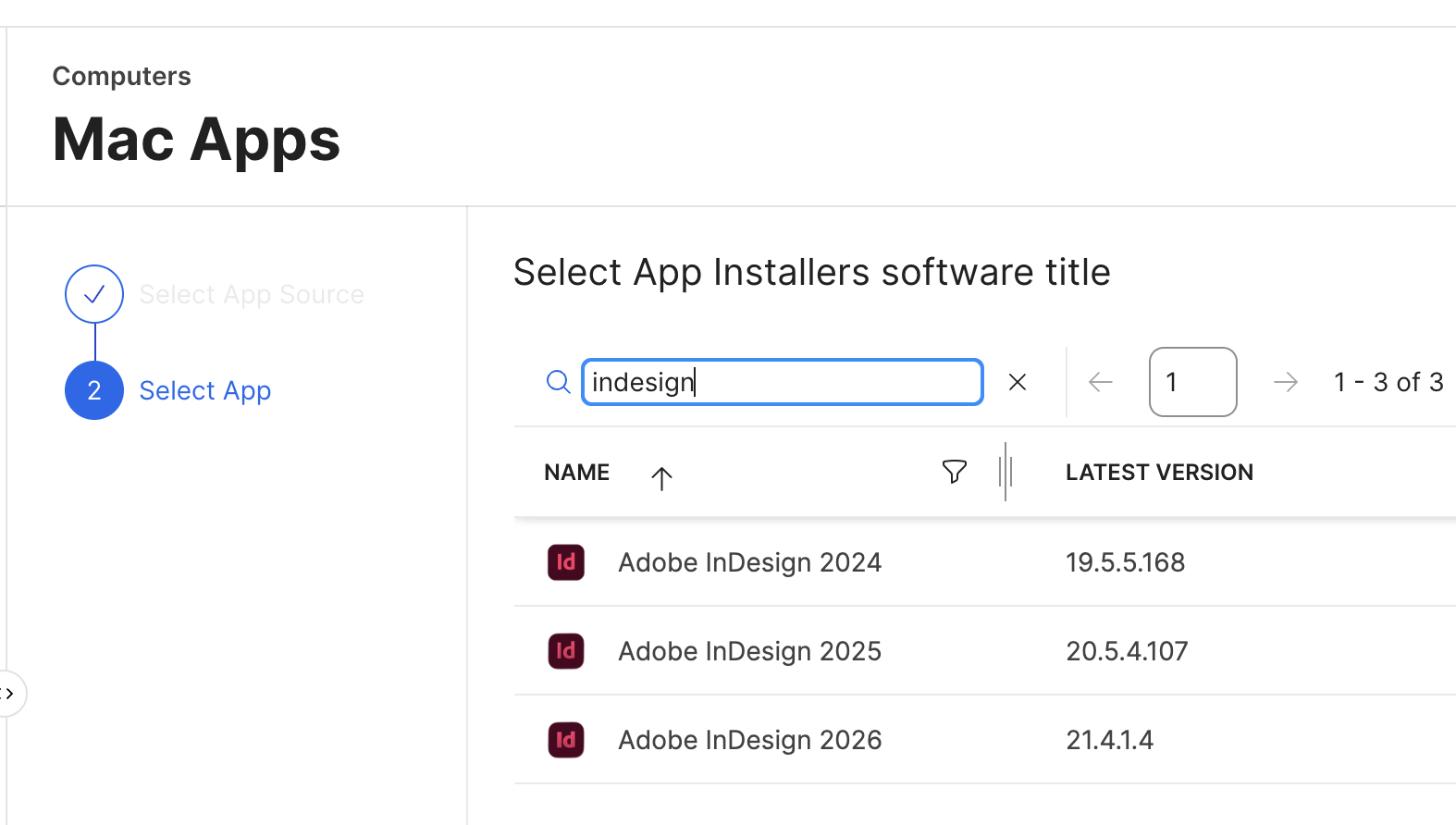
For a user-assigned Mac, I like starting with Creative Cloud Desktop or a specific Adobe app through the catalog if that matches the entitlement model. If the user signs in and installs the apps they are licensed for, I may not need a separate Self Service policy for every Adobe app. If the environment needs Photoshop, Illustrator, InDesign, Acrobat, and Premiere deployed as controlled payloads, manual packaging may still be the better fit.
App Installers are not magic
The honest version is that App Installers are not perfect.
They can fail. They can be delayed. The user experience is not always as transparent as a well-built custom Self Service policy. If a user is waiting on a large Adobe install, I do not get the same level of custom progress messaging that I can build around a policy, a script, a helper app, or a user-facing workflow. When the App Installer path breaks, the troubleshooting may feel less direct because I do not own every piece of the installer chain.
That tradeoff is the whole decision. With App Installers, I give up some control in exchange for less package ownership. With manual Adobe packages, I get control over package content, timing, policy messaging, rollback testing, and update strategy, but I also own the work every time Adobe changes the package, app version, updater behavior, or licensing detail.
A recent r/jamf thread captures the practical tension: admins creating individual Adobe packages through Admin Console, placing them in Self Service, and then wrestling with long install times and whether Creative Cloud Desktop or App Installers would be a better operational model. I do not treat Reddit as deployment authority, but I do pay attention when the pain point is recognizable. r/jamf: Deploying Adobe Creative Cloud apps via Self Service
If I cannot package Adobe
If the Adobe tenant does not expose the Admin Console package workflow, I need to be realistic. I may not be able to build Adobe packages the official enterprise way.
At that point the options are different:
- Use the Jamf App Catalog/App Installer path if the title is available and behaves well enough.
- Deploy Creative Cloud Desktop and let licensed users install the apps they are entitled to use.
- Use Installomator for supported Adobe-related installers if the label and behavior fit the environment.
- Use AutoPkg recipes where the MacAdmins community has a maintained recipe that matches the deployment need.
- Hold the deployment and fix the Adobe licensing/admin model first.
Installomator and AutoPkg are not magic either. Installomator’s own project documentation tells admins to test carefully in their own environment, and AutoPkg is a packaging automation tool backed by recipes that still require local review. Community-maintained recipes are useful precisely because the MacAdmins community carries a lot of practical deployment knowledge, but relying on that community does not remove my responsibility to test the result before production. Installomator AutoPkg AutoPkg recipes
The decision I want before scoping
Before I scope Adobe broadly in Jamf, I want the deployment path written down:
Question:
Am I deploying Adobe through an official Adobe package, a Jamf App Installer, Creative Cloud Desktop, Installomator, or AutoPkg?

License/admin requirement:
Do I have Adobe Admin Console package access, or am I working around not having it?

User experience:
Will the user see Self Service, an automatic install, Creative Cloud Desktop, or nothing?

Progress and support:
How will I know whether the install is still running, failed, or completed?

Rollback:
Do I have an uninstall package or tested removal path?

Update model:
Jamf App Installer updates, Adobe Remote Update Manager, AUSST, update-only package, AutoPkg, Installomator, or user-driven updates?
The real Adobe decision is practical. Package when I need control and have the licensing/admin foundation to do it properly. Use the catalog path when it fits and when the reduced package ownership is worth the loss of control. Use community tooling only with eyes open and tests in place.
Adobe is not a quick upload-and-move-on deployment. The workflow I choose becomes the support model.
Sources
- Jamf Pro Documentation: App Installers
- Jamf Pro Documentation: Packages
- Jamf Pro Documentation: Policies
- Apple Platform Deployment: Distribute packages to Mac computers
- Adobe: Packaging apps via the Admin Console
- Adobe: Deploy packages
- Adobe Package Downloader
- r/jamf: Deploying Adobe Creative Cloud apps via Self Service
- Installomator
- AutoPkg
- AutoPkg recipes
AI Usage Transparency Report
AI Era · Written during widespread use of AI tools
AI Signal Composition
Score: 0.53 · High AI Influence
Summary
Adobe packaging involves manual steps in the Admin Console, package download, Jamf policy decisions, and App Installer tradeoffs for Mac admins.
Related Posts
When Chromium Mistakes Your VPN for a Local Network
Turning off Jamf Trust fixed the webinar, which normally would have sent me straight to its routing policies. This time the route was fine: Chromium was treating Jamf's ZTNA broker addresses as a local network, and an Edge and Chrome preference corrected it.
Apple Software Updates Need a Blueprint Before the MDM Commands Fade
Apple software update management is moving away from command-first MDM workflows. Jamf Blueprints and Declarative Device Management give Mac admins a better place to express update intent, scope, enforcement, and visibility.

Jamf Moves Platform SSO Into the Enrollment Gate
Jamf's attended Simplified Setup for Platform SSO changes Mac enrollment by making identity registration part of Setup Assistant before the MDM profile is installed.
Check out this new JAMF Script upload tool
Digambar Ghosalkar's Jamf Script Uploader is useful because it moves Jamf Pro script work out of manual browser copy/paste and into a repeatable API-backed workflow.
Two PPPC Tools I Would Add After the Profile Looks Right
A follow-up on two tools worth adding to a PPPC troubleshooting workflow: PPPC_Analyser for inspecting app privacy requirements and QuickJamfDeploy for forcing the Jamf management framework into place during deployment.
Audit Jamf API Roles Before They Become Forgotten Access
A read-only Jamf Pro API role audit script that reports role privilege reach, write-capable access, review priority, and API client inventory without changing Jamf.

Review the Smart Group Before You Scope the Policy
Review your Smart Group before you ever scope a Jamf policy. Validate inventory, understand your signals, test exclusions, and prove the group works before it reaches production.
Build Jamf DDM Update Blueprints for macOS and iOS
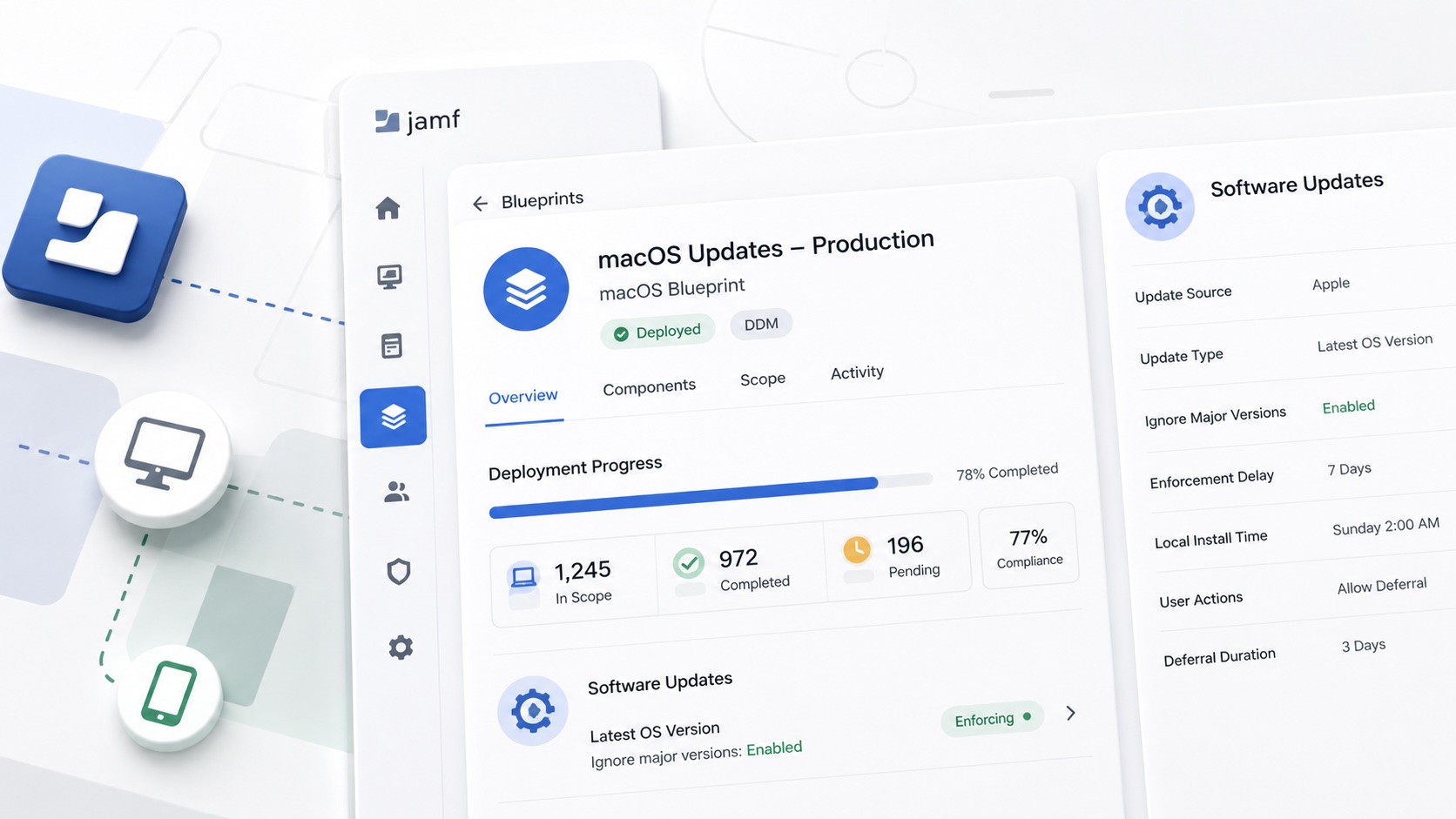
How I set up Jamf software update blueprints for macOS and iOS using Declarative Device Management, staged scope, clear enforcement timing, and visible deployment progress.

Review the Package Before You Build the Policy
A Jamf-focused package review workflow for checking installer signing, package contents, scope, validation, and rollback before a policy reaches production Macs.
Jamf Was My Mac Evidence Layer for CMMC
How Jamf Compliance helped support the Mac portion of a CMMC assessment, and why I added a small read-only CSV summary script for auditor-ready failed-result evidence.
