
When the macOS Security Compliance Project publishes new baseline content, Jamf Pro Compliance can show an Update available badge on an existing benchmark. From there, you can review the updated rules, save the draft, and deploy the benchmark update to the scoped devices.
This is not the same workflow as updating a policy, uploading a configuration profile, or replacing a package. The update lives inside the Compliance area as a benchmark-level change. If you have not used this part of Jamf Pro before, the path is not immediately obvious.
This matters more now because mSCP 2.0 changes how the project is organized. The mSCP project site describes the new generation as one unified branch for macOS, iOS/iPadOS, and visionOS, with current work available from main instead of the older branch-per-OS model. The project also describes mSCP as open source Apple OS security guidance based on NIST SP 800-53 and authoritative through NIST SP 800-219. macOS Security Compliance Project
Apple documents mSCP in its Platform Certifications guide and describes it as a project that can output customized documentation, scripts, configuration profiles, and audit checklists based on selected baselines. Apple also notes that mSCP maps controls against supported security guides, including CMMC 2.0 Level 1 and Level 2. Apple Platform Certifications: macOS Security Compliance Project
Jamf’s Compliance Editor documentation gives the broader context for this ecosystem. It describes security benchmarks as best-practice cybersecurity standards and notes that organizations may adopt baselines such as CIS, NIST 800-53, NIST 800-171, DISA STIG, CNSSI, or CMMC. It also describes Jamf Compliance Editor as a tool for establishing and managing compliance baselines across Apple fleets, built on the foundations of mSCP. Jamf: Establishing Compliance Baselines with Compliance Editor
In my example, I am updating a benchmark named US CMMC 2.0 Level 2 (Enforce). That benchmark is mapped to a CMMC Level 2 baseline and includes rules aligned to NIST SP 800-171 requirements. NIST SP 800-171 Rev. 3 is the current NIST publication for protecting Controlled Unclassified Information in nonfederal systems and organizations, and CMMC is the Department of Defense framework used for cybersecurity requirements in the defense industrial base. NIST SP 800-171 Rev. 3 Cybersecurity Maturity Model Certification
Before You Deploy an Update
Before deploying the update, check a few things:
- Which benchmark is showing an update.
- Which active rules are changing or being added.
- Whether the benchmark is monitor-only or monitor-and-enforce.
- Whether any selected rules depend on local infrastructure, such as smart card authentication.
- Which Jamf group is scoped to the benchmark.
That last part matters if the benchmark is set to enforce. A rule update can change more than reporting. It can change what Jamf Pro expects devices to satisfy.
Step 1: Find the Benchmark with an Available Update
In Jamf Pro, open the Compliance area and look for a benchmark card with an Update available badge. In this example, the benchmark is already deployed, and Jamf Pro is showing that updated rule content is available.
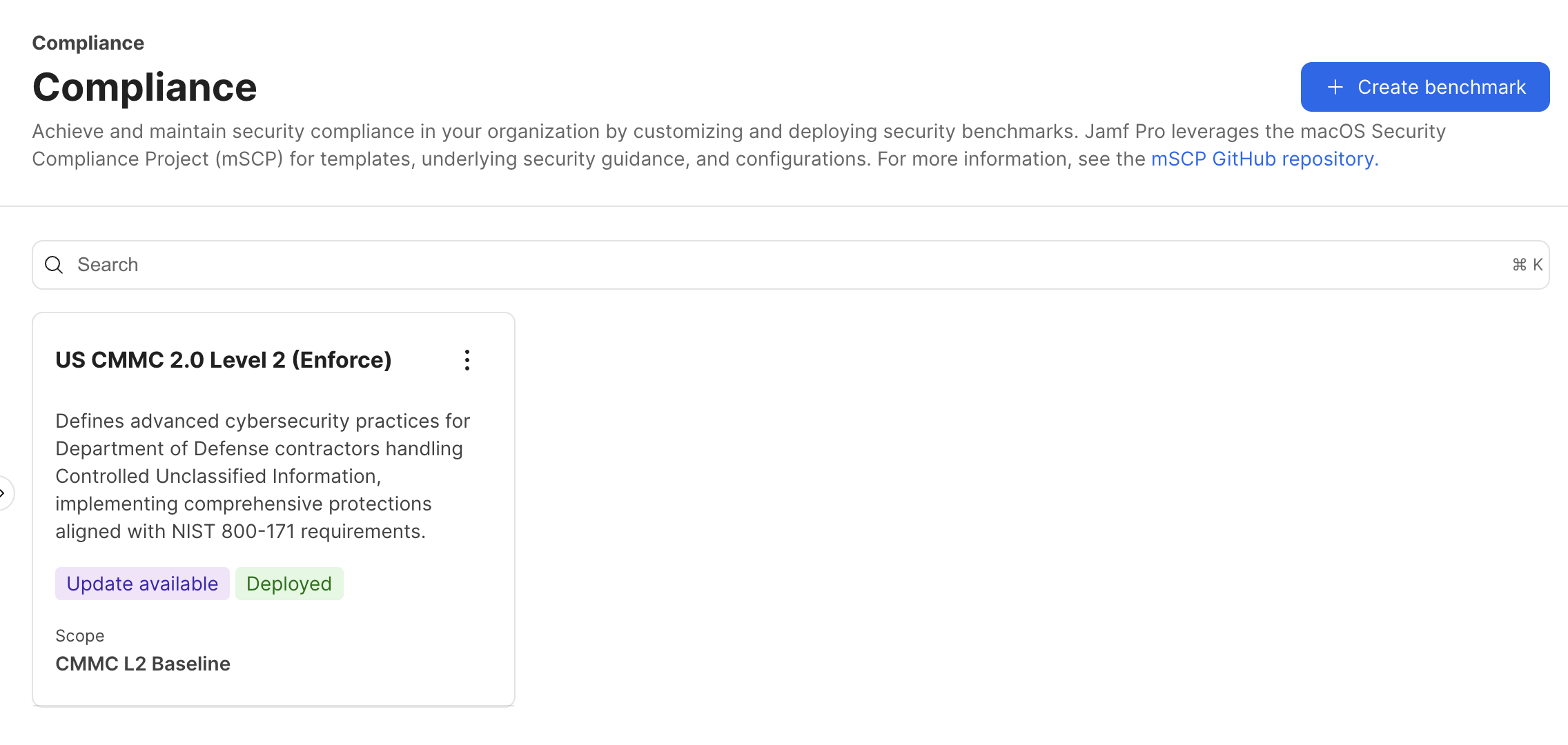
That badge is the starting point. It means there is updated content available for the benchmark.
Step 2: Open the Existing Benchmark
Use the card menu and choose View.
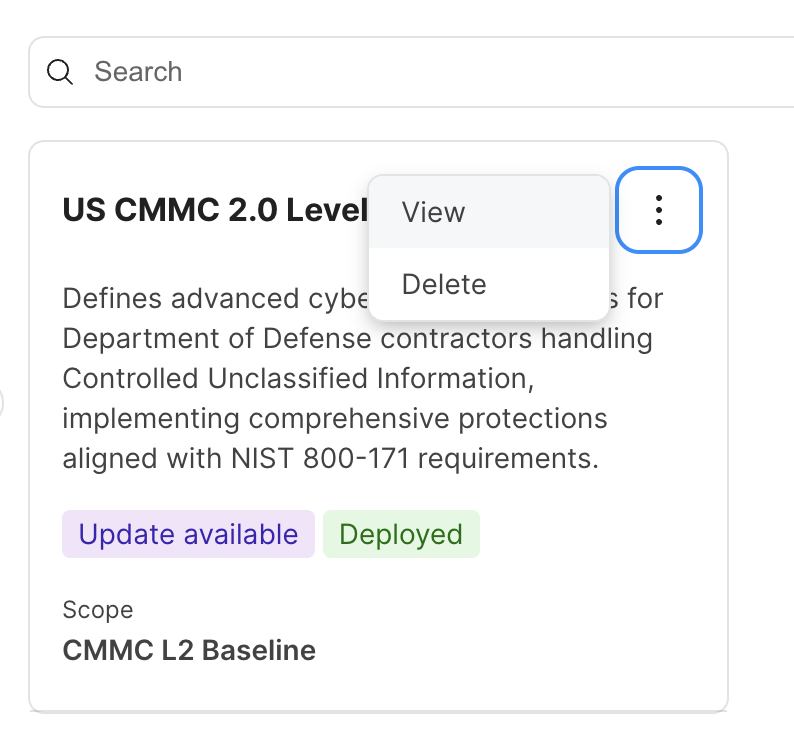
This opens the deployed benchmark so you can review the update in place.
Step 3: Review Active Rules, Mode, and Scope
On the benchmark details page, review Active rules, the benchmark mode, and the scoped group.
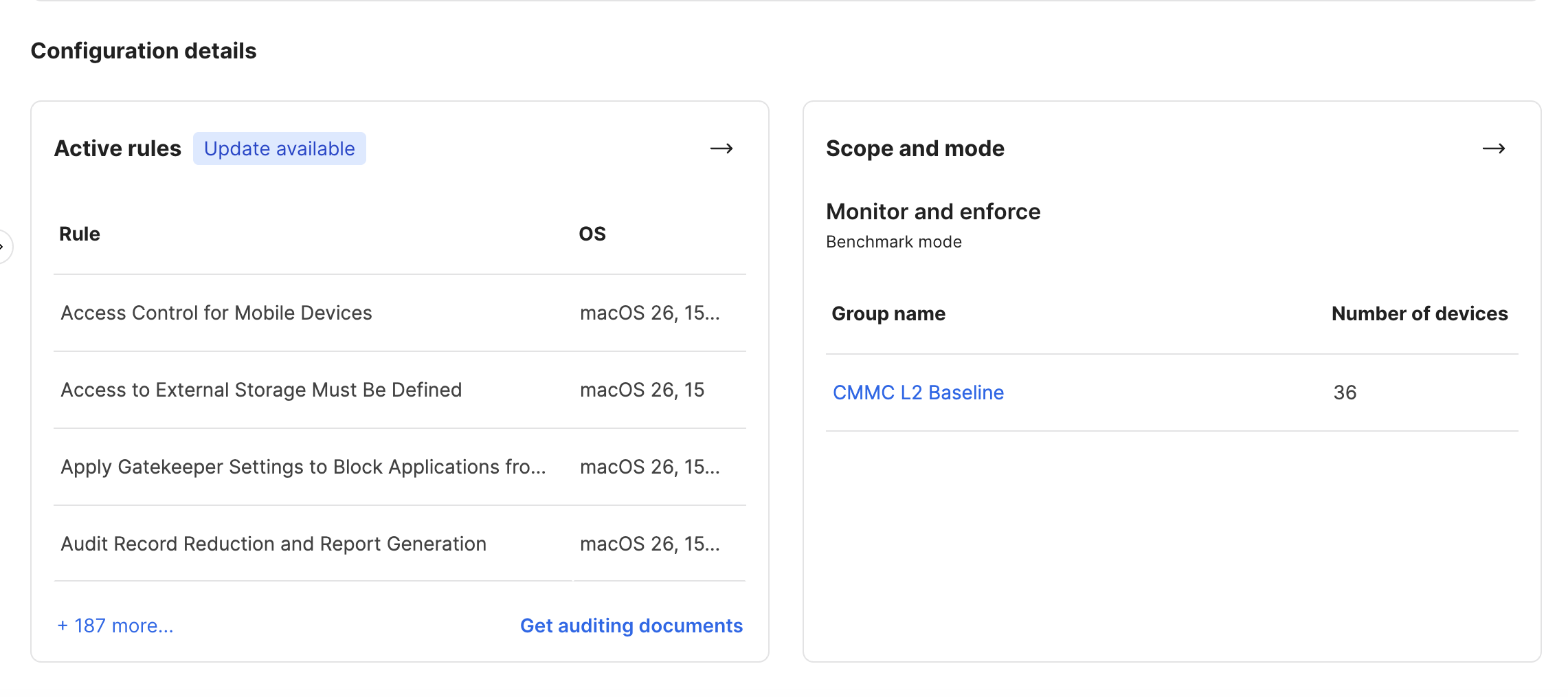
In this example, the benchmark mode is Monitor and enforce, and the scoped group is CMMC L2 Baseline with 36 devices. If a benchmark is enforcing settings, an update may affect device configuration and not just compliance reporting.
Click into Active rules to review the updated rule list.
Step 4: Review the Updated Rules
Jamf Pro shows which operating system versions each rule applies to, and some rules expose configurable values.
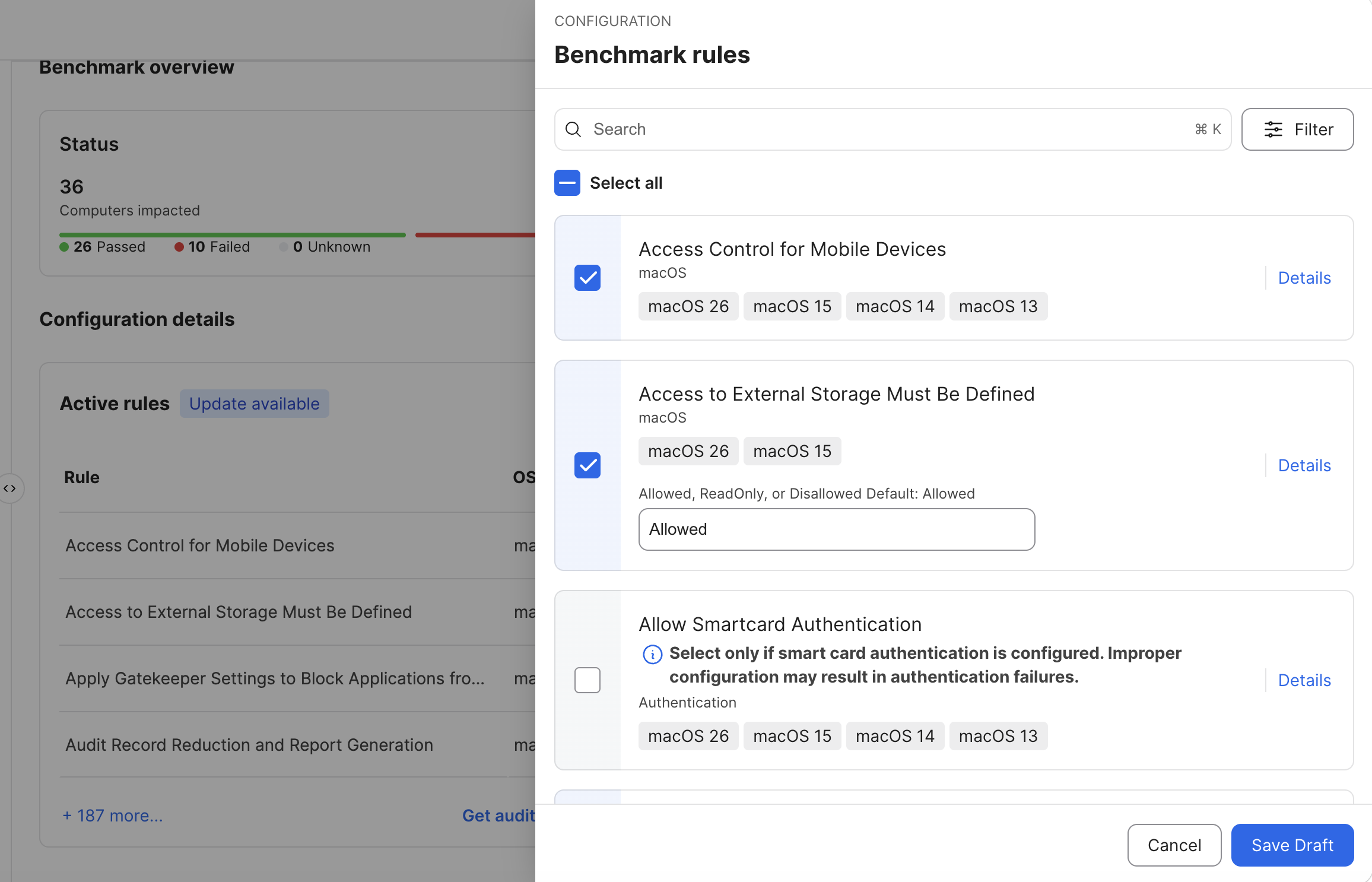
This is the key review step. Look for rules that:
- Apply to a new OS version, such as macOS 26.
- Add a setting that was not previously enforced.
- Include a configurable value that must match local policy.
- Include a warning about required supporting infrastructure.
The smart card authentication rule in the screenshot is a good example. Jamf Pro warns that the rule should only be selected if smart card authentication is configured. If that is not configured in your environment, do not enable that rule just because it appears in the updated baseline.
When the rule selection matches your intent, click Save Draft. Saving the draft stages the benchmark change. It does not complete deployment.
Step 5: Deploy the Staged Benchmark Update
After saving the draft, Jamf Pro returns to the benchmark page and shows that there are changes that have not been deployed yet.
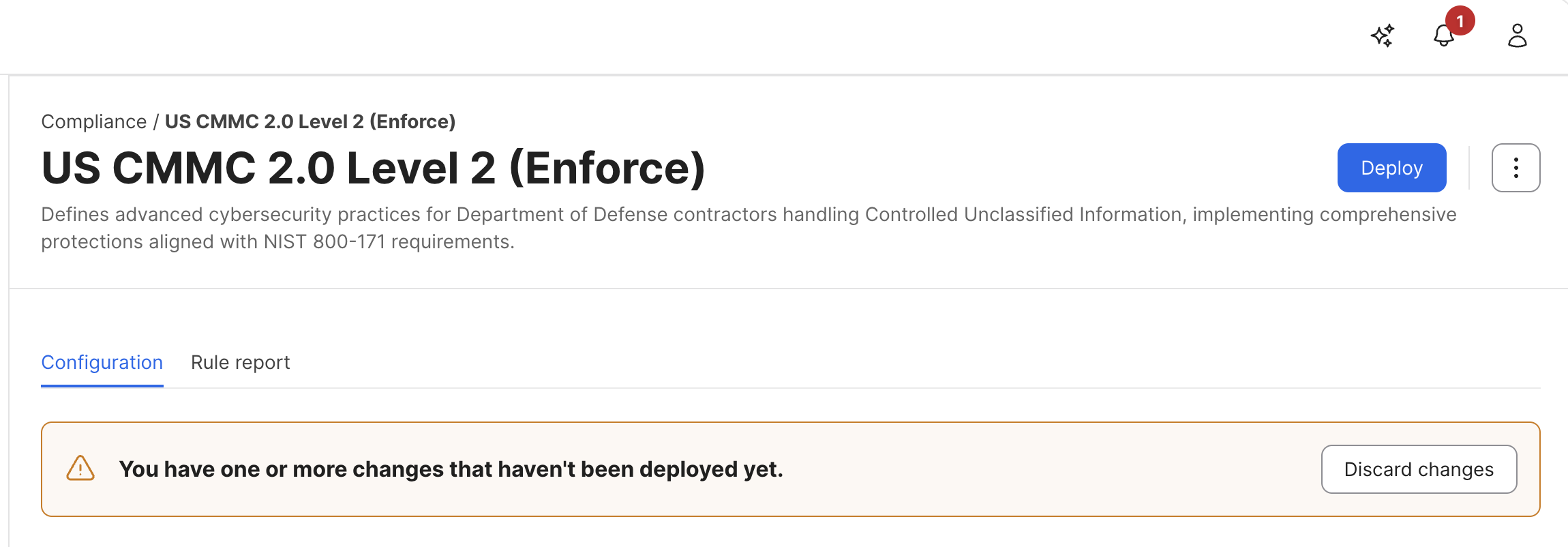
Click Deploy after the active rules, scoped group, and benchmark mode have been reviewed.
For a monitor-only benchmark, deployment updates the reporting baseline. For a monitor-and-enforce benchmark, deployment also updates what Jamf Pro is enforcing for that scoped benchmark.
Why This Workflow Matters After mSCP 2.0
mSCP is useful because it gives Mac admins a programmatic way to generate secure configuration guidance and map those settings back to recognized control frameworks. NIST SP 800-219 describes mSCP as resources that administrators, security professionals, policy authors, information security officers, and auditors can use to secure and assess macOS systems in an automated way. NIST SP 800-219 Rev. 1
The mSCP 2.0 shift makes this update workflow more important. The project documentation now points to one unified branch for Apple OS guidance, container support, modern command-line tooling, and consolidated baselines, guidance, profiles, and scripts. mSCP 2.0 project page
That means you need to know where updated content appears and how to deploy it. The Update available badge is the start of that workflow.
Review the rules. Confirm the scope. Save the draft. Deploy intentionally.
Sources
- macOS Security Compliance Project
- mSCP GitHub repository
- mSCP Tahoe Guidance Revision 1.0 release
- NIST SP 800-219 Rev. 1: Automated Secure Configuration Guidance from the macOS Security Compliance Project
- NIST SP 800-171 Rev. 3: Protecting Controlled Unclassified Information in Nonfederal Systems and Organizations
- Apple Platform Certifications: macOS Security Compliance Project
- Jamf: Establishing Compliance Baselines with Compliance Editor
- Cybersecurity Maturity Model Certification
AI Usage Transparency Report
AI Era · Written during widespread use of AI tools
AI Signal Composition
Score: 0.4 · Moderate AI Influence
Summary
Updating a benchmark in Jamf Pro Compliance involves reviewing the updated rules, confirming the scope, saving the draft, and deploying intentionally. The mSCP 2.0 shift makes this workflow more important due to the unified branch for Apple OS guidance, container support, modern command-line tooling, and consolidated baselines.
Related Posts

When Chromium Mistakes Your VPN for a Local Network
Turning off Jamf Trust fixed the webinar, which normally would have sent me straight to its routing policies. This time the route was fine: Chromium was treating Jamf's ZTNA broker addresses as a local network, and an Edge and Chrome preference corrected it.
Apple Software Updates Need a Blueprint Before the MDM Commands Fade
Apple software update management is moving away from command-first MDM workflows. Jamf Blueprints and Declarative Device Management give Mac admins a better place to express update intent, scope, enforcement, and visibility.

Jamf Moves Platform SSO Into the Enrollment Gate
Jamf's attended Simplified Setup for Platform SSO changes Mac enrollment by making identity registration part of Setup Assistant before the MDM profile is installed.

Check out this new JAMF Script upload tool
Digambar Ghosalkar's Jamf Script Uploader is useful because it moves Jamf Pro script work out of manual browser copy/paste and into a repeatable API-backed workflow.

Two PPPC Tools I Would Add After the Profile Looks Right
A follow-up on two tools worth adding to a PPPC troubleshooting workflow: PPPC_Analyser for inspecting app privacy requirements and QuickJamfDeploy for forcing the Jamf management framework into place during deployment.

Audit Jamf API Roles Before They Become Forgotten Access
A read-only Jamf Pro API role audit script that reports role privilege reach, write-capable access, review priority, and API client inventory without changing Jamf.

Review the Smart Group Before You Scope the Policy
Review your Smart Group before you ever scope a Jamf policy. Validate inventory, understand your signals, test exclusions, and prove the group works before it reaches production.
Build Jamf DDM Update Blueprints for macOS and iOS
How I set up Jamf software update blueprints for macOS and iOS using Declarative Device Management, staged scope, clear enforcement timing, and visible deployment progress.

Review the Package Before You Build the Policy
A Jamf-focused package review workflow for checking installer signing, package contents, scope, validation, and rollback before a policy reaches production Macs.

Jamf Was My Mac Evidence Layer for CMMC
How Jamf Compliance helped support the Mac portion of a CMMC assessment, and why I added a small read-only CSV summary script for auditor-ready failed-result evidence.
