
It’s hard to sum up iOS 13’s benefits succinctly because Apple has made so many improvements (we’ll get to what’s cool about iPadOS 13 later in the article). That means there’s something for just about everyone. Here are some of the changes we think you’ll most appreciate.
Better Text Handling
An area in iOS that has long begged for improvement is text handling. Although the familiar approaches still work, you can finally select text by merely tapping and swiping. Double-taps select recognized bits of text like phone numbers and addresses, and triple and quadruple taps select sentences and paragraphs. You can even move the cursor by dragging it into position.
iOS 13 also gains gestures for the familiar Cut, Copy, and Paste commands, along with Undo and Redo. To copy, pinch inward with three fingers; a second three-fingered inward pinch immediately after changes copy to cut. To paste, pinch outward with three fingers. For undo, swipe left with three fingers, whereas redo involves swiping right with three fingers.
Apple enhanced iOS 13’s QuickType keyboard with a feature long offered by independent keyboards: swipe to type. Called QuickPath, the feature lets you swipe your finger from one letter to the next without picking it up. You can switch between swiping and tapping whenever you want. It works only on the iPhone and the iPad’s new floating keyboard.
Close the iPad Bay Doors, Hal
Apple has implemented its new Voice Control system in iOS 13 as well as macOS 10.15 Catalina, and it’s impressive in both. Once you turn it on in Settings > Accessibility > Voice Control, you can use voice commands to switch apps, tap visible controls, and more. Plus, it lets you dictate text without invoking Siri.
The dictation now lets you delete text, replace text, and capitalize words, making it possible to edit what you’ve written without touching the keyboard. Voice Control may sound like it’s aimed at people who have trouble physically using iOS’s Multi-Touch interface, but it could be useful to anyone.
Files from Everywhere
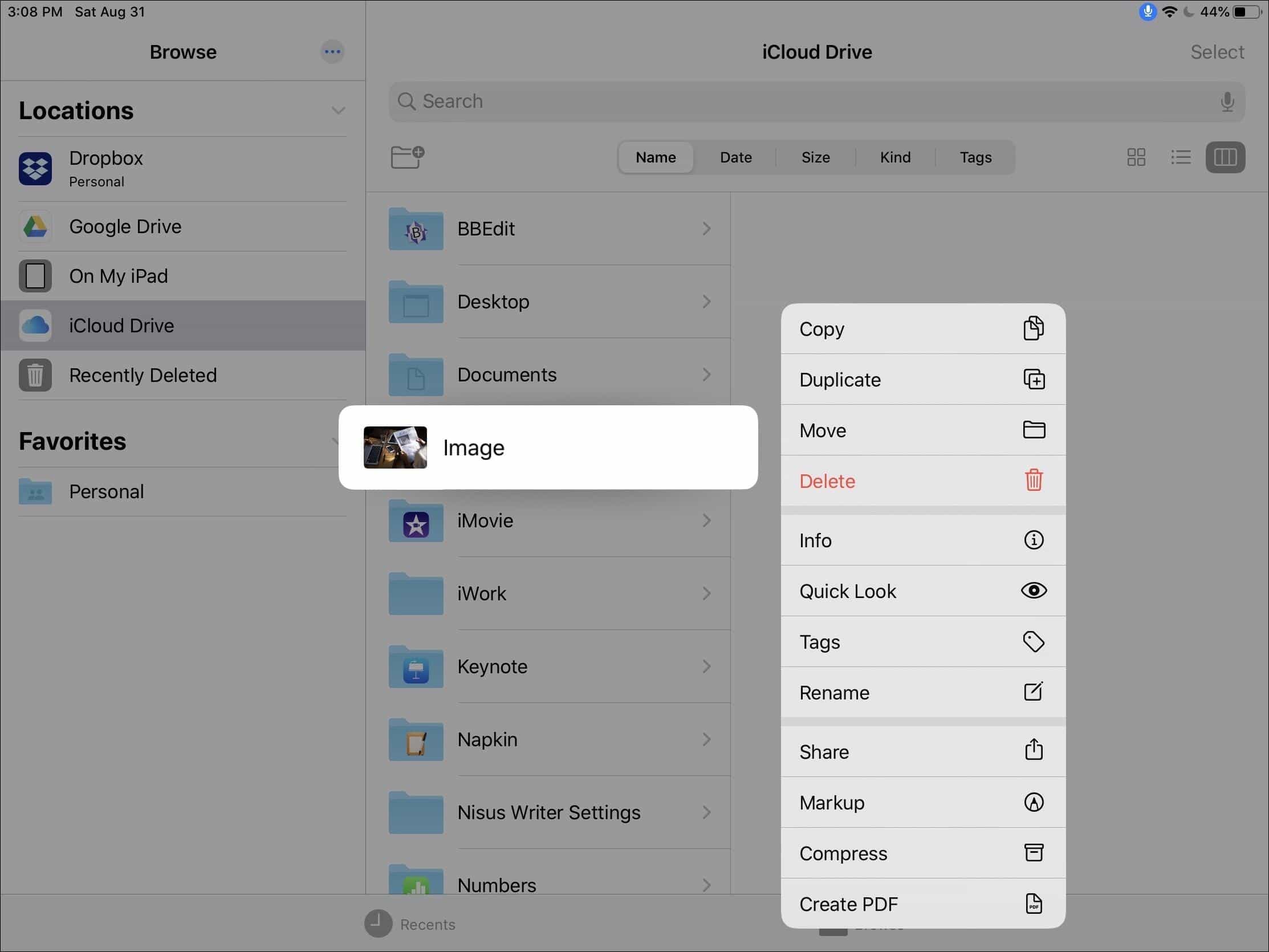
Those who use an iPad for serious work will love the updated Files app, which brings much of the power of the Mac’s Finder to iOS. Most notably, if you have Apple’s Lightning to USB3 Adapter, Files offers support for USB flash drives, SD cards, and hard drives. Plus, Files can also now connect to SMB-based file servers on your local network.
You can create folders on the iOS device’s local drive and store files there, viewing them in grid, list, and column views and sorting by name, date, size, kind, and tags. Files also now lets you zip and unzip files. Oddly, Files also includes a document scanner that can create standalone files of scanned pages.
Dark Mode Migrates from Mojave
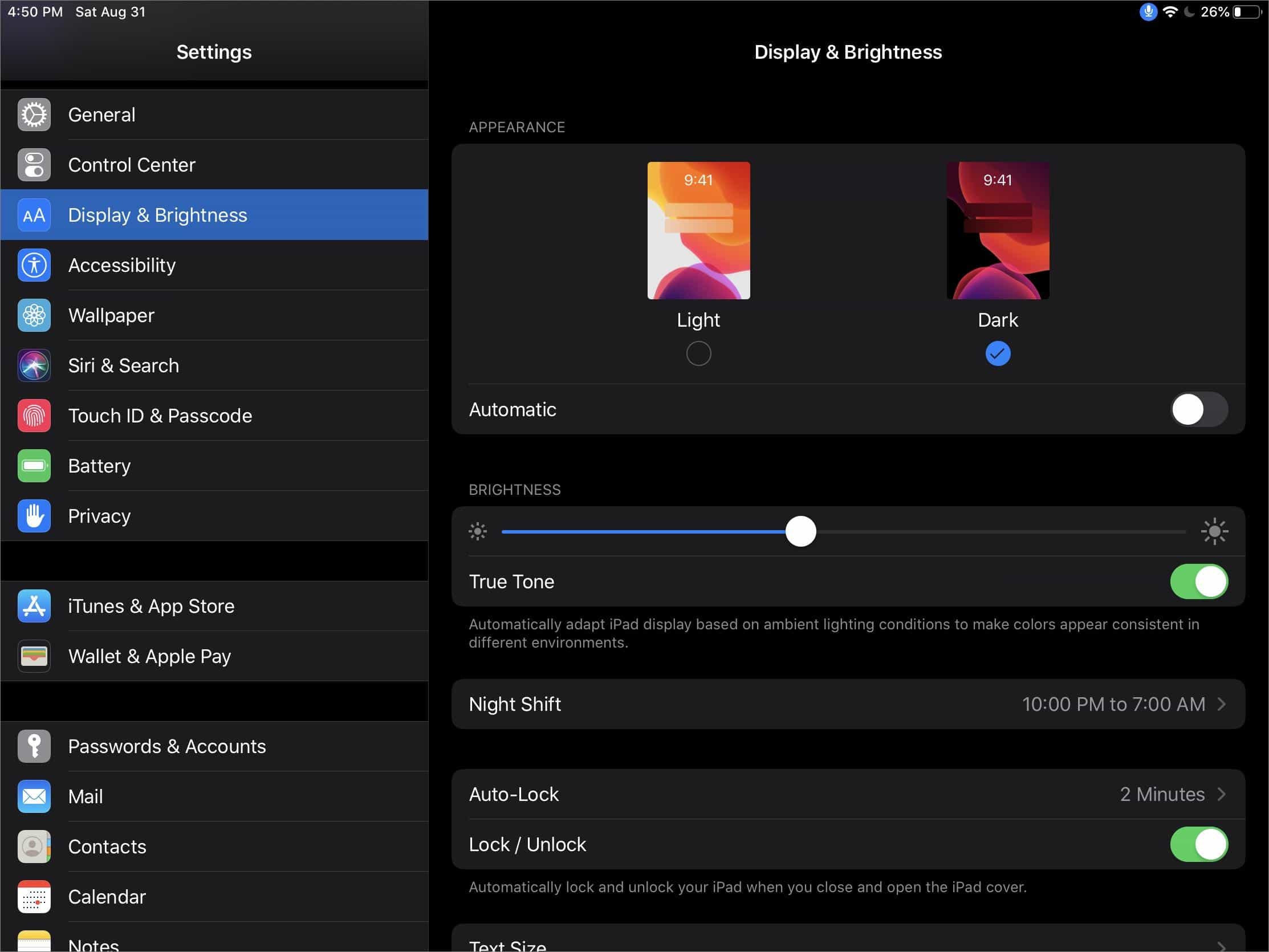
If you’re a fan of Dark mode in macOS 10.14 Mojave, you’ll be pleased to know that you can now switch to it in iOS too, or have it kick in only at night. Dark mode might even save some battery power on iPhones with OLED-based screens like the iPhone X, XS, and XS Max.
Photos Bulks Up
Apple added numerous features to Photos, refactoring its interface to match the update in Catalina. It now provides an AI-curated selection of photos displayed by Years, Months, and Days—complete with event titles—plus an All Photos grid that shows everything. Live Photos and videos play automatically (without sound) as you scroll.
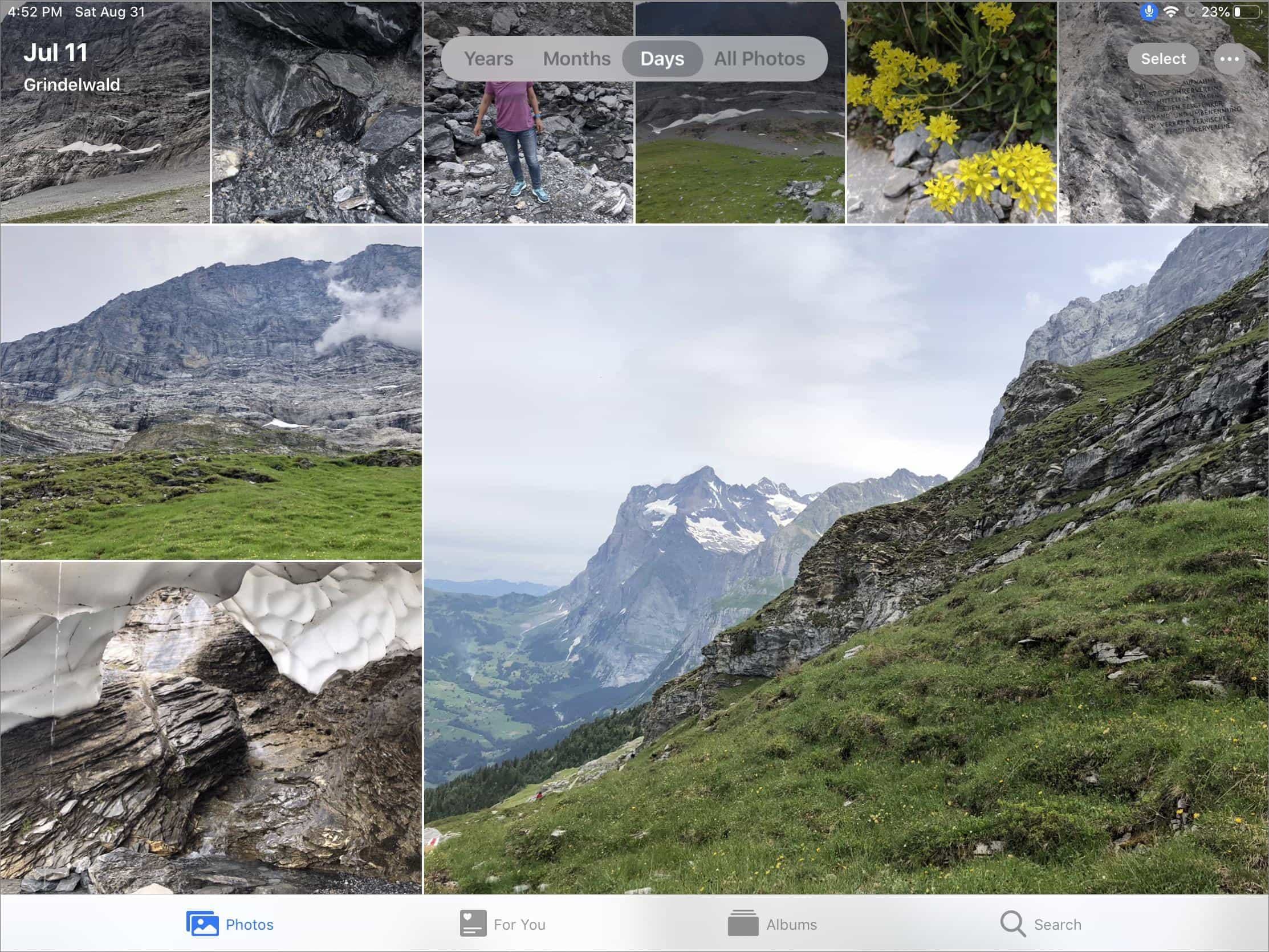
Editing has improved significantly, with Photos now offering tools to boost muted colors, sharpen edges, reduce noise, adjust color temperature, increase image clarity, and add vignettes. You can control the intensity of any filter, or of the automatic Enhance adjustments. Plus, nearly all the editing you can apply to a photo, you can use to edit a video, and video edits are now non-destructive.
Apple beefed up the Camera app for recent iPhones, so you can adjust the position and intensity of the studio lighting in Portrait Lighting, and it also gains a new High-Key Mono effect.
Health Adds Cycle Tracking and Fertility
On the iPhone, the Health app at long last gains features related to cycle tracking and fertility. Using data entered or imported from a third-party app, Health can now predict the start and end of a woman’s next three cycles and provide a notification when her period is approaching. Similarly, it can predict fertility windows and pop up an alert when one is approaching. Cycle Tracking, a companion Apple Watch app, will make it easier to log menstruation and symptoms.
iOS 13’s Health app also now tracks headphone audio levels and alerts you if they reach dangerous levels. Another new Apple Watch app—Noise—listens to the ambient sound levels around you and warns you if they’re getting too loud.
Other iOS 13 Features
Those may be the big changes, but we can’t resist sharing some more subtle ones too:
-
Siri’s voice is now generated entirely in software, making it sound more natural, especially while speaking longer phrases.
-
The HomePod can finally recognize different voices, giving everyone in your family personalized experiences.
-
You can set the Phone app to accept only calls from numbers in Contacts, Mail, and Messages, sending all others—and robocalls!—to voicemail.
-
A Low Data Mode helps reduce data usage over the cellular network or specific Wi-Fi networks.
-
You can now pair two sets of AirPods to a single iPhone if you and a friend want to listen to the same movie or music.
-
A new machine-learning option can slow the rate of battery aging by reducing the amount of time your iPhone spends fully charged.
-
Do Not Disturb While Driving will no longer turn on when you’re using public transit.
iPadOS 13
Most features of iOS 13 apply to the iPad as well, apart from those that are iPhone-specific, like the Health app. But iPadOS 13 is a superset of iOS 13, so it adds features to the iPad.
It starts with a tighter icon grid on the Home screen to fit more icons, and in landscape orientation, the Home screen can show Today View widgets on the side.
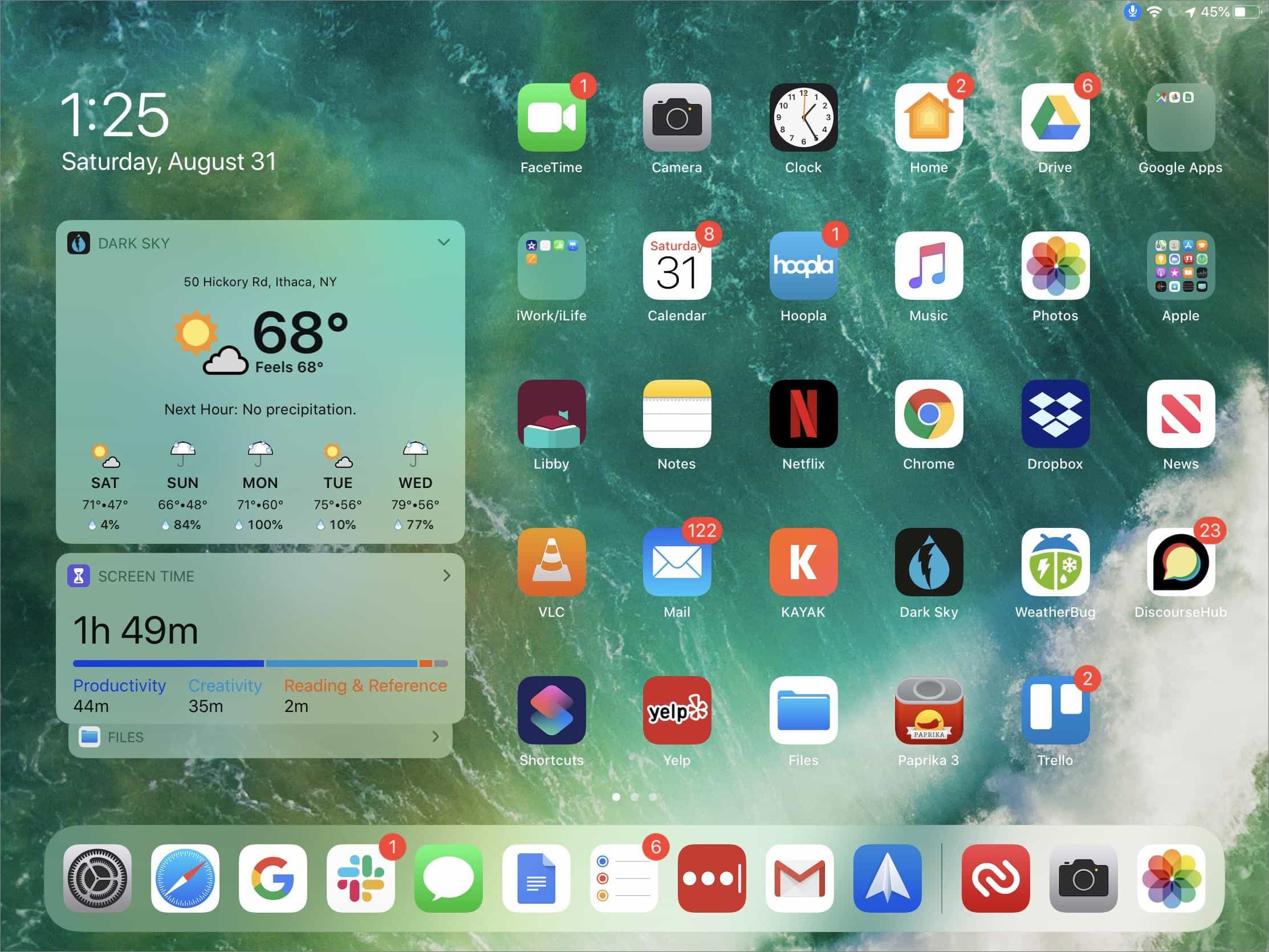
Apple improved the iPad’s multitasking capabilities in iPadOS 13 too. You can have multiple apps in Slide Over—just swipe up to see all of them or swipe along the bottom to switch between them. The big win in Split View in iPadOS 13 is the capability to have multiple windows from the same app open simultaneously, and it’s also now possible to have a window from the same app open in multiple spaces. The updated App Switcher now shows all spaces (Split View combinations) too.
Safari has grown up in iPadOS 13, becoming a desktop-class browser. That means it works better with complex Web apps like Google Docs, Squarespace, and WordPress. It also offers per-site settings, the option to save a set of tabs as bookmarks, a download manager, weak password warnings, and 30 new keyboard shortcuts.
iPadOS 13 works with the new Sidecar feature in Catalina to let you use an iPad as a Mac’s second screen or graphics tablet (with an Apple Pencil). You can use it either to extend your Desktop or to mirror a Mac’s screen, and it works either wired or wireless.
Speaking of the Apple Pencil, Apple has made it more responsive, redesigned the tool palette, and provided a pixel eraser tool. You can also now use an Apple Pencil to take screenshots, and even capture and mark up an entire document, email, or Web page.
Phew! There’s a lot to like in iOS 13 and iPadOS 13, but there’s also a lot to learn, so make sure you find some time to incorporate the new features into your usage.
AI Usage Transparency Report
Pre-AI Era · Written before widespread use of generative AI tools
AI Signal Composition
Score: 0.06 · Low AI Influence
Summary
iOS 13 and iPadOS 13 bring numerous improvements to Apple devices, including better text handling, enhanced Photos app, Dark mode, and more.
Related Posts
Check Encrypted HFS+ Drives Before macOS 28
Apple says macOS 28 will not support encrypted Mac OS Extended volumes, so older encrypted HFS+ external drives need to be identified, backed up, decrypted, converted, or reformatted before that upgrade.
How I Keep Up With ISC2 CPE Credits Without Making It a Second Job
Keeping up with ISC2 CPE credits is easier when you treat it like a normal professional habit instead of a renewal emergency. Here is the system I use across CISSP, CCSP, SSCP, and CSSLP, with free and low-friction sources for webinars, books, training, and work-based credits.
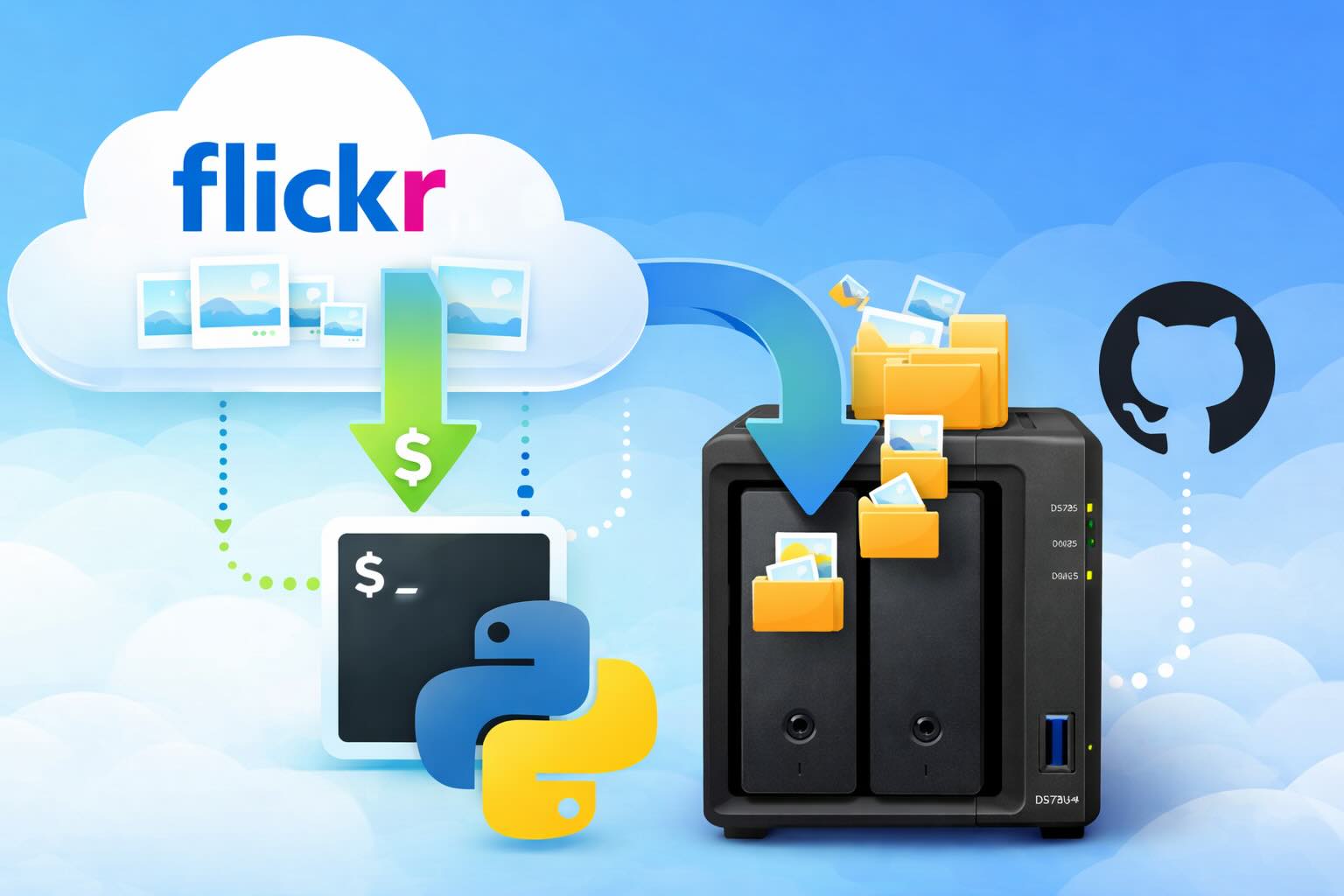
Leaving Flickr: Migrating 20,000+ Photos to Synology and Taking Back Control
There’s a certain kind of friction you start to notice when you’ve been using a service for a long time. Not enough to make you leave immediately, but enough to make you pause. Flickr had been that kind of service for me. It quietly held years of photos, uploads from old phones, albums I hadn’t looked at in ages, and a massive "Auto Upload" collection that had grown into something I didn’t fully understand anymore.

How I Finally Passed the PMP Exam (After 12 Years of Waiting)
Back in 2013, I registered for a PMI membership with every intention of pursuing my PMP certification. I downloaded the handbook, bookmarked the eligibility requirements, and even told a few friends that I was going to do it "soon." At the time, I thought getting certified would be a straightforward process, but little did I know what lay ahead in terms of studying and preparation.
10 Things You Didn't Know You Could Do With Apple Configurator (That Save Mac Admins Hours)
Most of us treat Apple Configurator like a fire extinguisher: break glass, DFU, restore, move on. But it can do a lot more, and when you know the edges, you can turn a bricked morning into a ship-it afternoon. Below are ten things I regularly use (or wish I’d used sooner) that demonstrate its capabilities beyond just emergency recovery.
The Evolution of Apple Certification: A Journey Through Versions, Challenges & Growth
When I recently passed the Apple Certified Support Professional (ACSP) exam again, I paused to reflect — not just on this milestone, but on the long path I’ve walked through Apple’s certification landscape. My first certification dates back to macOS 10.5, and over the years, I’ve earned credentials across nearly every version since. In that time, the exams — and Apple itself — have transformed significantly.
Secure Software, Secure Career: How I Passed the CSSLP
After passing the CISSP earlier this year, I decided to follow it up with the **Certified Secure Software Lifecycle Professional (CSSLP)** certification. For those unfamiliar, CSSLP is an ISC2 certification that focuses specifically on secure software development practices across the full SDLC—from requirements and design to coding, testing, deployment, and maintenance. My goal in pursuing this certification was to further develop my skills in ensuring the security of software throughout its entire lifecycle.
Managing Bring Your Own Device (BYOD) for Android with Microsoft Intune
Alright, so today we're going to be talking about the management of bring your own device BYOD for Android devices. There's a lot of information out there for the management of iOS devices and you can do that with pretty much any Apple MDM on the market. We just happen to use Jamf where I work, but you could use anything from Braavos to SimpleMDM to Kanji or JumpCloud. Mosyle is also a great option.

BYO with me in 2025: iOS with User Enrollment in JAMF Pro
It really depends on your company's needs. For example, many companies need to hire 1099 contractors and in such a case they come with their own devices but not the correct security settings or enforcements. Remember BYOD is a security construct. The idea here is that you should be securing the company's sensitive data in all forms. This may involve implementing policies for contractor-owned devices, ensuring that all devices accessing company data meet minimum security standards, and regularly reviewing and updating these standards to stay ahead of emerging threats.
Securing BYOD Email Access: Exploring Strategies in Microsoft 365
In today’s mobile-first world, organizations increasingly rely on Bring Your Own Device (BYOD) programs to empower employees while optimizing costs. However, this flexibility introduces unique challenges, particularly around securing email access. To mitigate risks, we are implementing a comprehensive strategy to block email access on non-company devices by default and ensure only sanctioned apps can access organizational email accounts. This approach will help prevent unauthorized access and data breaches, aligning with our commitment to maintaining the security and integrity of company communications.
