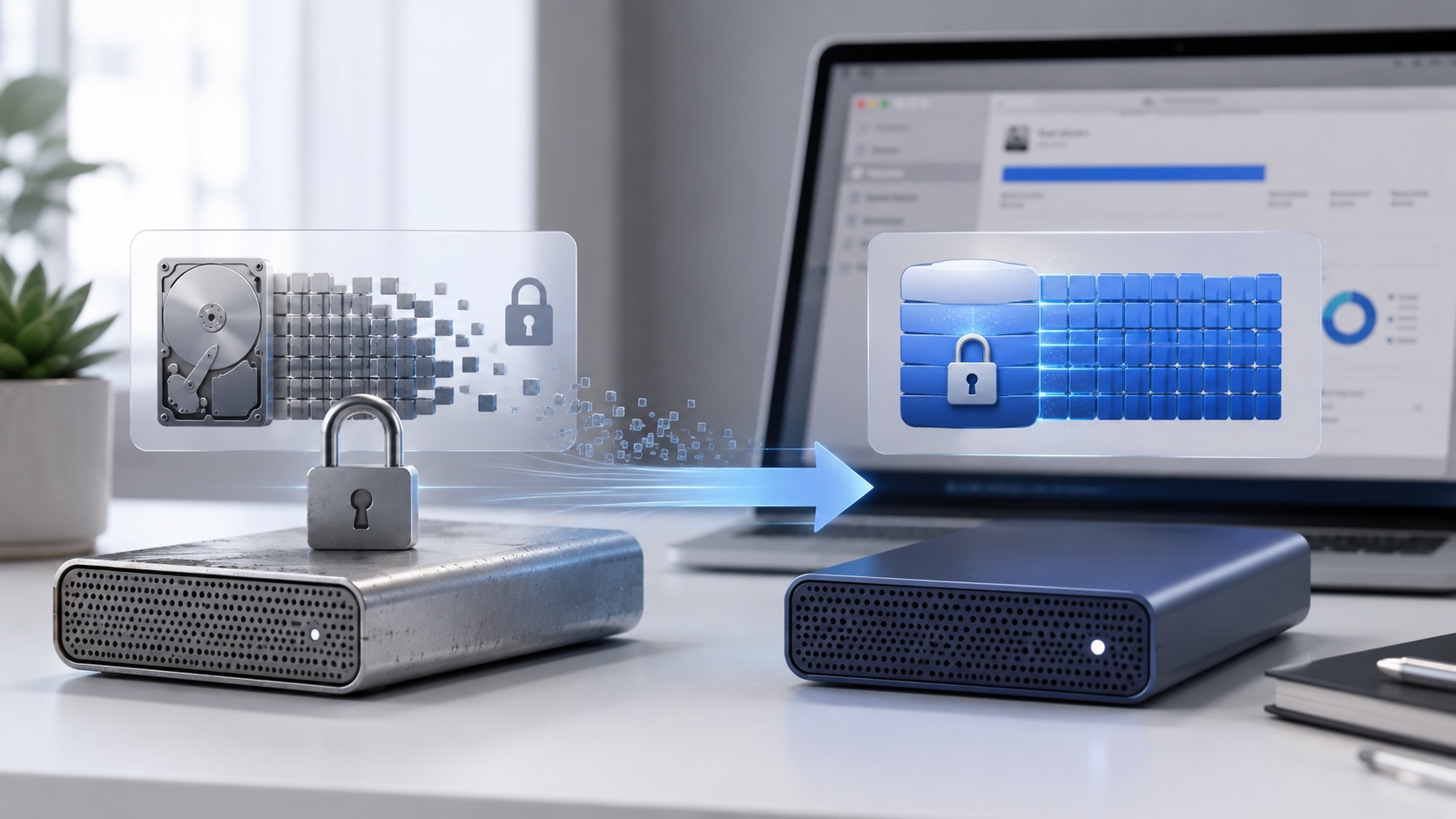

Apple published a quiet support note that is going to matter to anyone with old encrypted Mac drives in a drawer.
Apple says macOS 28 and later will support Mac OS Extended only for volumes that are not encrypted. In plain terms, unencrypted HFS+ volumes keep working. Encrypted HFS+ volumes are the problem. If a drive shows both “Mac OS Extended” and “Encrypted,” Apple says it will not be compatible with macOS 28 or later.
That is a narrow change, but it is exactly the kind of narrow change that can turn into a bad day. The affected drive may not be the one you use every day. It may be an archive drive, a client handoff drive, an old Time Machine disk, a drawer backup, a lab disk, or a spinning external drive that only comes out when something else has already gone wrong.
The time to check those disks is before macOS 28 ships, not after a Mac refuses to mount the only copy of something important.
What is actually changing
Apple is not dropping every HFS+ disk in macOS 28. The support document is more specific than that.
Mac OS Extended, also known as HFS Plus or HFS+, will still be supported when the volume is not encrypted. The unsupported case is encrypted Mac OS Extended. Apple gives an example format string that should make the risk easy to spot:
CoreStorage Logical Volume - Mac OS Extended (Case-sensitive, Journaled, Encrypted)
Starting with macOS 26, Apple says the Mac may warn users when it detects an encrypted Mac OS Extended disk that will not be compatible with macOS 28 or later. That warning helps, but I would not rely on it as the inventory plan. A warning only helps when the drive is connected, unlocked, and noticed by the person who can make the migration decision.
MacRumors and Macworld both framed this as another nudge away from old encrypted HFS+ storage and toward APFS. That is the right practical reading. APFS has been the default Mac file system since macOS High Sierra, and Apple’s Disk Utility documentation describes APFS as the default format for macOS 10.13 or later with strong encryption, snapshots, space sharing, and improved file-system fundamentals.
Why this catches people
The risky drives are not always obvious.
When APFS arrived, a lot of people still had older external hard drives formatted as Mac OS Extended. That was normal. HFS+ had years of compatibility behind it, and for traditional hard drives it remained a familiar choice. If someone added encryption years ago, especially before APFS became the normal answer, they may still have encrypted HFS+ volumes in service.
Those volumes may be healthy today. They may mount perfectly on macOS 26 or macOS 27. That does not make them future-proof.
The problem is not that the data is bad. The problem is that the encryption layer around that HFS+ volume is becoming the incompatible part. If the disk is an archive, the owner may discover the issue only when they need the archive. That is the worst time to start deciding whether the data exists somewhere else.
How to check a drive
Apple’s check path is simple and worth doing manually.
- Connect the drive.
- Unlock it if macOS asks for the encryption password.
- Open
Disk Utility. - From
View, chooseShow Only Volumes. - Select the volume name in the sidebar.
- Look directly under the volume name for the format details.
If the details include both Mac OS Extended and Encrypted, the volume is affected.
I would also capture a command-line inventory for any drive I care about:
diskutil list
diskutil info /Volumes/VolumeName
diskutil cs list
diskutil info is useful because it gives a fuller picture of the volume, file system personality, encryption state, and device relationship. diskutil cs list matters for older Core Storage-backed encrypted HFS+ volumes, and Apple specifically mentions it as a way to check decryption progress.
For a small business or managed Mac environment, I would turn this into a storage review task:
- Find external drives used for backup, archive, field work, or client data.
- Identify which are APFS, APFS Encrypted, HFS+, or encrypted HFS+.
- Confirm whether the data exists in more than one place.
- Decide whether the drive should be migrated, retired, or left unencrypted for compatibility.
- Label the drive after migration so the next person does not have to rediscover the format.
The three paths to take
Apple now gives three paths: convert directly to encrypted APFS, decrypt and keep using Mac OS Extended without encryption, or erase and reformat the volume.
Path 1: Convert directly to encrypted APFS
This is the least disruptive path for a healthy encrypted HFS+ drive that I want to keep using as encrypted Mac-only storage. I would first make and verify a separate backup. Then I would open Disk Utility, choose View > Show Only Volumes, select the encrypted Mac OS Extended volume, and choose Edit > Convert to APFS. After confirming the conversion and letting it finish, I would disconnect and reconnect the drive, unlock it, and confirm that Disk Utility reports it as encrypted APFS before relying on it again.
This path preserves the data without requiring an erase, but it is still a file-system conversion. A backup matters because a non-destructive operation is not the same thing as a risk-free operation. Apple’s note also says this path does not apply to encrypted Time Machine backup disks.
Path 2: Decrypt and remain on Mac OS Extended
This is the compatibility path when I need to preserve the existing HFS+ volume but no longer need that volume to be encrypted. I would make and verify a separate backup, connect and unlock the drive, then Control-click it in Finder or on the desktop and choose Decrypt. I would enter the password again and leave the drive connected until decryption completes. For an older Core Storage volume, I could monitor progress with:
diskutil cs list
When it finishes, I would confirm in Disk Utility that the volume still reports Mac OS Extended but no longer reports Encrypted. That unencrypted HFS+ volume will remain supported in macOS 28, but the data will no longer have encryption protection. This path also does not apply to encrypted Time Machine backup disks.
Path 3: Erase and reformat as APFS
This is the cleanest path when the archive already has a verified backup, when I want a fresh file system, or when I am replacing an aging drive. I would copy the data to separate storage, verify that copy, erase the destination drive in Disk Utility, and format it as APFS or APFS (Encrypted). For long-term Mac-only storage containing sensitive data, I would choose APFS (Encrypted), set a recoverable password, and copy the archive back only after the new volume mounts and unlocks correctly.
Erasing permanently deletes the existing volume, so this is the path where backup verification is non-negotiable. If the affected disk is an encrypted Time Machine backup, I would normally use this path to start a new backup on APFS-formatted storage rather than attempt to carry the old backup set forward. I would keep the old disk offline only until its retention value is no longer needed and the new backup has been tested.
If the drive needs to move between Mac and Windows systems, APFS may not be the right interoperability choice. That requirement needs its own format and encryption decision, but encrypted HFS+ is still not a future-compatible answer for macOS 28.
How I would migrate an archive drive
No matter which path I choose, I would start by proving the archive exists somewhere else:
rsync -avh --progress /Volumes/OldArchive/ /Volumes/NewArchiveBackup/
Then I would sample the backup:
find /Volumes/OldArchive -type f | wc -l
find /Volumes/NewArchiveBackup -type f | wc -l
du -sh /Volumes/OldArchive /Volumes/NewArchiveBackup
Those checks are not a forensic verification, but they catch obvious mistakes before touching the original volume. For higher-value archives, I would use checksums or a backup tool with verification.
After that, I would choose the path based on what I need from the drive.
If I chose Path 1: Direct conversion
I would use this for healthy hardware when I want to preserve the existing archive and its encryption with the least disruption. With the backup disconnected and safe, I would convert the original volume through Edit > Convert to APFS in Disk Utility. When it finishes, I would reconnect the drive, unlock it, confirm that it reports APFS and encrypted, open files from several parts of the archive, and rerun the file-count and size checks before considering the migration complete.
If I chose Path 2: Decryption
I would use this only when keeping the drive as HFS+ is useful and storing the archive without encryption is acceptable. I would decrypt it through Finder, wait for diskutil cs list to show that the Core Storage operation has completed, and verify that Disk Utility reports Mac OS Extended without encryption. Then I would reconnect the drive and sample the archive again. I would also label the drive clearly as unencrypted so its protection is not misunderstood later.
If I chose Path 3: Erase or replace
I would use this when the existing drive is old, slow, noisy, or carrying years of file-system history I no longer want. If the hardware is still trustworthy, I would erase it and format it as APFS (Encrypted). If the hardware itself is questionable, I would format a new drive as APFS (Encrypted), copy the verified backup onto it, test the restored archive, and retire the old disk. This is also the path I would take for an encrypted Time Machine disk by starting a new backup rather than converting the existing backup volume.
The key is to make the drive boring before macOS 28. A boring archive drive mounts, decrypts, and reads on a current Mac without needing an old OS workaround.
What not to assume
Do not assume every encrypted external drive is affected. APFS (Encrypted) is not the same as encrypted Mac OS Extended.
Do not assume every HFS+ drive is affected. Apple says unencrypted Mac OS Extended volumes continue to be supported.
Do not assume the notification will find every drive that matters. A drive in a drawer cannot warn you.
Do not assume an archive is safe because it mounted once last year. Mount it now, check the format, and decide what it should become.
The practical takeaway
This is not a panic story. It is a cleanup story with a deadline.
Apple is telling us that encrypted HFS+ is on the way out in macOS 28. The affected storage is specific: Mac OS Extended plus encryption. The fix is also specific: back up, then convert directly to encrypted APFS, decrypt and remain on unencrypted HFS+, or erase and reformat, with APFS (Encrypted) being the better long-term Mac-native format for encrypted external storage.
The right move is to check old drives now. Plug them in, identify the format, make a backup, and migrate anything that still matters. The worst time to learn about this change is when the only Mac available is already running macOS 28 and the old encrypted archive no longer mounts.
Sources
- Apple Support: About support for encrypted Mac OS Extended disks in macOS 28 or later
- Apple Support: File system formats available in Disk Utility on Mac
- Apple Developer: About Apple File System
- Apple Developer: File System Details
- MacRumors: Apple to drop support for encrypted Mac OS Extended drives next year
- Macworld: Apple to end support for encrypted Mac OS Extended drives
- OWC: macOS 28 will end support for encrypted HFS+ drives
AI Usage Transparency Report
AI Era · Written during widespread use of AI tools
AI Signal Composition
Score: 0.31 · Moderate AI Influence
Summary
Apple will drop support for encrypted Mac OS Extended volumes in macOS 28, but unencrypted HFS+ volumes will still be supported.
Related Posts
Clamshell iBook G3 Restoration, Part 1: From Broken Screen to Board-Level Repair
Part one of a Clamshell iBook G3 restoration: a broken screen, a charger detour, a blinking system folder, a full teardown, and the backlight connector mistake that paused the project.

PowerBook 140 BlueSCSI Install: Cable Fixed, Battery-Bay Power, and Wi-Fi Setup
The PowerBook 140 project moved from preparing a BlueSCSI card in Basilisk II to installing the repaired internal SCSI cable, powering the BlueSCSI Pico externally from the battery bay, booting System 7.1, and fighting through DaynaPORT Wi-Fi setup.
Fixing a Broken Apple Cinema Display Stand with a 3D Printed Leg
A 22-inch Apple Cinema Display arrived with a broken acrylic easel stand, so I used a 3D printed replacement leg instead of sending the monitor back.
macOS Tahoe 26.6.1 Fixes a High-Severity Screen Sharing Authentication Bypass
macOS Tahoe 26.6.1 fixes CVE-2026-65400, a high-severity Screen Sharing authentication issue where an attacker on the network may be able to authenticate without valid credentials.
ClaudeChat Makes Snow Leopard Feel Useful Again
ClaudeChat-Snow-Leopard is interesting because it brings a modern Claude API workflow back to Mac OS X 10.6.8 with Objective-C, Cocoa, Keychain storage, screenshot uploads, and a native installer built for an older white MacBook.

LibrePods Turns AirPods Into an Interoperability Question
LibrePods is interesting because it turns AirPods into an interoperability question: what happens when open-source software implements Apple's private AirPods protocol so Android and Linux users can reach features normally reserved for Apple's ecosystem?
AppleCare One Just Became a Better AppleCare Deal
AppleCare One looks more valuable after AppleCare+ price increases for Macs and iPads, especially for people with several Apple devices and older eligible hardware.
Why Apple's iPhone Financing Lock Change Matters for Business Buyers
Apple's U.S. carrier financing change makes locked versus unlocked iPhones an operational buying decision for small businesses, BYOD users, and Apple fleet planners.
Preparing a BlueSCSI Card for My PowerBook 145 with Basilisk II
A step-by-step walkthrough for preparing a BlueSCSI v2 PowerBook card image with Basilisk II: download the pieces, configure the emulator, boot a working classic Mac image, mount the target System 7.1 image, stage tools, and shut down cleanly before moving the image to the card.
How a Floppy Disk Turned My PowerBook 145 Around
A replacement adapter finally brought my PowerBook 145 back to life, but the storage bay had a stranger problem than I first thought: the drive inside was an IDE drive, not the SCSI storage this machine needs. The surprise was that 6 MB of RAM made a System 7.1 RAM Disk boot possible while I wait on a replacement cable and BlueSCSI.