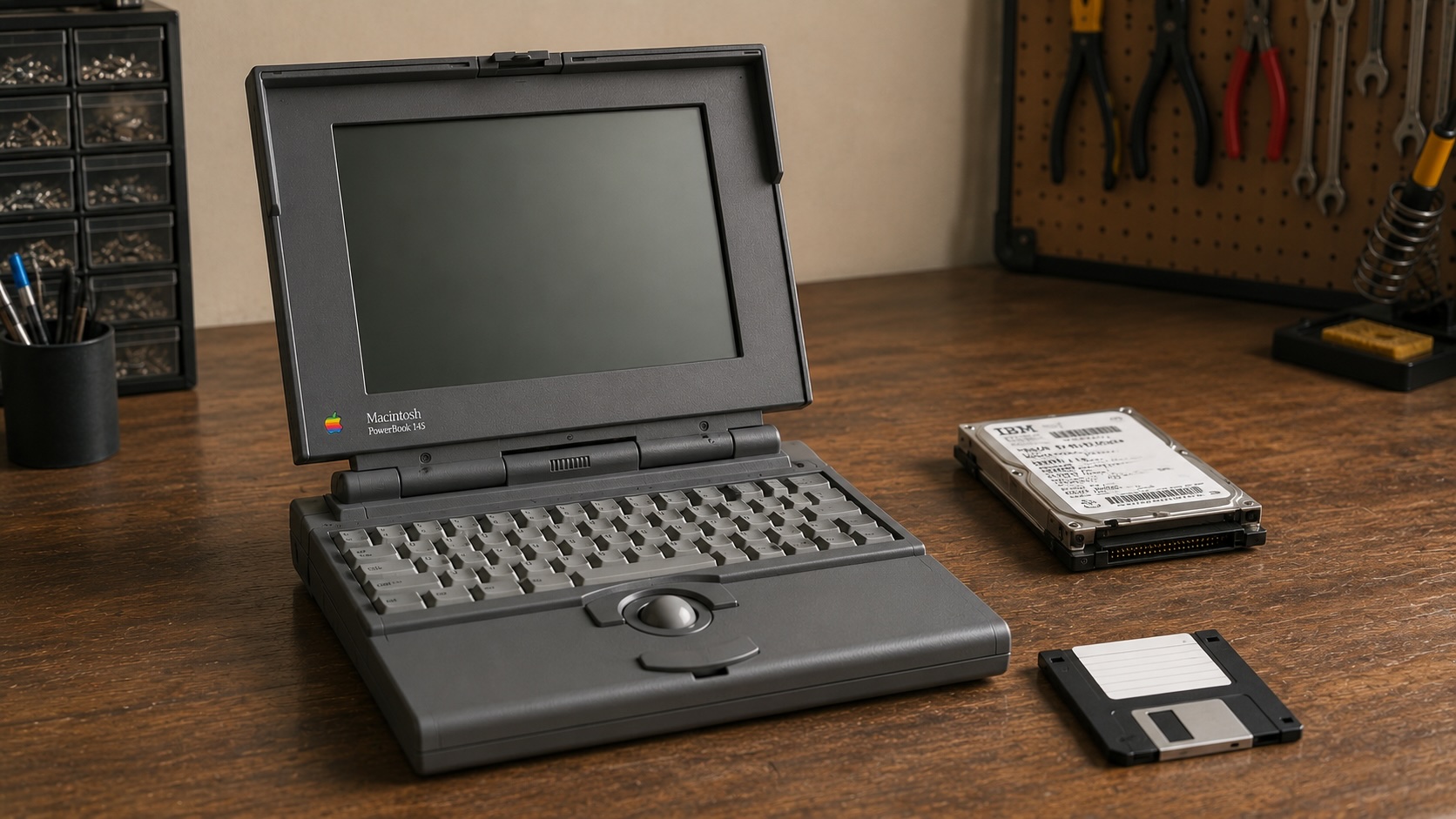

The PowerBook 145 was supposed to be a simple first-power-on gamble. It was clean enough to be tempting, cheap enough to take a chance on, and old enough that I knew better than to assume anything about it.
The first round did not go well. The machine looked promising inside, but it would not chime. I found a torn hard-drive ribbon cable, confirmed that the PRAM battery area was not a disaster, and still had no working computer. At that point I had a clean PowerBook with a real storage mystery and no proof that the logic board was alive.
The replacement adapter changed that.
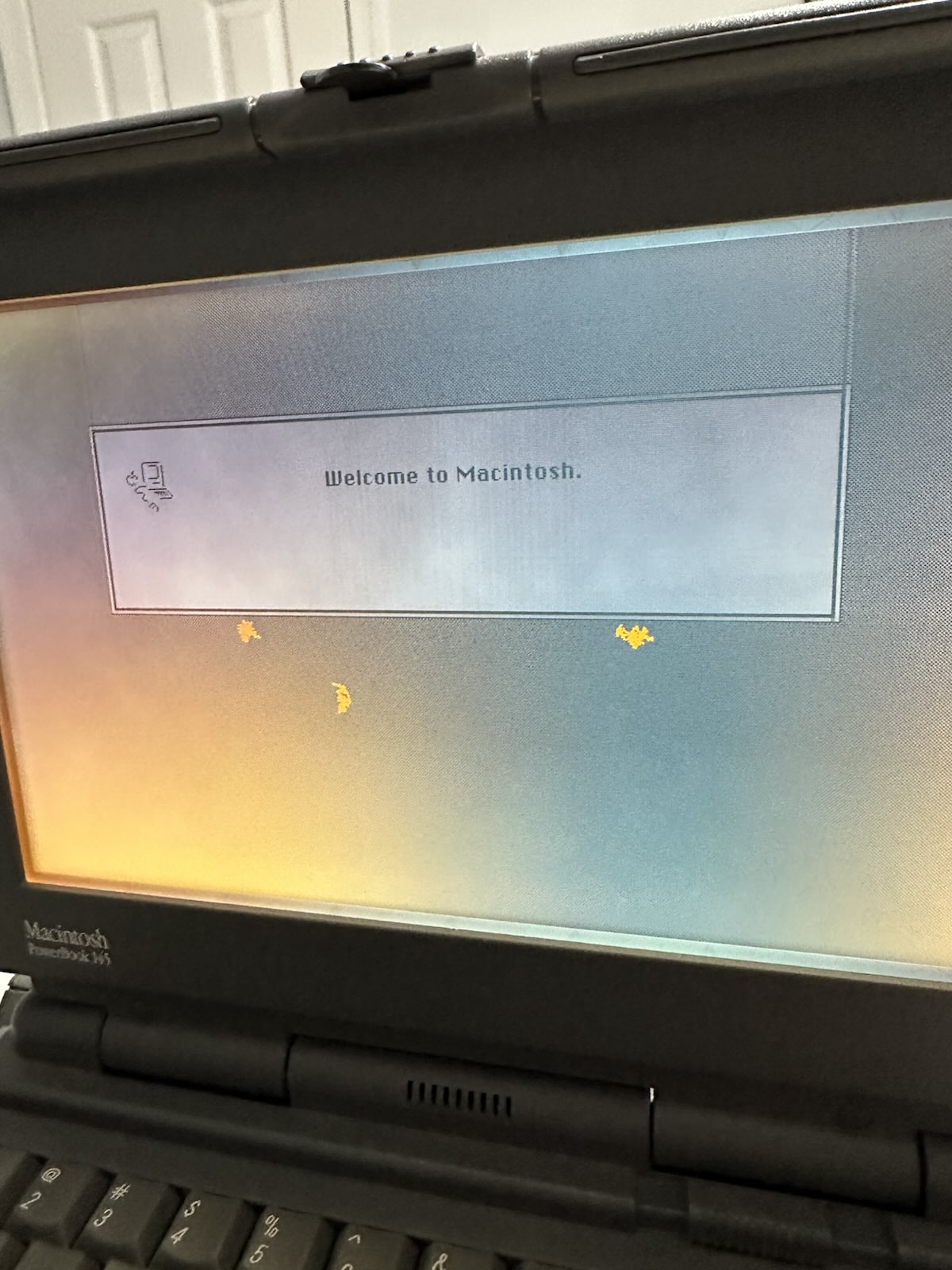
With the Amazon replacement adapter connected, the PowerBook finally woke up. The screen came on. The startup process moved forward. The keyboard and trackball were usable. The floppy drive became part of the investigation instead of a question I could not reach yet.
That did not mean the machine was restored. It meant the PowerBook was alive enough to start giving me better failures.
The Screen Was Rough, But Usable
The display was the first thing I noticed after the relief of seeing it boot. It has clouding, obvious artifacts, and areas that look like age rather than a simple contrast adjustment. It is not a clean screen.
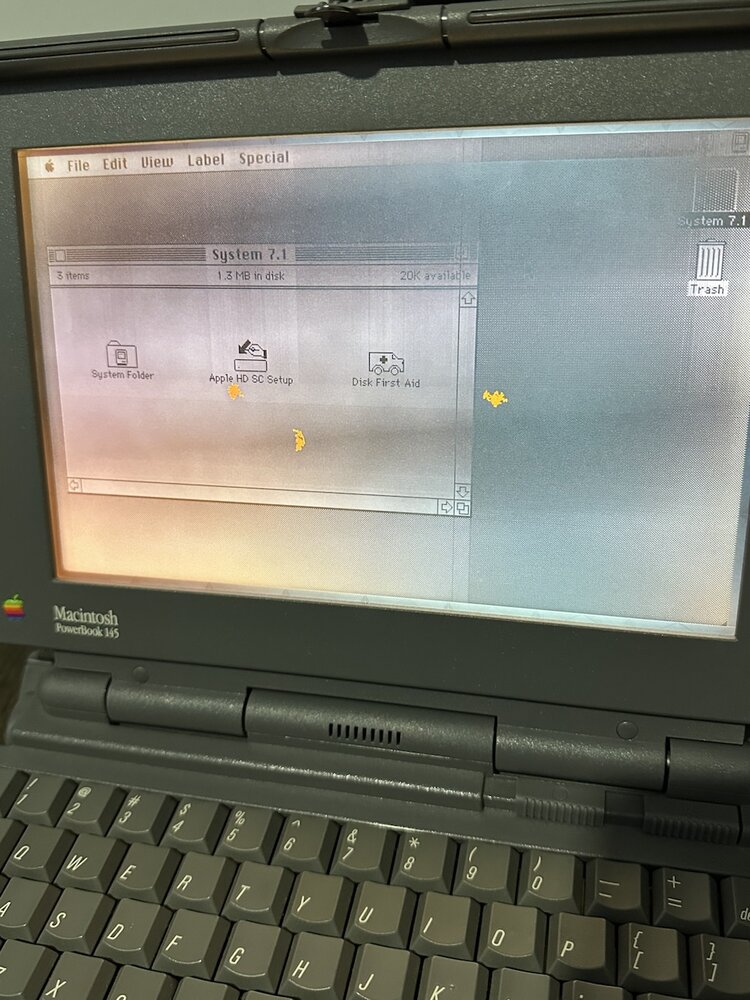
It was still good enough to work with. I could read dialogs, move around the Finder, open control panels, and keep testing. That distinction matters in a restoration. A part can be damaged and still be useful enough to move the project forward.
The dead pixels look like impact damage to me, but the cloudy uneven look feels like something else, possibly the kind of capacitor or board-cleaning problem I have not learned how to tackle yet. I would love to get this screen clearer. Soldering and board cleaning are still outside my comfort zone, so if anyone knows a good recapping service or has practical advice for this display family, I am listening.
The Hard Drive Was Not What I Thought It Was
Earlier, I treated the drive in the bay as if it belonged to the PowerBook’s SCSI storage path and assumed the torn cable was the main blocker. After pulling the drive and looking at it properly, that was wrong.
The drive inside was an Apple-labeled IBM 750 MB 2.5-inch AT drive. In other words, IDE. Not SCSI.
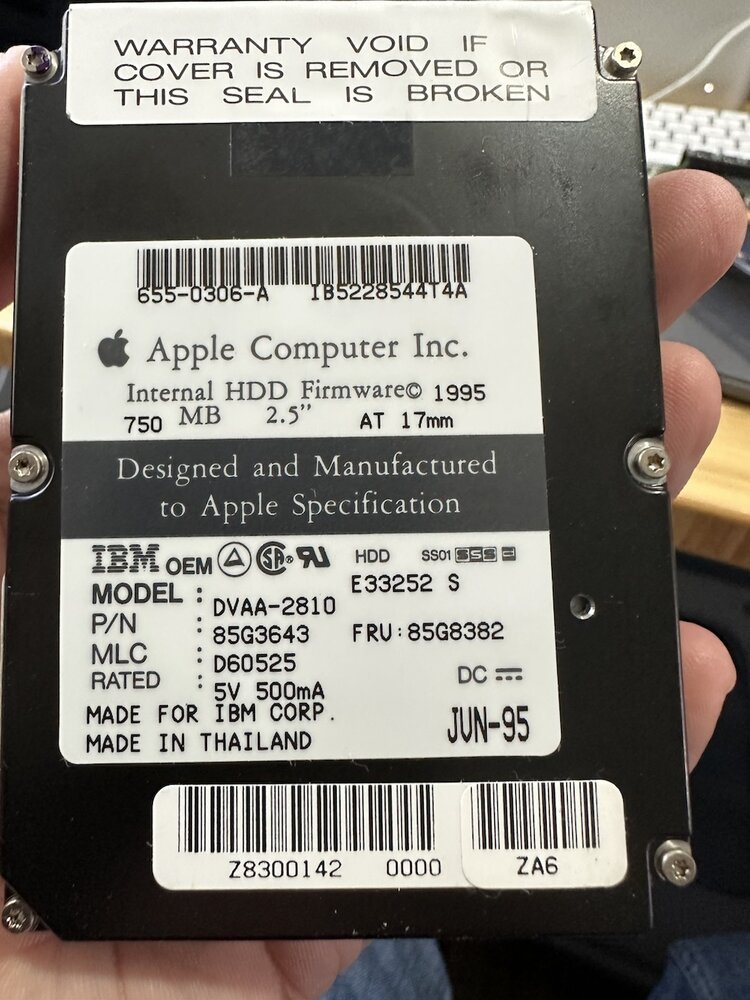
The connector made the mismatch obvious once I stopped treating the drive as part of the expected PowerBook 145 storage path.
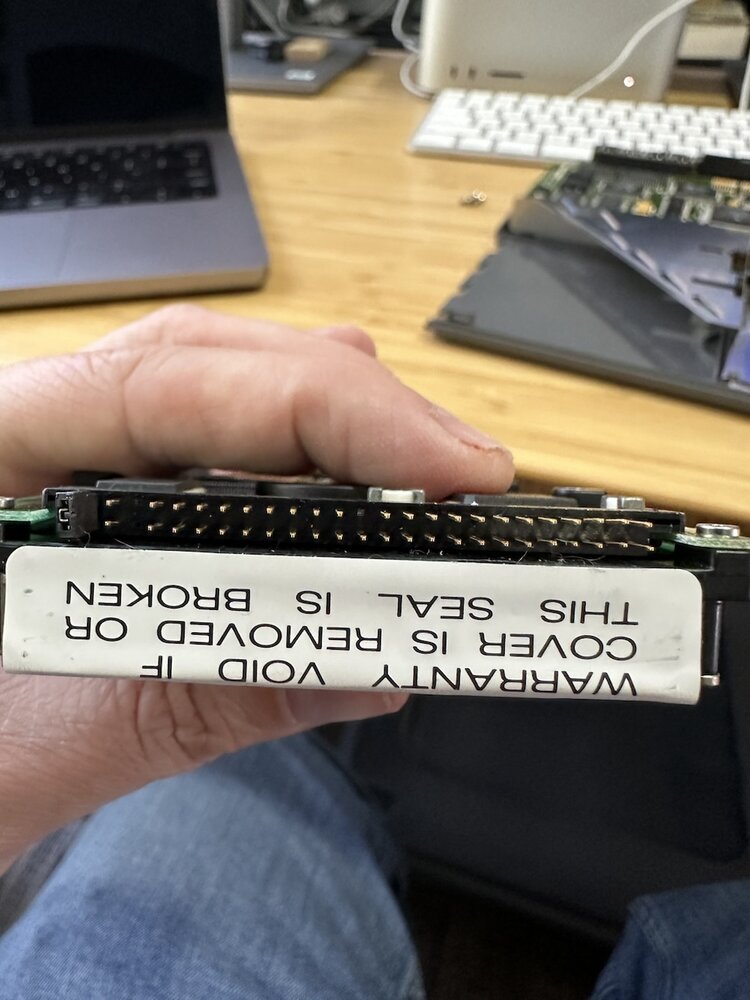
I pulled the drive from the computer. I also pulled the torn cable, because once the drive turned out to be IDE, that damaged cable was not a part I needed to keep installed while I wait on the correct storage path. Whatever story put that drive in this machine, it was not going to become the internal SCSI solution for this PowerBook.
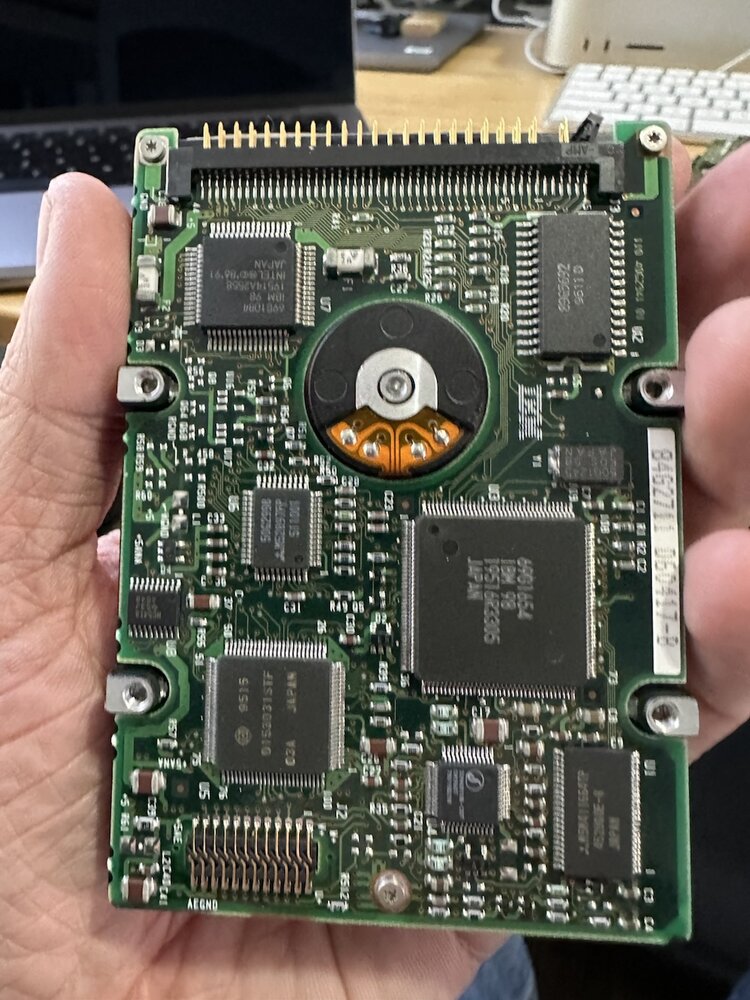
I did find a replacement cable from 1-bit rainbow, and I ordered it. I also ordered a BlueSCSI for the machine. That installation deserves its own follow-up once the parts arrive, so I am not going to pretend this post solves the internal storage problem.
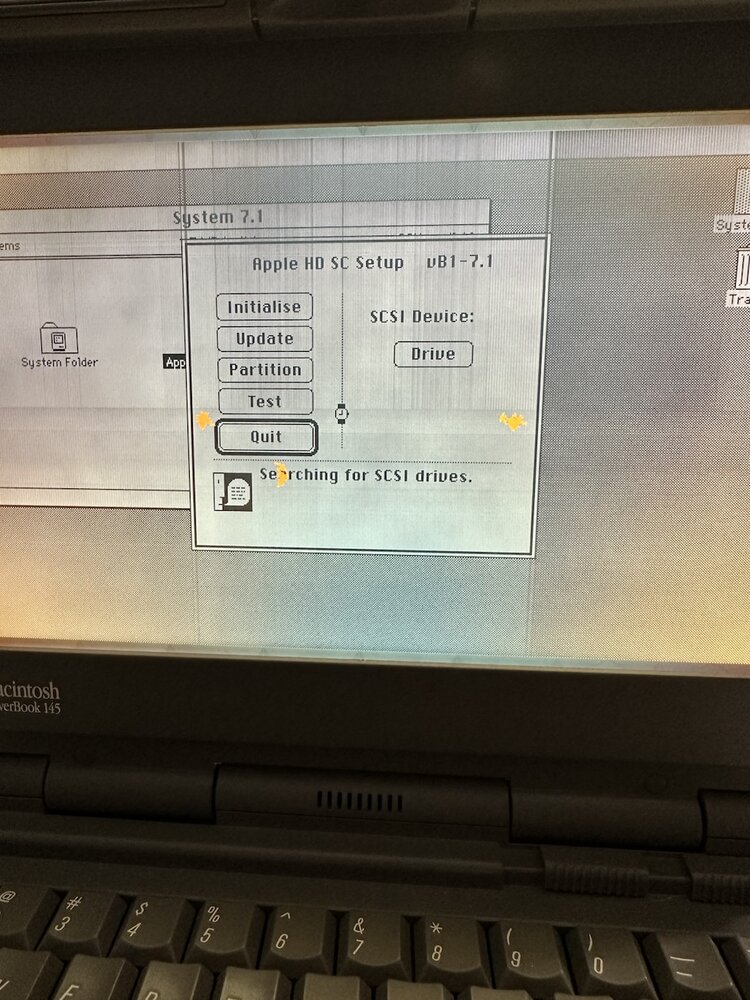
So the PowerBook could boot, but it still did not have usable internal storage.
The Floppy Got Me Into System 7.1
The floppy set I purchased online was confusing. Some disks had Apple labels, some had handwritten labels, and the labels did not all agree with each other. I am not going to pretend I know the full history of the set. What mattered was that one path got the PowerBook into System 7.1.
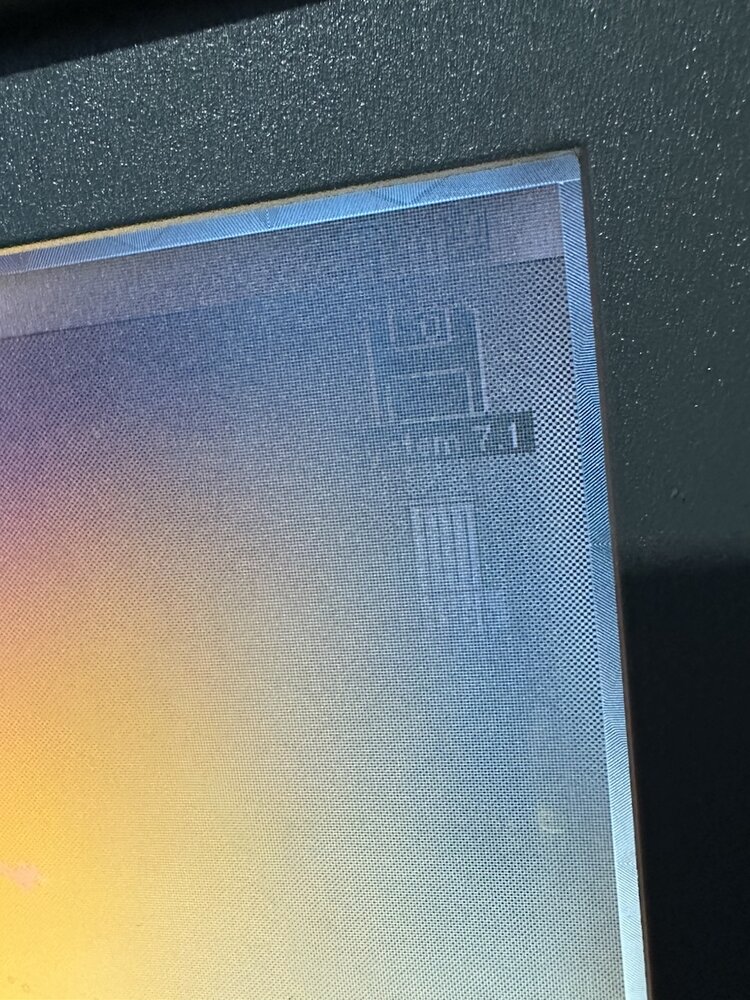
That was enough to start learning from the machine instead of guessing about it. The floppy drive could read disks. The Finder ran. The trackball worked. Disk First Aid and other small utilities were available. The machine was no longer just a clean shell with a damaged cable.
It also reported something I did not expect.
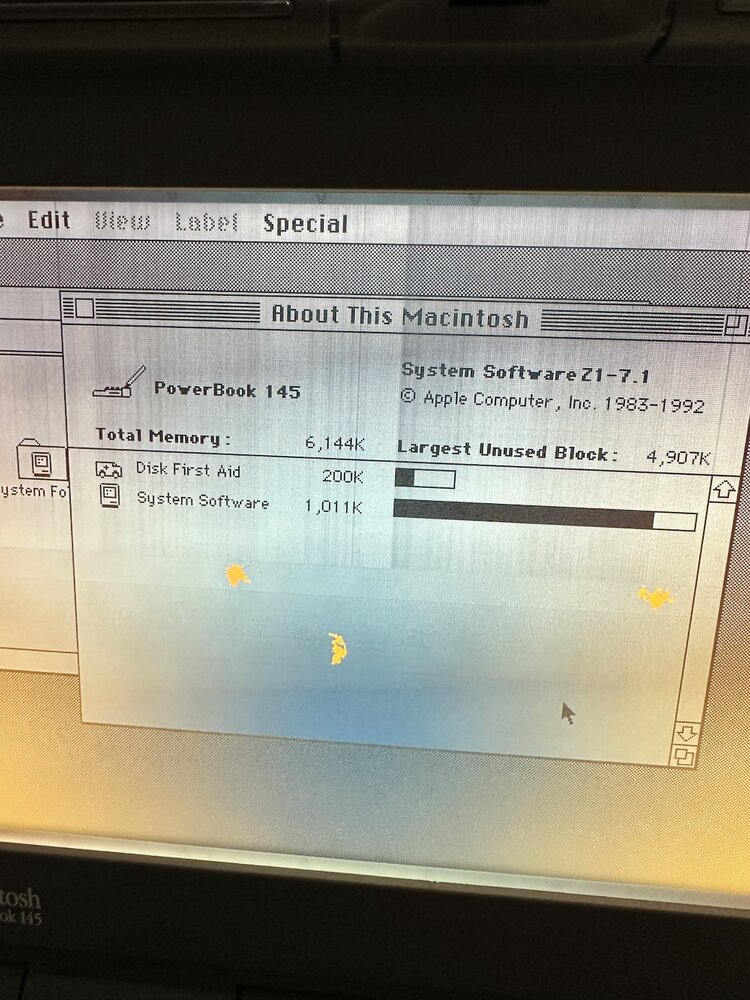
The PowerBook showed 6,144K of memory. That changed the shape of the problem. With only a floppy boot and no usable internal storage, every disk swap matters. With 6 MB installed, the RAM Disk stopped being a curiosity and became a possible way around the storage problem.
The RAM Disk Became The Temporary Hard Drive
I found the RAM Disk controls in the Memory control panel and tried the obvious thing: make a RAM Disk large enough to hold the System Folder.
Because the machine had 6 MB installed, I created a RAM Disk and copied the System Folder over, and restarted.
The PowerBook booted from RAM.
No internal hard drive. No external SCSI device. No floppy left in the drive as the boot volume. Just a System Folder copied onto a RAM Disk large enough to act like the temporary disk I needed.
The PowerBook was not merely alive. It could run System 7.1 without depending on the internal storage path I still had to repair. In a very limited temporary way.
Booting From RAM Made The Software Search Possible
Once the machine could boot from RAM, I found useful pieces: Startup Disk, Disk First Aid, Calculator, Chooser, desk accessories, and items from the Tidbits disk. The PowerBook started to feel like a limited working classic Mac environment instead of a machine I was just trying to prove alive.
The PowerBook 145 is in a much better place than it was after the first teardown. It powers on with the replacement adapter. The LCD is degraded but usable. The keyboard and trackball work. The floppy drive reads disks and writes files. The machine reports 6 MB of RAM. It boots into System 7.1 from floppy. More importantly, it can boot from a RAM Disk after copying the System Folder over.
The drive I found inside turned out to be IDE, so I removed it. The torn cable is out of the machine too. A replacement cable and BlueSCSI are on order, and that installation will be a separate follow-up once the parts arrive. Disk Copy is still missing from the available disks. Formatting is not working from the current software environment. The display has obvious aging, likely more than one issue, and I would like to understand whether recapping or board cleaning could make it clearer.
Sources
- What a Dead PowerBook 145 Still Told Me
- Apple Service Source: PowerBook 140/145/145B/170 (PDF)
- 1-bit rainbow
- BlueSCSI
- Apple: Obtaining service for your Apple product after an expired warranty
AI Usage Transparency Report
AI Era · Written during widespread use of AI tools
AI Signal Composition
Score: 0.25 · Moderate AI Influence
Summary
The PowerBook 145 was restored to a working state, with the replacement adapter allowing it to boot into System 7.1 from floppy. The machine's LCD is degraded but usable, and the keyboard and trackball work. A RAM Disk was created to hold the System Folder, allowing the machine to boot without internal storage.
Related Posts
When Chromium Mistakes Your VPN for a Local Network
Turning off Jamf Trust fixed the webinar, which normally would have sent me straight to its routing policies. This time the route was fine: Chromium was treating Jamf's ZTNA broker addresses as a local network, and an Edge and Chrome preference corrected it.
Clamshell iBook G3 Restoration, Part 1: From Broken Screen to Board-Level Repair
Part one of a Clamshell iBook G3 restoration: a broken screen, a charger detour, a blinking system folder, a full teardown, and the backlight connector mistake that paused the project.
Bromure Gives Codex a Room of Its Own
I installed Bromure Agentic Coding, watched it build the Linux VM, authenticated Codex, and followed a real Codex task through the workspace.
Claude Code Auto Mode Changes Approval Flow, Not the Safety Boundary
Claude Code Auto mode changes how approval decisions are handled. It does not expand the boundary of what the coding agent should be allowed to do.
Amnesia Stealer Shows the Next Stage of ClickFix on macOS
Amnesia Stealer shows how ClickFix-style social engineering is adapting on macOS, while a public malware sample gives defenders an opportunity to study the behavior behind the campaign.
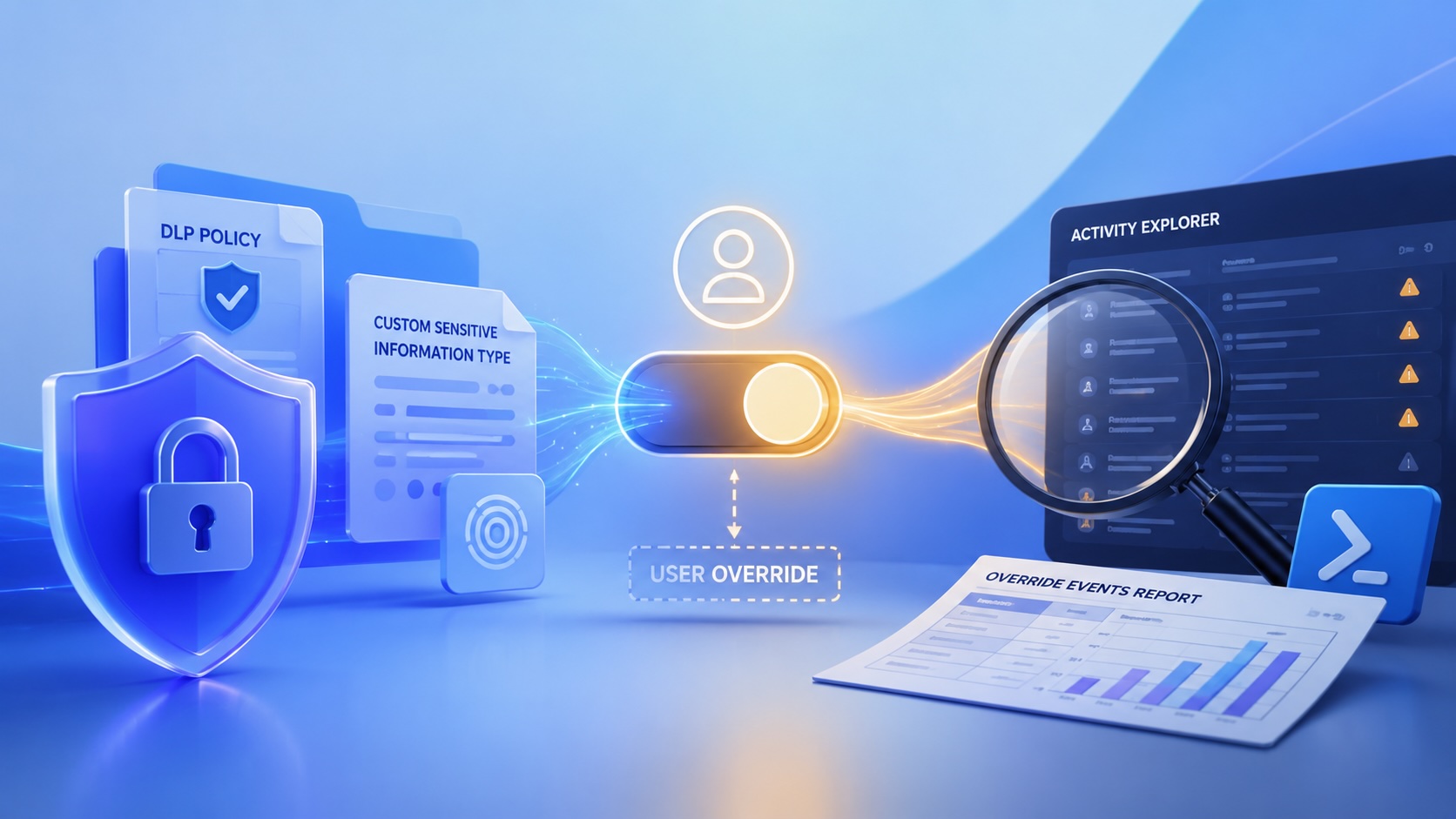
Reporting on Microsoft 365 DLP Overrides with PowerShell
DLP overrides are not automatically bad. They are a business process that needs visibility. This walkthrough covers a Microsoft Purview DLP policy, a custom sensitive information type, user override behavior, and a PowerShell report that exports override events from Activity Explorer.

PowerBook 140 BlueSCSI Install: Cable Fixed, Battery-Bay Power, and Wi-Fi Setup
The PowerBook 140 project moved from preparing a BlueSCSI card in Basilisk II to installing the repaired internal SCSI cable, powering the BlueSCSI Pico externally from the battery bay, booting System 7.1, and fighting through DaynaPORT Wi-Fi setup.

Move Entra Users Off SMS and Voice Before Microsoft Retires Them
Microsoft is retiring Microsoft-provided SMS and voice authentication in Entra ID. The migration is not passkeys for everyone; it is removing weak telecom MFA and choosing supported replacement methods such as Microsoft Authenticator, FIDO2 keys, certificate-based authentication, OATH hardware tokens, or customer-managed telecom.
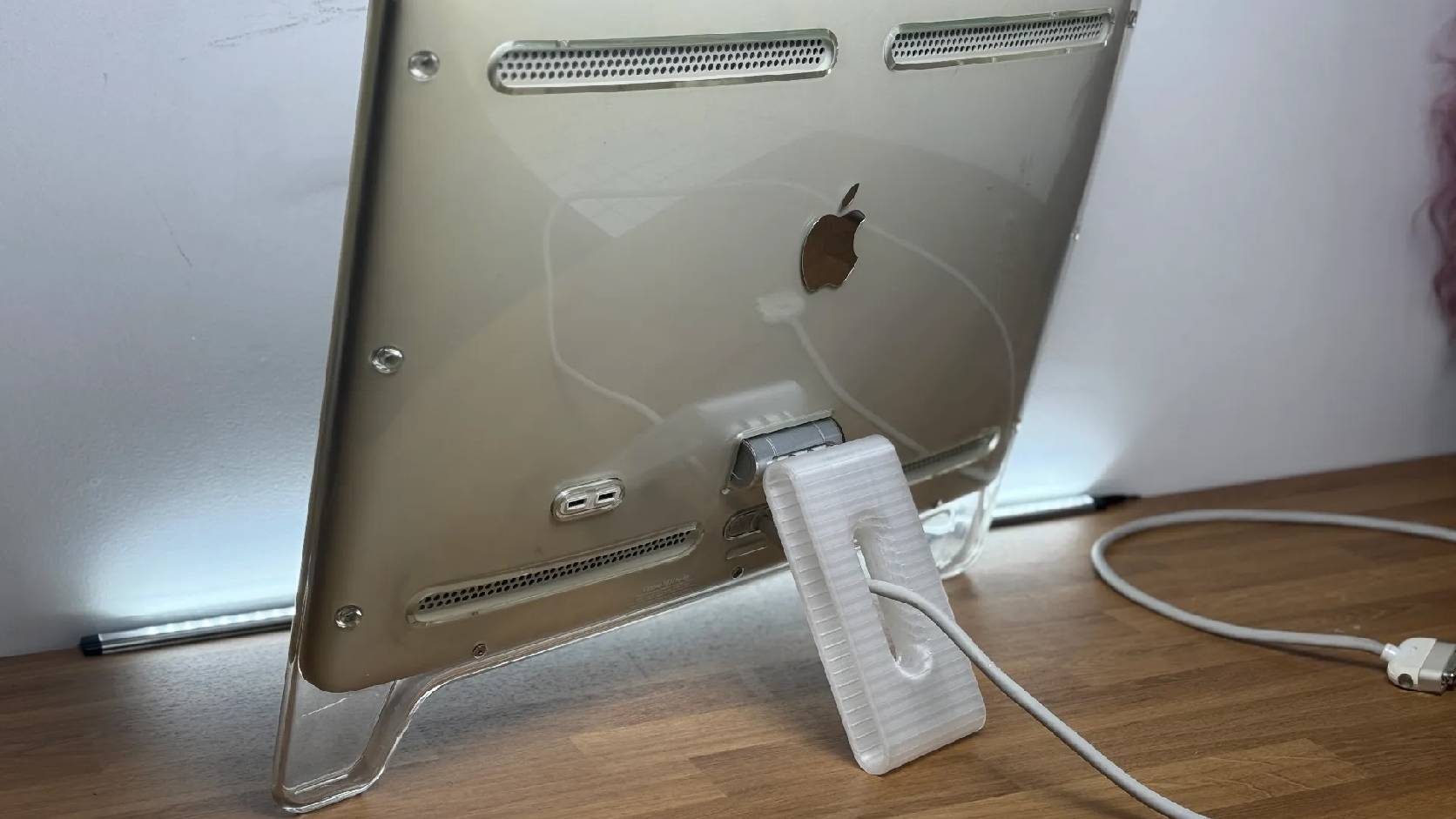
Fixing a Broken Apple Cinema Display Stand with a 3D Printed Leg
A 22-inch Apple Cinema Display arrived with a broken acrylic easel stand, so I used a 3D printed replacement leg instead of sending the monitor back.
macOS Tahoe 26.6.1 Fixes a High-Severity Screen Sharing Authentication Bypass
macOS Tahoe 26.6.1 fixes CVE-2026-65400, a high-severity Screen Sharing authentication issue where an attacker on the network may be able to authenticate without valid credentials.
