

Keeping your organization’s VPN always connected is crucial—especially with Zero Trust Network Access (ZTNA) frameworks like Jamf Trust. One of the challenges with Jamf Trust is that it does not automatically open or reconnect on startup or login by default. However, with a combination of Jamf Pro policies, a custom script, and an extension attribute, you can ensure your users stay securely connected.
This guide outlines how to do exactly that.
Why This Matters
Disconnected VPNs mean lost productivity, increased support tickets, and security risks. Jamf Trust provides a seamless VPN experience when connected—but if users forget to open it, it defeats the purpose.
Jamf Support clarified the following:
“Jamf Trust by default will not open automatically after deployment, startup, or login. However, you can leverage policies in Jamf Pro to auto-launch Jamf Trust at login and auto-enable ZTNA Service.”
Part A: Auto-Launch Jamf Trust App
This policy ensures that Jamf Trust launches at user login.
Steps:
- In Jamf Pro, go to
Policies > Newand configure the General payload:- Name: Jamf Trust Auto Launch
- Trigger: Login
- Execution Frequency: Once every day
- Add the Files and Processes payload:
- Execute Command:
open -a "Jamf Trust" com.jamf.trust://?action=open
- Execute Command:
-
Add target machines under Scope.
- Click Save.
This will open the app—but note, users will still need to authenticate manually.
Part B: Automatically Enable the VPN (ZTNA)
This policy takes it a step further: automatically enabling the VPN service.
Steps:
- In Jamf Pro, go to
Policies > Newand configure the General payload:- Name: Jamf Trust Auto Enable
- Trigger: Login
- Execution Frequency: Once every day
- Add the Files and Processes payload:
- Execute Command:
open -a "Jamf Trust" "com.jamf.trust://?action=enable_vpn"
- Execute Command:
-
Scope it to your test or target devices.
- Click Save and log into the machine to test.
Bonus: Prompt Users When VPN Disconnects
Step 1: Create an Extension Attribute to Detect VPN Disconnection ✅
Before you can remediate devices, you need a way to detect when Jamf Trust VPN is not running. Here’s how to create an Extension Attribute to help with that.
Extension Attribute Script
-
In Jamf Pro, go to:
Settings > Computer Management > Extension Attributes - Click New and configure:
- Name:
Jamf Trust VPN Status - Data Type: String
- Inventory Display: General
- Input Type: Script
- Name:
-
Paste this script:
#!/bin/bash if /usr/bin/pgrep "Jamf Trust" > /dev/null; then echo "<result>Connected</result>" else echo "<result>Disconnected</result>" fi - Save the Extension Attribute.
Step 2: Build a Smart Group 🎯
This Smart Group identifies machines where Jamf Trust is disconnected.
- Go to
Computers > Smart Computer Groups > New - Name the group:
VPN Not Connected - Add criteria:
- Jamf Trust VPN Status is Disconnected
- Save the group.
Step 3: Deploy the VPN Reconnect Script via Policy 🛠️
Now that Jamf Pro can detect disconnected machines, use the following script to prompt users and reconnect VPN. This should be scoped only to the VPN Not Connected Smart Group.
What It Does
- Prompts the user with a GUI message
- Offers a button to reconnect VPN
- Automatically reconnects
- Cleans up Jamf Protect extension attributes
- Runs
jamf reconto update inventory
Reconnect Script
#!/bin/bash

currUser=$(/usr/bin/stat -f%Su /dev/console)

jamfHelper="/Library/Application Support/JAMF/bin/jamfHelper.app/Contents/MacOS/jamfHelper"
msgtitle="JAMF Trust Not Connected"
heading="Jamf Trust VPN Access"
description="Looks Like Jamf Trust VPN has stopped running!

You should always be on the VPN.
Open the JAMF Trust app to reconnect to the VPN automatically."

button1="Ok"
button2="Connect VPN"
icon="/System/Library/CoreServices/CoreTypes.bundle/Contents/Resources/ToolBarInfo.icns"

userChoice=$("$jamfHelper" -windowType utility -title "$msgtitle" -heading "$heading" -description "$description" -button1 "$button1" -button2 "$button2" -icon "$icon")

/usr/bin/open -a "Jamf Trust" "com.jamf.trust://?action=enable_vpn"

sudo jamf recon
Policy Setup
-
Trigger: Recurring Check-In
-
Execution Frequency: Ongoing
-
Scope: VPN Not Connected Smart Group
-
Payload: Scripts (use the script above via the script payload)
Conclusion
Maintaining a stable and always-on VPN connection with Jamf Trust can be challenging out of the box, but with a few well-structured Jamf Pro policies, extension attributes, and scripts, you can create a reliable and self-healing solution. This guide helps ensure your organization maintains security compliance, reduces user disruption, and proactively remediates disconnected clients. Thanks to contributions from the Jamf community and direct guidance from Jamf Support, it’s now easier than ever to build robust workflows that keep Jamf Trust connected and users protected.
Sources
-
Jamf Support – Direct communication provided implementation guidance for auto-launching and auto-enabling Jamf Trust via login-triggered policies.
-
Jamf Community Forums – Special thanks to user Trevor for outlining the original challenge and proposed solution in this Jamf Nation thread, which inspired this blog post.
-
Jamf Documentation – Referenced Jamf Trust macOS URL Scheme documentation for policy scripting. JAMF Trust Documentation
AI Usage Transparency Report
AI Era · Written during widespread use of AI tools
AI Signal Composition
Score: 0.43 · Moderate AI Influence
Summary
This guide outlines how to ensure your users stay securely connected with Jamf Trust by creating policies, extension attributes, and scripts that auto-launch and auto-enable the VPN service.
Related Posts

When Chromium Mistakes Your VPN for a Local Network
Turning off Jamf Trust fixed the webinar, which normally would have sent me straight to its routing policies. This time the route was fine: Chromium was treating Jamf's ZTNA broker addresses as a local network, and an Edge and Chrome preference corrected it.

Apple Software Updates Need a Blueprint Before the MDM Commands Fade
Apple software update management is moving away from command-first MDM workflows. Jamf Blueprints and Declarative Device Management give Mac admins a better place to express update intent, scope, enforcement, and visibility.

Jamf Moves Platform SSO Into the Enrollment Gate
Jamf's attended Simplified Setup for Platform SSO changes Mac enrollment by making identity registration part of Setup Assistant before the MDM profile is installed.

Check out this new JAMF Script upload tool
Digambar Ghosalkar's Jamf Script Uploader is useful because it moves Jamf Pro script work out of manual browser copy/paste and into a repeatable API-backed workflow.

Two PPPC Tools I Would Add After the Profile Looks Right
A follow-up on two tools worth adding to a PPPC troubleshooting workflow: PPPC_Analyser for inspecting app privacy requirements and QuickJamfDeploy for forcing the Jamf management framework into place during deployment.

Audit Jamf API Roles Before They Become Forgotten Access
A read-only Jamf Pro API role audit script that reports role privilege reach, write-capable access, review priority, and API client inventory without changing Jamf.

Review the Smart Group Before You Scope the Policy
Review your Smart Group before you ever scope a Jamf policy. Validate inventory, understand your signals, test exclusions, and prove the group works before it reaches production.
Build Jamf DDM Update Blueprints for macOS and iOS
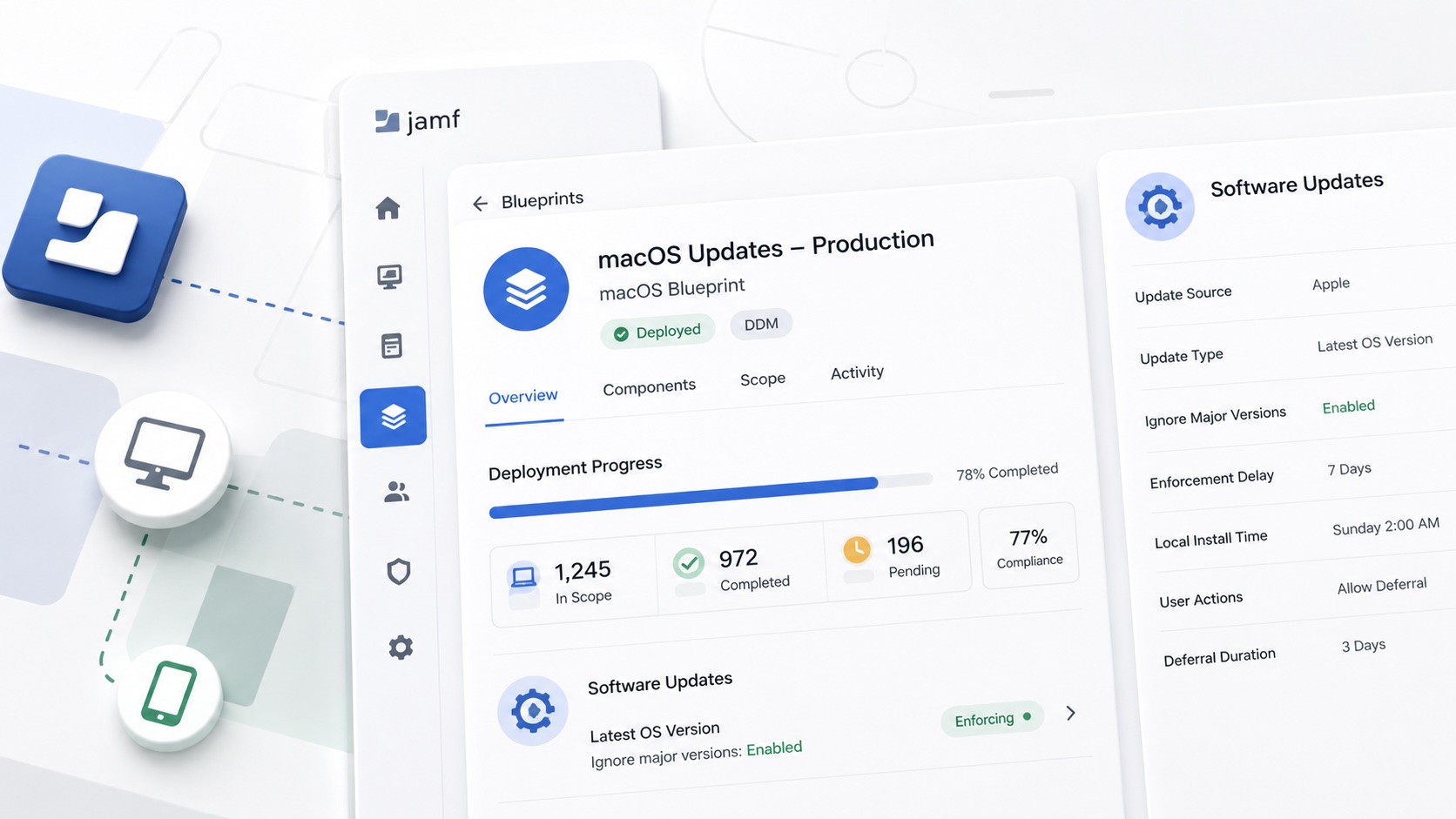
How I set up Jamf software update blueprints for macOS and iOS using Declarative Device Management, staged scope, clear enforcement timing, and visible deployment progress.

Review the Package Before You Build the Policy
A Jamf-focused package review workflow for checking installer signing, package contents, scope, validation, and rollback before a policy reaches production Macs.

Jamf Was My Mac Evidence Layer for CMMC
How Jamf Compliance helped support the Mac portion of a CMMC assessment, and why I added a small read-only CSV summary script for auditor-ready failed-result evidence.