Deploying DDM OS Reminder 4.0.0 in Jamf
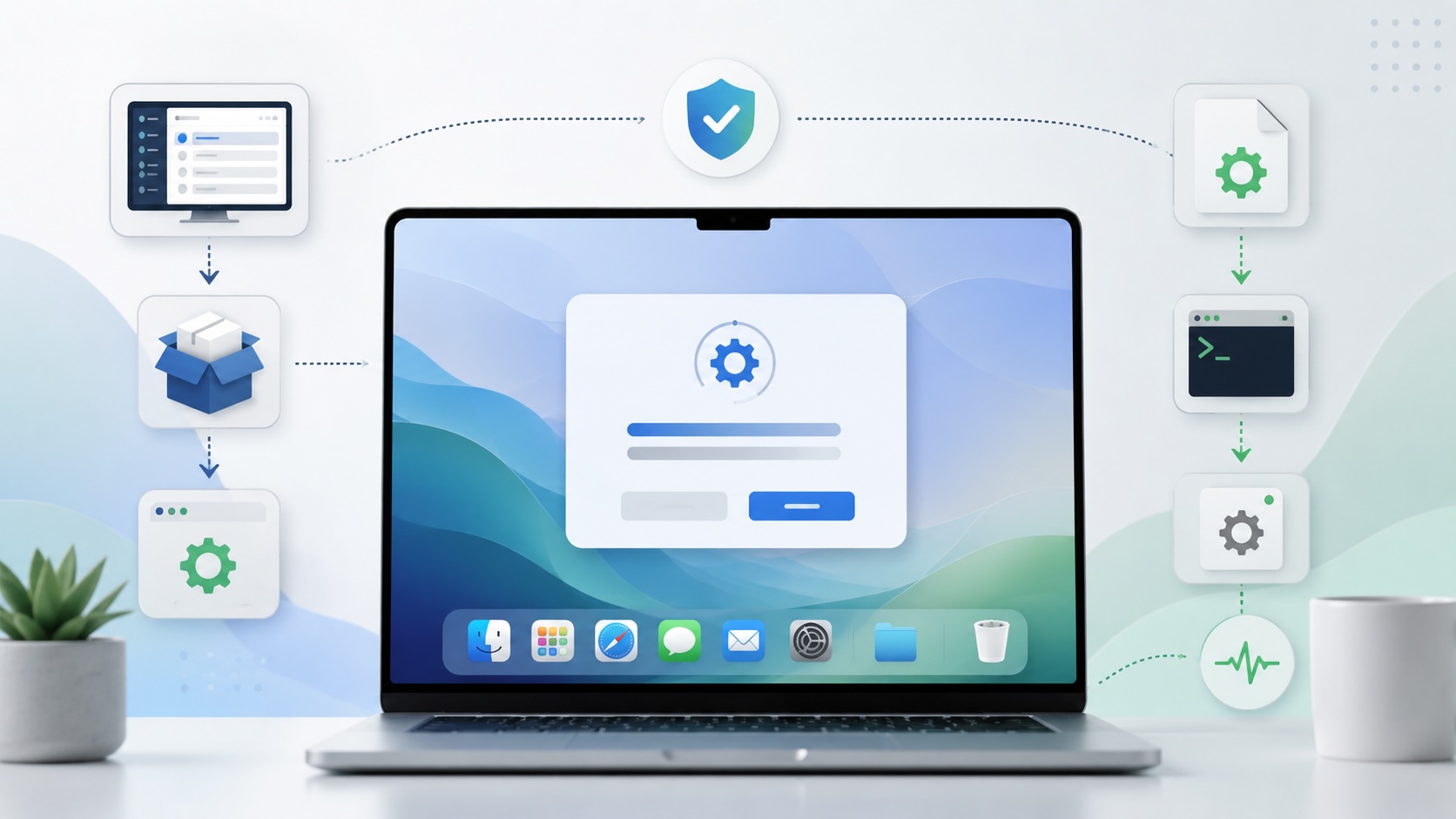

DDM OS Reminder 4.0.0 sits beside the macOS update enforcement workflow rather than replacing it. Apple Declarative Device Management and the MDM workflow still define the required macOS version, the deadline, and the enforcement behavior; DDM OS Reminder turns that deadline into a visible, scheduled user reminder.
In Jamf, the deployment becomes much easier to understand when the profile and installer script are treated as separate deliverables. The generated configuration profile or plist is the managed preference payload, and it carries the support details, branding, reminder timing, aggressive mode behavior, restart policy, localization, button behavior, and preference domain that the reminder reads.
The assembled .zsh file serves a different purpose. Jamf runs it once as root, and the policy log should show it laying down the persistent pieces on the Mac: the main reminder script, the starter script, the LaunchDaemon, and the local log path. Once those pieces exist, the LaunchDaemon provides the heartbeat for ongoing reminder checks.
The architecture looks like this:
Jamf profile
        |
        v
Managed preferences for com.example.dorm

Jamf policy script, run once
        |
        v
Creates /Library/Management/com.example/
Creates dor.zsh
Creates dor-starter.zsh
Creates /Library/LaunchDaemons/com.example.dor.plist
Bootstraps and starts the LaunchDaemon
The important boundary is that DDM remains the source of the update deadline, while DDM OS Reminder supplies the local communication and scheduling layer around that deadline.
Start with swiftDialog
DDM OS Reminder uses swiftDialog for the user-facing reminder, so the first Jamf object to put in place is a policy that installs swiftDialog on the test Mac.
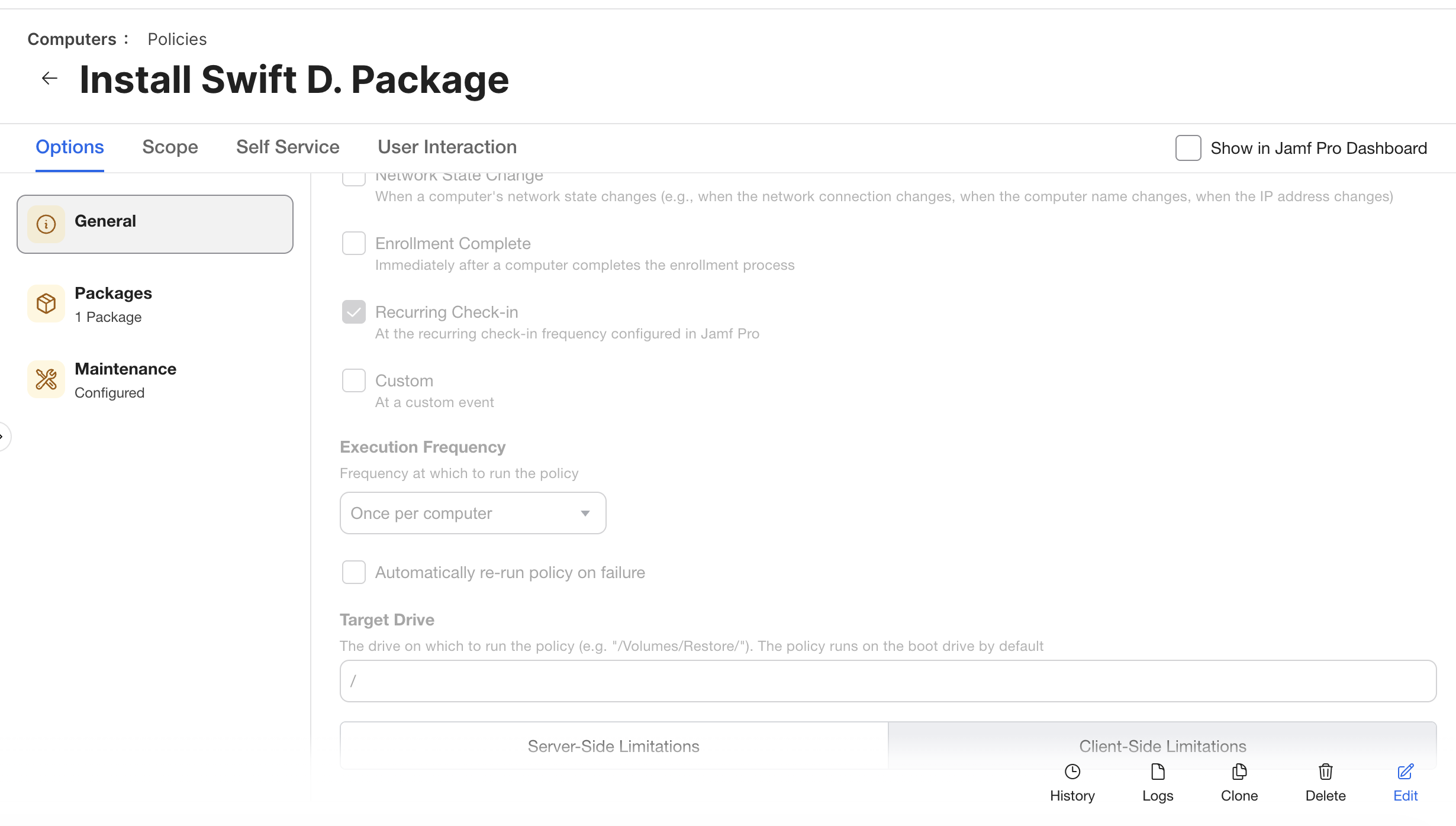
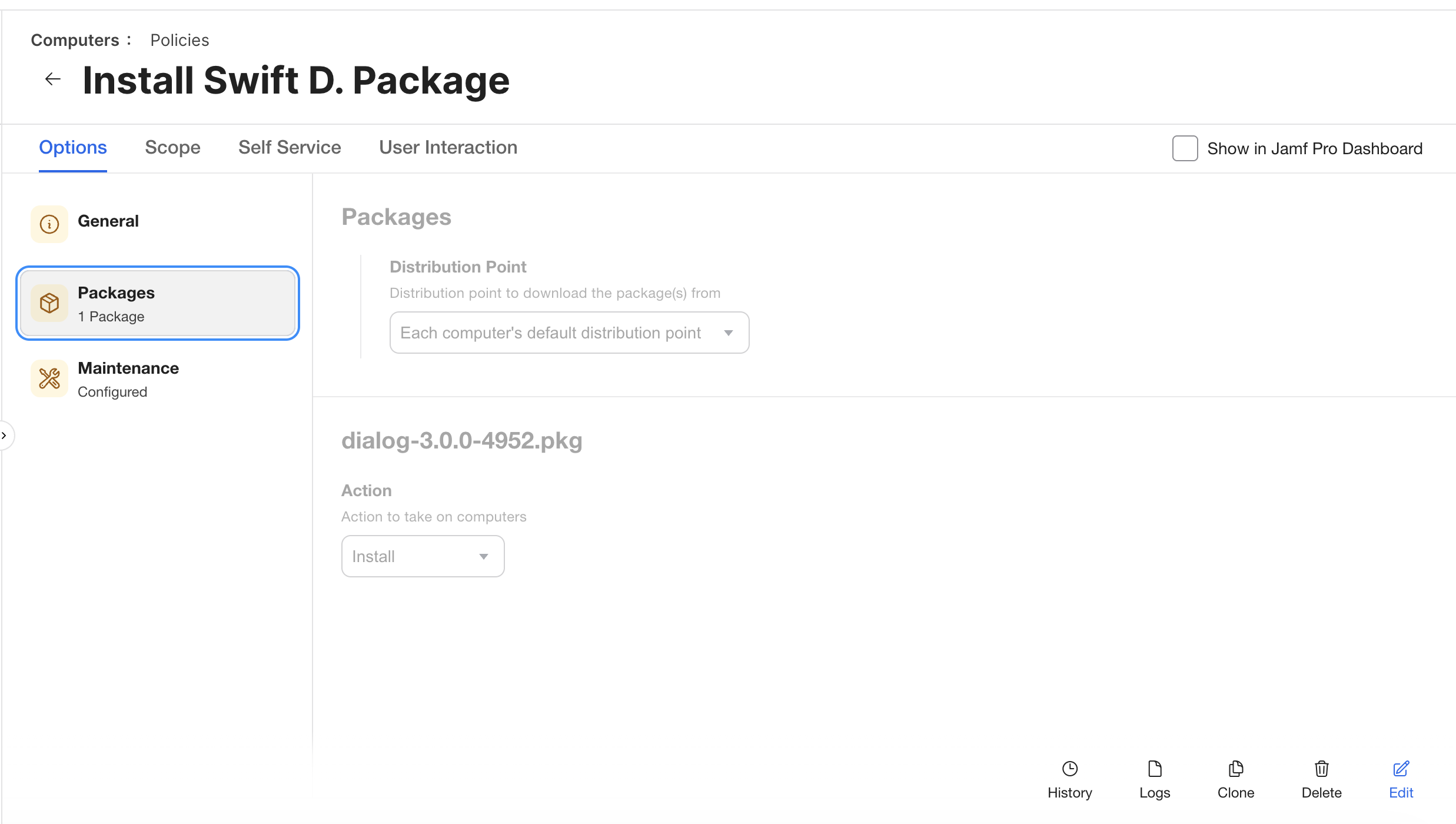
In my test setup, I created a Jamf policy named Install Swift D. Package, added the dialog-3.0.0-4952.pkg package, and set the policy frequency to once per computer. This policy is only the prerequisite; it makes the reminder window possible before the DDM OS Reminder installer runs.
The package payload contains the swiftDialog installer package with the action set to install.
DDM OS Reminder checks for swiftDialog during preflight, so installing it first keeps the later policy log easier to read. In my test run, the installer found swiftDialog version 3.1.0.4994 and continued; if that check fails, I would rather fix the prerequisite than troubleshoot the reminder workflow itself.
Generate the production artifacts
For this deployment, the artifact build started locally in the downloaded DDM OS Reminder project, where I ran the assembler and passed the reverse domain name notation for the deployment:
sudo -s
cd /path/to/DDM-OS-Reminder-main
zsh assemble.zsh com.example --interactive
The assembler first reported the source defaults, including an existing reverse domain name notation value in both reminderDialog.zsh and launchDaemonManagement.zsh before I supplied the deployment value. The reminder dialog script used dorm as the organization script name, while the LaunchDaemon management script used dor.
The reverse domain name notation is not just cosmetic. In the sanitized examples here, I use com.example; in a real deployment, that value should be the organization’s own reverse domain. DDM OS Reminder uses the RDNN as the base identifier for the preference domain, LaunchDaemon label, runtime folder, log name, and artifact filenames.
RDNN provided via command-line argument: 'com.example'
With that example RDNN, the managed preference domain becomes com.example.dorm, the LaunchDaemon label becomes com.example.dor, the runtime folder becomes /Library/Management/com.example/, and the log becomes /var/log/com.example.log. The suffixes are meaningful: dorm is the reminder managed-preference side, while dor is the local LaunchDaemon/runtime side.
At the import prompt, I pressed Return instead of importing an earlier DOR plist, which made this a clean interactive production artifact build rather than an update from a previous preference file.
For the support and branding prompts, I kept the support team name as IT Support, entered (555) 555-1212 as the support phone number, left phone visibility enabled, entered support@example.com, left email visibility enabled, entered https://support.example.com as the support website, and left website visibility enabled. I hid the Info button, which made the assembler report that the support help surface would not be shown. I did not hide the support assistance message.
For the icons, I accepted the default light and dark overlay icon URLs by pressing Return at both prompts. I also answered no to swapping the overlay and logo.
The restart and aggressive-mode answers were the most important policy choices in the session:
Past-deadline Restart Behavior: Force
Days Past Deadline Before Restart Workflow: 10
Aggressive Mode Past Deadline Hours: 48
Aggressive Mode Frequency Minutes: 20
Those answers make the artifact more than a passive reminder. Aggressive mode begins 48 hours past the DDM deadline and repeats every 20 minutes, while the restart workflow begins 10 days past the deadline with force selected as the past-deadline restart behavior.
For localization, I selected minimal output by entering m. The assembler described that as the minimal localization surface: base keys plus English localized keys. Later in the build, it reported that 249 localized keys were removed from the generated plist.
For deployment mode, I selected option 3, production, so the generated files would have placeholder text removed before deployment. The assembler then inserted reminderDialog.zsh into launchDaemonManagement.zsh, completed the assembly at 2026-07-24-110525, and created the temporary assembled script:
Artifacts/ddm-os-reminder-assembled-2026-07-24-110525.zsh
The assembler then updated the reverse domain name notation in the assembled script to com.example and passed the script syntax check.
Then it generated the organizational plist from Resources/sample.plist. During that step it updated the internal plist content, removed placeholder text for production, applied the IT support, branding, restart, and aggressive-mode values from the prompts, and removed the extra localization keys because I had selected minimal localization.
The generated plist was:
Artifacts/com.example.dorm-2026-07-24-110525-prod.plist
The assembler then generated the unsigned configuration profile:
Artifacts/com.example.dorm-2026-07-24-110525-prod-unsigned.mobileconfig
The generated mobileconfig passed its syntax check as part of the same build flow.
The final cleanup steps matter because they explain why the file names and logs match the Jamf screenshots and policy output. The assembler renamed the assembled script and updated the scriptLog path based on the reverse domain name notation.
The key output was this set of deployment artifacts:
Assembled Script: Artifacts/ddm-os-reminder-com.example-2026-07-24-110525-prod.zsh
Organizational Plist: Artifacts/com.example.dorm-2026-07-24-110525-prod.plist
Configuration Profile: Artifacts/com.example.dorm-2026-07-24-110525-prod-unsigned.mobileconfig
Deployed Runtime Assets: /Library/Management/<RDNN>/dor-starter.zsh, dor-state.plist, dor.pid
The assembler also printed the review list I would use before scoping this broadly:
- Confirm the support team name, phone, email, and website.
- Review
DailyReminderTimesfor the baseline reminder schedule. - Review
AggressiveModePastDeadlineHoursandAggressiveModeFrequencyMinutes. - Confirm the localization key set matches the intended artifact mode.
- Review the support KB title, support link, and Info button URL.
- Confirm the organization overlay icon URLs.
- Review button labels and dialog messages.
The output creates two deployment lanes: the profile or plist becomes the managed preference payload, and the assembled script becomes the one-time installer that builds the runtime pieces on the endpoint. Because this build is production mode, has placeholders removed, uses minimal localization, and includes real restart/aggressive-mode policy decisions, the generated plist and unsigned mobileconfig deserve review before upload.
Upload the preference profile
In Jamf, I created a new macOS configuration profile named DDM OS Reminder.
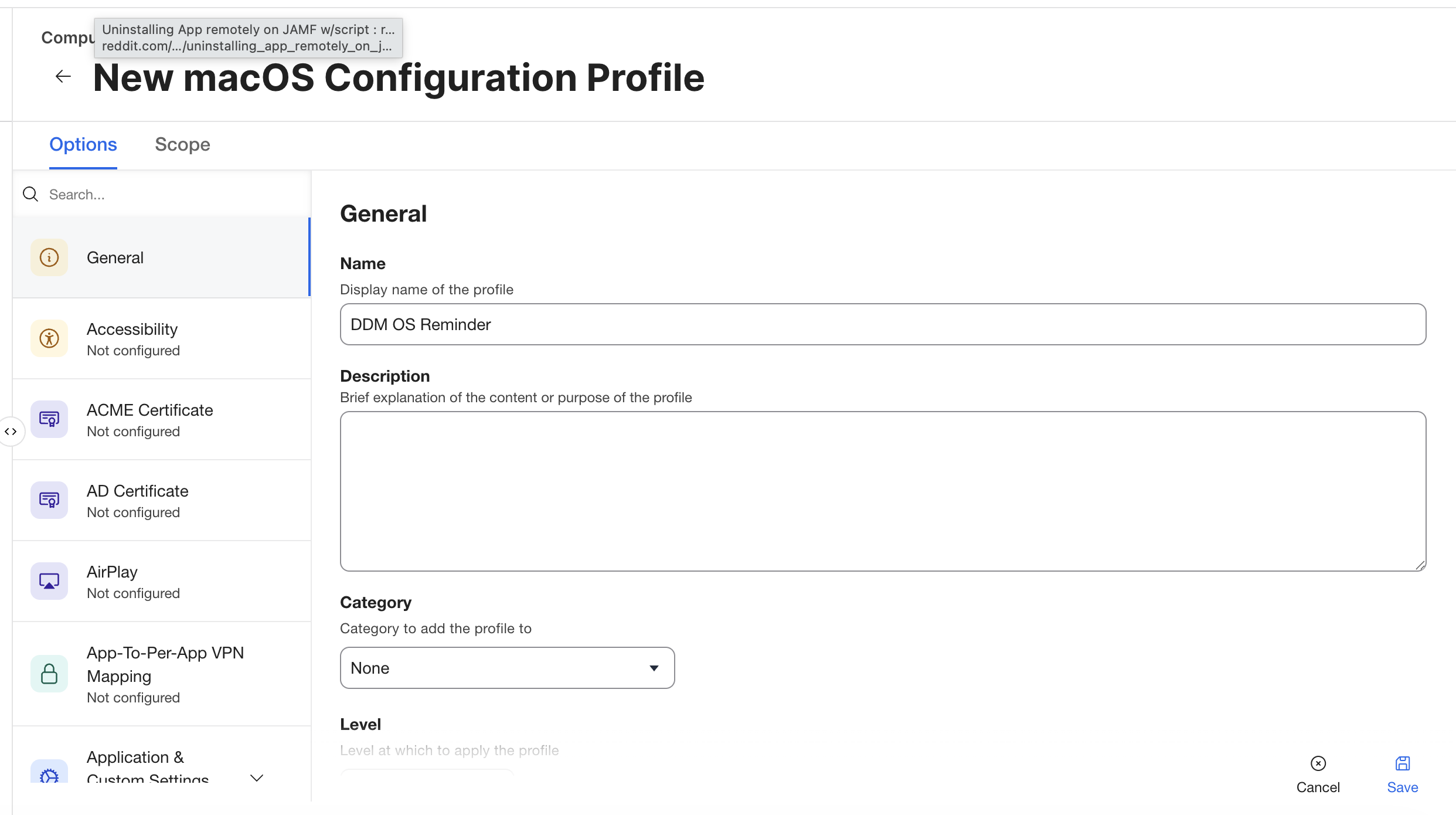
The important payload is Application & Custom Settings, using the uploaded plist. In this sanitized example, the preference domain is com.example.dorm.
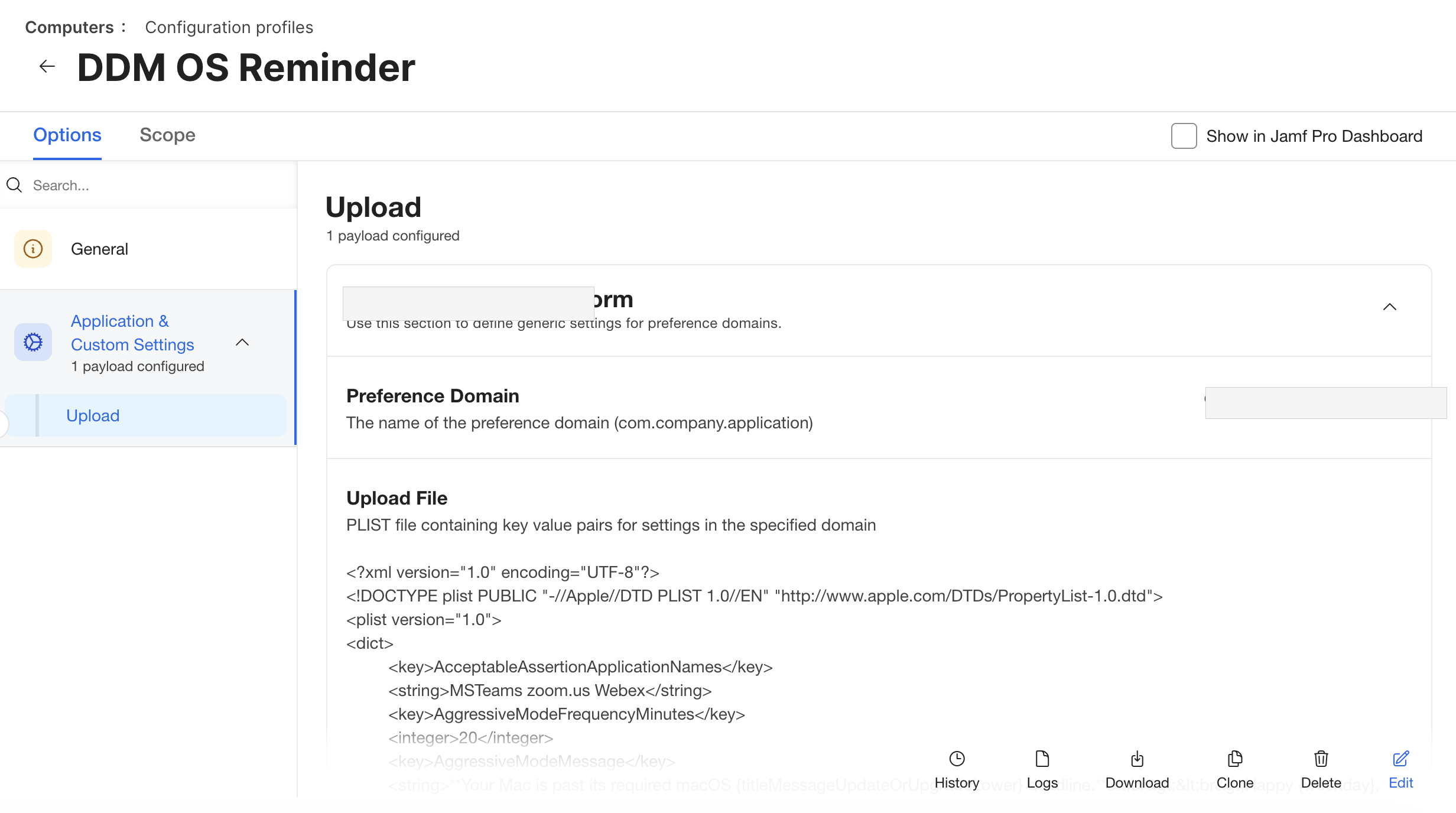
The domain distinction is easy to miss because both values come from the same RDNN. The managed preference domain in the profile is <RDNN>.dorm, while the LaunchDaemon label created by the installer is <RDNN>.dor; the profile controls reminder behavior, and the LaunchDaemon keeps the local scheduler alive.
Before broad deployment, the generated profile needs a careful review of the support contact fields, support website, daily reminder times, meeting app delay behavior, aggressive-mode timing, past-deadline restart policy, and any organization-specific dialog text. In my assembled output, the next-step summary explicitly called out that past-deadline restart policy was set to Force, aggressive mode begins 48 hours past the deadline, and the restart workflow begins 10 days past the deadline.
Those settings affect the user experience directly, so I would test them carefully before scoping beyond a pilot group.
Add the assembled script to Jamf
Next I added the assembled script to Jamf under Settings > Computer management > Scripts and named it DDM OS Reminder Script.
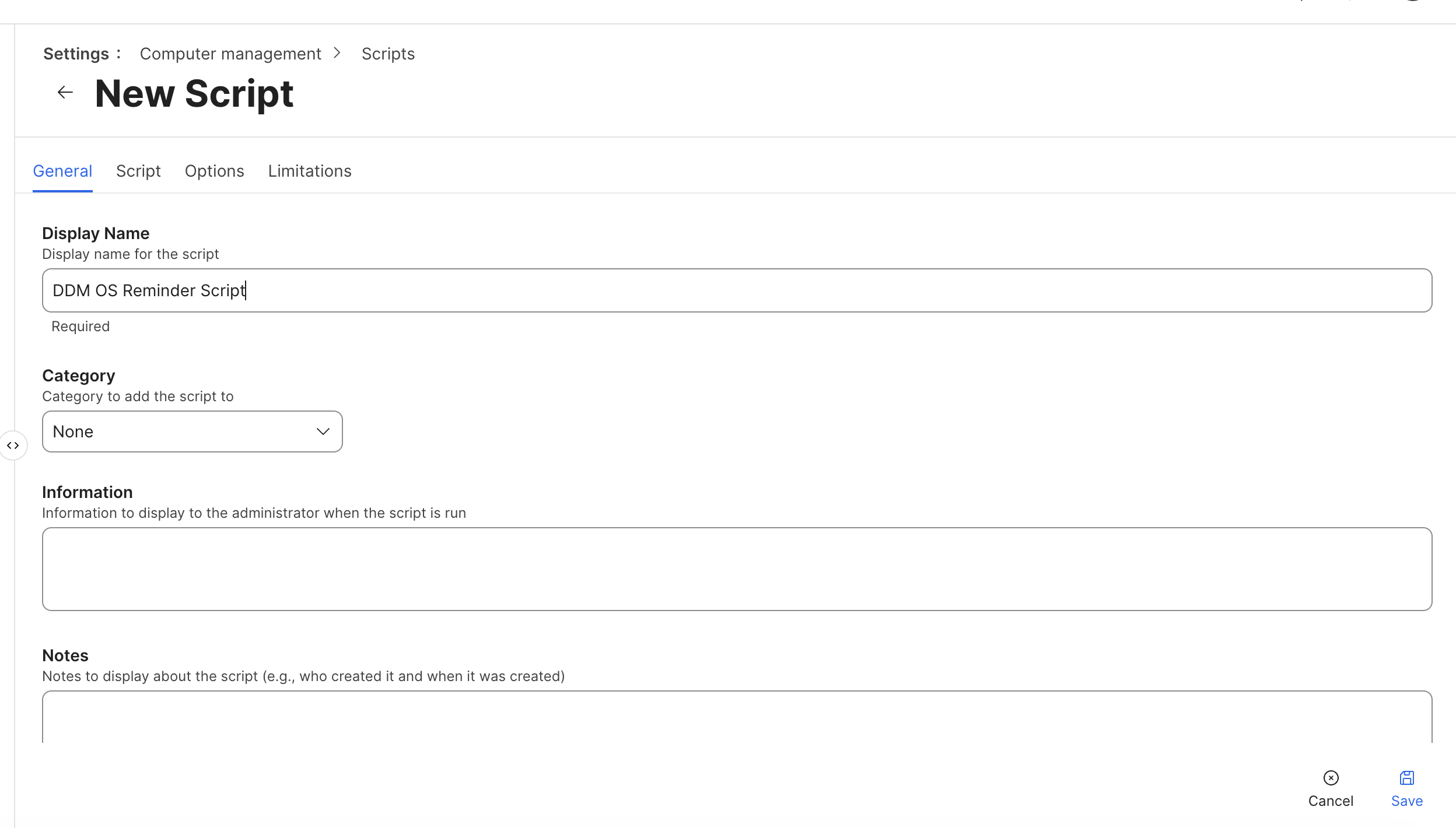
This script object contains the assembled installer script generated by assemble.zsh, which is the piece that is easiest to misunderstand. The Jamf script object is not the long-term reminder script waiting to be called forever; it is the installer that writes the long-term pieces to the Mac.
Near the end of the assembled script, the exit path reinforces that installer role by logging the completed LaunchDaemon and pointing me to the client-side log with tail -f ${scriptLog}.
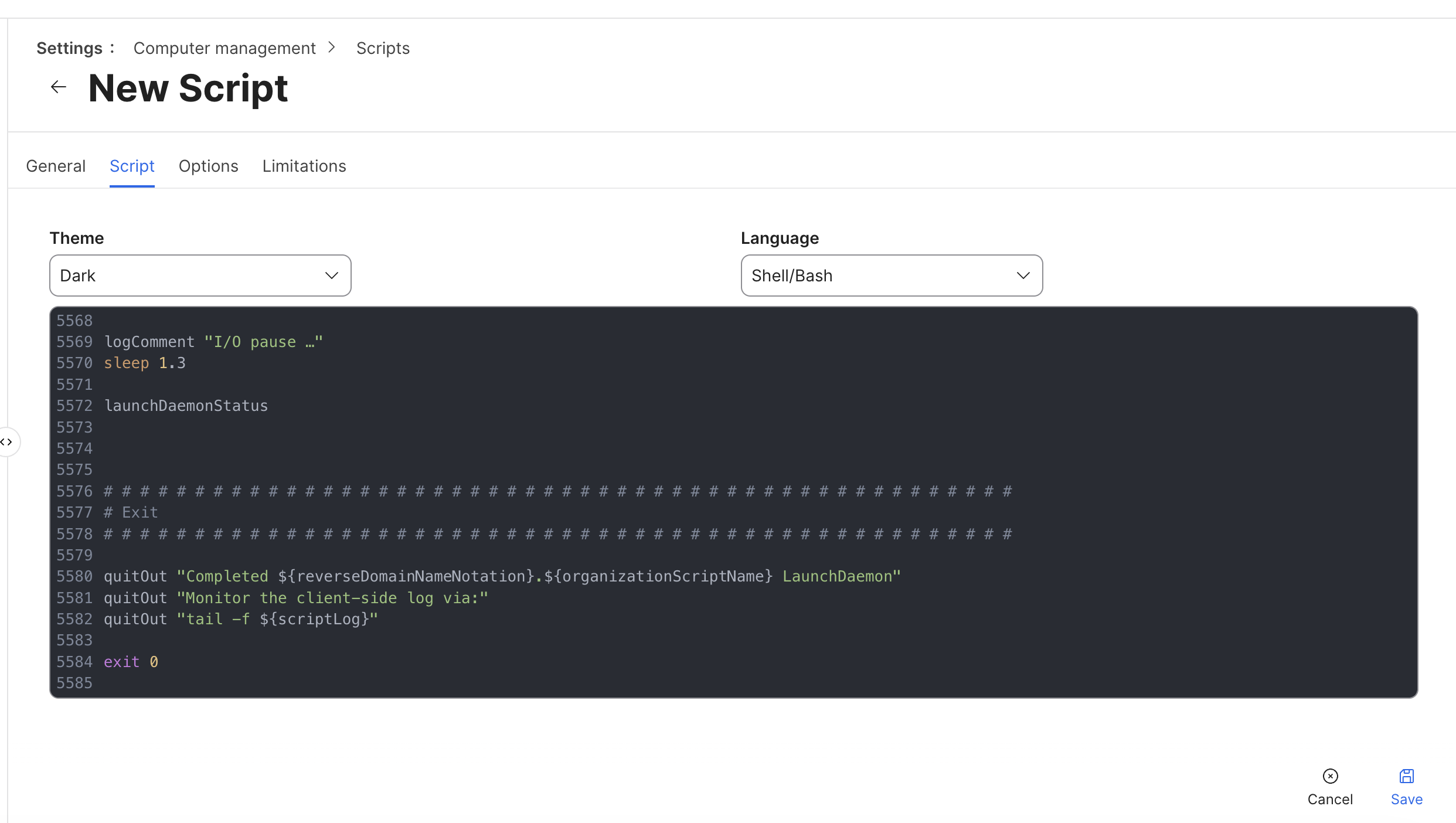
The policy log later shows the same setup sequence: create the files, set permissions, create the LaunchDaemon plist, load it, and confirm status.
Run the installer once by policy
Once the profile and installer roles are clear, the Jamf policy that installs DDM OS Reminder is straightforward.
In Jamf, I created a policy named DDM OS Reminder.
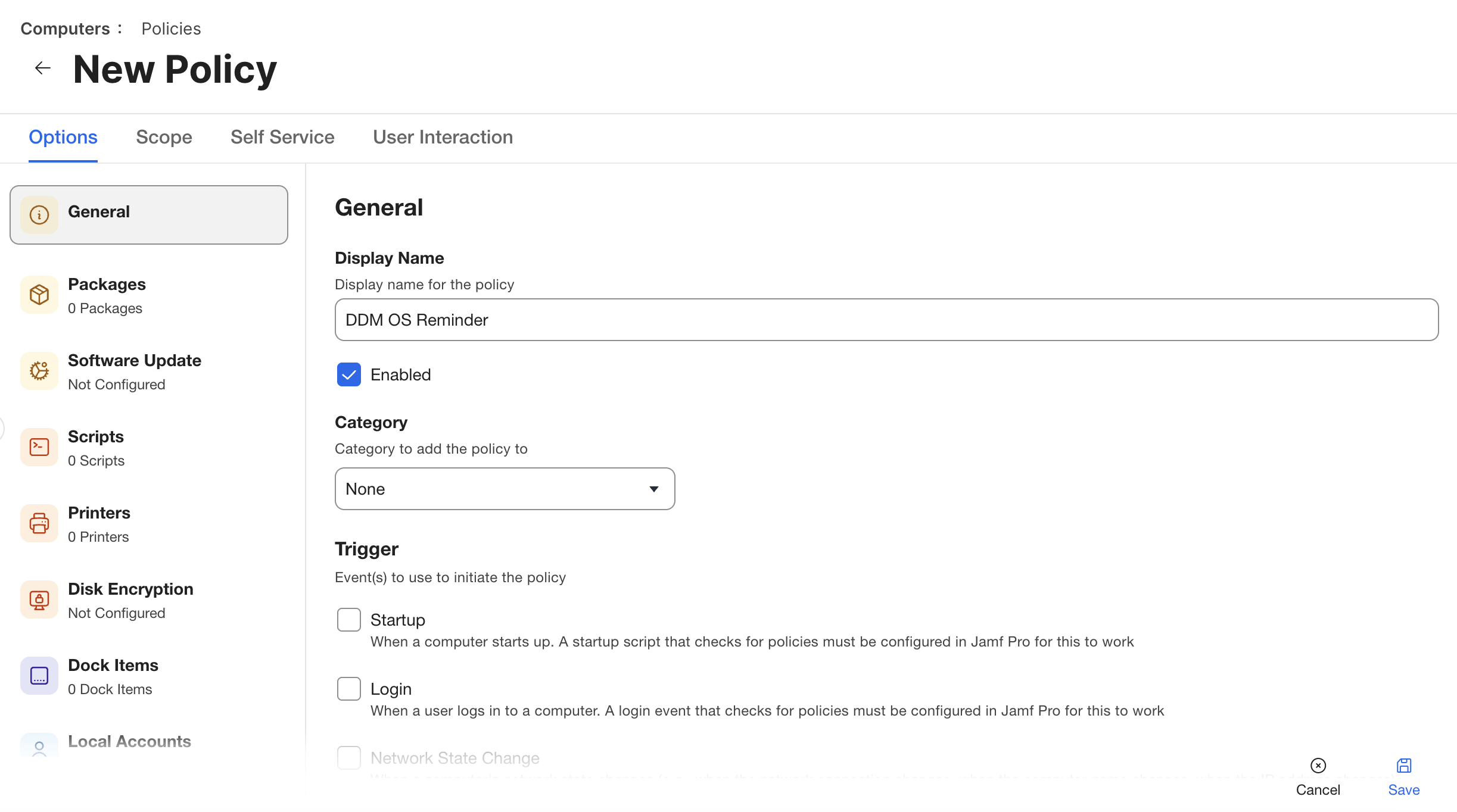
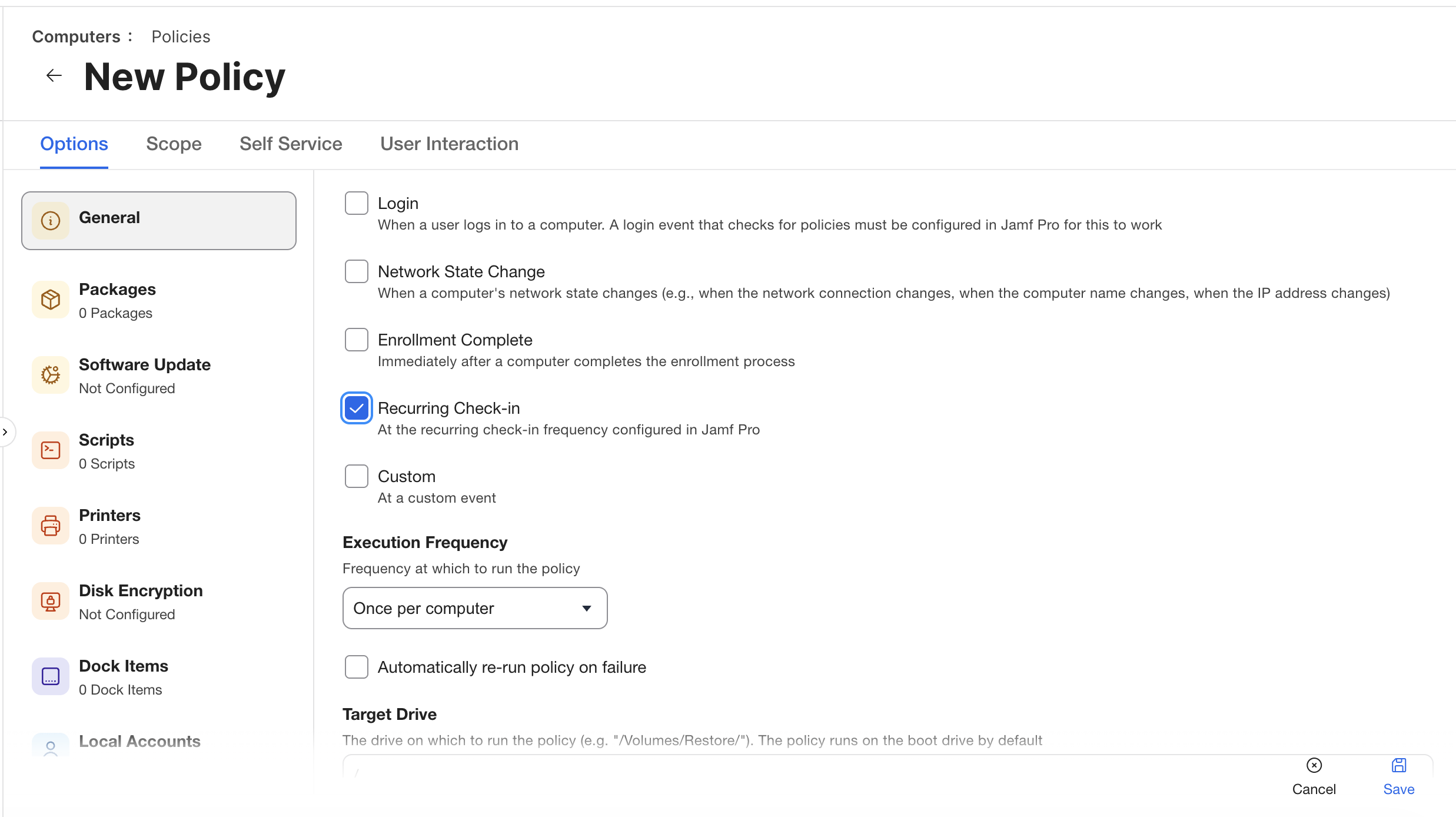
For the trigger, I used recurring check-in, and for execution frequency I used once per computer. The frequency matters because the policy is only responsible for laying down the runtime files and LaunchDaemon; ongoing reminder checks belong to the LaunchDaemon.
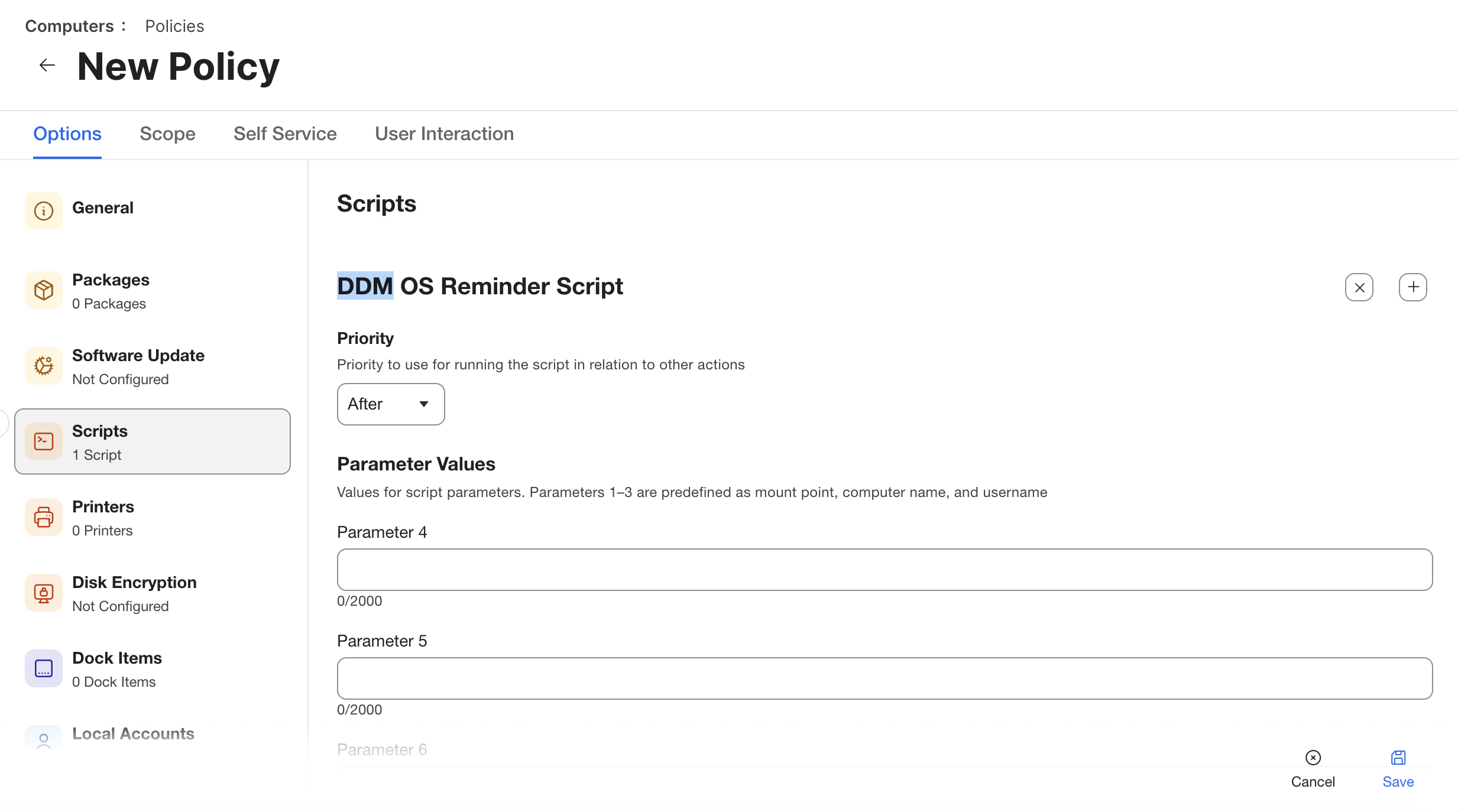
Then I added the DDM OS Reminder Script to the policy. In my screenshot, the script priority is set to After.
The profile and policy should be scoped to the same test Mac or test group. The profile supplies the preferences, and the policy runs the installer; if either side is missing, the deployment is incomplete. A Mac can have the runtime without the intended behavior, or it can have the profile without the local scripts and LaunchDaemon that act on it.
What the installer creates
The policy log from my test Mac is the clearest way to see what the assembled script actually does.
It started by creating the log:
Created specified scriptLog: /var/log/com.example.log
Then it reset any previous local state:
Reset Configuration: All
Reset All Configuration Files
Reset LaunchDaemon
Reset Script
Because this was a fresh install, the prior runtime assets were not present:
Runtime asset not present: '/Library/Management/com.example/dor.zsh'
Runtime asset not present: '/Library/Management/com.example/dor-starter.zsh'
Runtime asset not present: '/Library/Management/com.example/dor-state.plist'
Runtime asset not present: '/Library/Management/com.example/dor.pid'
Runtime asset not present: '/Library/Management/com.example/dor-aggressive-kill'
Then the installer created the main runtime files:
Create 'DDM OS Reminder' script: /Library/Management/com.example/dor.zsh
DDM OS Reminder script created
Create 'dor-starter' script: /Library/Management/com.example/dor-starter.zsh
dor-starter script created
The packaging question is answered by those log lines: the generated script is an installer, and it writes the persistent reminder script and starter script into /Library/Management/<RDNN>/.
After that, it created and loaded the LaunchDaemon:
Create LaunchDaemon
Creating '/Library/LaunchDaemons/com.example.dor.plist'
Loading 'com.example.dor'
LaunchDaemon Status
-	0	com.example.dor
Completed com.example.dor LaunchDaemon
Monitor the client-side log via:
tail -f /var/log/com.example.log
By the end of the policy run, the installer has created the LaunchDaemon, loaded it, and left the Mac with the local runtime pieces required for ongoing reminder checks.
dorm (4.0.0): 2026-07-28 08:00:51 - [NOTICE]          Resolved DailyReminderTimes: 08:00,12:00,16:00
dorm (4.0.0): 2026-07-28 08:00:51 - [NOTICE]          Resolved MinutesBeforeDeadlineReminderSchedule: 45,30,15,10,5
dorm (4.0.0): 2026-07-28 08:00:51 - [NOTICE]          Detected logged-in user language 'en-US'; using 'en'
dorm (4.0.0): 2026-07-28 08:00:51 - [PRE-FLIGHT]      Complete
dorm (4.0.0): 2026-07-28 08:00:51 - [NOTICE]          Installed macOS Version: 26.5.2
dorm (4.0.0): 2026-07-28 08:00:51 - [NOTICE]          Installed macOS Build: 25F84
dorm (4.0.0): 2026-07-28 08:00:51 - [NOTICE]          Version Comparison Result: No DDM enforcement log entry found; please confirm this Mac is in-scope for DDM-enforced updates.
dorm (4.0.0): 2026-07-28 08:00:51 - [QUIT]            Exiting …
dorm (4.0.0): 2026-07-28 08:00:51 - [NOTICE]          Scheduled next daemon reminder for 2026-07-28:12:00:00 (Baseline reminder schedule).
dorm (4.0.0): 2026-07-28 08:00:51 - [QUIT]            Ticking away the moments that make up a dull day …
The combination of PRE-FLIGHT Complete and the missing-enforcement message narrows troubleshooting: the reminder runtime is executing, but there is no DDM deadline for it to communicate yet. After the Mac receives the managed update declaration, a later run can resolve the required version and enforcement time.
What the heartbeat means
DDM OS Reminder 4.0.0’s heartbeat model explains why the assembled script should be treated as an installer rather than a recurring policy payload.
The LaunchDaemon wakes up regularly and runs the lightweight dor-starter.zsh helper. That helper checks local scheduling state and only launches the main dor.zsh reminder when a reminder is due, so the heartbeat can be frequent without turning the user prompt into a constant interruption.
The sequence is:
LaunchDaemon
        |
        v
dor-starter.zsh
        |
        v
Checks runtime scheduling state
        |
        v
Launches dor.zsh only when a reminder is due
        |
        v
dor.zsh resolves the DDM deadline and shows swiftDialog
With that model, Jamf’s job is to run the assembled installer once and provide a policy log that proves the runtime was created. Scheduling then stays local: the LaunchDaemon starts dor-starter.zsh, the helper performs the lightweight check, and dor.zsh opens the reminder only when the configured timing and DDM deadline state require it.
Keep enforcement and communication separate
The macOS update requirement should still come from the managed software update workflow. In Apple’s DDM software update model, management declares the target version or build and the deadline; Jamf’s managed software update guidance shows how that Apple behavior is exposed in the Jamf admin workflow.
DDM OS Reminder belongs next to that enforcement path, not inside it. Jamf and DDM define the required macOS version, the deadline, and the compliance behavior, while DDM OS Reminder makes the deadline visible to the user before the operating system reaches the enforcement point.
That split creates a cleaner operating model:
- Jamf and DDM define the target macOS version or build and the deadline.
- The DDM OS Reminder profile defines the message, support links, branding, reminder timing, aggressive mode, and restart messaging.
- The one-time installer creates the local scripts, state files, log, and LaunchDaemon.
- The LaunchDaemon checks local state and starts the reminder workflow only when it is due.
- swiftDialog presents the user-facing prompt.
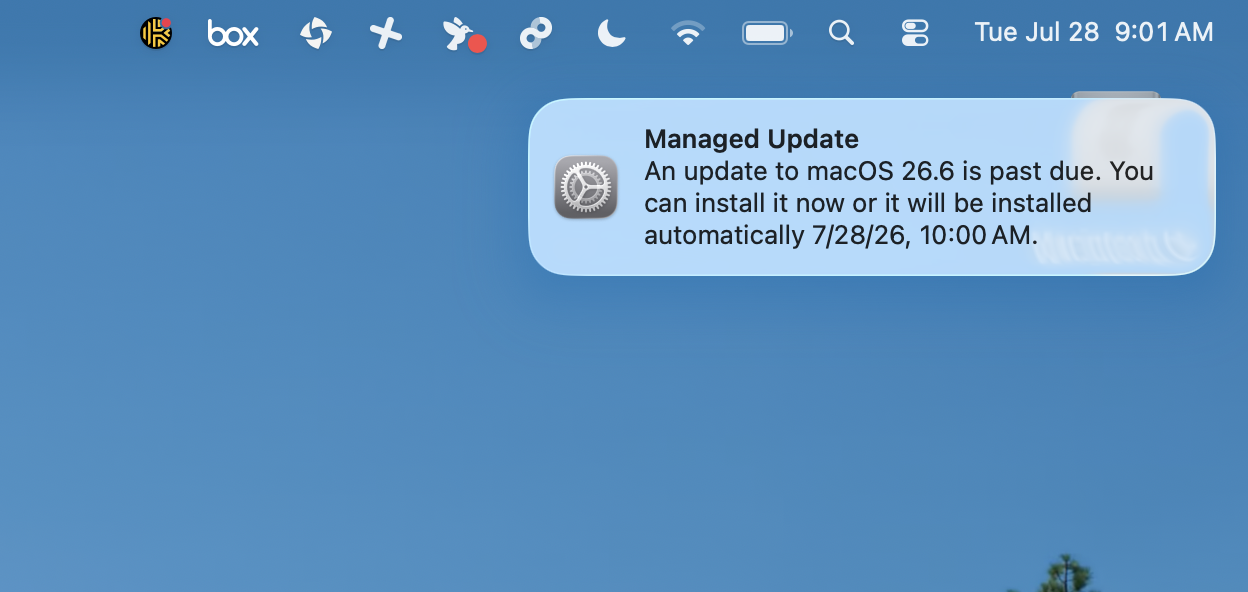
The same split helps with troubleshooting. If the Mac is not receiving or enforcing the update deadline, the problem belongs in the managed software update/DDM configuration; if the deadline exists but the reminder is not appearing, the next checks are the profile domain, local runtime folder, LaunchDaemon status, and DDM OS Reminder log.
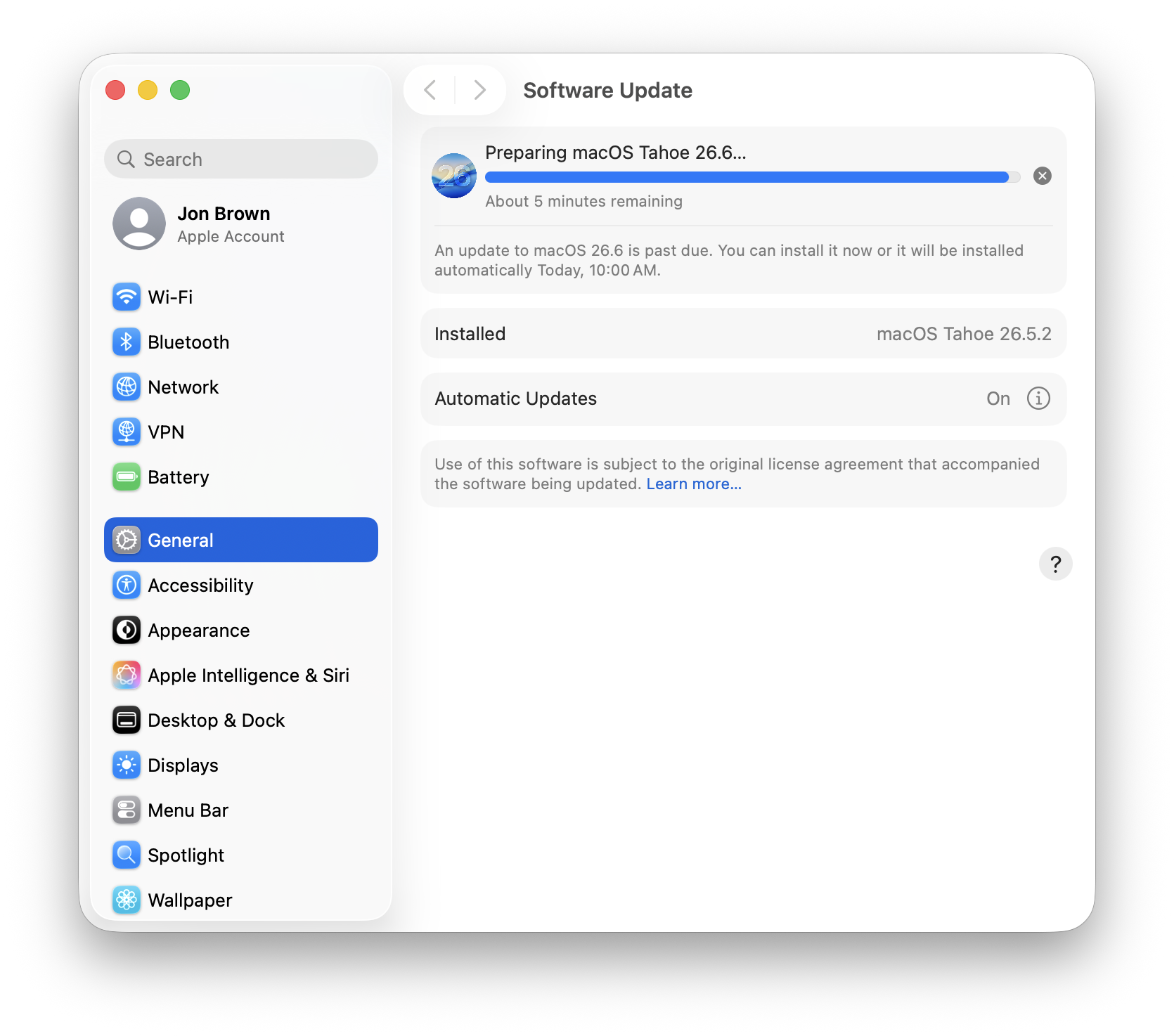
The Software Update pane provides the second half of that evidence. It shows macOS Tahoe 26.6 preparing on a Mac currently running 26.5.2, repeats the automatic 10:00 a.m. enforcement time, and therefore confirms that the declaration has progressed beyond a notification into a pending update on the endpoint.
What I would test before broad rollout
I would keep the first scope small enough that the full path can be checked carefully; one test Mac is enough to prove the deployment model.
The first checks are mechanical:
ls -la /Library/Management/com.example/
ls -la /Library/LaunchDaemons/com.example.dor.plist
sudo launchctl print system/com.example.dor
tail -f /var/log/com.example.log
After the local files and LaunchDaemon are present, I would confirm that the configuration profile is installed and that the managed preference domain is available:
profiles show -type configuration | grep -A5 -B5 com.example.dorm
After that, I would test the user experience against a real DDM update deadline: whether the Mac can see the DDM enforcement state, whether the reminder reads the expected deadline, whether the daily reminder times make sense, whether meeting-app delay behaves correctly, and whether past-deadline force behavior is acceptable for the organization.
The aggressive mode and forced restart settings deserve extra attention. In my generated production artifact, force restart behavior was selected, aggressive mode begins 48 hours past deadline, and restart workflow begins 10 days past deadline. I would not roll those values out broadly until I had seen the full update path work on pilot Macs.
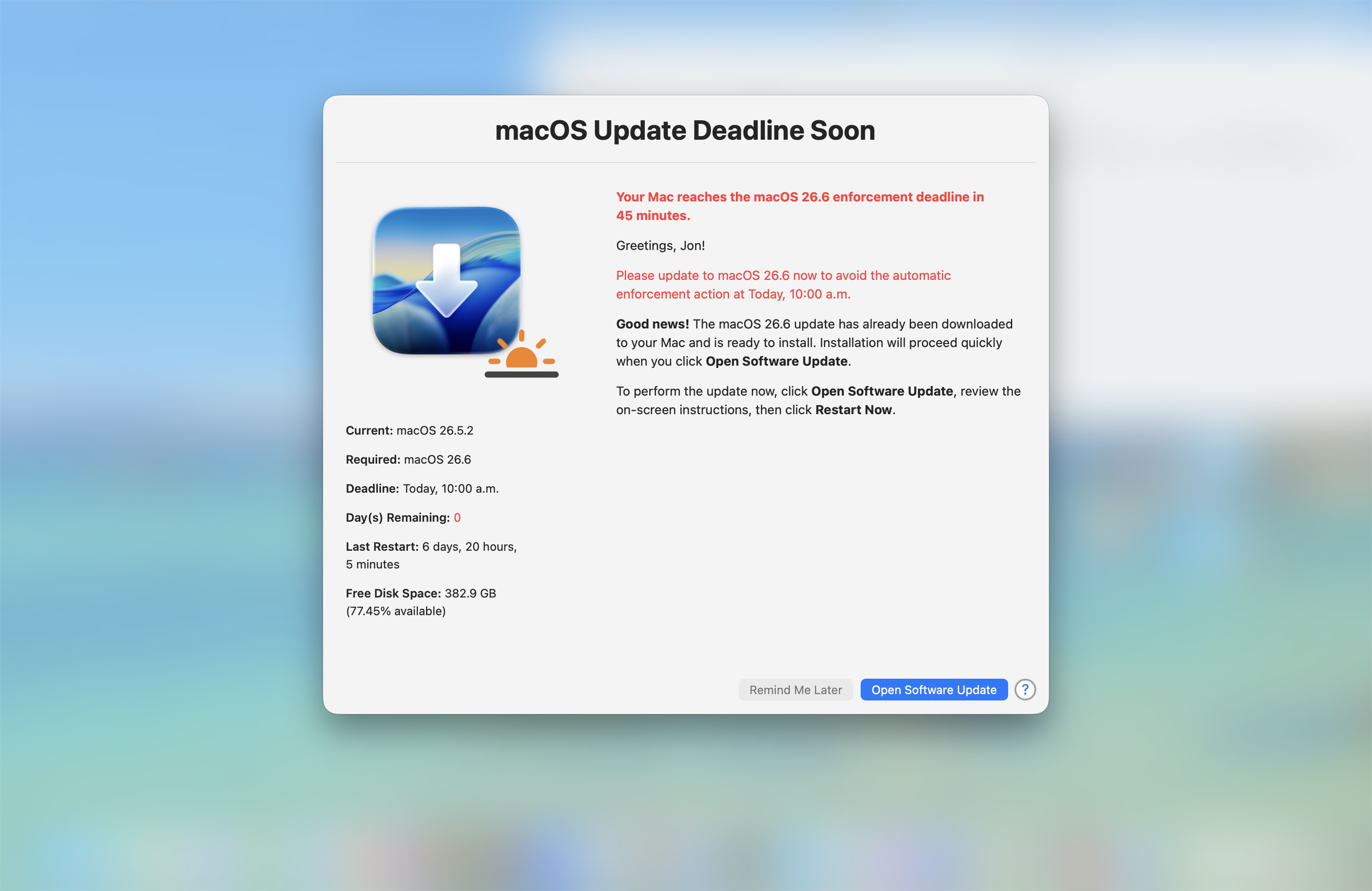
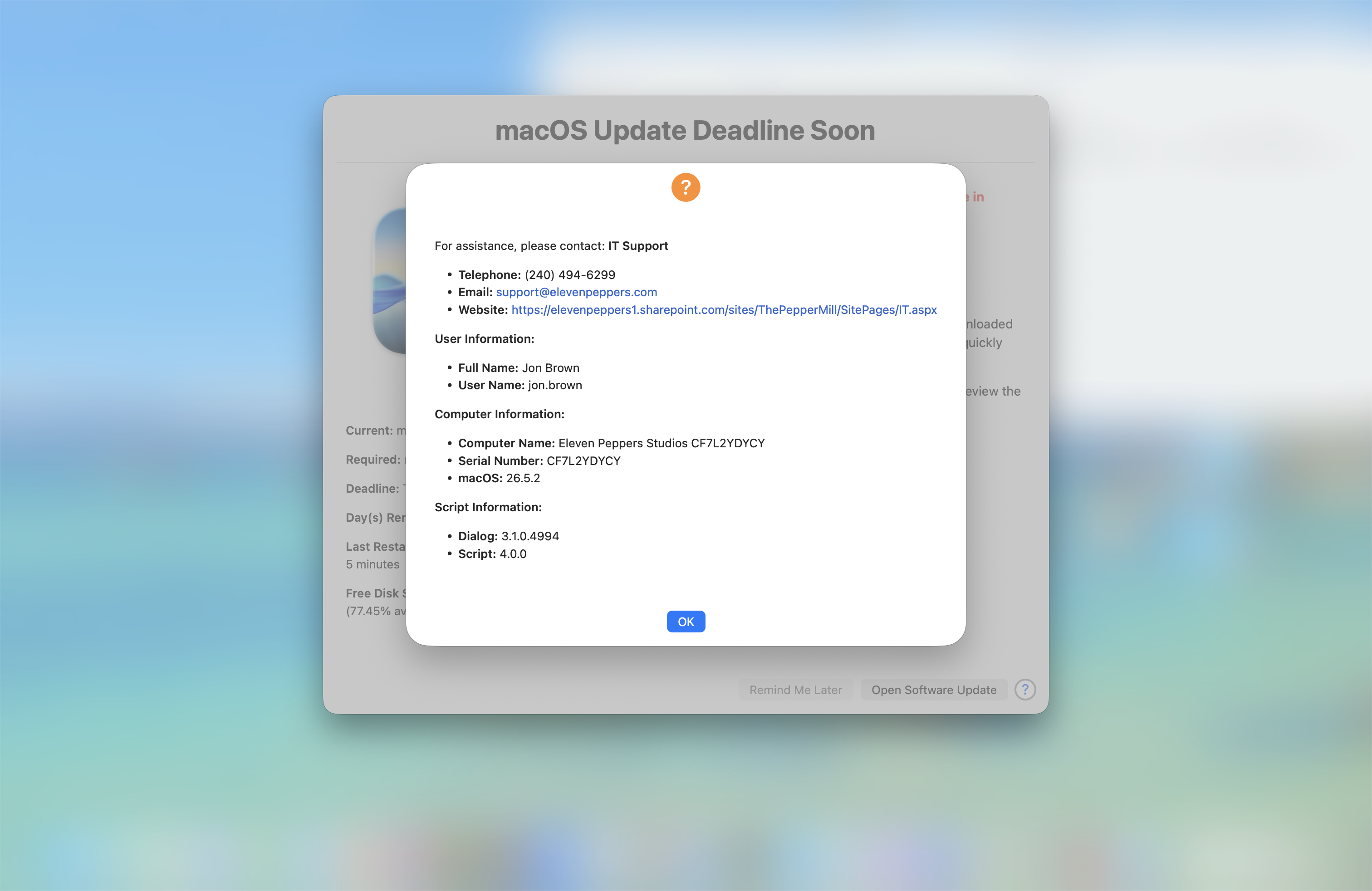
The window is interactive rather than a static warning. Selecting the Help control opens the configured support contact details alongside the logged-in user, computer identity, installed macOS version, swiftDialog version, and DDM OS Reminder version. That gives the user a direct escalation path and gives support staff the context needed to begin triage.
The complete detection sequence is shown in this endpoint walkthrough:
What makes the deployment complete
I would consider the deployment complete only after all three layers can be verified together. The Mac needs the DDM OS Reminder settings under the expected <RDNN>.dorm preference domain, because that is where the reminder reads support details, timing, aggressive-mode behavior, restart messaging, localization, and button behavior.
The Mac also needs the local runtime created by the assembled installer: /Library/Management/<RDNN>/dor.zsh, /Library/Management/<RDNN>/dor-starter.zsh, the local state files, and /Library/LaunchDaemons/<RDNN>.dor.plist. The policy log should show the LaunchDaemon loading successfully and should point to /var/log/<RDNN>.log for follow-up verification.
Finally, the Mac needs an actual DDM managed software update deadline. Without that declaration, the profile and local runtime can be installed correctly but still have no deadline to communicate.
For a broader pilot, the approval state should be concrete: Jamf has delivered the profile and one-time installer, the Mac shows the runtime and LaunchDaemon are active, the log confirms the heartbeat is running, and DDM remains the source of the macOS update deadline.
Sources
- Dan Snelson: DDM OS Reminder 4.0.0
- DDM OS Reminder GitHub repository
- Apple Developer: Deploy software updates using declarative management
- Apple Developer: Explore advances in declarative device management
- Apple Developer: SoftwareUpdateSettings
- Jamf Support: Managed Software Updates with Apple’s MDM and DDM commands
- swiftDialog
AI Usage Transparency Report
AI Era · Written during widespread use of AI tools
AI Signal Composition
Score: 0.34 · Moderate AI Influence
Summary
DDM OS Reminder uses swiftDialog for the user-facing reminder, and generates production artifacts with a clean interactive build.
Related Posts
Tracing a Mac Failure with Logger Utility
Use Logger Utility to filter and stream macOS logs, inspect an Ask AI prompt, and turn a focused export into a local Llama troubleshooting report.

When Chromium Mistakes Your VPN for a Local Network
Turning off Jamf Trust fixed the webinar, which normally would have sent me straight to its routing policies. This time the route was fine: Chromium was treating Jamf's ZTNA broker addresses as a local network, and an Edge and Chrome preference corrected it.

Amnesia Stealer Shows the Next Stage of ClickFix on macOS
Amnesia Stealer shows how ClickFix-style social engineering is adapting on macOS, while a public malware sample gives defenders an opportunity to study the behavior behind the campaign.
Apple Software Updates Need a Blueprint Before the MDM Commands Fade
Apple software update management is moving away from command-first MDM workflows. Jamf Blueprints and Declarative Device Management give Mac admins a better place to express update intent, scope, enforcement, and visibility.

Contour Brings Schema Checks to Mac Admin Configuration Work
Contour is a MacAdmins configuration toolkit that brings schema validation, repeatable generation, normalization, and AI-agent-safe command discovery to Apple configuration profiles, DDM declarations, PPPC, Santa, mSCP, Background Task Management, notifications, support app profiles, and osquery schema lookup.

Three Mac Update Helpers That Fit Below a Patch Platform
Latest, Applite, and an all-in-one macOS update script each solve a different part of lightweight Mac maintenance: app update visibility, Homebrew-backed app management, and command-line package updates that can be wrapped carefully for small teams or basic MDM.
Natural Makes the macOS Scroll Direction Toggle Less Buried
Natural is a small macOS menu bar utility that makes the natural scrolling toggle easy to reach, but building it from source also shows why open-source desktop utilities need clear prerequisite checks before they become recommended tools.

Why Mac Performance Monitor Belongs in the Mac Admin Toolbox
Mac Performance Monitor belongs in the Mac admin toolbox because it records local performance history, helps Help Desk review slow-Mac reports after the moment has passed, and keeps process telemetry on the Mac instead of sending it to a cloud service.

Jamf Moves Platform SSO Into the Enrollment Gate
Jamf's attended Simplified Setup for Platform SSO changes Mac enrollment by making identity registration part of Setup Assistant before the MDM profile is installed.

ClickLock Shows Why Terminal Paste Is a Mac Security Boundary
ClickLock Stealer shows why Mac security teams should watch for Terminal paste lures, fake AppleScript password prompts, command-line Keychain access, LaunchAgent persistence, and Jamf Protect alerts that can route suspected Macs into Jamf Pro response groups.