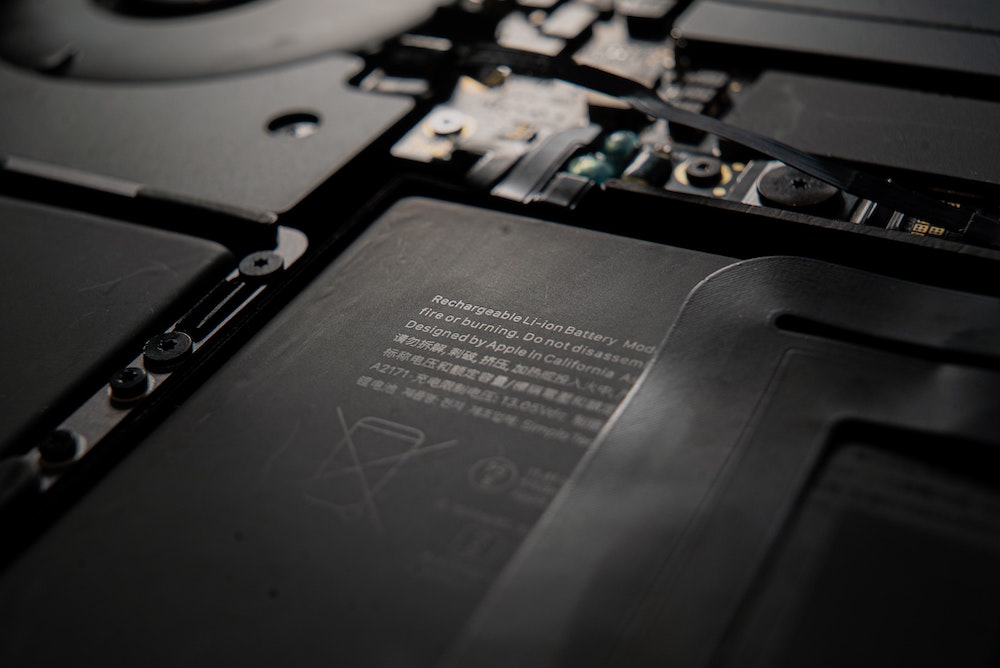

We all want Mac laptops that can run for days on a single charge and never need their batteries serviced. Sadly, we’re always going to be disappointed. Battery and power management technologies continually improve, but those improvements are matched by more powerful processors and smaller designs with less room for battery cells. And, because physics is a harsh mistress, current lithium-ion batteries are always going to age chemically, so they hold less of a charge over time.
In the just-released macOS 10.15.5 Catalina, Apple has introduced a new battery health management feature that promises to increase the effective lifespan of the batteries in recent Mac laptops. It does this by monitoring the battery’s temperature and charging patterns and, in all likelihood, reducing the maximum level to which it will charge the battery.
You see the problem. While battery health management can extend your battery’s overall lifespan, it will likely also reduce your everyday runtime before you need to charge. It’s too soon to know the full extent of this tradeoff, and we suspect that it may be impossible to determine, given that everyone uses their Macs differently.
It’s worth noting that this battery health management feature appears only for those running macOS 10.15.5 or later, and only then if the Mac in question is a laptop with Thunderbolt 3 ports. In essence, then, it’s available only on MacBook Pro models introduced in 2016 or later, and MacBook Air models introduced in 2018 and later. (The Thunderbolt 3 port requirement is merely a shorthand way for Apple to indicate “recent Mac laptops.”)
So, if you have a supported laptop and you’re running macOS 10.15.5, what should you do? We see three scenarios:
- Favor lifespan: If you seldom run your laptop’s battery down to the electronic fumes because it’s easy for you to plug in whenever you need to charge, leave battery health management enabled. That will preserve the battery’s overall lifespan to the extent possible.
- Favor runtime: For those who need to eke every last bit of power from their batteries, disable battery health management. You might have to replace the battery sooner, but you’ll get more runtime in everyday usage.
- Switch as needed: Many people need the longest possible runtime only occasionally, such as on long flights with no under-seat power. In such situations, switch battery health management off for the flight and back on when you return to normal usage patterns.
Switching is easy, but Apple buries it deeply enough that it’s clear that the company doesn’t think most users should be disabling it regularly. Open System Preferences > Energy Saver, click the Battery Health button at the bottom, and in the dialog that appears, uncheck Battery Health Management and click OK. You’ll be prompted to make sure you know what you’re doing; click Turn Off to finish the job.
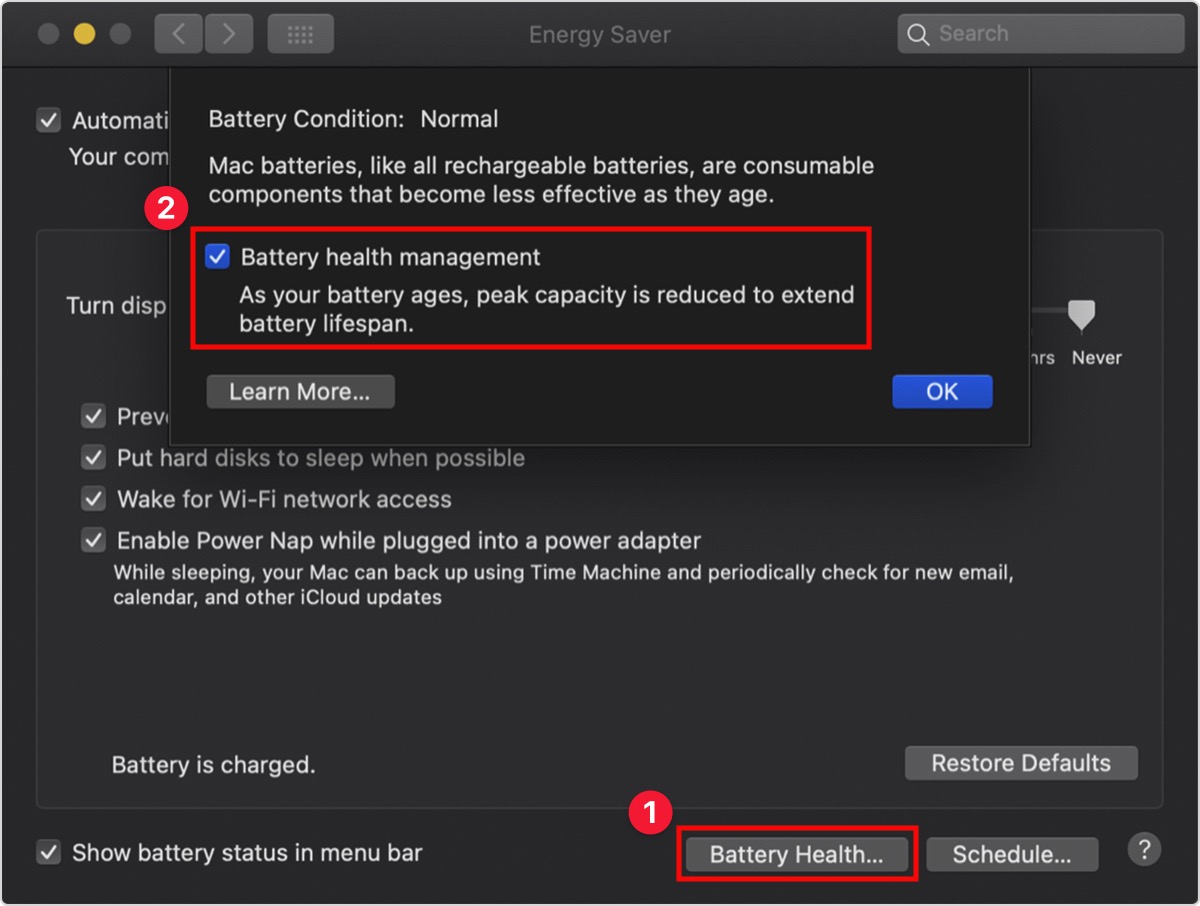
One final note. The reduced maximum capacity with battery health management enabled may have an undesirable side effect—a recommendation from the Battery Status menu’s health indicator that you need to replace your battery. To check your battery’s health, hold the Option key down and click the Battery Status icon on the menu bar. At the top of the menu, next to Condition, you’ll see either Normal or Service Recommended. (In previous versions of macOS, it could have said Replace Soon, Replace Now, or Service Battery.)
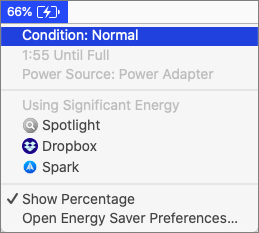
Regardless of the term, anything but Normal indicates that your battery is holding less of a charge than when it was new. If you see that message and you aren’t getting enough runtime for your needs, get the battery evaluated at an Apple-authorized service provider or Apple Store.
AI Usage Transparency Report
Pre-AI Era · Written before widespread use of generative AI tools
AI Signal Composition
Score: 0.04 · Low AI Influence
Summary
Apple has introduced a new battery health management feature in macOS 10.15.5 Catalina, which promises to increase the effective lifespan of recent Mac laptops' batteries by monitoring temperature and charging patterns. However, this may reduce everyday runtime before needing to charge.
Related Posts

When Chromium Mistakes Your VPN for a Local Network
Turning off Jamf Trust fixed the webinar, which normally would have sent me straight to its routing policies. This time the route was fine: Chromium was treating Jamf's ZTNA broker addresses as a local network, and an Edge and Chrome preference corrected it.

Clamshell iBook G3 Restoration, Part 1: From Broken Screen to Board-Level Repair
Part one of a Clamshell iBook G3 restoration: a broken screen, a charger detour, a blinking system folder, a full teardown, and the backlight connector mistake that paused the project.
Bromure Gives Codex a Room of Its Own
I installed Bromure Agentic Coding, watched it build the Linux VM, authenticated Codex, and followed a real Codex task through the workspace.

Claude Code Auto Mode Changes Approval Flow, Not the Safety Boundary
Claude Code Auto mode changes how approval decisions are handled. It does not expand the boundary of what the coding agent should be allowed to do.

Amnesia Stealer Shows the Next Stage of ClickFix on macOS
Amnesia Stealer shows how ClickFix-style social engineering is adapting on macOS, while a public malware sample gives defenders an opportunity to study the behavior behind the campaign.

Reporting on Microsoft 365 DLP Overrides with PowerShell
DLP overrides are not automatically bad. They are a business process that needs visibility. This walkthrough covers a Microsoft Purview DLP policy, a custom sensitive information type, user override behavior, and a PowerShell report that exports override events from Activity Explorer.

PowerBook 140 BlueSCSI Install: Cable Fixed, Battery-Bay Power, and Wi-Fi Setup
The PowerBook 140 project moved from preparing a BlueSCSI card in Basilisk II to installing the repaired internal SCSI cable, powering the BlueSCSI Pico externally from the battery bay, booting System 7.1, and fighting through DaynaPORT Wi-Fi setup.

Move Entra Users Off SMS and Voice Before Microsoft Retires Them
Microsoft is retiring Microsoft-provided SMS and voice authentication in Entra ID. The migration is not passkeys for everyone; it is removing weak telecom MFA and choosing supported replacement methods such as Microsoft Authenticator, FIDO2 keys, certificate-based authentication, OATH hardware tokens, or customer-managed telecom.
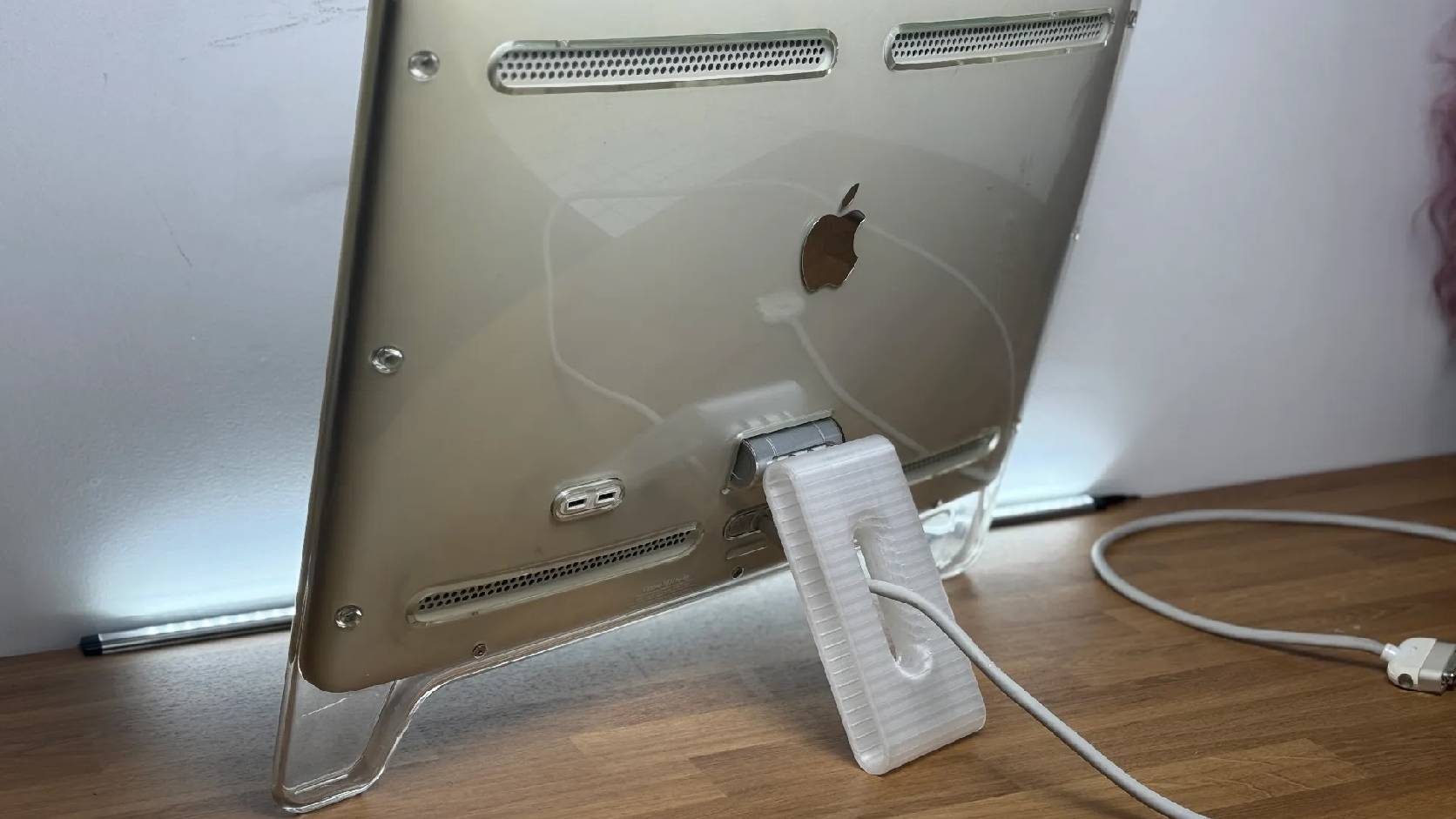
Fixing a Broken Apple Cinema Display Stand with a 3D Printed Leg
A 22-inch Apple Cinema Display arrived with a broken acrylic easel stand, so I used a 3D printed replacement leg instead of sending the monitor back.

macOS Tahoe 26.6.1 Fixes a High-Severity Screen Sharing Authentication Bypass
macOS Tahoe 26.6.1 fixes CVE-2026-65400, a high-severity Screen Sharing authentication issue where an attacker on the network may be able to authenticate without valid credentials.
