

With so many people working from home, lots of attention has been dedicated to making sure everyone has a functional computer, a reasonably ergonomic workspace, and a decent videoconferencing setup. One thing that many have overlooked, however, is the need for a reliable uninterruptible power supply (UPS). Particularly for those using desktop Macs or external hard drives, a UPS is essential because it protects your work—and your devices—against surges, brownouts, and outright power failures. That’s especially helpful as we head into the summer thunderstorm and fall hurricane season.
What is a UPS?
Put simply, a UPS is a big battery into which you plug your Mac and other peripherals. It then plugs into a wall outlet and monitors the incoming power. If the normal power fails, or surges or falls below a certain threshold, the UPS notices and switches the power source to its internal battery. This happens so quickly that your Mac never even notices.
How does a UPS help?
For desktop Macs, a power failure means an immediate and ungraceful shutdown. You’ll lose all unsaved work and, depending on what was happening when the power went out, your drive might be corrupted. Smaller power surges and brownouts may not cause the Mac to shut down, but they put stress on electronic components that can cause a shorter overall lifespan.
When your gear is plugged into a UPS, you get some time to save your work and shut down gracefully, ensuring that you don’t lose data or flirt with drive corruption. And by having the UPS filter out power spikes and drops, your Mac and peripherals will last longer.
What sort of UPS should I look for?
There are three types of UPS: standby, line interactive, and double conversion. The names that different manufacturers use vary slightly, but here are the differences:
- Standby UPS: This simple type of UPS, also called an offline UPS, monitors the incoming power, and if it rises or falls beyond predetermined levels, it switches to using battery power. That happens within 5–12 milliseconds, but the computer still sees some power fluctuations. The incoming power isn’t conditioned as long as it remains within the predetermined levels. A standby UPS is most appropriate in environments where the power is clean—you don’t notice lights flickering—and goes off infrequently.
- Line Interactive UPS: This type of UPS goes a bit further, using automatic voltage regulation to correct abnormal voltages without switching to battery. In the event of an outage, it still switches to battery, but more quickly, within 2–4 milliseconds. If you lose power more often, are near industrial machinery, or notice occasional brownouts when it’s hot out, go for a line interactive UPS. They’re the most popular.
- Double Conversion UPS: The most advanced form of UPS, a double conversion or online UPS, always runs connected devices from the battery, and the incoming power serves only to keep the battery charged. It has no transfer time in the event of an outage and provides the cleanest power. If you’re considering a backup generator or Tesla Powerwall to deal with frequent power outages or it’s clear that you have really dirty power, you should probably get a double conversion UPS.
As you would expect, standby models are the cheapest, and double conversion models are the most expensive.
How big of a UPS do I need?
You’ll need to do some research and math to determine the capacity of your ideal UPS. The first step is to find the size of the load you’re going to connect to it. To do that, look on the back of devices or in their technical specs for a rating in watts (W) or volt-amps (VA). Theoretically, the two are equivalent—watts equals volts multiplied by amps. In reality, you also have to take into account something called power factor along with runtime—how long you want the UPS to power your system before its battery dies.
Apple publishes power consumption numbers for most recent models of the Mac mini, iMac, iMac Pro, and Mac Pro. For the MacBook, MacBook Air, and MacBook Pro, look at tech specs to find the wattage rating of the charger, which will be between 30W and 96W. Then add in any peripherals you’re planning to plug into the UPS, such as an external hard drive, Wi-Fi router, and the like. You may need to read the tiny print on power adapters and multiply volts by amps to get the wattage rating.
For instance, for a system comprising a 27-inch iMac from 2019, a 27-inch Thunderbolt Display, and an external hard drive, you’d add up the following numbers:
- 27-inch iMac: Between 71W and 262W (find it on the iMac Power Consumption page)
- Thunderbolt Display: 104W (search on “Thunderbolt Display power consumption”)
- Hard Drive: 36W (look on the power adapter to see that it’s rated for 12V and 3A)
That gives you a total of 402W maximum, although it’s likely to be lower in normal usage. Nonetheless, to convert watts to volt-amps and account for the power factor, we divide the maximum wattage rating by power factor—a safe power factor is 0.8. So 402W / 0.8 = 503VA. So at a bare minimum, you’d want a UPS rated for 500VA. For some wiggle room on adding devices, it’s worth increasing the capacity by 50–100%, bringing us up to 750VA to 1000VA.
Here’s where things get fuzzy. The next step is to take that number and plug it into a UPS selector. Major manufacturers like APC (shown below), CyberPower, and Tripp Lite provide tools along these lines.
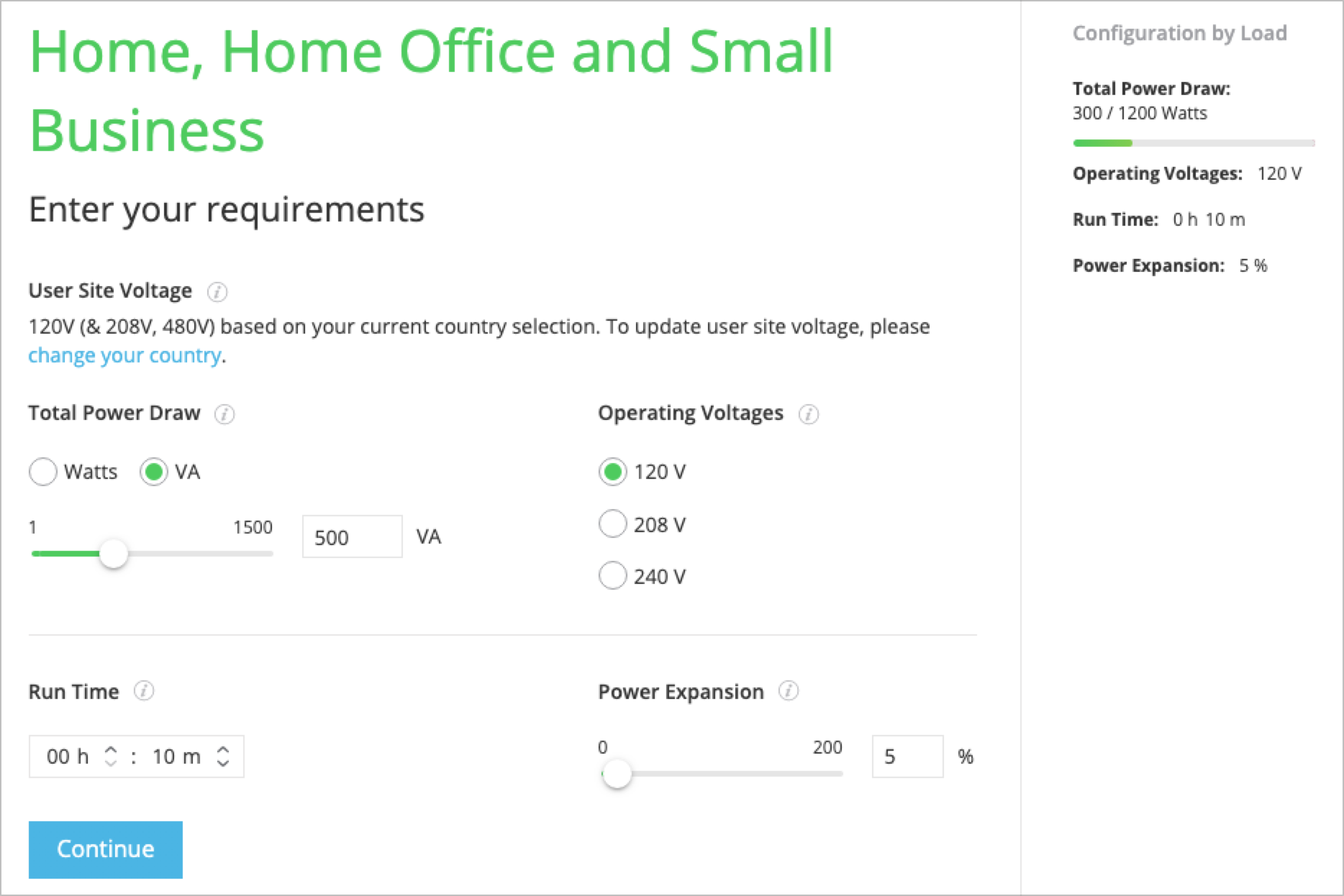
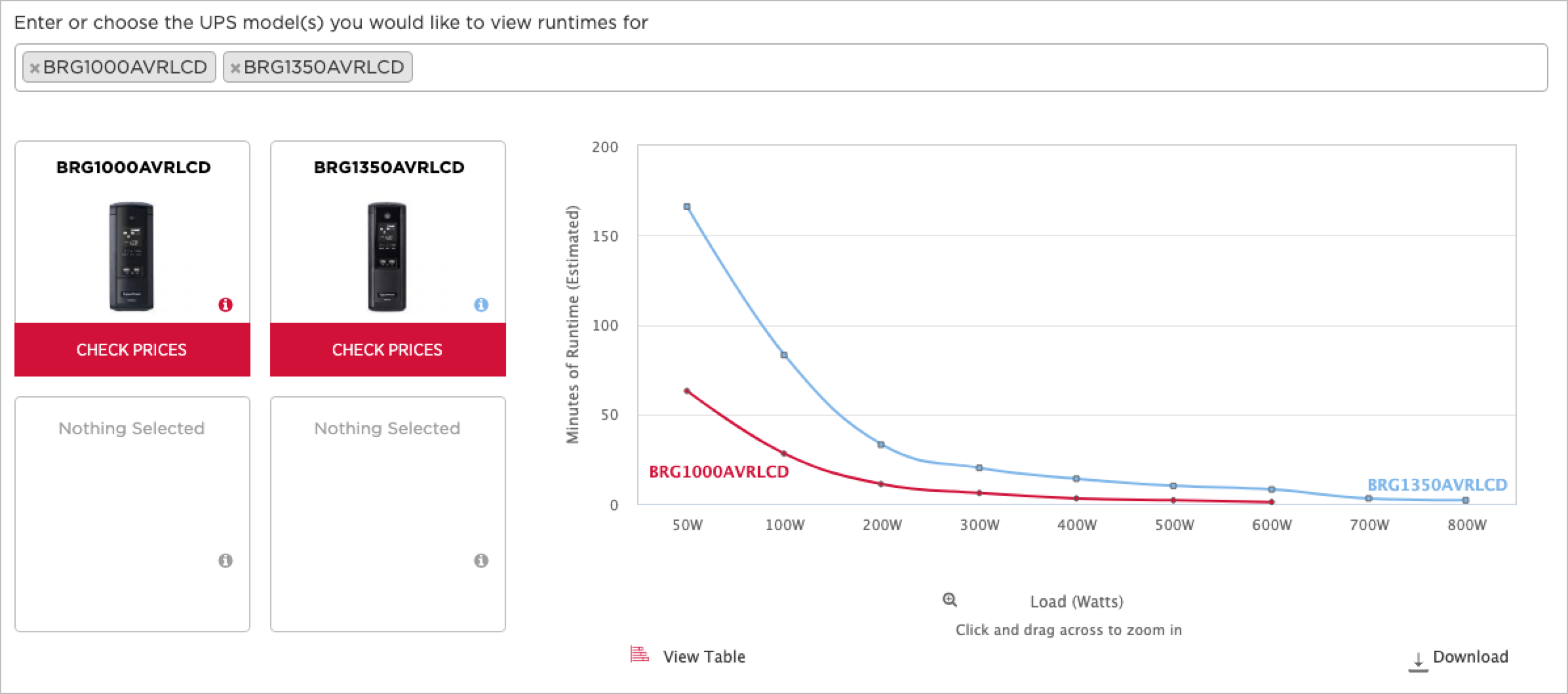
They’ll probably recommend a UPS with a higher capacity than is necessary—they are trying to upsell you, and the calculations will be based on the maximum loads you entered. If your Mac is running flat out, you’re likely sitting there and can shut it down quickly, so a long runtime isn’t necessary. If you’re not at the Mac, it should be sleeping, leading to a much longer runtime. CyberPower provides a nice runtime calculator that lets you see how long different models will last based on the actual load.
Are there other UPS features to look for?
Although many UPS features are fairly standard, it’s worth making sure you’re getting the ones you want. They include:
- Form factor: Some smaller UPS models look like oversized surge protectors; most larger ones are mini-towers. You’ll probably want it under your desk, so make sure it’s a form factor that works for you.
- Power outlets: Most UPS devices have a mix of outlet types. Some are backed by the battery, whereas others merely protect against surges. You’ll want to plug most electronic gear into battery-backed outlets—make sure the UPS has enough, and in an orientation that works with wall-wart power adapters—but if you have a laser printer or a lamp that you need to plug in as well, those should go in the surge-protected outlets.
- Display: Many UPS models have an LCD display and buttons that you can use to cycle through screens of available runtime, current load, incoming voltage, and more. We like such displays.
- Alarm control: When the power goes out, it’s common for a UPS to activate an audible alarm to alert you of the problem. Those alarms are usually loud and piercing, so if you need to keep working briefly or leave a low-load device (like a Wi-Fi router) running during an outage, you’ll want the option of turning the alarm off.
- Replaceable batteries: UPS batteries don’t last forever, and it usually makes sense to buy a model whose batteries you can replace after a few years when its effective runtime has dropped significantly. You can always test runtime by pulling the UPS plug from the wall. Make sure to save all your work first!
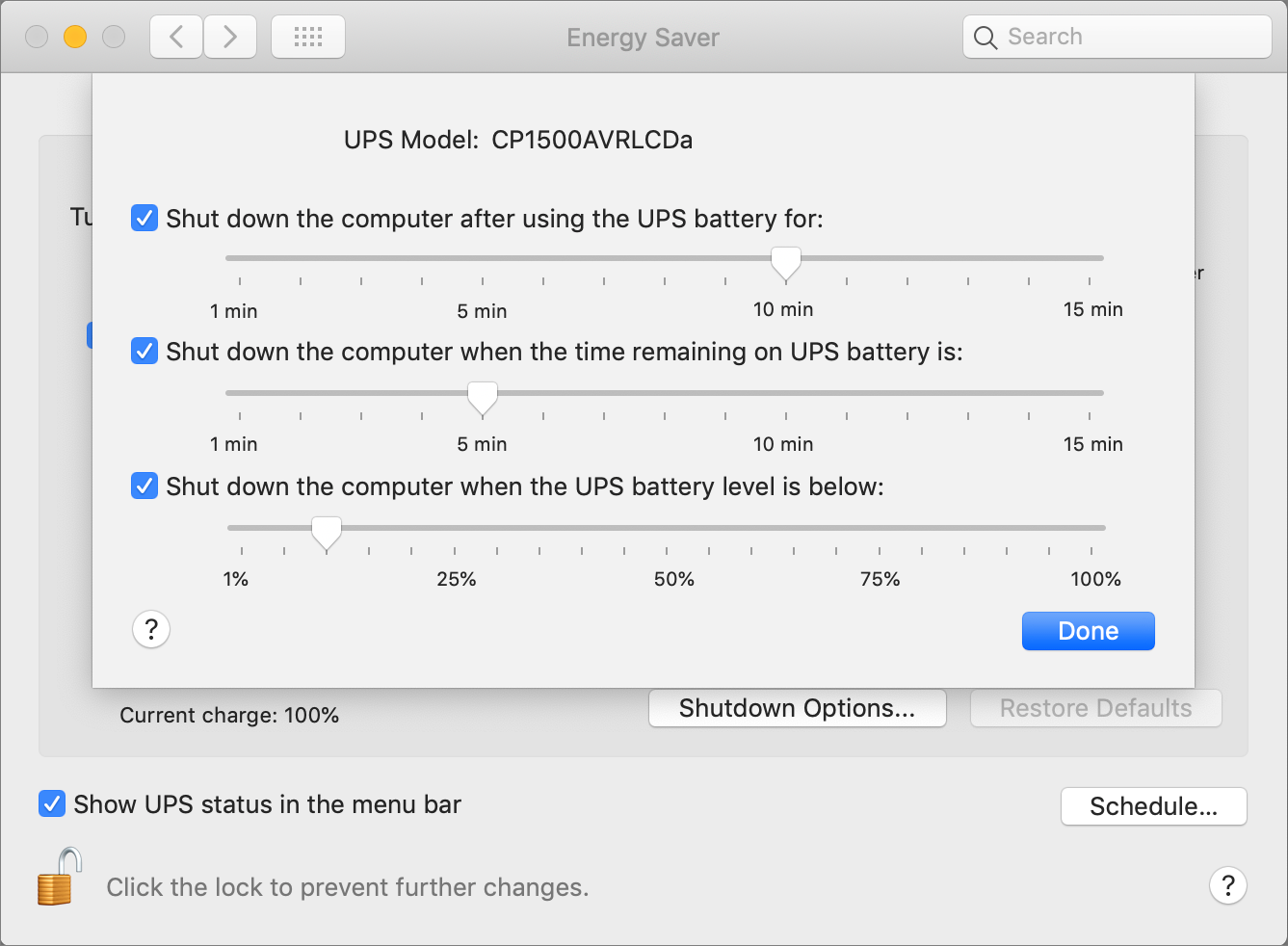
- Software: Many UPS models can connect to your Mac via a USB cable and use either included software or the Mac’s built-in power management software to shut the Mac down gracefully if you’re not present. When the UPS is connected, look in System Preferences > Energy Saver > UPS > Shutdown Options.
Phew! There’s a lot to consider when purchasing a UPS, but feel free to ask us for help or our current manufacturer recommendations.
AI Usage Transparency Report
Pre-AI Era · Written before widespread use of generative AI tools
AI Signal Composition
Score: 0.06 · Low AI Influence
Summary
A reliable uninterruptible power supply (UPS) is essential for protecting your work and devices against surges, brownouts, and power failures.
Related Posts
Clamshell iBook G3 Restoration, Part 1: From Broken Screen to Board-Level Repair
Part one of a Clamshell iBook G3 restoration: a broken screen, a charger detour, a blinking system folder, a full teardown, and the backlight connector mistake that paused the project.
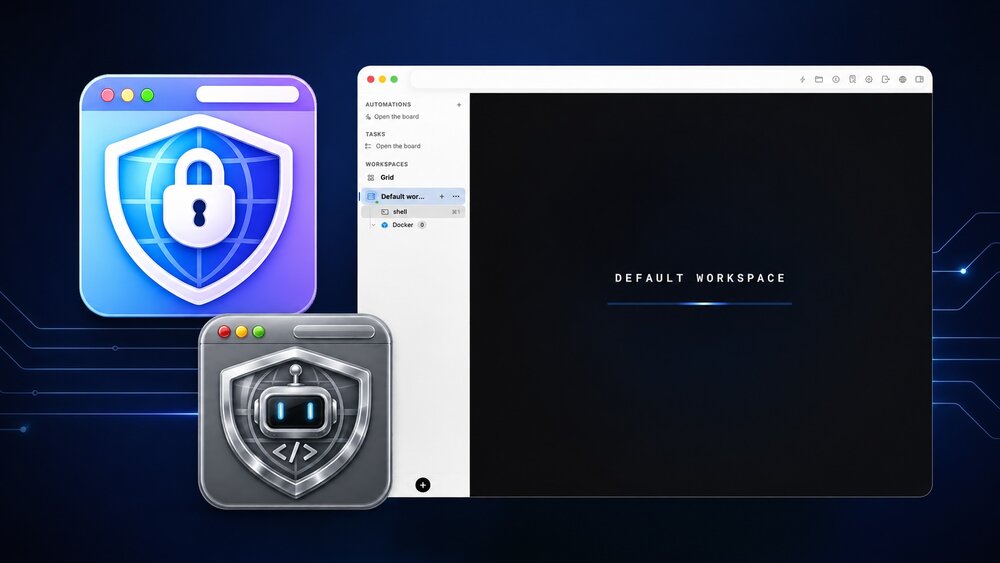
Bromure Gives Codex a Room of Its Own
I installed Bromure Agentic Coding, watched it build the Linux VM, authenticated Codex, and followed a real Codex task through the workspace.
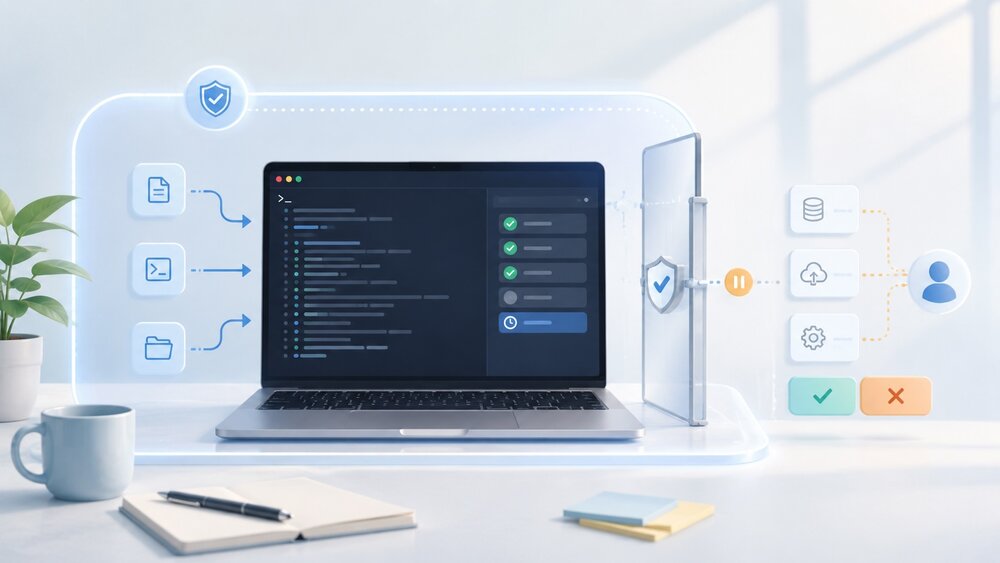
Claude Code Auto Mode Changes Approval Flow, Not the Safety Boundary
Claude Code Auto mode changes how approval decisions are handled. It does not expand the boundary of what the coding agent should be allowed to do.

Amnesia Stealer Shows the Next Stage of ClickFix on macOS
Amnesia Stealer shows how ClickFix-style social engineering is adapting on macOS, while a public malware sample gives defenders an opportunity to study the behavior behind the campaign.

Reporting on Microsoft 365 DLP Overrides with PowerShell
DLP overrides are not automatically bad. They are a business process that needs visibility. This walkthrough covers a Microsoft Purview DLP policy, a custom sensitive information type, user override behavior, and a PowerShell report that exports override events from Activity Explorer.

PowerBook 140 BlueSCSI Install: Cable Fixed, Battery-Bay Power, and Wi-Fi Setup
The PowerBook 140 project moved from preparing a BlueSCSI card in Basilisk II to installing the repaired internal SCSI cable, powering the BlueSCSI Pico externally from the battery bay, booting System 7.1, and fighting through DaynaPORT Wi-Fi setup.

Move Entra Users Off SMS and Voice Before Microsoft Retires Them
Microsoft is retiring Microsoft-provided SMS and voice authentication in Entra ID. The migration is not passkeys for everyone; it is removing weak telecom MFA and choosing supported replacement methods such as Microsoft Authenticator, FIDO2 keys, certificate-based authentication, OATH hardware tokens, or customer-managed telecom.
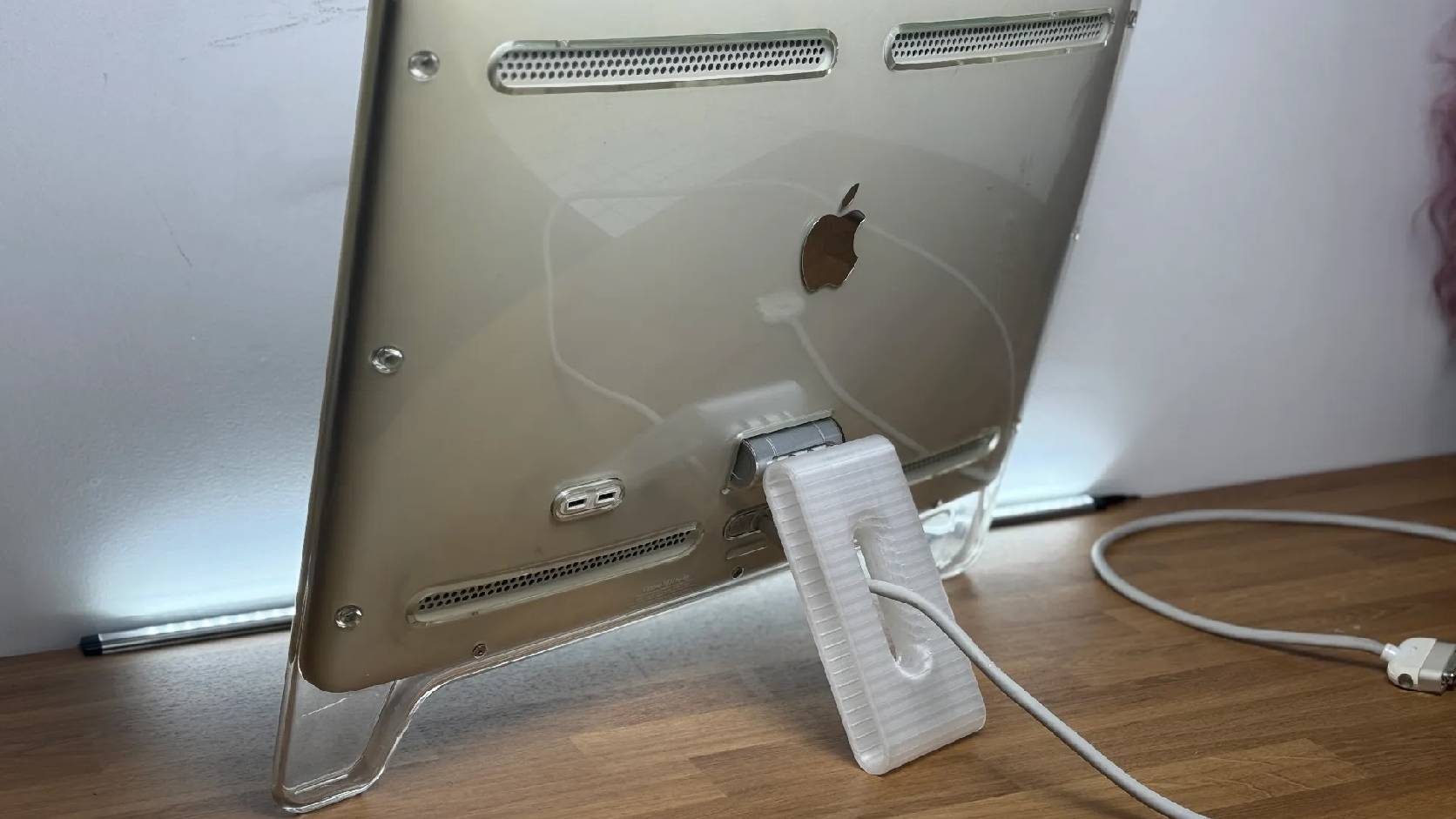
Fixing a Broken Apple Cinema Display Stand with a 3D Printed Leg
A 22-inch Apple Cinema Display arrived with a broken acrylic easel stand, so I used a 3D printed replacement leg instead of sending the monitor back.

macOS Tahoe 26.6.1 Fixes a High-Severity Screen Sharing Authentication Bypass
macOS Tahoe 26.6.1 fixes CVE-2026-65400, a high-severity Screen Sharing authentication issue where an attacker on the network may be able to authenticate without valid credentials.

Three Mac Update Helpers That Fit Below a Patch Platform
Latest, Applite, and an all-in-one macOS update script each solve a different part of lightweight Mac maintenance: app update visibility, Homebrew-backed app management, and command-line package updates that can be wrapped carefully for small teams or basic MDM.