
Many of us have been using iPhones for years, and apps we bought or downloaded long ago molder in corners of our Home screens. Even if you haven’t played Flappy Bird in years, its pixelated icon still stares glumly at you every time you peer at its Home screen, and it’s far from alone. To find out how many apps you have, go to Settings > General > About and look next to Applications. So where are they all?
Unless you’re one of those highly organized people who keeps every app in a folder (we’re jealous), you probably have quite a few Home screens holding all those apps. The first one or two may be nicely laid out, with your most frequently used apps close at hand. But after that? We can never find little-used apps on the fourth or sixth Home screen. Instead, we search for such apps—swipe down on a Home screen and type a few characters from its name. But wouldn’t it be nice to see an alphabetically sorted list of all your installed apps?
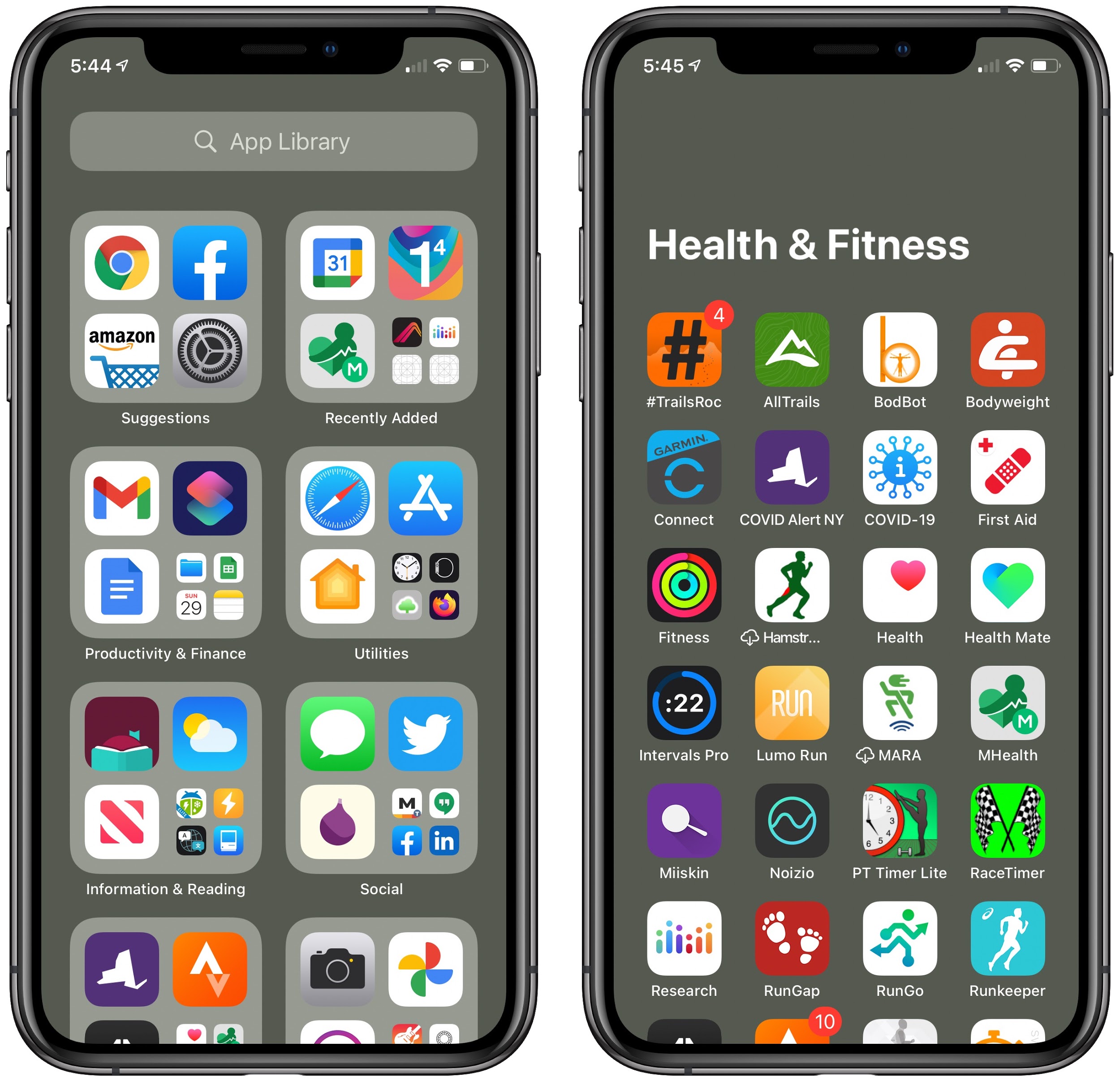
That’s what iOS 14’s App Library provides, though it may not be evident at first glance. (Sadly, the App Library isn’t available in iPadOS 14.) A new screen to the right of your last Home screen, the App Library collects all your apps into folders. At the top, Suggestions includes four suggested apps based on time, location, or activity, and Recently Added shows the apps you’ve downloaded lately. The rest of the folders organize apps by category. In a folder grid, tapping a large icon opens that app, while tapping the group of four small icons in the lower-right corner opens the folder. When in jiggle mode, you can also drag an app out of the App Library to a Home screen or tap the X badge on an app icon to delete it.
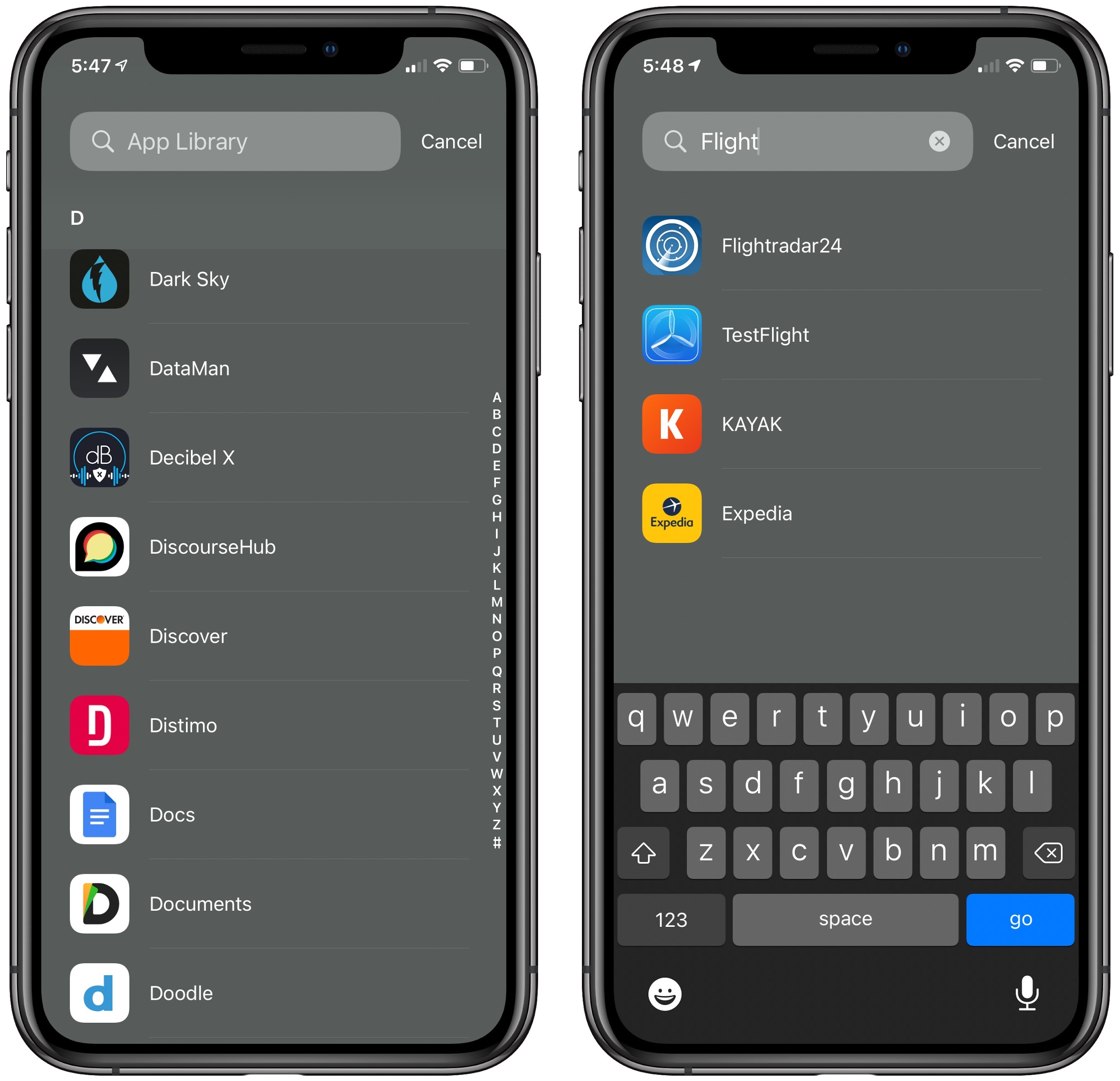
Since you can’t rename any of the App Library folders or move apps between them, most of them aren’t that useful for finding something quickly, though you may enjoy browsing in them. However, if you tap the App Library search field at the top, it displays a lovely alphabetical list of all the apps installed on your iPhone. Finally! You can tap a letter on the right to jump to that spot in the list (D in the left-hand screenshot below), or enter a couple of characters to filter the list by name and category (which is why a search for “Flight” also finds travel apps like Kayak and Expedia in the right-hand screenshot).
Perhaps most important, you need to understand that the App Library always contains all the apps installed on your iPhone. If you delete an app from the App Library, you’re deleting it from your iPhone.
Now that you know what the App Library is, what does it enable you to do?
Remove Apps from Your Home Screens
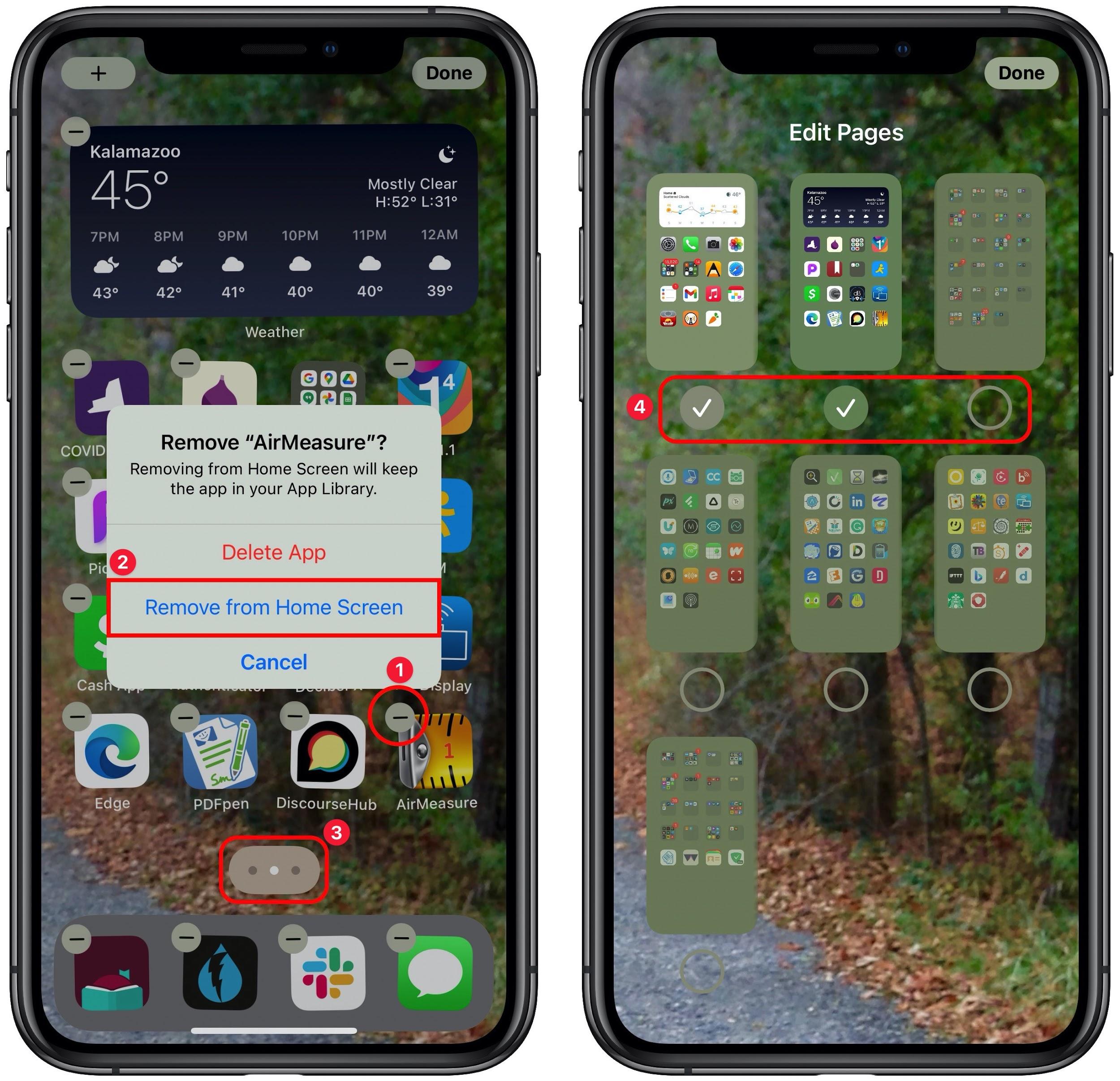
Because all apps are accessible from the App Library, they no longer need to be on a Home screen. That means you can take seldom-used apps off your Home screens and access them from the App Library. To do this, first touch and hold an empty spot on any Home screen to enter jiggle mode. Tap the minus sign – badge on any app ➊, and then tap Remove from Home Screen ➋. That’s effective but slow, since you have to remove apps one at a time.
Here’s a faster approach. In jiggle mode, start dragging an app with your thumb. Then, with another finger, tap other apps to add them to the stack. Once you’ve collected all the apps you want to remove from the Home screen, drag them to the right (or swipe left on the Home screen with another finger) until you get to the App Library. Then lift your thumb.
If you’d rather sweep your apps under a virtual rug, you can hide entire Home screens. They still exist; you just don’t see them until you reveal them again. (You could also create a Home screen that contains just travel-related apps and show it only when you’re on vacation.) When in jiggle mode, tap the lozenge that indicates the number of Home screens (➌ above) and then tap the circle ➍ under each Home screen thumbnail to show (checked) or hide (empty) it. Tap Done when you’re finished.
Organize Your Main Home Screens
Before the App Library, creating focused Home screens was a nightmare because you had no idea where the apps you wanted to bring together might be located. With the App Library, that’s no longer an issue. Try these steps to create a new Home screen that contains a particular subset of your apps.
In the App Library, tap the search field to display the alphabetic list of all apps.
-
Touch and hold the app you want to add to a Home screen.
-
Keep your finger down without moving; you should feel a tap of feedback and a menu will appear.
-
Continue holding down on the app without moving your finger; a second or two later, iOS will display the rightmost Home screen.
-
Lift your finger to drop the app; it will show up in a few seconds.
-
Swipe back to the App Library and repeat these steps.
That approach is effective but a bit slow. Here’s a faster way. Enter jiggle mode, go to the App Library, navigate into a folder, and start dragging an app with your thumb. iOS will immediately send you to the last Home screen, but use another finger to swipe left so you go back to the App Library. Then navigate into a folder and tap desired apps to add them to your stack. Once you’ve collected everything, swipe right with your other finger to return to the last Home screen and lift your thumb to drop all the apps.
Once you’ve populated the Home screen with your desired apps, rearrange them as desired while still in jiggle mode. Remember that you can also create folders by dragging one app onto another, and put apps in folders by dragging them in.
Focus on Newly Downloaded Apps
The App Library also addresses the problem of what to do with newly downloaded apps. Previously, they’d show up at the bottom-right of some Home screen, but you couldn’t always predict which one. In iOS 14, you can now control that behavior in Settings > Home Screen. If you select Add to Home Screen, iOS will continue to add apps that you download to a Home screen. But if you prefer a clean screen, select App Library Only instead.
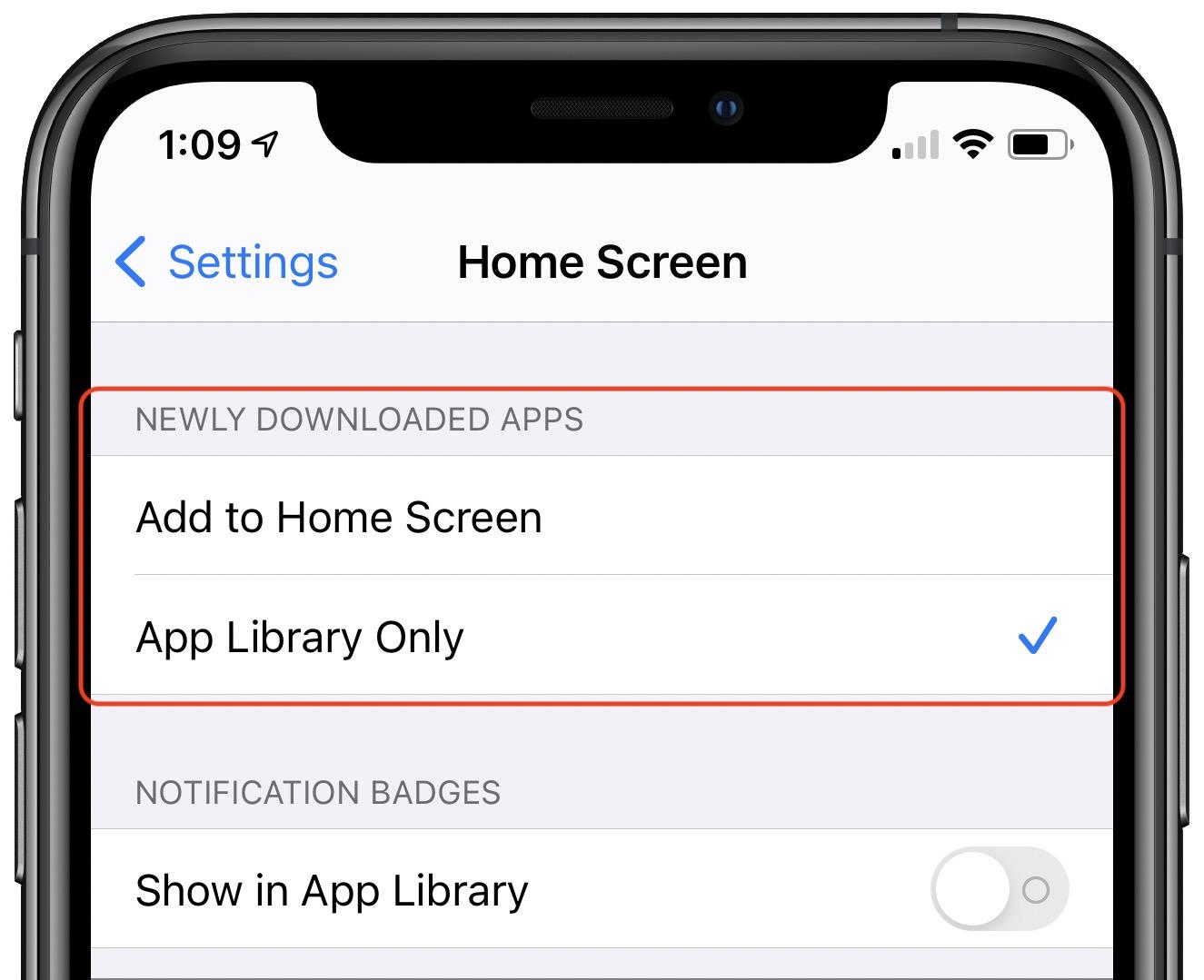
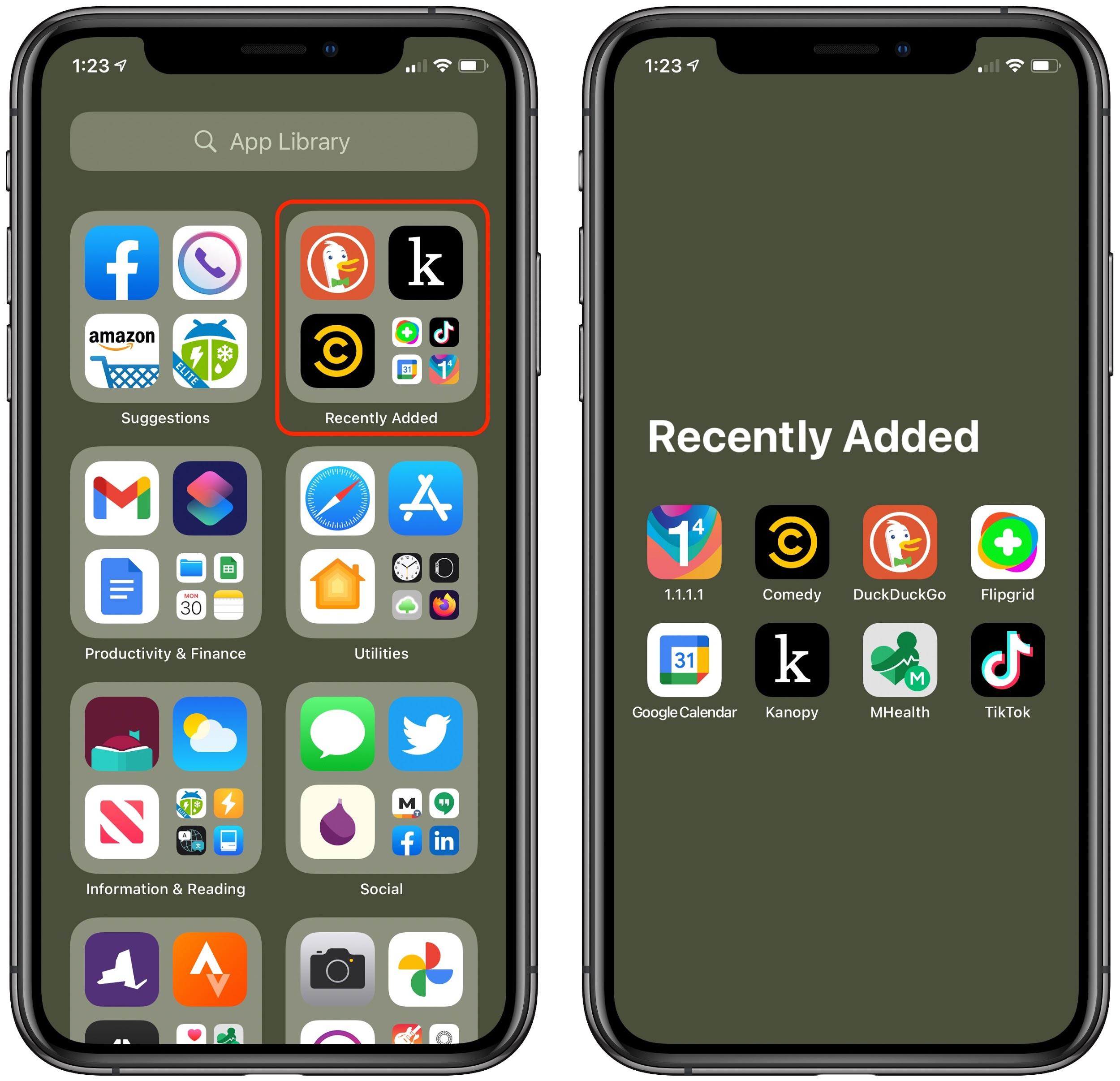
In the latter case, newly downloaded apps appear in the Recently Added folder on the main App Library screen, with the three most recent apps represented with large icons. Remember that you can tap the large icons to open the associated app or tap the four small icons to open the folder. The folder shows only the eight most recently downloaded apps, sorted alphabetically. And, of course, all the new apps also appear in the App Library’s alphabetical list and in the appropriate category folders.
If you’ve been suffering under the cognitive load of numerous unorganized Home screens, think about how you can use the App Library in iOS 14 to streamline your iPhone experience. You might even find that you like having just a couple of Home screens and leaving everything else in the App Library.
AI Usage Transparency Report
Pre-AI Era · Written before widespread use of generative AI tools
AI Signal Composition
Score: 0.07 · Low AI Influence
Summary
iOS 14's App Library provides a solution to the problem of unorganized Home screens, allowing users to access all their apps in an alphabetically sorted list and create focused Home screens.
Related Posts
Clamshell iBook G3 Restoration, Part 1: From Broken Screen to Board-Level Repair
Part one of a Clamshell iBook G3 restoration: a broken screen, a charger detour, a blinking system folder, a full teardown, and the backlight connector mistake that paused the project.
Bromure Gives Codex a Room of Its Own
I installed Bromure Agentic Coding, watched it build the Linux VM, authenticated Codex, and followed a real Codex task through the workspace.
Claude Code Auto Mode Changes Approval Flow, Not the Safety Boundary
Claude Code Auto mode changes how approval decisions are handled. It does not expand the boundary of what the coding agent should be allowed to do.
Amnesia Stealer Shows the Next Stage of ClickFix on macOS
Amnesia Stealer shows how ClickFix-style social engineering is adapting on macOS, while a public malware sample gives defenders an opportunity to study the behavior behind the campaign.
Reporting on Microsoft 365 DLP Overrides with PowerShell
DLP overrides are not automatically bad. They are a business process that needs visibility. This walkthrough covers a Microsoft Purview DLP policy, a custom sensitive information type, user override behavior, and a PowerShell report that exports override events from Activity Explorer.
PowerBook 140 BlueSCSI Install: Cable Fixed, Battery-Bay Power, and Wi-Fi Setup
The PowerBook 140 project moved from preparing a BlueSCSI card in Basilisk II to installing the repaired internal SCSI cable, powering the BlueSCSI Pico externally from the battery bay, booting System 7.1, and fighting through DaynaPORT Wi-Fi setup.

Move Entra Users Off SMS and Voice Before Microsoft Retires Them
Microsoft is retiring Microsoft-provided SMS and voice authentication in Entra ID. The migration is not passkeys for everyone; it is removing weak telecom MFA and choosing supported replacement methods such as Microsoft Authenticator, FIDO2 keys, certificate-based authentication, OATH hardware tokens, or customer-managed telecom.
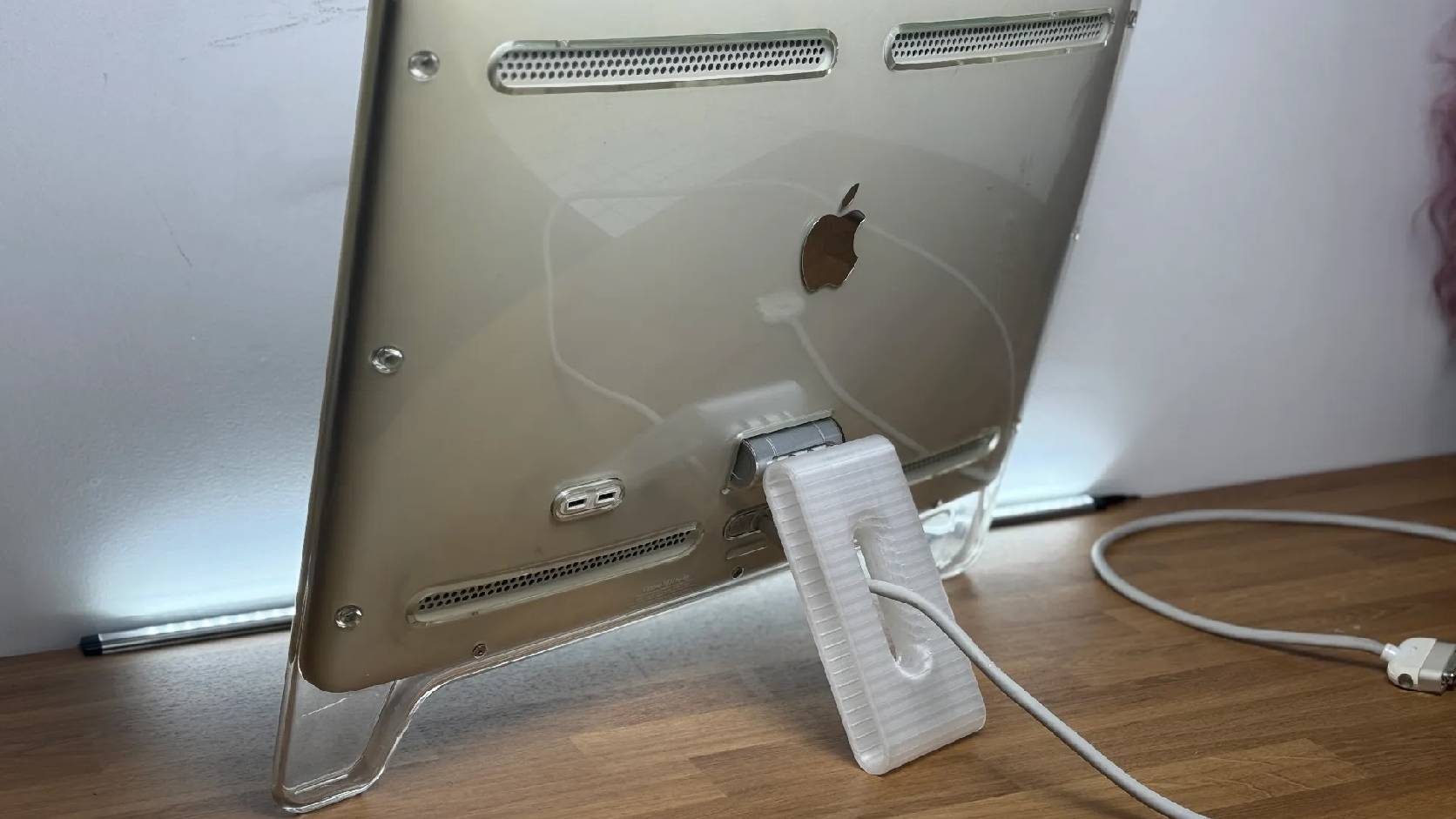
Fixing a Broken Apple Cinema Display Stand with a 3D Printed Leg
A 22-inch Apple Cinema Display arrived with a broken acrylic easel stand, so I used a 3D printed replacement leg instead of sending the monitor back.

macOS Tahoe 26.6.1 Fixes a High-Severity Screen Sharing Authentication Bypass
macOS Tahoe 26.6.1 fixes CVE-2026-65400, a high-severity Screen Sharing authentication issue where an attacker on the network may be able to authenticate without valid credentials.
Three Mac Update Helpers That Fit Below a Patch Platform
Latest, Applite, and an all-in-one macOS update script each solve a different part of lightweight Mac maintenance: app update visibility, Homebrew-backed app management, and command-line package updates that can be wrapped carefully for small teams or basic MDM.