Protect SharePoint From Phished Accounts


Our SOC/SIEM provider reached out about a growing pattern they are seeing: phished Microsoft 365 accounts being used to search SharePoint and OneDrive, download documents, and create sharing links. The attacker uses the employee’s existing access. Documents found this way can contain credentials or payment details for the next attack.
Microsoft has published investigations that show the same pattern. In May, Microsoft described Storm-2949 using compromised accounts to find VPN documents in SharePoint and OneDrive; in one case, the group downloaded thousands of files through OneDrive. Microsoft’s September investigation traced another set of compromised identities through Microsoft Graph activity and heavy SharePoint and OneDrive downloads.
How one compromised account becomes a data breach
The attacker first gets a password through phishing or credential reuse, tricks the employee into approving an MFA prompt, or captures a session through an adversary-in-the-middle phishing page. They sign in from their own device or use the stolen session. Once Microsoft 365 accepts that session, they can use Microsoft Search, Microsoft Graph, or the SharePoint API to look through content the employee is already allowed to see. Searches for “payroll,” “invoice,” “password,” or “contract” can expose documents the employee never knew were shared with them. The attacker downloads the results or creates sharing links, then uses what they found for fraud, further account compromise, or extortion. They do not need a SharePoint administrator account for that sequence.
How to stop this attack
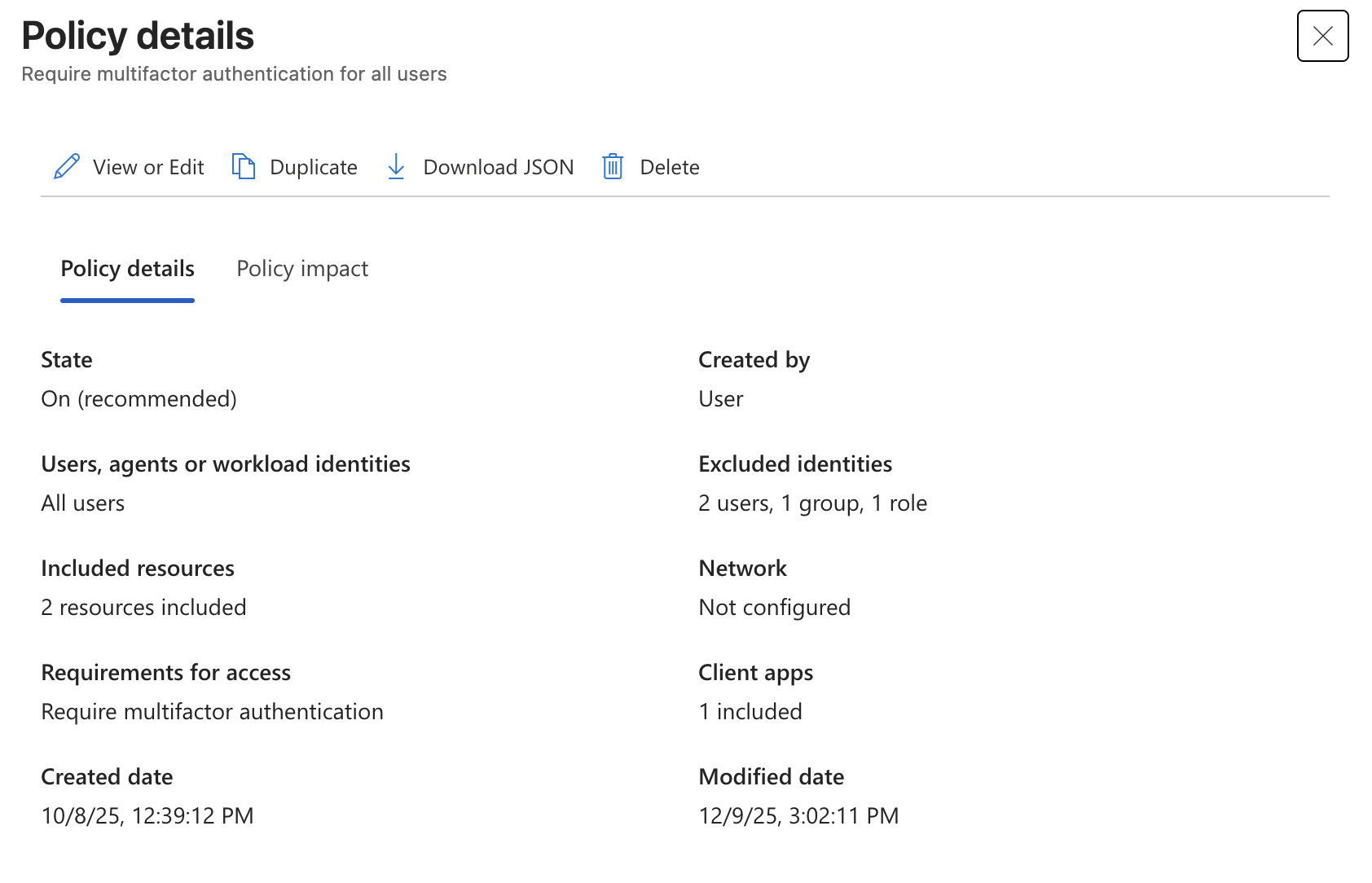
Start in Microsoft Entra admin center > Entra ID > Conditional Access > Policies. Require MFA for users signing in to Microsoft 365, including Browser and Mobile apps and desktop clients. Microsoft recommends a baseline policy for all users and all resources, with emergency-access accounts excluded to prevent tenant lockout. Check that the policy reaches SharePoint and OneDrive sign-ins and that every other exclusion has a documented reason. A policy that misses the browser leaves the phishing route in this advisory open. Microsoft’s MFA policy guide shows the assignments and grant control.
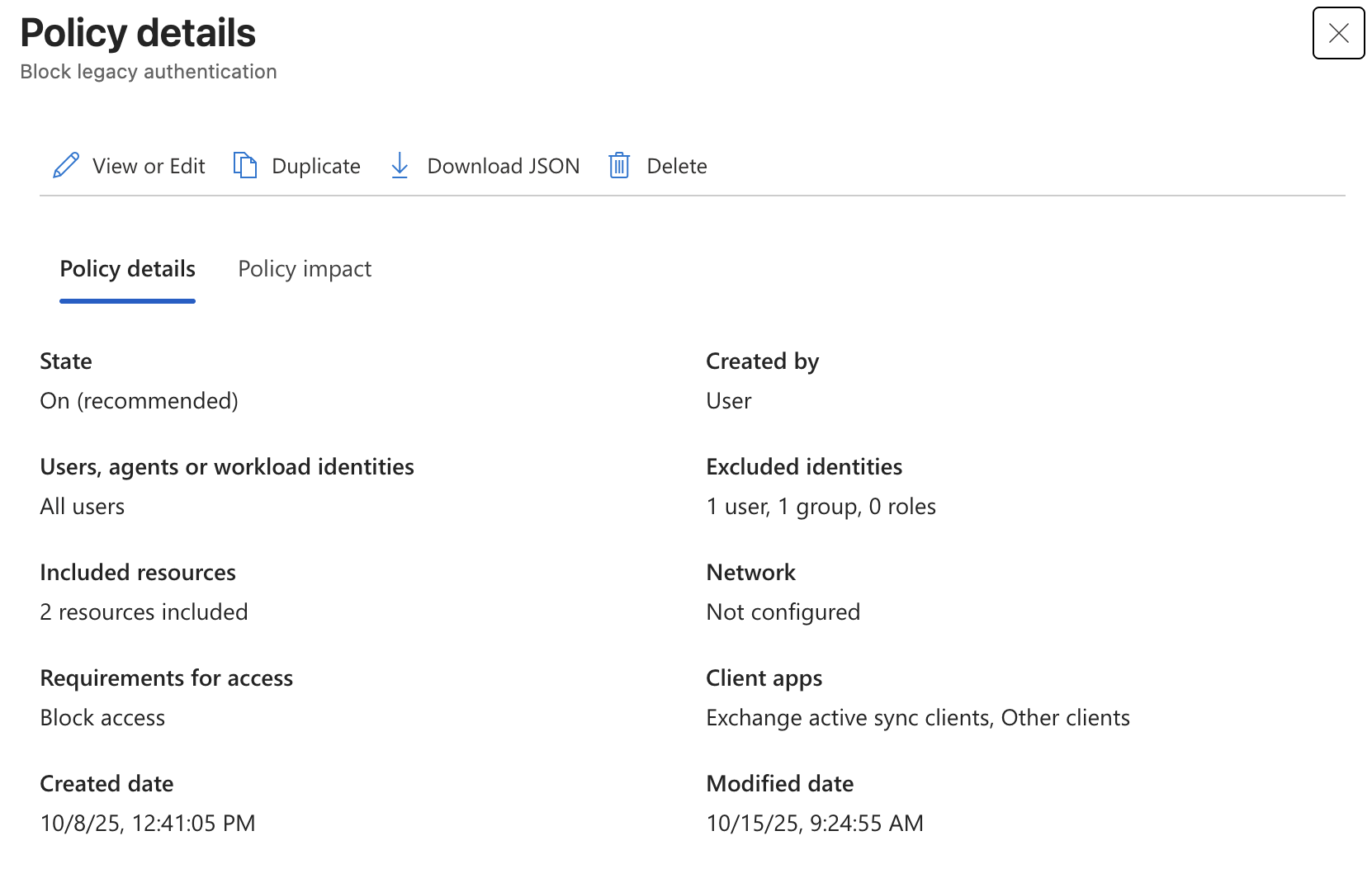
Block legacy authentication with a separate Conditional Access policy. Under Conditions > Client apps, select Exchange ActiveSync clients and Other clients; under Access controls > Grant, choose Block access. Include the users and resources the password-only sign-in could reach, and keep any exclusions narrow and documented. Older clients cannot satisfy MFA, so leaving them available gives a stolen password another route into the tenant. Microsoft documents the client categories.
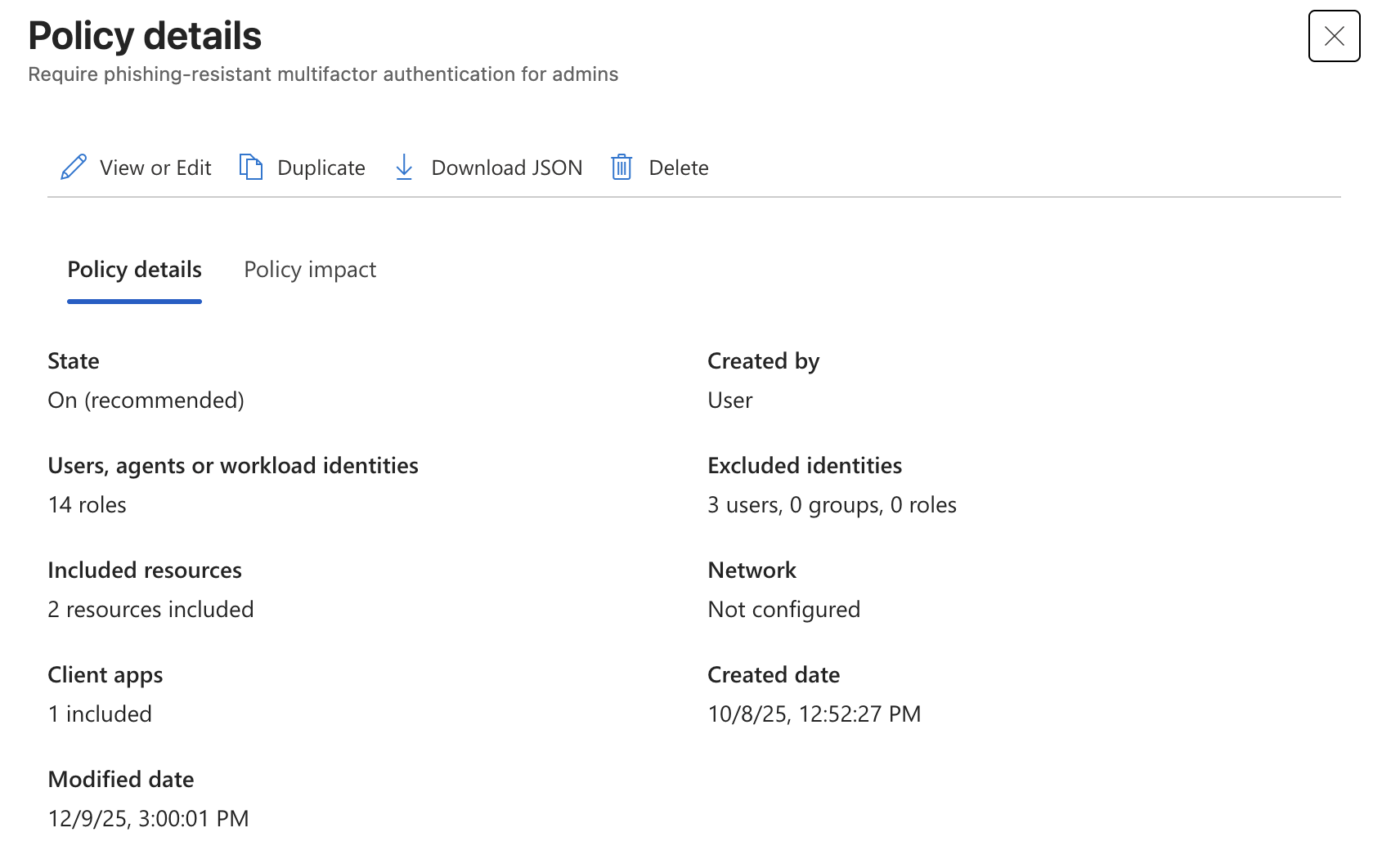
Require phishing-resistant MFA for administrators and expand it to employees after they register a supported method. In Access controls > Grant, select Require authentication strength > Phishing-resistant MFA strength. A password plus an ordinary push approval can still be phished or approved by mistake; the stronger method addresses the credential and prompt attacks in the advisory. Review exclusions before enforcement. Microsoft documents authentication strengths.
Require a managed device for SharePoint access when your users and devices are ready. A rule for legacy clients does not cover an attacker opening SharePoint in a modern browser. Entra can evaluate device compliance at sign-in, but test the clients and token behavior your users rely on before treating it as a complete answer to stolen sessions.
Create a Conditional Access policy for modern SharePoint sign-ins, starting with a small test group. In Assignments > Users, choose that group. In Target resources, choose Office 365 to cover SharePoint, OneDrive, and their related Microsoft 365 services; Microsoft recommends this grouping because those services depend on one another. In Conditions > Client apps, include Browser and Mobile apps and desktop clients. In Access controls > Grant, select Require device to be marked as compliant, and leave the policy in Report-only. The test devices need an Intune compliance policy and must report as compliant; Microsoft’s setup guide covers that requirement.
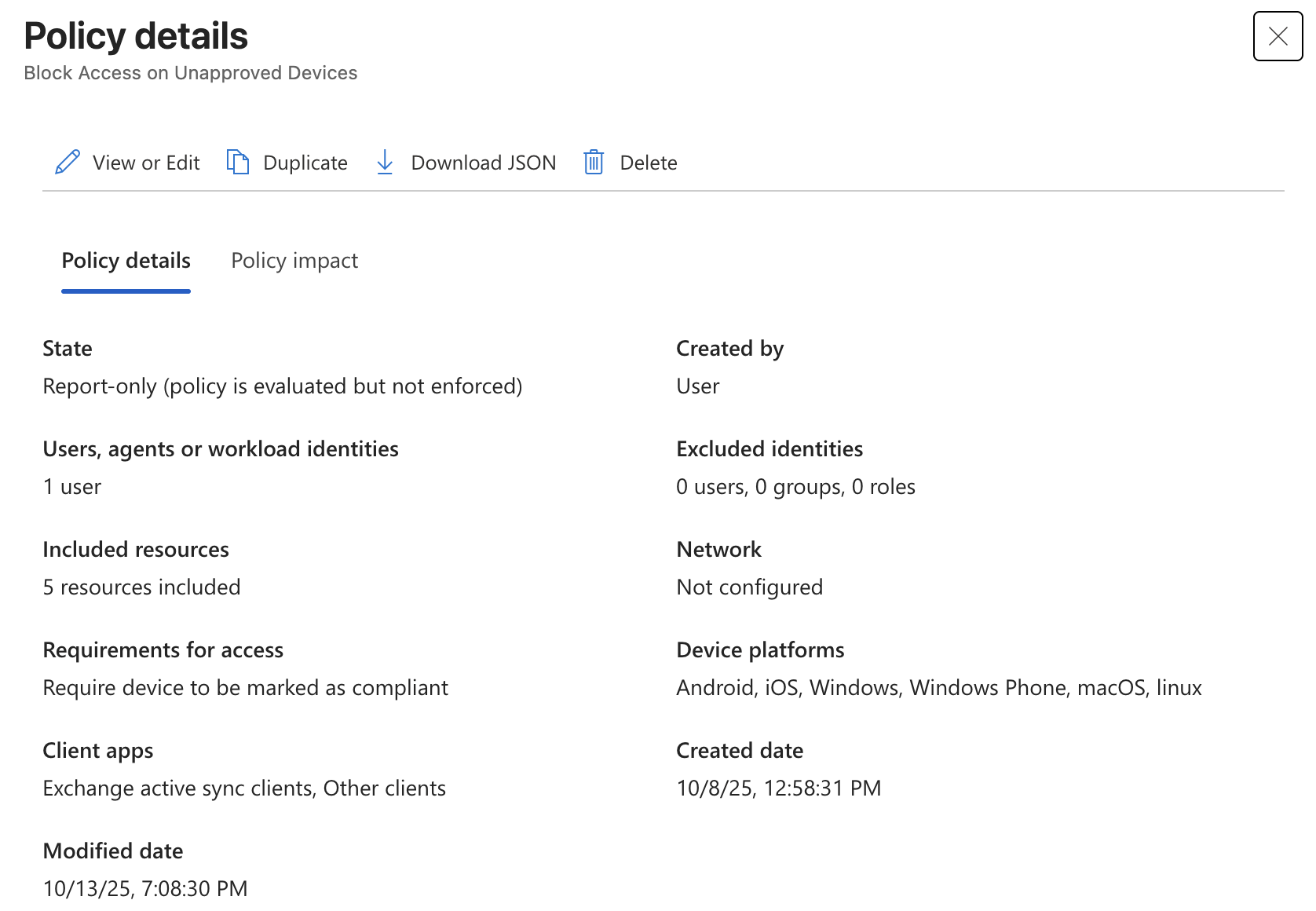
Sign in to SharePoint with the test account on a compliant device, then repeat from an unmanaged browser. Open each event in Entra ID > Monitoring & health > Sign-in logs and read its Conditional Access result. The compliant device should satisfy the new policy; the unmanaged browser should show a report-only failure. If the policy is absent from the browser event, check the client-app assignment, group membership, and target resource. Microsoft explains the report-only results. Once the results match the intended access, switch the policy to On for the test group and expand it in stages. Exclude and monitor emergency-access accounts as Microsoft advises.
If employees need SharePoint on personal computers, test that requirement before choosing a strict compliant-device rule for them. SharePoint admin center > Policies > Access control > Unmanaged devices offers Allow limited, web-only access. Microsoft says this can allow browser viewing while stopping download, print, and sync. Test the devices and browsers employees use, since this setting creates Conditional Access policy behavior of its own.
Sources
- Microsoft Security: Storm-2949 and SharePoint/OneDrive data theft
- Microsoft Security: Cloud compromise and SharePoint/OneDrive downloads
- Microsoft: Conditional Access policies
- Microsoft: Conditional Access client-app conditions
- Microsoft: Office 365 target resources in Conditional Access
- Microsoft: Require device compliance
- Microsoft: Require a compliant device with Conditional Access
- Microsoft: MFA authentication strengths
- Microsoft: Conditional Access report-only mode
- Microsoft: Control access from unmanaged devices
- Microsoft: Emergency access accounts
Related Posts

Adobe Adds Chinese Models to Firefly
Runway and Kling bring acclaimed AI video tools into Adobe Firefly. Adobe's email, security diagram, and FAQ show why a Chinese-developed model can be trusted for approved work, and where client data still goes.
Bromure Gives Codex a Room of Its Own
I installed Bromure Agentic Coding, watched it build the Linux VM, authenticated Codex, and followed a real Codex task through the workspace.

Amnesia Stealer Shows the Next Stage of ClickFix on macOS
Amnesia Stealer shows how ClickFix-style social engineering is adapting on macOS, while a public malware sample gives defenders an opportunity to study the behavior behind the campaign.

Reporting on Microsoft 365 DLP Overrides with PowerShell
DLP overrides are not automatically bad. They are a business process that needs visibility. This walkthrough covers a Microsoft Purview DLP policy, a custom sensitive information type, user override behavior, and a PowerShell report that exports override events from Activity Explorer.

Move Entra Users Off SMS and Voice Before Microsoft Retires Them
Microsoft is retiring Microsoft-provided SMS and voice authentication in Entra ID. The migration is not passkeys for everyone; it is removing weak telecom MFA and choosing supported replacement methods such as Microsoft Authenticator, FIDO2 keys, certificate-based authentication, OATH hardware tokens, or customer-managed telecom.

macOS Tahoe 26.6.1 Fixes a High-Severity Screen Sharing Authentication Bypass
macOS Tahoe 26.6.1 fixes CVE-2026-65400, a high-severity Screen Sharing authentication issue where an attacker on the network may be able to authenticate without valid credentials.

ClickLock Shows Why Terminal Paste Is a Mac Security Boundary
ClickLock Stealer shows why Mac security teams should watch for Terminal paste lures, fake AppleScript password prompts, command-line Keychain access, LaunchAgent persistence, and Jamf Protect alerts that can route suspected Macs into Jamf Pro response groups.

CrashStealer Shows the Gap Between Notarization and Detection
CrashStealer shows the security gap between Apple's Developer ID notarization path and App Store review, and why Jamf's behavioral detection mattered.

The CMMC Pause Does Not Make a Level 2 Audit Worthless
The July 2026 CMMC Phase II pause changes the timing of third-party assessment requirements, but it does not erase DFARS, NIST SP 800-171, SPRS, or the value of a completed Level 2 audit.

How We Structured and Hashed CMMC Evidence for Auditor Review
How folder naming, control-level artifact names, spreadsheet hyperlinks, and evidence hashing made a CMMC evidence package easier for the auditor to validate.
