
If you have 20/20 vision or are still wondering why your parents have reading glasses, count yourself lucky. But if you're like many people—over 60 percent of the population by some estimates, including most people over 45—reading the tiny text on your iPhone or Apple Watch might be impossible if you don’t happen to have the right pair of glasses handy.
What we really want is a screen that corrects automatically for its user's individual vision problems—research into such technology has taken place at UC Berkeley and the MIT Media Lab, but real-world products are probably years off. Until then, those of us who need a little help seeing our screens will have to rely on features Apple has built into iOS and watchOS. Try these options:
Increase Text Size
Although not every app supports it, Apple has a technology called Dynamic Type that lets you set your preferred text size. In Settings > Display & Brightness > Text Size, you’ll find a text size slider, and you can see how it affects text in the iOS interface by moving around in the Settings app or looking at Mail.
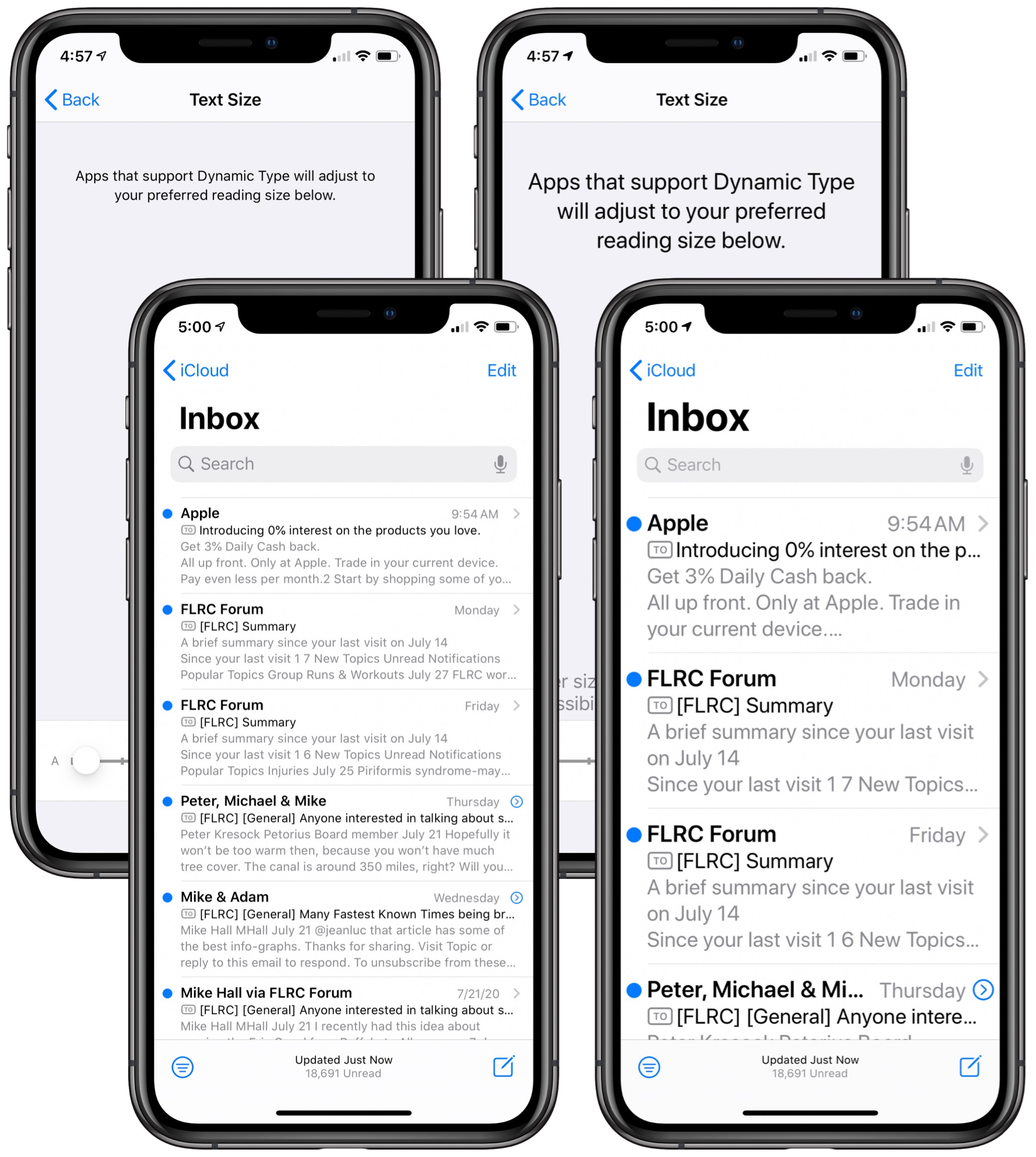
If you want a size even larger than is available from the Text Sizes screen, you can get that in Settings > Accessibility > Display & Text Size > Larger Text. Turn on Larger Accessibility Sizes, and the size slider adds more options.
Bold Text
Sometimes, the problem isn’t so much the size of the text, but how light it can be. In Settings > Display & Brightness, there’s a switch for Bold Text. Turn this on, and all the text on the iPhone will become darker and easier to read.
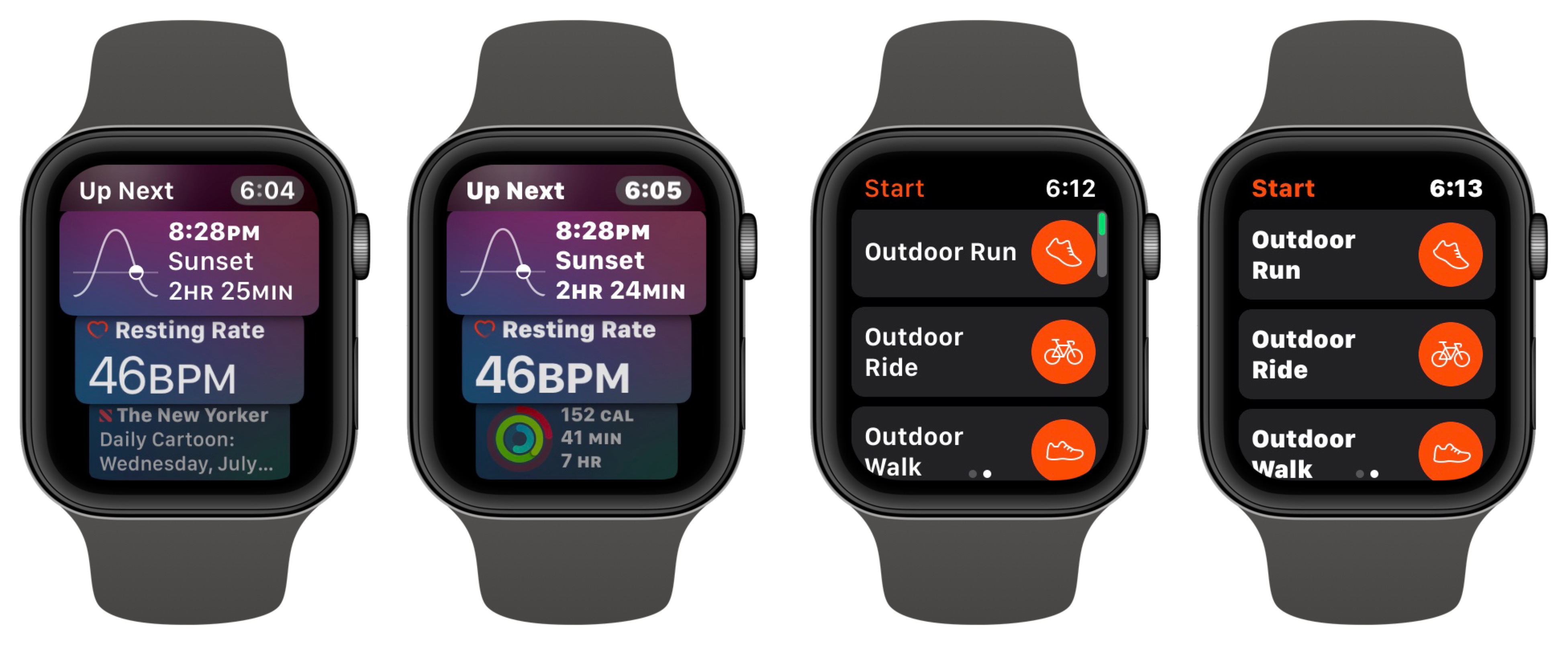
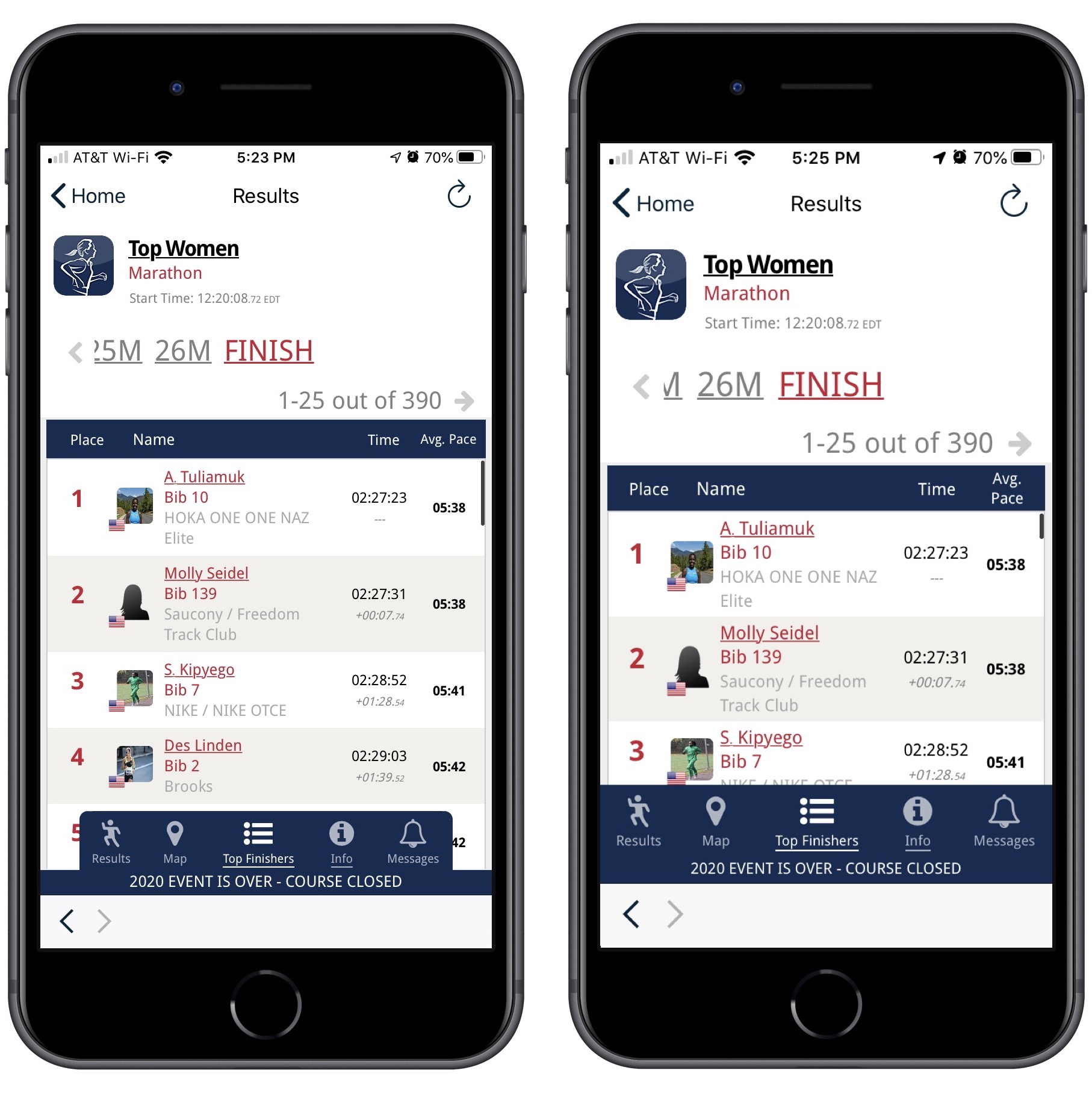
Where Bold Text really shines for many people is on the Apple Watch. You turn it on in the Accessibility settings in the iPhone’s Watch app. It does require restarting your Apple Watch, but that’s a minor inconvenience. As you can see in the normal (left) and bold (right) examples below, enabling Bold Text can make a real difference when reading text on your wrist.
Display Zoom
If you have difficulty with aspects of the screen other than text, you can use iOS’s Display Zoom feature to expand everything by a bit. The trade-off is that you’ll see less content on the screen at once, of course, but that’s a small price to pay if it makes your iPhone easier to use.
Display Zoom is available on every iPhone since the iPhone 6s except the iPhone X, iPhone XS, and iPhone 11 Pro.
To enable Display Zoom, go to Settings > Display & Brightness > View. Once there, you can compare three sample screens—most notably, you’ll lose a row of icons on the Home screen when zoomed. If you think zoomed view will be easier to read, as in the right-hand screenshot below, tap Zoomed and then tap Set. Your iPhone has to restart, but it’s quick. Unfortunately, if you decide to switch back to standard view, you may need to rearrange your Home screen icons again.
Zoom
The iPhone’s full Zoom feature is particularly useful in two situations. First, it’s easy to invoke and dismiss if you need a quick glance while wearing the wrong pair of glasses. Second, if Display Zoom doesn’t magnify the screen as much as you need, the full zoom may do the job.
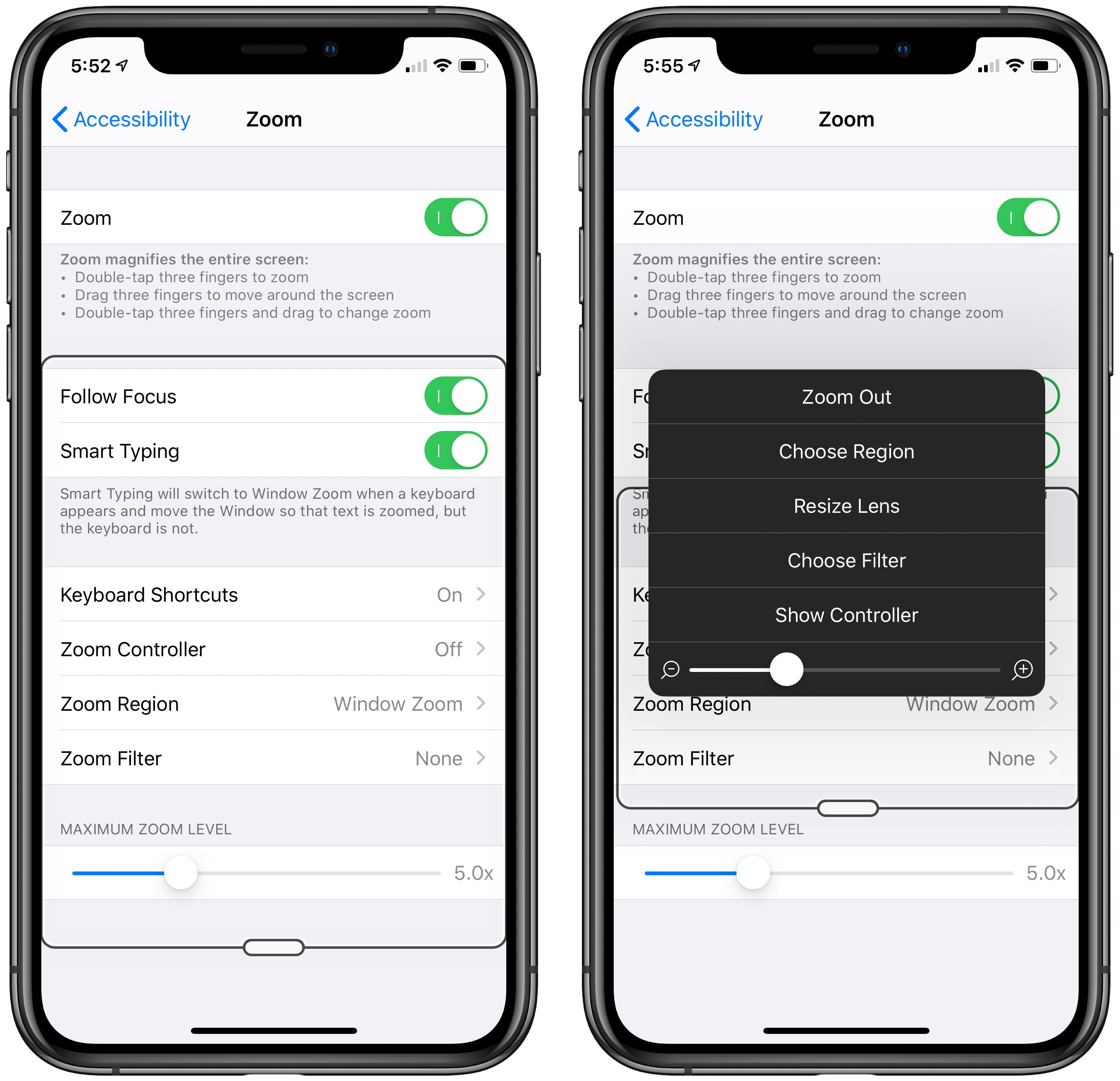
Turn it on in Settings > Accessibility > Zoom and zoom in by double-tapping the screen with three fingers. By default, the Zoom Region is set to Window Zoom, which gives you a magnifying lens that you can move around the screen by dragging its handle on the bottom.
Tap the handle to bring up controls that let you zoom out, switch the region to Full Screen Zoom (which can be harder to navigate), resize the lens, filter what you see in the lens (such as grayscale), display a controller for moving the lens, and change the zoom level. To get back to normal view, double-tap with three fingers again.
The Apple Watch features a cut-down set of zoom controls that you can access in the iPhone’s Watch app, in Accessibility > Zoom. All you can do on the Apple Watch is double-tap with two fingers to enable or disable zoom, or drag with two fingers to scroll around while zoomed. Honestly, it’s pretty tricky on the tiny Apple Watch screen, but if you need it, you need it.
So, if you want to be able to use your iPhone and Apple Watch more easily when your reading glasses aren’t handy, try the features described above and find the right mix for your eyes.
AI Usage Transparency Report
Pre-AI Era · Written before widespread use of generative AI tools
AI Signal Composition
Score: 0.04 · Low AI Influence
Summary
This article discusses various features in iOS and watchOS that can help improve readability on iPhone and Apple Watch, including increasing text size, bolding text, display zoom, and full zoom.
Related Posts

Clamshell iBook G3 Restoration, Part 1: From Broken Screen to Board-Level Repair
Part one of a Clamshell iBook G3 restoration: a broken screen, a charger detour, a blinking system folder, a full teardown, and the backlight connector mistake that paused the project.

Bromure Gives Codex a Room of Its Own
I installed Bromure Agentic Coding, watched it build the Linux VM, authenticated Codex, and followed a real Codex task through the workspace.

Claude Code Auto Mode Changes Approval Flow, Not the Safety Boundary
Claude Code Auto mode changes how approval decisions are handled. It does not expand the boundary of what the coding agent should be allowed to do.

Amnesia Stealer Shows the Next Stage of ClickFix on macOS
Amnesia Stealer shows how ClickFix-style social engineering is adapting on macOS, while a public malware sample gives defenders an opportunity to study the behavior behind the campaign.

Reporting on Microsoft 365 DLP Overrides with PowerShell
DLP overrides are not automatically bad. They are a business process that needs visibility. This walkthrough covers a Microsoft Purview DLP policy, a custom sensitive information type, user override behavior, and a PowerShell report that exports override events from Activity Explorer.

PowerBook 140 BlueSCSI Install: Cable Fixed, Battery-Bay Power, and Wi-Fi Setup
The PowerBook 140 project moved from preparing a BlueSCSI card in Basilisk II to installing the repaired internal SCSI cable, powering the BlueSCSI Pico externally from the battery bay, booting System 7.1, and fighting through DaynaPORT Wi-Fi setup.

Move Entra Users Off SMS and Voice Before Microsoft Retires Them
Microsoft is retiring Microsoft-provided SMS and voice authentication in Entra ID. The migration is not passkeys for everyone; it is removing weak telecom MFA and choosing supported replacement methods such as Microsoft Authenticator, FIDO2 keys, certificate-based authentication, OATH hardware tokens, or customer-managed telecom.
Fixing a Broken Apple Cinema Display Stand with a 3D Printed Leg
A 22-inch Apple Cinema Display arrived with a broken acrylic easel stand, so I used a 3D printed replacement leg instead of sending the monitor back.

macOS Tahoe 26.6.1 Fixes a High-Severity Screen Sharing Authentication Bypass
macOS Tahoe 26.6.1 fixes CVE-2026-65400, a high-severity Screen Sharing authentication issue where an attacker on the network may be able to authenticate without valid credentials.

Three Mac Update Helpers That Fit Below a Patch Platform
Latest, Applite, and an all-in-one macOS update script each solve a different part of lightweight Mac maintenance: app update visibility, Homebrew-backed app management, and command-line package updates that can be wrapped carefully for small teams or basic MDM.