

Over the last few releases of macOS, Apple has been beefing up the Mac’s privacy controls so they more closely resemble what the company has done in iOS. You’ve undoubtedly noticed that when you first launch a new app on your iPhone or iPad, it often prompts for access to your contacts or your photos, the camera or microphone, and so on. The idea behind those prompts is that you should always be aware of how a particular app can access your personal data or features of your device. You might not want to let some new game thumb through your photos or record your voice.
macOS has been heading in this direction too, with macOS 10.15 Mojave upping the stakes and 10.16 Catalina forcing apps to play this “Mother, May I?” game in even more ways. As a result, particularly after you first upgrade and whenever you install a new app, you may be bombarded with dialogs asking for various permissions. For instance, the Loom app that helps you make quick video recordings of your screen requires lots of permissions. Grant them and Loom won’t have to ask again.
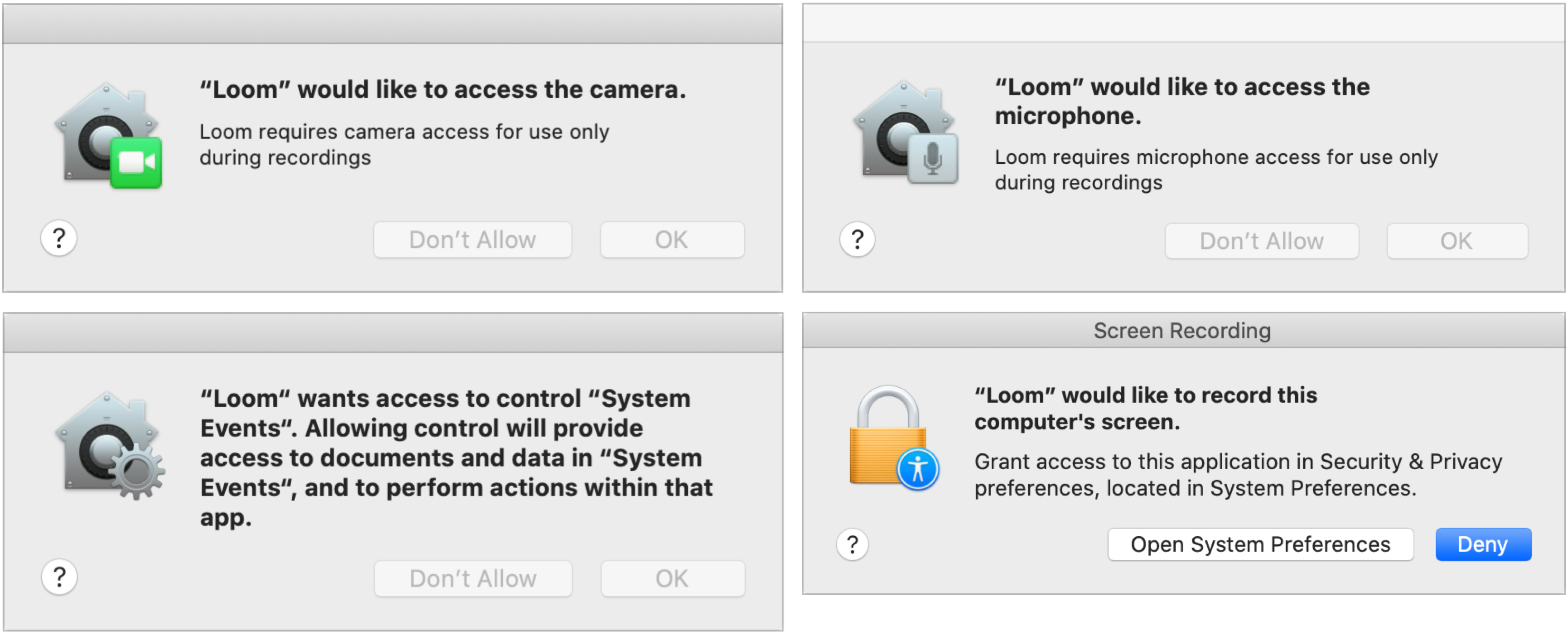
Loom’s requests are entirely reasonable—it wouldn’t be able to do its job without such access. That applies more generally, too. In most cases, apps will ask for access for a good reason, and if you want the app to function properly, you should give it access.
However, be wary if a permission dialog appears and you don’t recognize the name of the app making the request or if you aren’t doing anything related to the request. Apple’s hope is that you’ll deny access to requests from malicious apps.
The problem in Catalina is that apps have to ask for permission for so many basic capabilities that users become overwhelmed by all the dialogs. A good app, like Loom, will walk the user through accepting them on its first launch, but even still, answering four or more requests can be confusing.
You might be tempted to deny access categorically. That’s fine from a privacy standpoint, but not when it comes to functionality—when you deny a permission request, you prevent that app from working as you anticipate. Fortunately, you can always grant (or revoke) permission later. And remember, once you’ve granted permission, you won’t have to do it again for that app—it’s a per-app request, not a per-session request.
To see which permissions you’ve granted or denied, open System Preferences > Security & Privacy > Privacy. A list of categories appears on the left; click one to see which apps have requested access. If you’ve granted access, the checkbox next to the app will be selected; otherwise it will be empty.
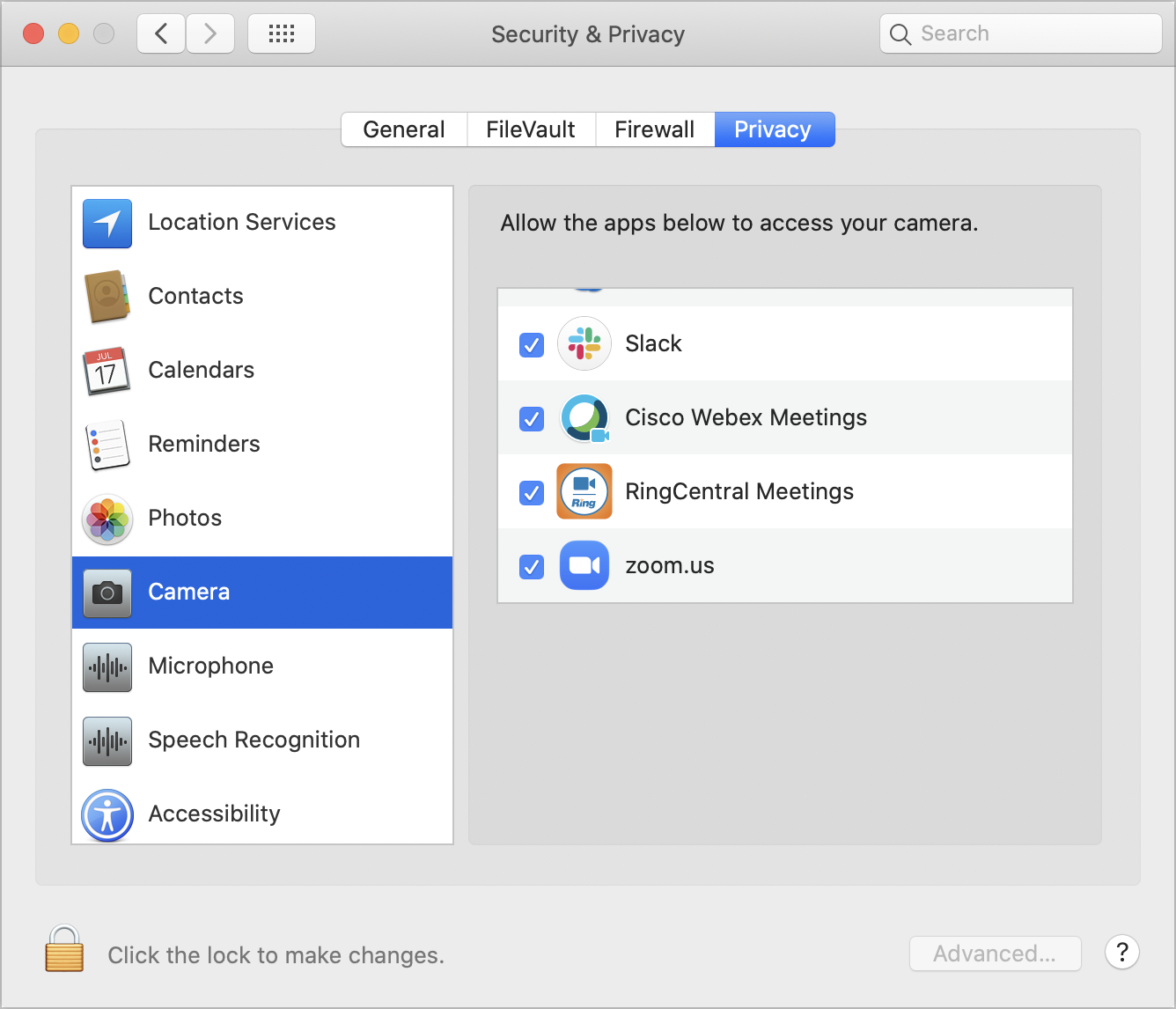
You’ll notice that the lock in the lower-left corner of the System Preferences window is closed. To make changes, click it and sign in as an administrator when prompted.
Most of these categories are self-explanatory, but it might not always be obvious why an app wants permission. In the screenshot above, for instance, Slack has been granted access to the Mac’s camera. Why? So its video call feature can work.
Annoyingly, giving access often requires that you quit the app in question before the permission takes effect. That’s awkward on the first launch of a new app, since you launch it, respond to a bunch of dialogs, and then have to quit and relaunch before you can use it.
There are some categories (including some not showing above) that could use additional explanation:
-
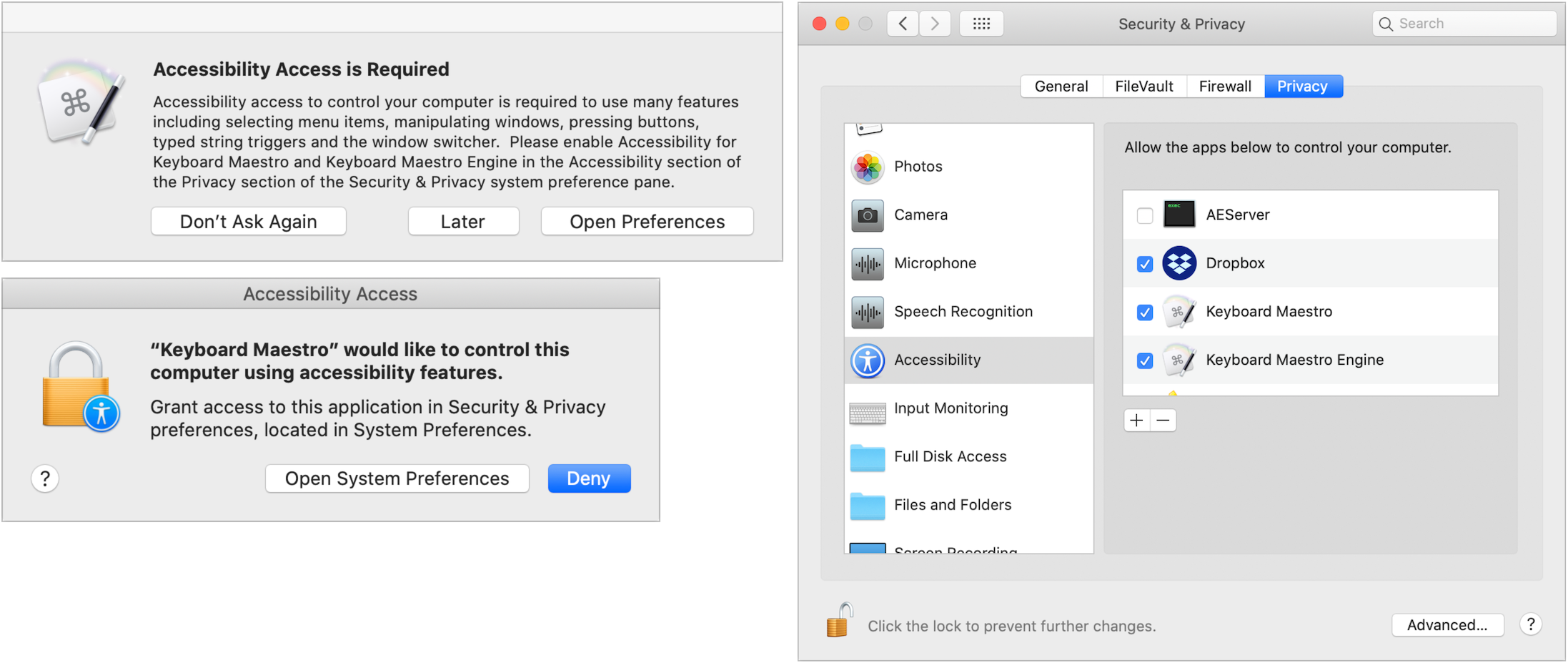
Accessibility: Apps that request accessibility access want to control your Mac. In essence, they want to be able to pretend to click the mouse, type on the keyboard, and generally act like a user. Utility and automation software often needs such access.
-
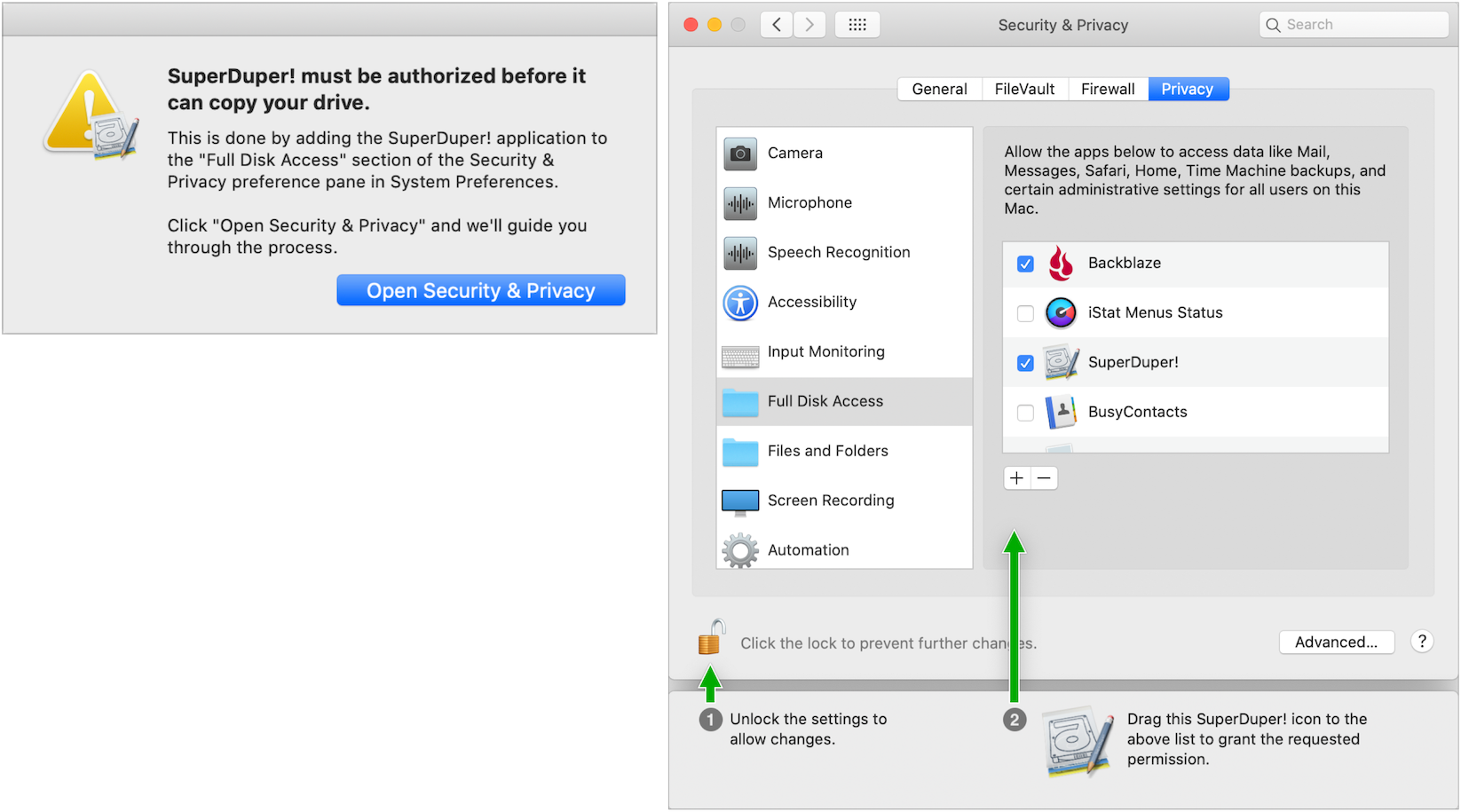
Full Disk Access: This category is a catch-all for access to areas on your drive that aren’t normally available to apps, such as data in Mail, Messages, Safari, Home, and more, including Time Machine backups and some admin settings. Backup and synchronization utilities need full disk access, in particular. An app can’t request full disk access in the normal way; you must add it manually by dragging its icon into the list or clicking the + button under the list and selecting the app in the Applications folder.
-
Automation: The Mac has long had a way for apps to communicate with and control one another: Apple events. An app could theoretically steal information from another via Apple events, so the Automation category lets you specify which apps can control which other apps. You’ll see normal permission requests, but they’ll explain both sides of the communication. (System Events is a behind-the-scenes macOS utility that helps with scripting and automation.)
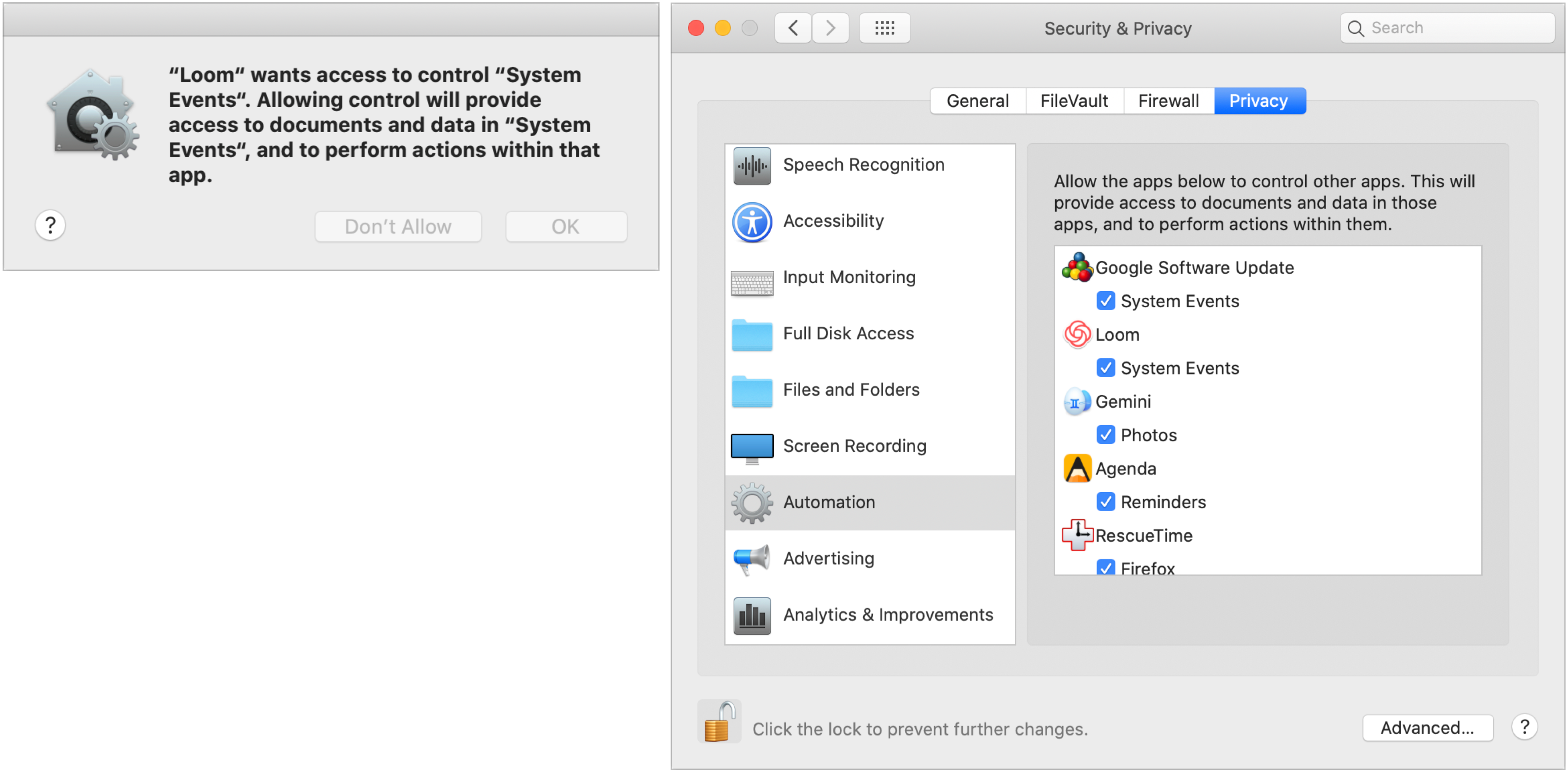
So if you’ve been seeing repeated requests for permission in Mojave and especially in Catalina, now you know why these dialogs keep popping up. They’re a bit irritating at first, but the added privacy is worthwhile, and once you’ve granted permission to an app, you shouldn’t hear from it again.
AI Usage Transparency Report
Pre-AI Era · Written before widespread use of generative AI tools
AI Signal Composition
Score: 0.05 · Low AI Influence
Summary
macOS has been increasing privacy controls, prompting apps to ask for permission before accessing personal data or device features.
Related Posts

When Chromium Mistakes Your VPN for a Local Network
Turning off Jamf Trust fixed the webinar, which normally would have sent me straight to its routing policies. This time the route was fine: Chromium was treating Jamf's ZTNA broker addresses as a local network, and an Edge and Chrome preference corrected it.
Clamshell iBook G3 Restoration, Part 1: From Broken Screen to Board-Level Repair
Part one of a Clamshell iBook G3 restoration: a broken screen, a charger detour, a blinking system folder, a full teardown, and the backlight connector mistake that paused the project.
Bromure Gives Codex a Room of Its Own
I installed Bromure Agentic Coding, watched it build the Linux VM, authenticated Codex, and followed a real Codex task through the workspace.
Claude Code Auto Mode Changes Approval Flow, Not the Safety Boundary
Claude Code Auto mode changes how approval decisions are handled. It does not expand the boundary of what the coding agent should be allowed to do.

Amnesia Stealer Shows the Next Stage of ClickFix on macOS
Amnesia Stealer shows how ClickFix-style social engineering is adapting on macOS, while a public malware sample gives defenders an opportunity to study the behavior behind the campaign.
Reporting on Microsoft 365 DLP Overrides with PowerShell
DLP overrides are not automatically bad. They are a business process that needs visibility. This walkthrough covers a Microsoft Purview DLP policy, a custom sensitive information type, user override behavior, and a PowerShell report that exports override events from Activity Explorer.

PowerBook 140 BlueSCSI Install: Cable Fixed, Battery-Bay Power, and Wi-Fi Setup
The PowerBook 140 project moved from preparing a BlueSCSI card in Basilisk II to installing the repaired internal SCSI cable, powering the BlueSCSI Pico externally from the battery bay, booting System 7.1, and fighting through DaynaPORT Wi-Fi setup.

Move Entra Users Off SMS and Voice Before Microsoft Retires Them
Microsoft is retiring Microsoft-provided SMS and voice authentication in Entra ID. The migration is not passkeys for everyone; it is removing weak telecom MFA and choosing supported replacement methods such as Microsoft Authenticator, FIDO2 keys, certificate-based authentication, OATH hardware tokens, or customer-managed telecom.
Fixing a Broken Apple Cinema Display Stand with a 3D Printed Leg
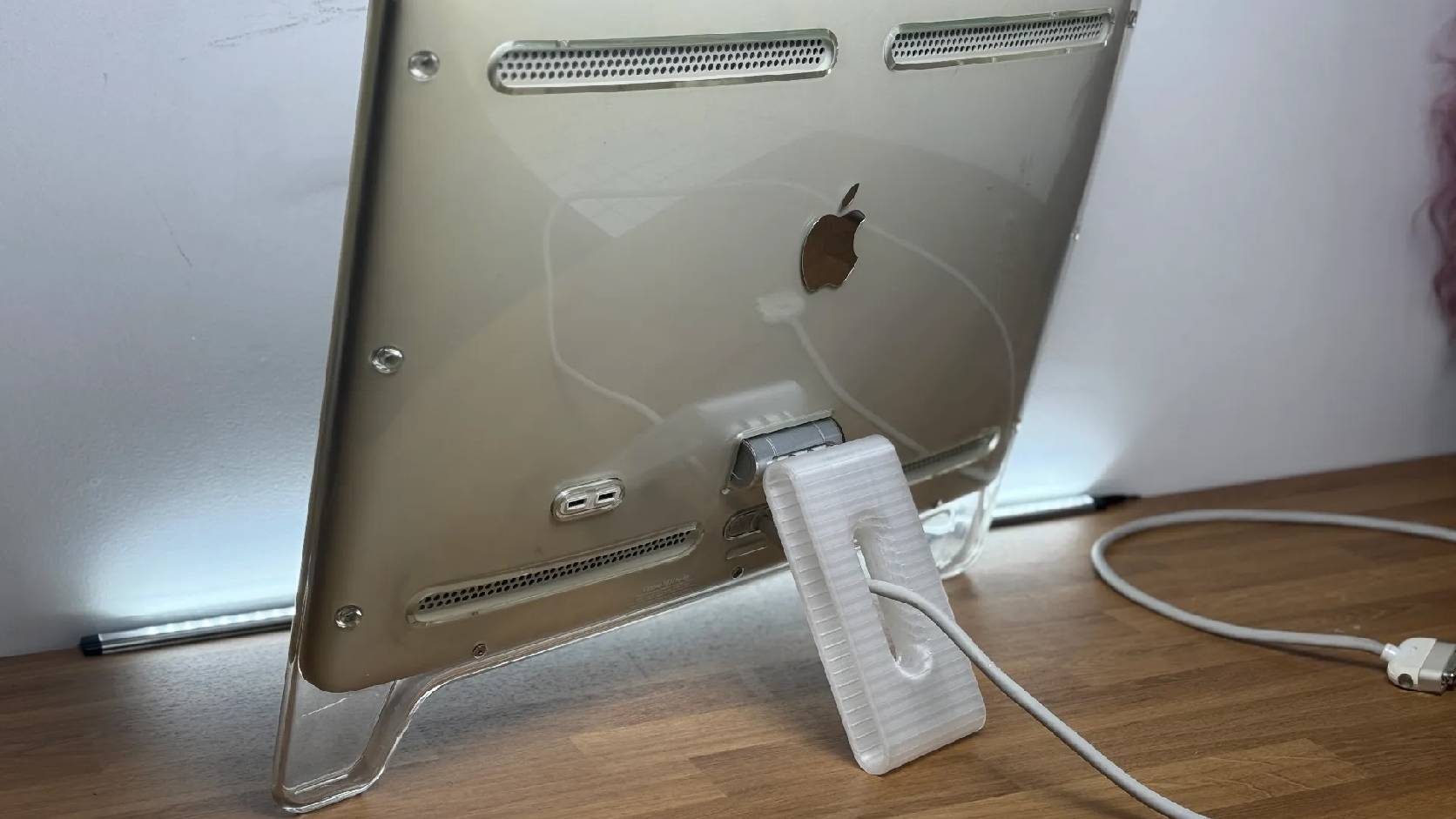
A 22-inch Apple Cinema Display arrived with a broken acrylic easel stand, so I used a 3D printed replacement leg instead of sending the monitor back.

macOS Tahoe 26.6.1 Fixes a High-Severity Screen Sharing Authentication Bypass
macOS Tahoe 26.6.1 fixes CVE-2026-65400, a high-severity Screen Sharing authentication issue where an attacker on the network may be able to authenticate without valid credentials.
