

In a normal year, most kids would be back in school by now. But the COVID-19 pandemic has caused many schools to offer online instruction, and many families are now settling into a remote back-to-school arrangement. We’ve provided some advice on working from home in previous posts, but what about schooling from home? Here are some suggestions.
Create a Dedicated School Workspace
It’s hard enough for kids to pay attention when they’re in school. Just think how difficult it will be for them to pay attention to online classes if they’re surrounded by distractions. Even worse, just as you need to create some mental space between home and work, your kids need to separate home from school.
To aid in that, set aside a dedicated space for each kid, with a desk that’s used solely for school work. It doesn’t need to be fancy, but kids shouldn’t have to share with each other or work at the kitchen table. If you have multiple children, try to separate them as much as possible so they can focus on their individual work without bothering each other. Putting them in corners of different rooms can work well; just make sure there are outlets available for iPad or laptop chargers. You’ll need your own space too, of course, but remember that it may be necessary for you to pay attention to what they’re doing throughout the day to keep them focused.
We recommend outfitting each desk with three things: a clock with easy-to-read numbers, a class calendar, and a desk organizer. The clock is key, since it’s all too easy for kids to lose track of time and show up late for online classes. Schools will probably provide an online schedule, but a printed schedule taped to the wall helps both you and your child keep track of which virtual room they should be in. Even with virtual learning, there will still be paper, particularly for younger children. (You do have a printer, right?) And where there’s paper, there are pens and pencils. Make sure that you have plenty of extras because kids tend to lose them at inopportune moments.
Make Sure You Have a Fast, Reliable Internet Connection
We realize this may not be easy, but it’s worth making sure that you have as fast an Internet connection as is reasonable. Videoconferencing apps can usually adjust to lower bandwidth connections, but grainy pictures, frozen video, and stuttering audio will make it significantly harder for kids to learn effectively.
Also pay attention to your Wi-Fi network. If you’re using an access point from your Internet service provider or an ancient AirPort Base Station, you might want to upgrade. Newer access points can provide faster performance and greater range, and mesh systems are particularly good at extending coverage. Get in touch to see which Wi-Fi systems we recommend and how we encourage connecting them in your home.
Get the Right Devices and Accessories
Many schools will provide devices for your kids, either iPads or Chromebooks, in most cases. Unless you have something newer or better already, you’ll probably want to stick with the school-provided devices. If you do want to use your own devices, check with the school first, because it will likely require certain software or configurations.
If your children are using iPads, consider buying physical keyboards, particularly for older students who need to hand in writing assignments online. External keyboards are not only easier to type on, they also free up more on-screen space for content. An Apple Pencil might be helpful, but check with the school to make sure before buying one.
High school students might do best with a full-fledged Mac, but they probably don’t need the latest and greatest. A hand-me-down MacBook would likely be more than sufficient. Be sure to set it up from scratch for them, so they’re not dealing with old software and strange configurations that might cause instability.
Lastly, headphones or earbuds, especially for older children, are essential for reducing the noise level from multiple people participating in virtual calls all day long.
Find Your Tech Support Hat
Most schools offering online classes will have tech support available. Make sure you know where to call or how to get in touch with support, since you may need to work quickly to help a child avoid missing a class.
Don’t assume that the school’s tech support can do everything. We recommend spending some time learning the main applications that the school uses before classes start, so you’re ready to help your kids with any problems they may run into. In particular, make browser bookmarks to all the school sites that your children will have to visit repeatedly so they can get where they need to go with a single click.
It’s worth making sure that you have login credentials—usernames and passwords—written down in an easily accessible spot in addition to storing them in your password manager. We normally don’t recommend writing down passwords, but when it comes to getting into school accounts, younger kids won’t be able to use a password manager and you might have to move quickly between systems.
Provide Structure and Downtime
Finally, it’s worth remembering that you’re going to have to play the roles of both parent and teacher. Everyone’s situation will be different, but you might find that it works well to simulate a normal school day as much as possible, with explicit snack breaks and time for lunch. Homework can happen in the evening, as it would in normal times, but let the school day be over when it’s done. It’s tempting to pile on more work to keep them busy, but kids need time to relax and just be kids. The pandemic is as hard or harder on them than on adults, and we need to be sensitive to that.
In the end, we’re all in this together, and if you need help on the technical side, don’t hesitate to contact us.
AI Usage Transparency Report
Pre-AI Era · Written before widespread use of generative AI tools
AI Signal Composition
Score: 0.04 · Low AI Influence
Summary
The article provides advice on how to set up a home school environment for kids during the COVID-19 pandemic, including creating a dedicated workspace, ensuring a fast and reliable internet connection, getting the right devices and accessories, finding tech support, and providing structure and downtime.
Related Posts
When Chromium Mistakes Your VPN for a Local Network
Turning off Jamf Trust fixed the webinar, which normally would have sent me straight to its routing policies. This time the route was fine: Chromium was treating Jamf's ZTNA broker addresses as a local network, and an Edge and Chrome preference corrected it.

Clamshell iBook G3 Restoration, Part 1: From Broken Screen to Board-Level Repair
Part one of a Clamshell iBook G3 restoration: a broken screen, a charger detour, a blinking system folder, a full teardown, and the backlight connector mistake that paused the project.
Bromure Gives Codex a Room of Its Own
I installed Bromure Agentic Coding, watched it build the Linux VM, authenticated Codex, and followed a real Codex task through the workspace.
Claude Code Auto Mode Changes Approval Flow, Not the Safety Boundary
Claude Code Auto mode changes how approval decisions are handled. It does not expand the boundary of what the coding agent should be allowed to do.
Amnesia Stealer Shows the Next Stage of ClickFix on macOS
Amnesia Stealer shows how ClickFix-style social engineering is adapting on macOS, while a public malware sample gives defenders an opportunity to study the behavior behind the campaign.
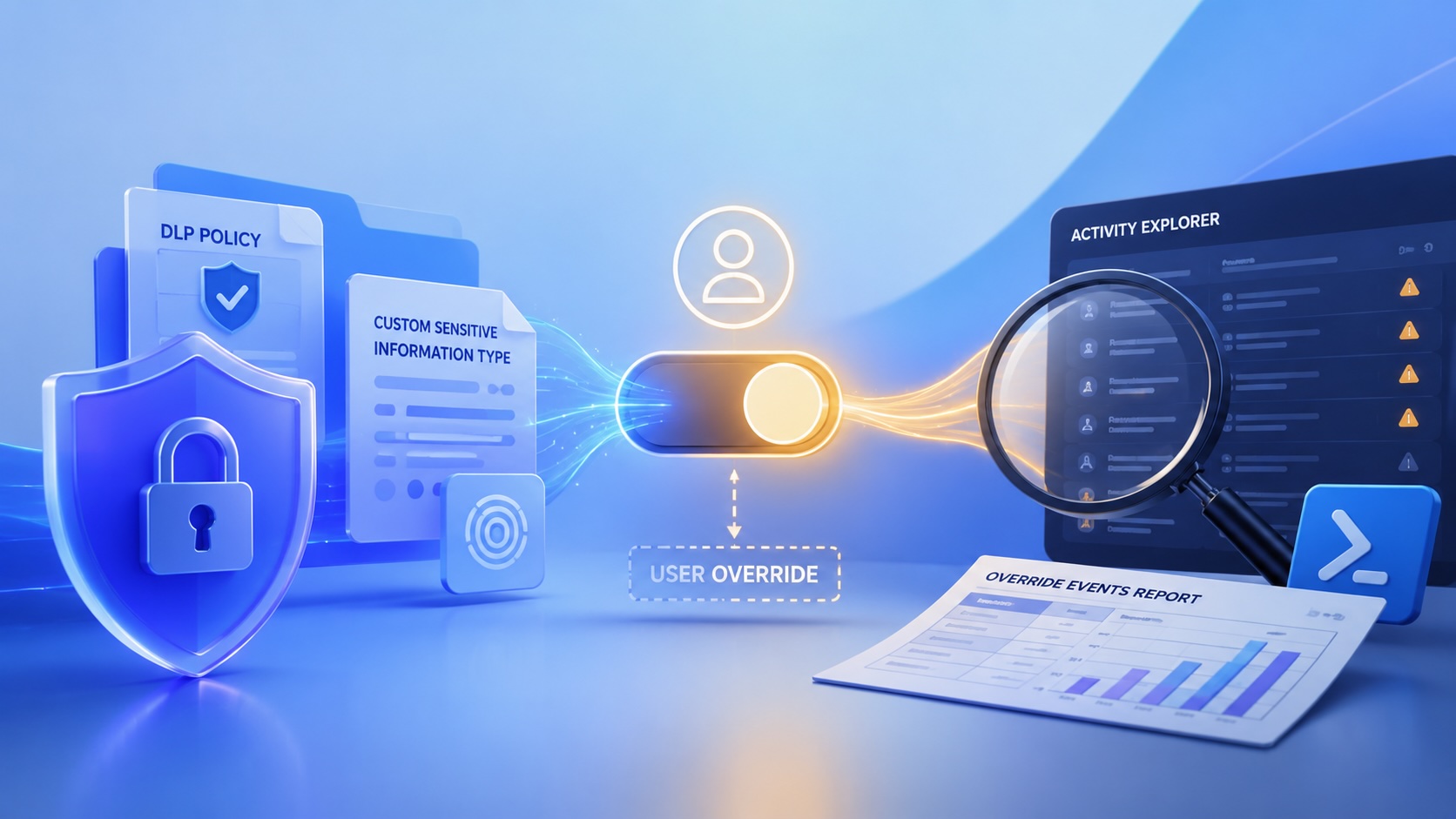
Reporting on Microsoft 365 DLP Overrides with PowerShell
DLP overrides are not automatically bad. They are a business process that needs visibility. This walkthrough covers a Microsoft Purview DLP policy, a custom sensitive information type, user override behavior, and a PowerShell report that exports override events from Activity Explorer.

PowerBook 140 BlueSCSI Install: Cable Fixed, Battery-Bay Power, and Wi-Fi Setup
The PowerBook 140 project moved from preparing a BlueSCSI card in Basilisk II to installing the repaired internal SCSI cable, powering the BlueSCSI Pico externally from the battery bay, booting System 7.1, and fighting through DaynaPORT Wi-Fi setup.

Move Entra Users Off SMS and Voice Before Microsoft Retires Them
Microsoft is retiring Microsoft-provided SMS and voice authentication in Entra ID. The migration is not passkeys for everyone; it is removing weak telecom MFA and choosing supported replacement methods such as Microsoft Authenticator, FIDO2 keys, certificate-based authentication, OATH hardware tokens, or customer-managed telecom.
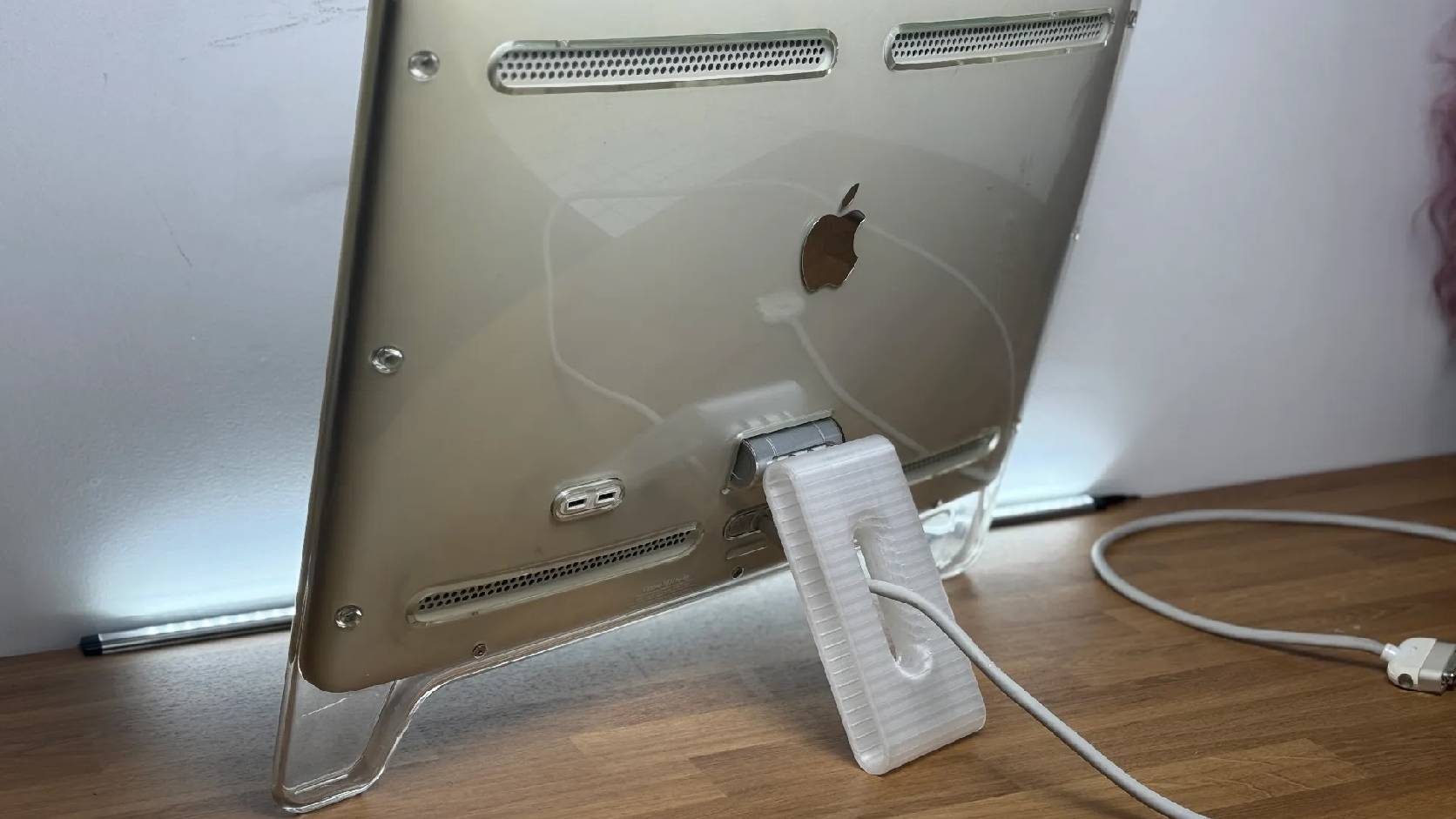
Fixing a Broken Apple Cinema Display Stand with a 3D Printed Leg
A 22-inch Apple Cinema Display arrived with a broken acrylic easel stand, so I used a 3D printed replacement leg instead of sending the monitor back.

macOS Tahoe 26.6.1 Fixes a High-Severity Screen Sharing Authentication Bypass
macOS Tahoe 26.6.1 fixes CVE-2026-65400, a high-severity Screen Sharing authentication issue where an attacker on the network may be able to authenticate without valid credentials.
